Install, licence and account
In this chapter you buy a licence or start the free trial, install Easy Form Studio and enter the API key. Then you get to know the Account panel, where you follow and change your subscription, and you learn how new versions arrive and where the program keeps your data.
Video: A01 Install, licence and account
The same workflow in a video of under 2 minutes.
Before you start
- Internet. The key is checked on the server, so you need a connection for the first launch.
- An e-mail address where you want to receive the key, confirmations and invoices.
- A computer that suits what you install:
| What you install | Computer |
|---|---|
| The EasyFormStudio app for Mac | A Mac with an Apple Silicon processor (M1 or later), macOS 11.2 or later |
| The EasyFormStudio app for Windows | 64-bit Windows (x64) |
| The add-on for your own Blender | Blender 4.2 or later, on Windows or Mac |
The EasyFormStudio app is Blender 5.2 prepared for furniture: it opens straight in the EFS workspace, with the interface in Croatian (or in the system language, see Interface language) and without the Blender tools you do not need. The add-on is the same program for those who already work in Blender. The key is valid for both.
Note
The Mac app runs only on a Mac with an Apple Silicon processor. On a Mac with an Intel processor, install Blender and add the add-on to it.
Purchase and free trial
- Open easyformstudio.com and click Buy.
- Choose a plan and click the button below it.
- The Order page opens with the plan, the price and the terms. Choose whether you are buying as a private person or as a company. For a company, enter the name, country, OIB (Croatian tax number), VAT number (if you have one) and registered address. The invoice is issued to these details.
- Tick the box I accept the Terms and Conditions … and I have read the Privacy Policy. As a private person, also tick the second box if it appears (see Withdrawal).
- Click Order with obligation to pay. The button says what is charged and when.
- On Stripe's payment page, enter your e-mail and card, then confirm. Payment is by card only.
- After payment, the browser shows your personal API key, the Copy key button and the download links: macOS app, Windows app and Blender add-on. Below them are the free cabinet textures (more about them in the chapter Decors, edge tape and materials).
- The Welcome to Easy Form Studio message arrives by e-mail with the key, the same download links and the order confirmation. The Terms and the withdrawal form are attached. Keep this message.
Download the program only from these links: from the page after payment or from the e-mail.
| Plan | Payment | Free trial | Note |
|---|---|---|---|
| Monthly subscription | every month, automatically | yes | cancel any time; works until the end of the paid month |
| Yearly subscription | once a year, automatically | yes | cancel any time; works until the end of the paid year |
Prices are on the Buy page at easyformstudio.com.
The free trial comes with the monthly and yearly subscriptions:
- it lasts 14 days;
- you enter your card straight away, but nothing is charged until the trial ends;
- when the trial ends, the chosen plan is charged to that card and then renews by itself;
- if you do not want to continue, cancel the subscription before the trial ends (see Cancelling and resuming). Nothing is charged, and the program works until the end of the trial.
The lifetime licence is no longer sold. Lifetime licences bought earlier stay valid: they do not expire, updates are included and they work without internet too.
Watch out: the e-mail at payment
The key, confirmations and invoices go to the address Stripe records at payment. If you pay on Stripe's page with saved details (Stripe Link, Apple Pay), Stripe may take the address from those details rather than the one you typed. The page after payment shows which address the key was sent to: check it.
Tip
Save the e-mail with the key in a separate folder. You need the key on every new computer and after a reinstall.
The key is personal: it is valid for one user on at most two computers. On the second computer you enter the same key. You may move the key to a new computer if you stop using it on the old one.
Withdrawal
If you buy as a private person, you can withdraw from the contract within 14 days of the order, without giving a reason:
- subscription with a free trial: the withdrawal period runs within the trial, so if you withdraw or cancel within it, you pay nothing;
- subscription without a free trial (when you buy it again after it has ended): on the order page you tick a box to request that it starts immediately; if you withdraw within the period, you pay only the proportionate amount.
Companies and sole traders do not have this statutory right. Withdrawal is not the same as cancellation: a cancelled subscription works until the end of the paid period and does not refund money (see Cancelling and resuming). The instructions and the withdrawal form are on the Withdrawal page on the website. The Withdrawal link in the API key and Account panels also leads there.
Installing the app
Mac
- Download the macOS app (the file
EasyFormStudio-2026.dmg). - Double-click the downloaded file. A window opens with the EasyFormStudio icon and a shortcut to the Applications folder.
- Drag EasyFormStudio onto Applications with the mouse.
- Close the window. In Finder, right-click the EasyFormStudio disk and choose Eject.
- Start EasyFormStudio from the Applications folder or from Launchpad.
- macOS asks whether you want to open an app downloaded from the internet. Click Open.
The app is signed and notarised by Apple, so macOS lets it run without extra steps.
Windows
- Download the Windows app (the file
EasyFormStudio-2026-setup.exe). - Double-click the downloaded file.
- The installer has no digital signature, so Windows shows the blue Microsoft Defender SmartScreen window. Click More info, then Run anyway.
- Windows asks whether the program may make changes to your computer. Click Yes. The installation needs administrator rights.
- Go through the wizard: welcome, installation folder (default
C:\Program Files\EasyFormStudio), installation, finish. On the last step you can start the program straight away. - From then on, start the program with the EasyFormStudio shortcut on the desktop or in the Start menu.
Note
The Windows installation associates .blend files with EasyFormStudio. If you also have Blender, double-clicking a .blend file opens EasyFormStudio. In Blender you still open the file through the File → Open menu.
You remove the program in Windows Settings, under Apps: choose EasyFormStudio and Uninstall. Your key, price list and templates stay on the computer (see Where your data is).
The add-on for your own Blender
The add-on needs Blender 4.2 or later (as its manifest says). The names in these steps are from Blender in English.
- Download the Blender add-on (the file
efs.zip). Do not unzip it. - In Blender, open Edit → Preferences.
- On the left, choose Get Extensions.
- At the top right, click the down arrow and choose Install from Disk…. Choose
efs.zipand confirm. Instead, you can also dragefs.zipwith the mouse into the Blender window. - Install the MeasureIt add-on, which EFS uses for measures: in Get Extensions, type
MeasureItin the search field and click Install. Blender must be allowed internet access for this (Allow Online Access). - Restart Blender.
- In the 3D view, press N. The sidebar opens on the right. Click the EFS tab.
The first time the add-on is enabled, it also installs the Python packages EFS uses (for Excel, PDF and images). This takes a little longer.
Watch out
Without the MeasureIt add-on, EFS shows Please enable MeasureIt addon and restart EasyFormStudio to use EFS. in the 3D view. Install MeasureIt and restart Blender. In the EasyFormStudio app, MeasureIt is already built in.
First launch and the API key
The app opens in the EFS workspace (the tab at the top centre). The scene is empty, and sizes are in millimetres. On the right of the 3D view is the sidebar with the EFS tab, and along the right edge of the window is the properties column.
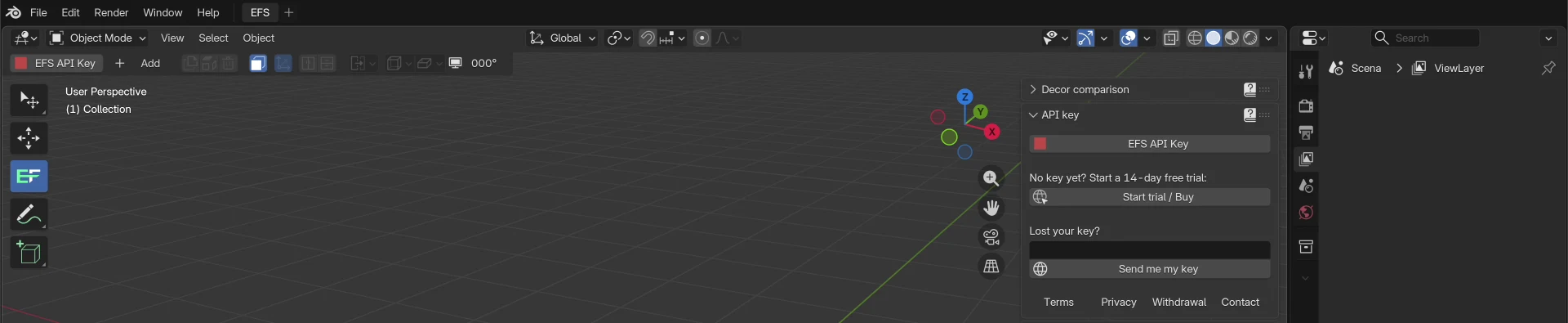
Until you enter the key, EFS is locked: the EFS panels, buttons and keys do not work. Only the API key panel in the EFS tab and the EFS API Key button on the left of the 3D view header work.
- Copy the key from the e-mail or from the page after payment (the Copy key button).
- Click EFS API Key: in the API key panel or on the left of the 3D view header. If the API key panel is closed, click its title first.
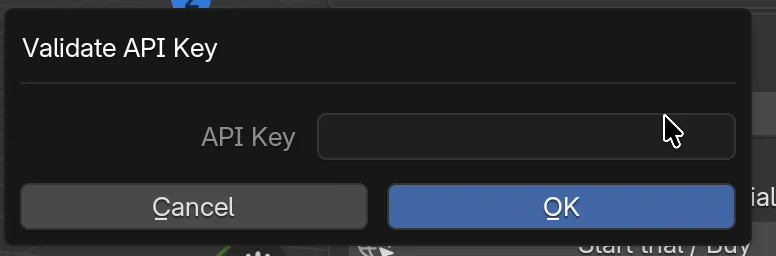
- The Validate API Key window opens. Click in the API Key field.
- Paste the key with Ctrl+V (on a Mac, Cmd+V also works).
- Click OK.
- The program checks the key on the server. When the key is good, API Key validated successfully. appears at the top right, and a blue message in the bottom left corner of the 3D view asks you to restart the program.
- Right after that, the program downloads the latest version, if there is a newer one. Wait: while it downloads, the window does not respond. When it finishes, the blue message reads Easy Form Studio update completed. Please restart.
- Close the program (File → Quit or Ctrl+Q) and start it again.
After the restart, the API key panel disappears and all EFS panels are unlocked. The first panel in the EFS tab is Account. In the properties column on the right, the Scene elements and Cabinet elements lists appear (more about them in the chapter The interface and your first cabinet).
Watch out: do not close the program while it downloads
Downloading the new version after you enter the key takes from a few seconds to a few minutes, depending on your connection. If the program closes in the middle of the download, start it again: it looks for a new version by itself at every start (see Updates).
Note: the panel before the first update
The Mac and Windows installers and the efs.zip file contain an older version of EFS, which updates itself as soon as you enter the key. Until then the API key panel looks different from the picture: it is closed and has only the EFS API Key button, without the Start trial / Buy and Send me my key buttons and the links to the legal pages. If the key does not pass, that version only reports Error validating API Key. Entering the key is the same: the EFS API Key button, the Validate API Key window, OK.
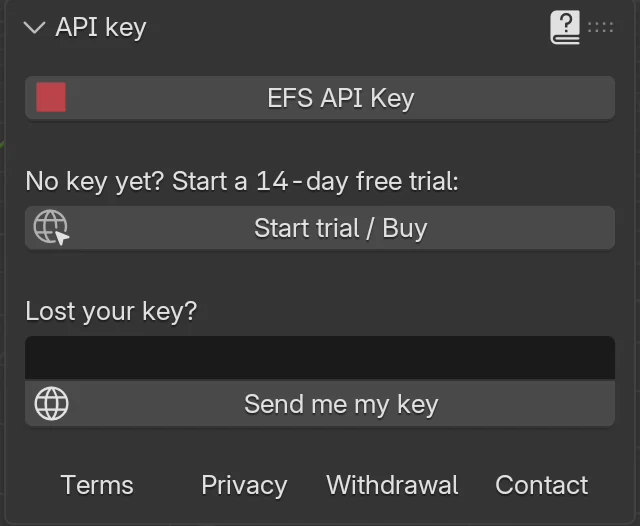
The API key panel
| Button or field | What it does |
|---|---|
| EFS API Key | Opens the Validate API Key window for entering the key. |
| Start trial / Buy | Opens the Buy page in the browser, in the interface language: Croatian, English or one of the six other languages. |
| the field under Lost your key? | The e-mail address you bought with. |
| Send me my key | Sends the key to that address (see Lost key). |
| Terms, Privacy, Withdrawal, Contact | Open on easyformstudio.com the Terms and Conditions, the Privacy Policy, the withdrawal instructions and form, and the seller's contact details. |
The API key panel also appears when the server rejects a key already saved in the program. The top of the panel then says in red The saved key is no longer valid. Enter a new key. You enter the new key as the first time, with the EFS API Key button.
What the program does with the key
- It checks the key on the server. Without internet, the key cannot be entered.
- The version from the installer accepts only a key with an active free trial, subscription or lifetime licence. A newer version accepts every key that exists, including one whose subscription has ended. You then see what the key allows in the Account panel.
- It saves the key and the last licence status on the computer, outside the program folder. An update does not delete them.
- After the key is entered, it checks by itself whether there is a new version.
- You enter the same key in the app and in the add-on in Blender.
The Account panel
In the Account panel you see the licence status and manage your subscription: you change the plan and the card, open invoices and cancel. There is no web page for this; everything goes through the program.
- In the EFS tab, click the title of the Account panel. The panel stays closed until you open it.
- If the first row says Account and below it Press refresh to load account details, click the button with the arrows on the right of the first row.
- The first row now shows your account's e-mail, and below it the licence status.
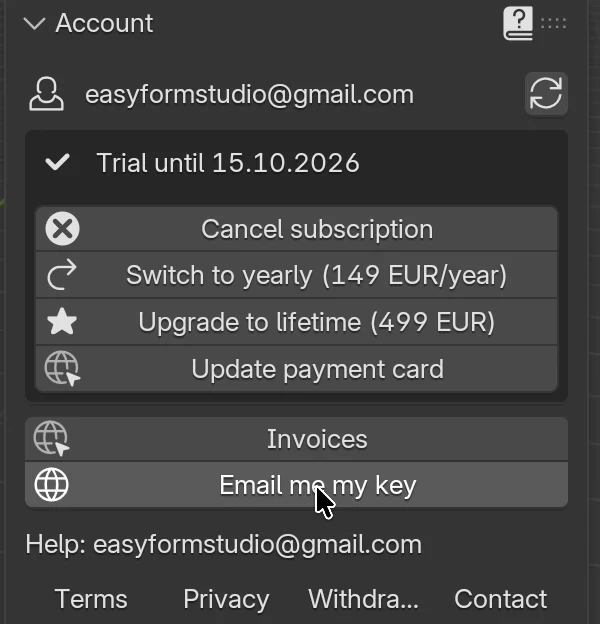
| Part of the panel | What it shows or does |
|---|---|
| The account's address. The key, confirmations and invoices go to it. | |
| the button with the arrows (Refresh account) | Reloads the status from the server at once. Reports Account details refreshed. or Could not reach the server. |
| the status row | Tick: everything is in order. Warning sign: something needs attention. Red text: exports are stopped or payment failed. |
| buttons in the box | Depend on the status (table below). |
| Invoices | Opens the latest invoice in the browser. When there are no invoices: No invoices yet. |
| Email me my key | Sends the key to the account's e-mail. |
| Help: easyformstudio@gmail.com | The support address. |
| Terms, Privacy, Withdrawal, Contact | Open the Terms and Conditions, the Privacy Policy, the withdrawal instructions and the contact page on the website. |
Dates in the panel are written as 15.10.2026. The buttons for changing the plan and for buying also show the price.
Statuses
| Status | What the panel says | Buttons in the box |
|---|---|---|
| Free trial | Trial until and the date | Cancel subscription, Switch to yearly (…) or Switch to monthly (…), Update payment card |
| Last 3 days of the free trial | Trial ends in … days | the same as in the free trial |
| Active subscription | Monthly, renews and the date or Yearly, renews and the date | the same as in the free trial |
| Plan change booked | below the buttons, Changes to yearly on (or Changes to monthly on) and the date | Cancel the plan change instead of the Switch to … button |
| Cancelled subscription | Subscription ends on and the date | Resume subscription instead of Cancel subscription |
| Payment failed | in red, Payment failed. Exports until and the date | Pay / update card at the top, the others as for an active subscription, without Update payment card |
| Free trial ended | in red, Trial ended on and the date | Choose a plan to continue exporting: Monthly (…), Yearly (…) |
| Subscription ended | in red, Subscription ended on and the date | the same as when the free trial has ended |
| Lifetime licence (bought earlier) | Lifetime licence | Email me my key, Invoices (only if there are any) |
| Key no longer valid | in red, API key not valid | the API key panel appears in the EFS tab for entering a new key, see Common problems |
| Status not checked yet | Licence not checked yet | connect to the internet and click the button with the arrows |
Of the Switch to yearly and Switch to monthly buttons, you see only the one that leads to the other plan.
When the status is not in order (e.g. the free trial ends in a few days or the subscription is cancelled), the same text also appears in the box at the top of the Export panel.
Buttons
| Button | What it does | Where it takes you |
|---|---|---|
| Cancel subscription | Asks for confirmation, then cancels the subscription at the end of the paid period or the free trial. Everything works until then. | stays in the program, the confirmation arrives by e-mail |
| Resume subscription | Undoes the booked cancellation. The subscription keeps renewing. | stays in the program |
| Switch to yearly (…), Switch to monthly (…) | Opens the Change plan window. | stays in the program |
| Cancel the plan change | Leaves the plan as it was. | stays in the program |
| Update payment card | Opens a secure page for entering a new card. | browser, Stripe |
| Pay / update card | The same, when payment has failed. The new card pays the open invoice. | browser, Stripe |
| Monthly (…), Yearly (…) | A new purchase after expiry, without a new free trial. The key stays the same. | browser, Stripe |
| Invoices | Opens the latest invoice. | browser |
| Email me my key | Sends the key to the account's e-mail. |
When a button opens the browser, the program reports Opening secure checkout in your browser. or Opening card update page in your browser. Card details are entered only in the browser, never in the program.
Tip
After every change in the browser (payment, new card), go back to the program and click the button with the arrows in the Account panel. The status then refreshes at once.
Changing the plan
- Click Switch to yearly (…) or Switch to monthly (…).
- The Change plan window opens. It says:
- the new plan with its price;
- Takes effect on and the date, when the paid period ends (in the free trial: the end of the trial);
- that nothing is charged until then, with no proration and no credit;
- that the plan renews automatically until you cancel it;
- that you can undo the change until that date.
- Read the window. Click Order with obligation to pay. With this you accept the Terms, which are linked at the bottom of the window.
- The program reports Plan change booked. The confirmation is on its way by e-mail. The panel shows Changes to yearly on (or Changes to monthly on) and the date.
Until that date you can undo the change with the Cancel the plan change button. If the program reports Confirm the plan change in your browser., a confirmation page has opened: confirm the change there.
Cancelling and resuming
- Click Cancel subscription and confirm.
- The program reports Subscription cancelled. Access continues until the end of the period. The status reads Subscription ends on and the date.
- A cancellation confirmation arrives by e-mail.
Until that date everything works as before. If you change your mind, click Resume subscription before that date. The program reports Subscription resumed.
You can also cancel by e-mail at easyformstudio@gmail.com.
When the free trial or the subscription ends
The program still opens, and you can still open and save projects and change existing cabinets. All exports and everything that leaves the program stop:
- in the Export panel: Production package, Cutting list to Excel, Export selected to PDF, Export all to PDF, Selected to JPG, Export DXF - selected and Export DXF - all (with MPR and CIX), Export labels (PDF), Assembly instructions (PDF), Customer render (JPG), AR model (USDZ);
- Export quote (PDF), Room documentation (PDF), Decor comparison (PDF), Supplier order (CSV + e-mail);
- Publish in the Web publish panel;
- Export to JSON, Get Price List and Save offcuts to price list;
- new versions of the program.
Adding new cabinets stops too:
- Cabinet and Corner cabinet (the Add menu, the C key);
- copying a cabinet (Shift+D);
- Fill the gap when it would make a cabinet (a gap of 150 mm or more); the strip for a narrower gap still works;
- all templates, both the ready-made ones and My templates.
Import from JSON (Import cabinet) still works. Projects already published stay on the web, and the customer can still open them with the link and the QR code. You can still delete a publication from the web with the bin in the Web publish panel (Deleting from the web).
What it looks like in the program:
- In the bottom left corner of the 3D view there is a blue message: Your free trial has ended. Exports and new cabinets are disabled. Subscribe in the Account panel. or Your subscription has ended. Exports and new cabinets are disabled. Renew in the Account panel. (The message refers to the Account panel.) In a narrower 3D view the message wraps onto two or three lines.
- In the Account panel the status is red, with the Monthly (…) and Yearly (…) buttons.
- At the top of the Export panel a red box shows the status and the Monthly and Yearly buttons.
- Clicking an export does not open the save window but reports an error, e.g. Trial has ended. Exports are disabled. Subscribe in the Account panel.
- A new cabinet or template does not come into the scene; the program reports an error instead, e.g. Subscription has ended. New cabinets and templates are disabled. Renew in the Account panel.
To continue:
- In the Account panel or at the top of the Export panel, click the plan you want.
- The Order page opens in the browser. Accept the Terms. As a private person, also tick the box that the subscription starts immediately.
- Click Order with obligation to pay and pay by card on Stripe's page.
- Go back to the program and click the button with the arrows in the Account panel. Exports and new cabinets are unlocked at once.
The key stays the same, and there is no new free trial.
When payment fails
If the card does not go through, the subscription does not stop at once:
- the status in the Account panel reads Payment failed. Exports until and the date (the end of the paid period plus 7 days);
- the blue message in the 3D view reads Payment failed. Exports and new cabinets stop on and the same date;
- an e-mail arrives with a payment link;
- Stripe itself tries to charge the card for a few more days.
Click Pay / update card and enter a card that works. If you do not pay by that date, the subscription stops as if it had ended.
Without internet
- A lifetime licence (bought earlier) works without internet, with no limits.
- The free trial and subscription work without internet until the date the server last reported: the end of the free trial, or the end of the paid period plus 7 days.
- The program checks the status by itself, at most once every 6 hours. The button with the arrows in the Account panel checks at once.
For advanced users
If the program has a key but has never received a licence status from the server (e.g. a key carried over from an older version on a computer without internet), exports and new cabinets work for 7 days from the first launch. After that they need a connection: Licence could not be checked. Connect to the internet and try again.
Lost key
The program can send you the key by e-mail in two ways.
The key is entered in the program (e.g. you need it for another computer):
- Open the Account panel.
- Click Email me my key.
- The program reports Key sent to your e-mail. The e-mail goes to the account's address.
The key is not entered (a new installation, and you cannot find the e-mail with the key):
- In the API key panel, under Lost your key?, enter the e-mail you bought with.
- Click Send me my key.
- The program reports If an account exists for this e-mail, the key has been sent. The message is the same even when there is no account for that address.
If the e-mail does not arrive, look in your spam folder and check that this is the address Stripe recorded the purchase with. You can request the key for the same address at most 3 times an hour. If the API key panel in your version has no such field, write to easyformstudio@gmail.com.
Updates
New versions of EFS install themselves:
- When you start the program or open a project, the program checks whether there is a new version.
- If there is one, it downloads only the files that have changed. While it downloads, the window does not respond.
- A blue message in the 3D view and a message at the top right report Easy Form Studio update completed. Please restart.
- Close the program and start it again. The new version works from that start.
In the EasyFormStudio app, the new version goes into your user data folder, and at start the app uses the newer one by itself. So you do not reinstall the app.
You can also check for an update yourself:
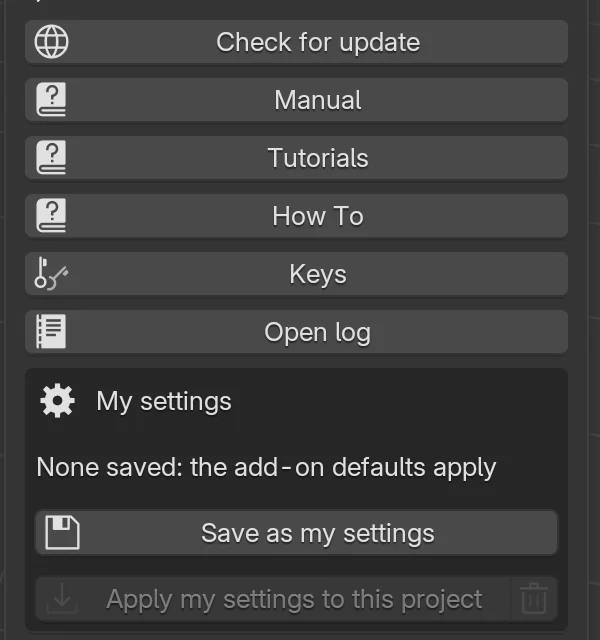
- In the EFS tab, open the Easy Form Studio panel.
- Click Check for update.
| Message | Meaning |
|---|---|
| Latest version is installed | Nothing new. |
| Easy Form Studio update completed. Please restart | The new version has been downloaded. Restart the program. |
| Cannot check for updates. Please check your internet connection. | No connection to the server. |
| a warning that the free trial or subscription has ended | New versions arrive only with an active free trial, subscription or lifetime licence. |
The other buttons in the Easy Form Studio panel:
| Button | What it does |
|---|---|
| The Version 2.0.… line at the top of the panel | Shows the version of the program that is running. Give it when you contact support. After an update, the new version shows here only once you restart the program. |
| Manual | Opens this manual in the browser, in the interface language. |
| Tutorials | Opens the Video guides page with the YouTube playlists, in the interface language. |
| How To | Opens the list of short "How To" videos on YouTube (in English). |
| Keys | Shows the EFS keys. See Working faster. |
| Open log | Opens the efs.log file with errors. Send it with your question to support. When there are no errors: No errors logged. |
| My settings | Saving and applying your starting values. See Working faster. |
What an update leaves alone
An update changes only the program's files. Your data is in a separate user data folder and stays as it is:
- the price list with board offcuts (
user_prices.xlsx); - My templates (the
templatesfolder); - My settings (
defaults.json); - your hardware catalogues (the
user_hardwarefolder); - quote numbers (
quote_numbers.json) and the error log (efs.log); - the key and the licence status (
efs_license.jsonin theconfigfolder); - your projects (
.blend), wherever you save them.
For advanced users
An update copies EFS's materials file (efs_assets.blend and the category list blender_assets.cats.txt) into the first material library set in the preferences (Edit → Preferences… → File Paths → Asset Libraries). Do not save your own changes to these two files in that folder.
Where your data is
The data folder depends on whether you work in the app or in Blender.
| Program and system | EFS user data folder (price list, templates, settings) | Key and licence |
|---|---|---|
| App, Mac | ~/Library/Application Support/EasyFormStudio/5.2/extensions/.user/user_default/efs/ |
~/Library/Application Support/EasyFormStudio/5.2/config/efs_license.json |
| App, Windows | %APPDATA%\Blender Foundation\Blender\5.2\extensions\.user\user_default\efs\ |
%APPDATA%\Blender Foundation\Blender\5.2\config\efs_license.json |
| Add-on, Blender on Mac | ~/Library/Application Support/Blender/<version>/extensions/.user/user_default/efs/ |
~/Library/Application Support/Blender/<version>/config/efs_license.json |
| Add-on, Blender on Windows | %APPDATA%\Blender Foundation\Blender\<version>\extensions\.user\user_default\efs\ |
%APPDATA%\Blender Foundation\Blender\<version>\config\efs_license.json |
<version> is the Blender version, e.g. 5.0. The folder is created the first time EFS saves something.
On Windows, the EasyFormStudio app uses the same folder as Blender 5.2 (%APPDATA%\Blender Foundation\Blender\5.2). If you also have Blender 5.2 on the same computer, both programs share preferences and add-ons.
On a Mac the Library folder is hidden. In Finder, choose Go → Go to Folder…, paste the path and press Enter. On Windows, type %APPDATA% in the File Explorer address bar and press Enter.
Tip: moving to a new computer
Install the program on the new computer and enter the same key. Then copy the whole EFS user data folder from the old computer to the same place on the new one. This carries over the price list, My templates and My settings.
Interface language
The EasyFormStudio app opens in Croatian. After the first update to version 2.0.10018 or later it switches once to the system language, if EFS speaks it: German, Polish, Italian, French, Czech or Spanish. It switches to English only on a new install on an English system outside Croatia, Bosnia and Herzegovina, Serbia, Montenegro and Slovenia. Otherwise it stays Croatian. A language you chose yourself is kept.
EFS follows the language set in Blender's preferences:
- In the menu at the top, open Edit → Preferences….
- On the left, choose Interface.
- In the Language section, in the Language field, choose one of the eight EFS languages: English (US), Croatian - Hrvatski, German - Deutsch, Polish - Polski, Italian - Italiano, French - Français, Czech - Čeština or Spanish - Español.
- Below, under Translate, Interface must be on. Without it, the names stay in English.
The EFS names change at once. Some of Blender's names stay in English even in the Croatian interface (e.g. Edit, View, Select, Object Mode).
The buttons open the Buy page, Terms and the other legal pages, the payment page and the video tutorials in the interface language: Croatian, English or one of the six other languages. The manual is on the web in all eight languages (e.g. easyformstudio.com/docs/de/ in German).
Common problems and solutions
The Order page does not let you continue. The top of the page says what is missing, e.g. To order, please accept the Terms and Conditions., Please confirm that the subscription starts immediately. or The OIB is not valid (11 digits with a check digit). Tick the required boxes or correct the company details and click Order with obligation to pay again.
Error validating API Key. A message from the installer's version. The key was copied wrongly (a space at the start or end, a character missing), there is no internet, or the free trial or subscription of that key has ended. Copy the key again with the Copy key button or from the e-mail, check the connection and try again. If it does not pass, write to easyformstudio@gmail.com.
This API key is not valid. The server does not know this key. Copy it again from the e-mail. If you do not have it, request it with the Send me my key button.
Cannot reach the licence server. Check your internet connection. The computer cannot reach the server. Check the connection. On a company network, check that the firewall does not block the address api.easyformstudio.com.
Licence server error (…) or Server error: … The problem is on the server. Try again in a few minutes. If it keeps happening, write to support and give the number from the message.
The EFS buttons are grey and the keys do not work. The key has not been entered yet. Enter it with the EFS API Key button.
I entered the key, but I cannot see the Account panel. Restart the program. The Account panel is closed: click its title in the EFS tab.
The Account panel says Press refresh to load account details. Click the button with the arrows on the right of the panel's first row.
I have paid, but exports are still locked. The program checks the status at most once every 6 hours. In the Account panel, click the button with the arrows.
Blue message: Your free trial has ended… or Your subscription has ended… The free trial or the subscription has ended. Choose a plan in the Account panel or at the top of the Export panel, pay in the browser and refresh the Account panel.
Payment failed. Exports until … The card did not go through. Click Pay / update card and enter a card that works.
Licence could not be checked. Connect to the internet and try again. The program has never received a licence status. Connect to the internet and click the button with the arrows in the Account panel.
The Account panel says API key not valid. The server has rejected the saved key. The API key panel appears in the EFS tab with the message The saved key is no longer valid. Enter a new key. Click EFS API Key, paste a valid key and click OK, then restart the program. If you do not have a valid key, request it with the Send me my key button in the same panel or write to easyformstudio@gmail.com.
Cannot check for updates. Please check your internet connection. No connection to the server. The program keeps working with the old version. Click Check for update once you are connected.
The key does not arrive by e-mail. Look in your spam folder. Check the address: the key goes to the address Stripe recorded at payment. You can request the key for the same address at most 3 times an hour; after that the program reports a server error, so wait an hour.
Enter the e-mail address you used at purchase. The field under Lost your key? is empty or the address has no @ sign.
Please enable MeasureIt addon and restart EasyFormStudio to use EFS. The MeasureIt add-on is missing in your own Blender. Install it (see The add-on for your own Blender) and restart Blender.
The app does not start on a Mac. The app runs only on a Mac with an Apple Silicon processor. On a Mac with an Intel processor, use the add-on in Blender.
Windows does not let the installer run. SmartScreen has appeared. Click More info, then Run anyway. You need administrator rights for the installation.
For advanced users: entering a different key
When the server rejects the saved key, the API key panel appears by itself and you enter the new key in it (see The API key panel). While the saved key is valid, the program has no button for replacing the key. If you still need to replace it, the last resort is this: close the program and, in the config folder (see Where your data is), delete the efs_license.json file and also efs_apk if it exists. At the next start the program asks for the key as the first time. Your templates, price list and settings stay.
Shortcuts in this chapter
| Key | Action |
|---|---|
| N | Open or close the sidebar in the 3D view (in your own Blender, to reach the EFS tab) |
| Ctrl+V | Paste the key into the API Key field (on a Mac, Cmd+V also works) |
| Ctrl+Q | Close the program before restarting it |
Next
Next chapter: The interface and your first cabinet