Comparing decors
A customer is often torn between two or three decors. The Decor comparison panel prices the same project in up to three decor variants and puts together a PDF with the price of each variant, line by line. With it, it also saves the full calculation of each variant. After that, the project stays in the decors it had.
Before you start
- A project with cabinets and decors. In the video it is a finished kitchen with the carcass in W1000 ST9 Premium bijela, the fronts in U702 ST9 Kašmir siva and the worktop in H1180 ST37 Halifax hrast natur.
- All the decors you compare must be in the project. Drag a decor that isn't yet from the Asset Browser onto any board (see Drag a decor onto a board).
- The prices of those decors in the price list. Without a price, a decor doesn't go into the amount (see Enter the price in the price list).
- The quote settings in the EFS tab, Cost estimate panel, Quote box: Labor, Margin %, Waste %, VAT % and Currency. In the video the labour is 400 EUR and the margin 20 %. See A quote for the customer.
- A saved project. The PDF is then offered in the project folder.
- An active licence. When the trial or the subscription ends, exports don't work, and neither does this one (see Install, licence and account).
How the comparison works
A variant has two decors: the fronts decor and the body decor. EFS doesn't give them to the boards one by one, but by material groups (see Material groups):
| Group | What it gets in the variant | Which boards are in it |
|---|---|---|
| F 1, F 2, F 4 | the decor from the Fronts field | doors, flaps and drawer fronts of base, wall and tall units; kickboard, filler, end panel and cornice added to a cabinet with fronts; boards you moved to F 4 yourself |
| Shelf | the decor from the Body field | side panels, top and bottom, rails, shelves and dividers; drawer sides, backs and bottoms |
| F 3 | nothing, it stays as it is | the worktop and free boards; kickboard and filler next to a cabinet without fronts |
| None | nothing, it stays as it is | backs and legs |
For each variant, EFS:
- remembers the decor of every board;
- gives the boards of the F 1, F 2 and F 4 groups the fronts decor, and the boards of the Shelf group the body decor;
- prices the quote like the Export quote (PDF) button;
- saves the calculation of that variant to a PDF.
When all the variants are priced, every board gets back the decor it had. At the end, EFS puts the comparison together in one PDF.
Rules the program applies itself:
- A field with — means unchanged: those boards keep their decor in the variant, even when they have different decors.
- A variant with both fields at — is skipped. If variants 1 and 3 are filled in, the PDF has two columns.
- Fronts hidden with Shift+F are skipped: they don't get the variant's decor and don't go into the price.
- The room, Gola profiles, LED strips and legs never change.
- F 1, F 2 and F 4 get the same decor. A variant with one decor for the base fronts and another for the wall fronts doesn't exist.
Watch out
Fronts hidden with Shift+F are not in the comparison, so the amounts are too low. Before the comparison, bring the fronts back with the button in the header (see Fronts: F and Shift+F).
Watch out
Boards you moved to the F 4 group so that they keep a special decor (e.g. the oak doors from A decor for one board or a whole group) get the fronts decor in the comparison. If you want to keep them, move them to the F 3 group before the comparison and back to F 4 afterwards.
The workflow from the video
In the video only the fronts change: cashmere grey, oak and white. The carcass stays white.
- In the EFS tab, click the title of the Decor comparison panel. The panel is second from the top, below the Account panel, and folded by default.
-
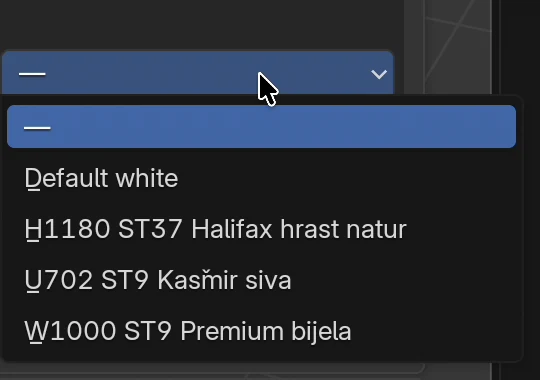
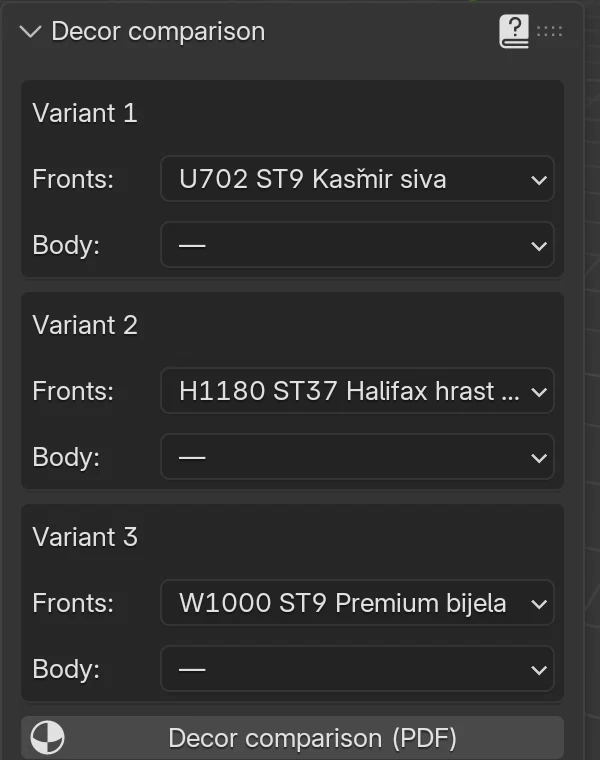
In the Variant 1 box, open the Fronts list and choose U702 ST9 Kašmir siva. That is the decor the fronts already have, so the first variant is also the price of the project as it is.
-
In the Variant 2 box, in the Fronts field, choose H1180 ST37 Halifax hrast natur.
- In the Variant 3 box, in the Fronts field, choose W1000 ST9 Premium bijela.
-
Leave the Body fields at —.
-
Click Decor comparison (PDF). A file browser opens with the project folder and the suggested name
Kuhinja Horvat_decor_comparison.pdf.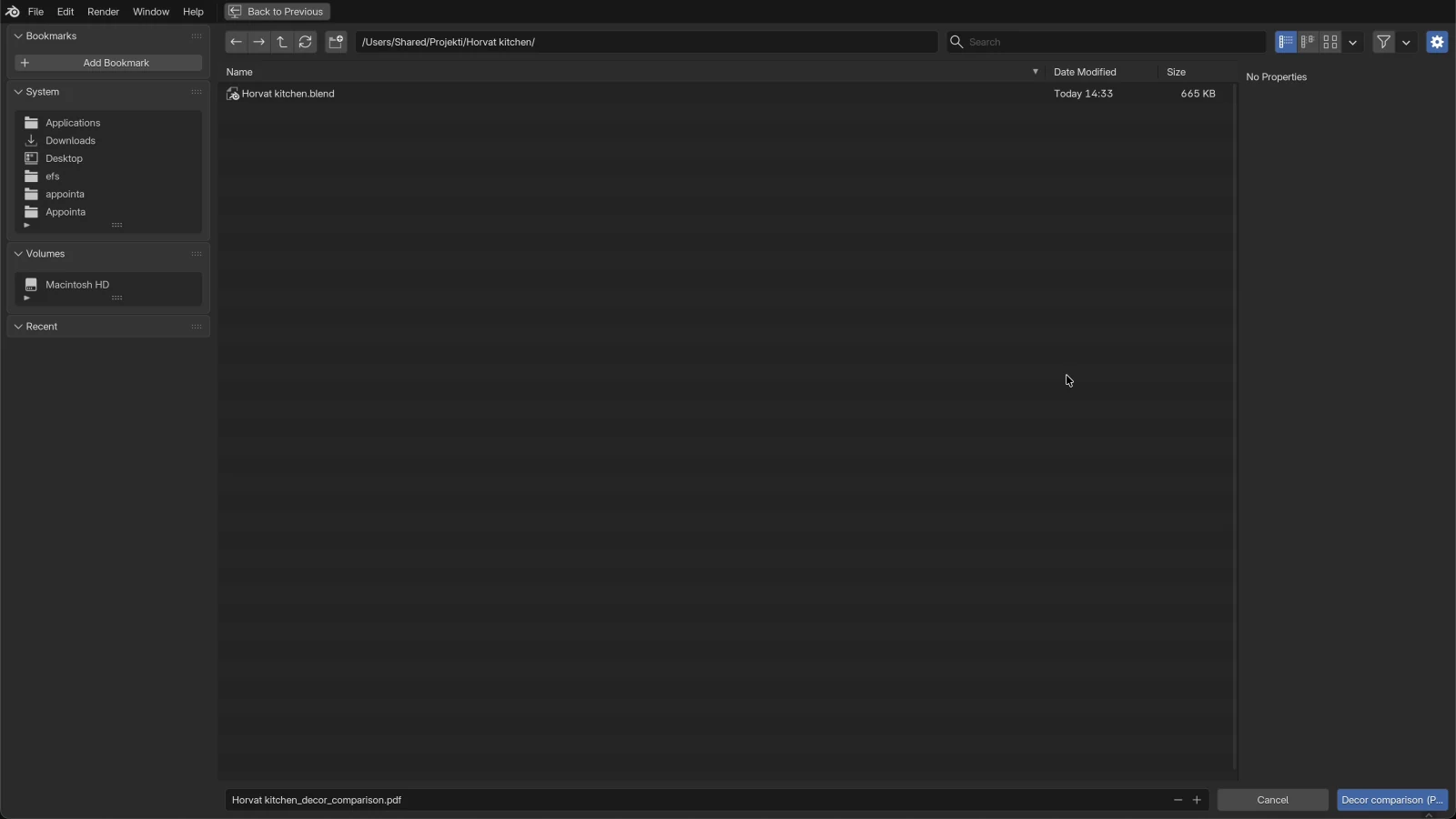
-
Change the folder or the name if needed and click the blue Decor comparison (PDF) button at the bottom right.
EFS prices the variants one by one. At the top right it reports Export completed (3): the number is the number of variants priced. The fronts in the view are cashmere grey again.
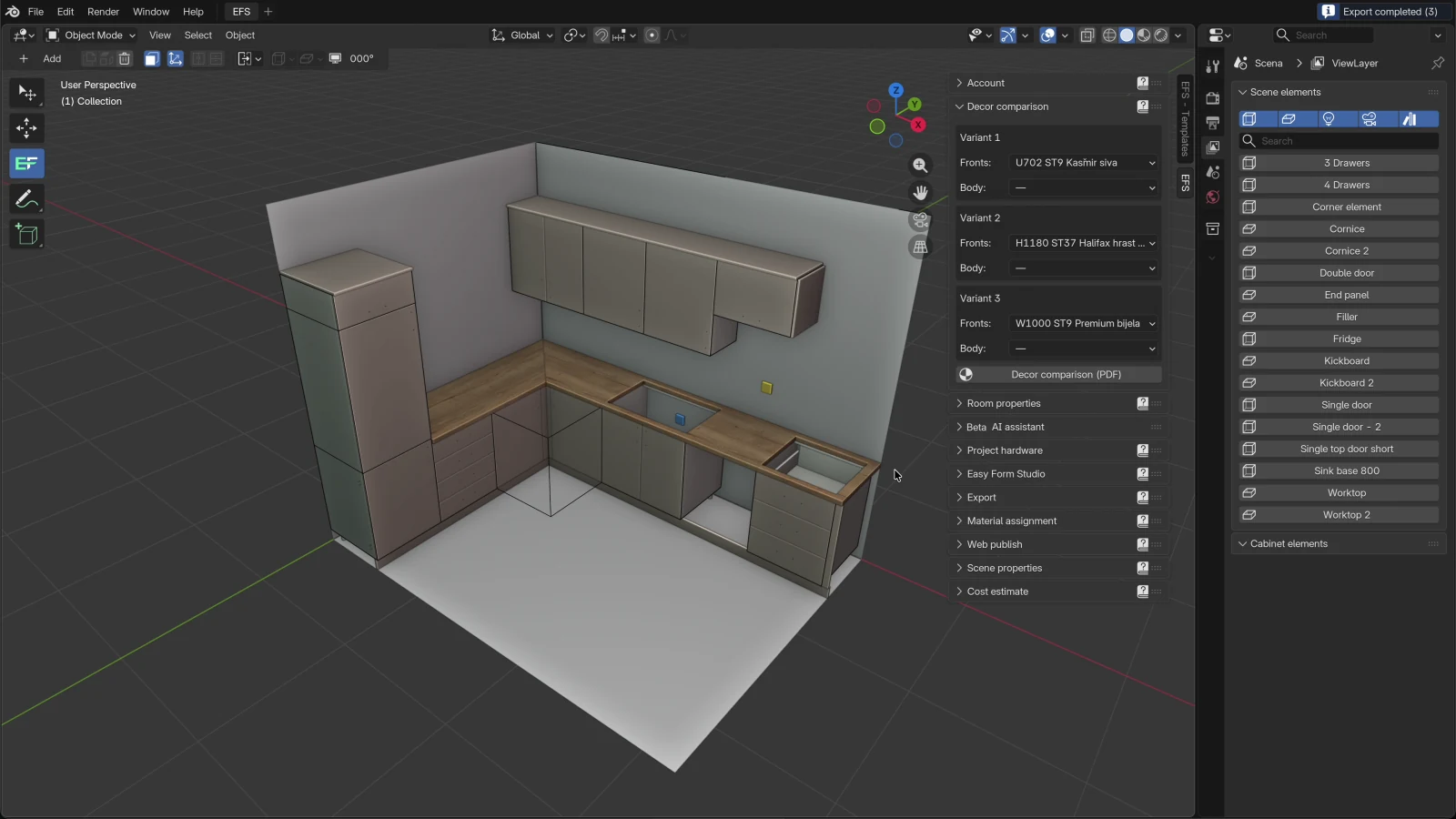
Panel options
| Option | What it does | Default | Values |
|---|---|---|---|
| Variant 1, Variant 2, Variant 3 | Box with the decors of one variant | – | up to three variants |
| Fronts | The decor the boards of the F 1, F 2 and F 4 groups get in the variant | — (unchanged) | — and the decors in the project |
| Body | The decor the boards of the Shelf group get in the variant | — (unchanged) | — and the decors in the project |
| Decor comparison (PDF) | Prices the variants and saves the comparison and the calculation of each variant | – | opens the file browser |
The list in the Fronts and Body fields:
- At the top is —, below it the project's materials in alphabetical order, with the full name. Material assignment shows only the code; here you also see the texture and the name.
- Default white, a white board without a texture, is also on the list.
- The program's technical materials are not on the list: the cabinet's see-through frame (TransparentMaterial), chrome rails, the leg material and the installation marks in the room.
- A long name in the field is shortened with …. You see the full name in the open list or when you widen the sidebar.
The chosen decors are saved with the project. When you open the project again, the variants are filled in as before.
Watch out
A variant doesn't remember the decor's name, but its place in the list. When you add a new decor to the project or a decor disappears from the project, the list is reordered and the field may show the neighbouring decor. Check all the fields before every export.
What is in the PDF
Comparison
The comparison is one A4 page. At the top is the title Decor comparison and, if the project has a name, a Project: line with the name. You type the project's name in the Web publish panel, in the Name field (see Web preview and QR). The same name is the start of the PDF file's name. A project without a name gives the file the name of the .blend file.
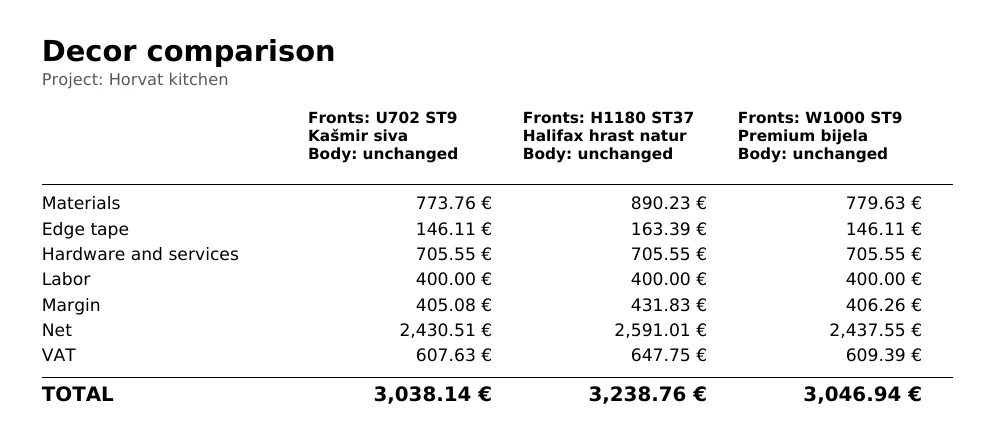
Each variant is one column. The column header has two lines: Fronts: and Body: with the full decor name, or unchanged. A name that doesn't fit the column width wraps to the next line, so nothing is shortened. With three variants a column is about 4 cm wide, so a name like H1180 ST37 Halifax hrast natur takes two lines.
| Row | What it is |
|---|---|
| Materials | Boards of all decors and thicknesses, without the worktop |
| Edge tape | The edge tape of all boards |
| Hardware and services | Hinges, drawer slides, flap mechanisms, legs, joints, shelf supports, drilling, Gola, rails and the worktop per metre |
| Labor | The Labor amount from the Quote box |
| Margin | Margin % of the sum of materials, edge tape, hardware and labour |
| Net | The sum of materials, edge tape, hardware, labour and margin |
| VAT | VAT % of the net |
| TOTAL | Net and VAT together |
The amounts are in the currency from the Currency field. If an item has no price in the price list, the bottom of the page says e.g. 3 items have no price in the price list and are not included in the total. The number is the sum over all variants: an item without a price in three variants counts three times.
The PDF has no images of the project. For an image of each variant, make a render (see One-click render).
Calculation of each variant
Along with the comparison, EFS saves one calculation for each variant, in the same folder. It is the same internal calculation that Export quote (PDF) gives: the title CALCULATION (INTERNAL), project, customer (if entered) and date, then the Materials, Edge tape and Hardware and services tables with the Item, Qty, Unit and Amount columns, and at the end Subtotal, Labor, Margin, Net, VAT and TOTAL. See A quote for the customer.
The file names from the video:
| File | What it is |
|---|---|
Kuhinja Horvat_decor_comparison.pdf |
The comparison, the name you confirmed |
Kuhinja Horvat_decor_comparison - U702 ST9 Kašmir siva.pdf |
Calculation of variant 1 |
Kuhinja Horvat_decor_comparison - H1180 ST37 Halifax hrast natur.pdf |
Calculation of variant 2 |
Kuhinja Horvat_decor_comparison - W1000 ST9 Premium bijela.pdf |
Calculation of variant 3 |
Rules for the calculation's name:
- The comparison's name is followed by
-and the fronts decor. When the variant also has a body decor,_and the body decor follow, e.g.… - U702 ST9 Kašmir siva _ W1000 ST9 Premium bijela.pdf. A variant that changes only the body has only the body decor in its name. - Characters that are not letters, digits, a space, a hyphen or an underscore become
_. - The part after
-has at most 60 characters. A longer one is cut off.
Watch out
EFS overwrites files with the same name without asking. Two variants with the same decors give the same calculation file, so only the last one remains. When you make a new comparison for the same customer and want to keep the old PDFs, change the name in the file browser.
Note
The comparison is for you: it shows the margin and the labour. Show the customer the decors in a render or in the web preview, and when they choose, send them the quote in that decor (see From comparison to quote).
How the price of a variant is calculated
Each variant is priced like a quote, with the decors of that variant:
- Materials. EFS adds up the area of the finished sizes of all boards by decor and thickness, without the worktop. It increases the area by Waste % (default 10 %) and multiplies it by the price per m² from the price list: the Boards sheet, the decor's row (code and texture, e.g.
H1180-ST37), the thickness column. - Nesting. If Nesting: cutting diagrams is turned on in the EFS tab, panel Export → Settings, box Sheet nesting, and all the sheet formats of a decor have a price, that decor is priced by the number and price of sheets, without waste. See Nesting and board prices.
- Edge tape. Metres of edge tape by edge tape thickness, at the price from the board decor's row. Edge tape of boards thinner than 20 mm is priced at a width of 23 mm, and of thicker ones at a width of 43 mm. That is why oak fronts also change the edge tape.
- Hardware and services. They are the same in all variants: the decor doesn't change the number of hinges, slides or drillings. The worktop is priced per metre, so it is the same too.
- Labor. The same amount in all variants.
- Margin is Margin % of the sum of points 1 to 5, Net is the sum with the margin, and VAT is VAT % of the net.
The example from the video: oak fronts instead of cashmere grey.
| U702 Kašmir siva | H1180 Halifax hrast | Difference | |
|---|---|---|---|
| Materials | 773.76 EUR | 890.23 EUR | 116.47 EUR |
| Edge tape | 146.11 EUR | 163.39 EUR | 17.28 EUR |
| Margin (20 %) | 405.08 EUR | 431.83 EUR | 26.75 EUR |
| VAT (25 %) | 607.63 EUR | 647.75 EUR | 40.12 EUR |
| TOTAL | 3,038.14 EUR | 3,238.76 EUR | 200.62 EUR |
A difference of 133.75 EUR in boards and edge tape grows to 200.62 EUR with margin and VAT.
Tip
Put the decors the project already has into one variant. Its TOTAL equals the total of the quote, so you see at once how much more or less every other variant costs.
Note
With nesting turned on, the variants are priced by sheets. A sheet of a decor without its own row in the Sheets sheet costs its price per m² times the sheet's area, so a more expensive decor gives a more expensive variant. For exact prices, enter the sheets by decor in the Sheets sheet. In the video nesting is turned off.
The project after the comparison
The comparison doesn't change the project:
- Every board has the same decor as before the comparison. This holds even when the calculation reports an error.
- Material groups, grain, edge tape, dimensions and the quote stay as they were.
- The chosen decors stay in the Fronts and Body fields, for the next comparison.
There is nothing to undo with Ctrl+Z.
From comparison to quote
When the customer chooses a variant, give the project its decors and send the quote. An example for oak fronts:
- In the EFS tab, open the Material assignment panel.
- Click Select material for Front 1, choose H1180 and click OK.
- Repeat for Select material for Front 2 and, if you use it, Select material for Front 4.
- If the variant also changes the carcass, repeat with Select material for Shelves and the body decor.
- Export the quote with the Export quote (PDF) button in the Cost estimate panel (see A quote for the customer).
The details of assigning are in the section Material assignment. Before the customer decides, you can show them the decors in a render (One-click render) or in the web preview, where they choose the decor of each group themselves (Web preview and QR).
Common problems and solutions
A decor is not on the Fronts or Body list. The list offers only decors that are in the project. Drag the decor from the Asset Browser onto any board, then drag that board's real decor back onto it. The new decor stays on the list.
A decor disappeared from the list after reopening the project. A decor that no board uses is not saved with the project. Drag it in again before the comparison and check the variant fields.
The field shows a different decor from the one I chose. The list was reordered because a decor was added or disappeared. Choose the decors again.
EFS reports Pick materials for at least one variant. Both fields are — in all variants. Choose at least one decor.
All variants have the same Materials amount. Nesting is turned on, and the price list has one sheet price for all decors. Enter a sheet price for each decor or turn nesting off (see above). Also check whether the fronts are hidden with Shift+F.
The variants differ less than you expect. Some fronts are in the F 3 group or are hidden, so they don't get the variant's decor. Click a front and look at Material group in the EFS - Board tab.
The worktop and the backs have the same decor in all variants. This is intentional: the worktop is in the F 3 group, and the backs in the None group.
Special doors got the fronts decor. The doors are in the F 4 group, and it gets the fronts decor. Move them to F 3 before the comparison.
The bottom of the PDF says that items have no price. The price list has no price for some decor, thickness, edge tape or hardware. In the Cost estimate panel a red dot shows what is missing. Add the price as in the section Enter the price in the price list.
The PDF has no Project line. The project has no name. Type it in the Web publish panel, Name field.
The calculation of one variant is missing. Two variants have the same decors, so the second calculation overwrote the first. Change the decor of one of them.
The Decor comparison (PDF) button doesn't export. The trial or the subscription has ended. See Install, licence and account.
An error appears with a message about the EFS log. The project has still been put back in its decors. Send the log to support (see Support).
Shortcuts in this chapter
| Key | Action |
|---|---|
| N | Sidebar on / off |
| Shift+F | Hide the fronts: hidden fronts are not in the comparison, bring them back before the export |
| Ctrl+S | Save the project, so that the PDF is offered in its folder |
Next
This is the last chapter of the manual. All the keys in one place are on the Keyboard shortcuts page, and the terms in the Glossary.