A quote for the customer
In this chapter you make a quote from a finished project. EFS prices each cabinet from the price list and with one click makes two PDFs: the customer quote with your workshop details, and an internal calculation with materials, edge tape, hardware, labour and margin. You enter the workshop details once, and the customer details in each project.

Show me in the program
The interactive tour A quote for the customer (2 min) shows you in the program where to click and what to type, step by step. In the EFS tab, open the Interactive tours panel and click Start next to the tour. The AI assistant also offers it when you ask how to do this.
Before you start
- The kitchen project is finished: cabinets, worktop, kickboard, fillers, cornice and the project hardware. The quote prices what is in the project at the moment of the export.
- The boards have their decors and edge tape (see Decors, edge tape and materials). The price is looked up by decor and thickness.
- The fronts are visible. Fronts hidden with Shift+F do not go into the quote: their boards and edge tape are missing. Bring them back with the button in the header before the export (see Fronts: F and Shift+F).
- The project has a name. You enter the name in the Web publish panel, Name field. That name goes on the quote (Project:) and into the PDF's file name.
- The price list has your prices. Without your own price list, EFS uses the default prices. How to change the price list is in the chapter Nesting and board prices.
Workflow from the video
- Enter the workshop details once, in the add-on preferences.
- In the EFS tab, open the Cost estimate panel and check that every row has a green dot.
- In the Quote box, enter the customer and the address. Leave Quote number empty.
- Enter Labor and Margin %. Keep or change Waste % and VAT %.
- Click Export quote (PDF) and confirm the name.
- Look through both PDFs: the customer quote and the internal calculation.
Each step is described below.
Workshop details
The name, address, tax number, IBAN, contact, logo and payment terms apply to all projects on that computer. You enter them once, and EFS puts them on every quote.
- In the EFS tab, open the Cost estimate panel.
- In the Quote box, click Workshop details. The preferences open at the Easy Form Studio add-on. You can also get there through Edit → Preferences… → Add-ons, row Easy Form Studio.
- Scroll down to the Workshop (customer quote) box.
- Enter the details. Confirm each field with Enter.
- Close the preferences window.
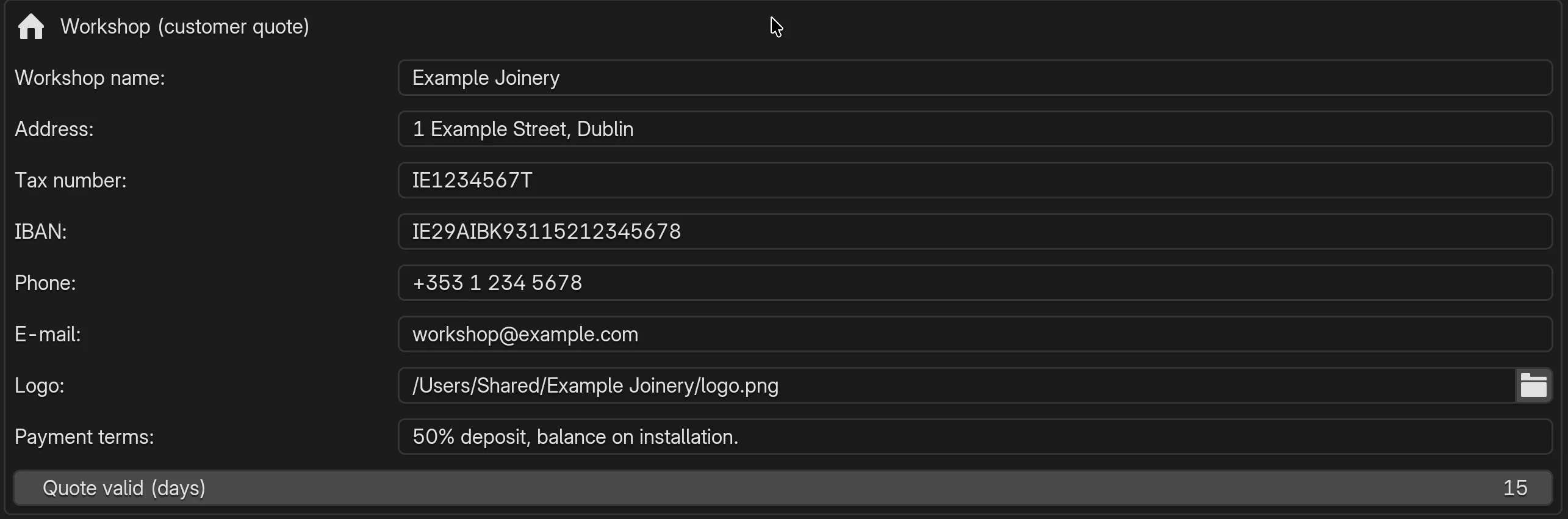
| Field | What it does | Default | Values |
|---|---|---|---|
| Workshop name | In bold under the logo, top left on the quote | empty | free text |
| Address | The line under the name | empty | free text |
| Tax number | A line labelled Tax number: | empty | free text |
| IBAN | At the bottom of the quote, under the payment terms, labelled IBAN: | empty | free text |
| Phone | The line under the tax number | empty | free text |
| The line under the phone | empty | free text | |
| Logo | The image above the workshop name, 42 mm wide, with the same aspect ratio | empty | path to a PNG or JPG file; the folder icon opens a file browser |
| Payment terms | Text at the bottom of every quote | empty | free text, one line |
| Quote valid (days) | The Valid until date on the quote: the export date plus this many days | 15 | 1 to 365 |
Rules the program applies on its own:
- An empty field is not printed. The quote has no empty lines and no labels without a value.
- If the logo file is not at the path you entered, the quote comes out without a logo, with no warning.
- The workshop details are not part of the project or of My settings. They are saved in the program's preferences, like the other add-on preferences. On a new computer, enter them again.
Watch out
The logo path must be a full path: on a Mac it starts with /, on Windows with a drive letter (e.g. C:\). If it starts with //, the path is relative to the folder of the open project, so the field is red and the logo appears only on quotes of projects from that folder. Save the logo in a permanent folder and enter the full path in the field.
Tip
One sentence is enough for the payment terms, e.g. 50% deposit, balance on installation. Enter a note for a single customer in the project, in the Quote note field (see The Quote box).
Cost estimate
The Cost estimate panel is at the bottom of the EFS tab and is closed by default. It shows what the project uses and what that costs by the price list: boards, edge tape, hardware and machining. Below it is the Quote box, and at the bottom the Get prices and Upload prices buttons for the price list.
The panel is recalculated whenever the view refreshes. A change in the project or in the price list shows straight away.
Boards and edge tape
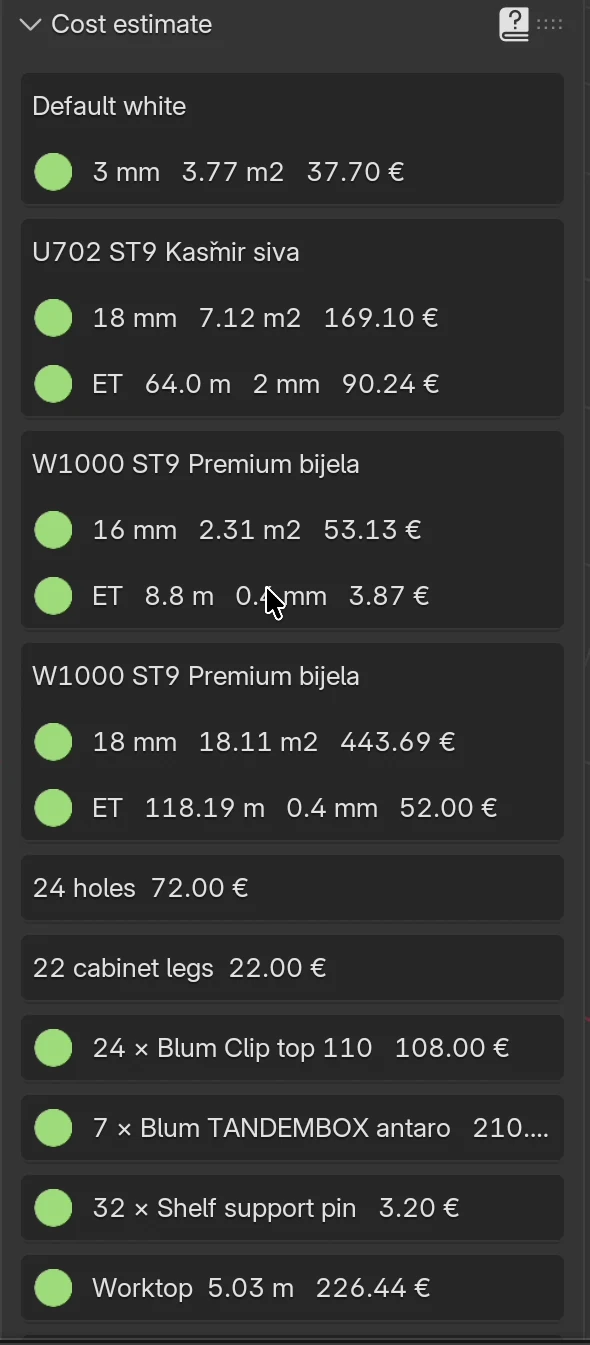
The panel has one box for each decor and board thickness:
- Decor name in the first row, e.g. U702 ST9 Kašmir siva. The same decor in two thicknesses has two boxes.
- Board: thickness, area in m² and price, e.g. 18 mm 7.12 m2 169.10 €.
- ET (edge tape): one row for each edge tape thickness on those boards, with metres and price, e.g. ET 64.0 m 2 mm 90.24 €.
How it is calculated:
| Row | Quantity | Price from the price list |
|---|---|---|
| Board | The sum of the finished sizes (length × width) of all boards of that decor and thickness, in m². No waste | Price per m² from the Boards sheet, in the column for the board thickness |
| ET | The sum of the lengths of all edges with edge tape of that thickness, in metres. An edge counts with the full length of the board | Price per metre from the Boards sheet: 23 mm edge tape for boards thinner than 20 mm, 43 mm edge tape for boards of 20 mm and thicker |
The decor is looked up in the price list by its code and structure (e.g. U702-ST9). The column layout and the thickness rules are described in Nesting and board prices.
What is not counted in boards and edge tape:
- the worktop: it is priced per running metre, with the hardware (see Hardware and machining);
- hidden cabinet boards, including fronts hidden with Shift+F;
- dowels and drillings.
Hardware and machining
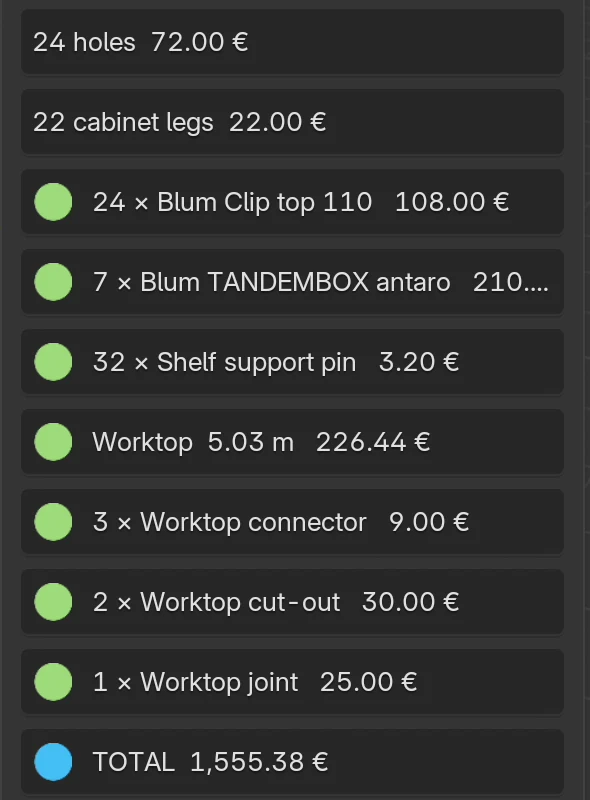
Below the boards come the hardware and services. Each is in its own box.
| Row in the panel | What it counts | Row in the price list (Other sheet) |
|---|---|---|
| n × hardware name, e.g. 24 × Blum Clip top 110 | Hardware from the catalogue: hinges, drawer slides, shelf supports, confirmats and minifixes, flap lift systems, hangers and wall rails of wall units, push latches and the rest | The hardware code, e.g. HINGE_BLUM_CLIPTOP, SLIDE_BLUM_TANDEMBOX, SHELF_PIN_5 |
| Worktop x m | The length of all worktops, in metres | WORKTOP_M |
| n × Worktop cut-out, Worktop joint, Worktop connector | Cut-outs for the sink and the hob, corner joints and connectors | WORKTOP_CUTOUT, WORKTOP_JOINT, WORKTOP_CONNECTOR |
| LED strip x m | The length of the LED strips | LED_M |
| n holes | Drilling of the hinge hole: one per hinge, whatever the hinge type | Hole drilling |
| n cabinet legs | Legs: 4 per cabinet with legs, 6 per corner cabinet, one more for a corner cabinet with a cut-out | Cabinet leg |
| n hinges | Hinges of cabinets whose hardware is No drilling (count only) | Hinge |
| n drawers | Drawers of cabinets whose drawer slides are No drilling (count only) | Drawer |
| n gola cuts, x m gola profiles | Two cuts per gola profile, and the profile length (cabinet width times the number of profiles) | Gola cut, Gola profile |
| x m cnc routing | The perimeter of the cabinet (2 × width + 2 × height) for a back in a groove or a rebate | CNC routing |
The rows appear only when the project has that hardware. You choose the project hardware in the chapter Project hardware.
Green and red dots
| Dot | Meaning |
|---|---|
| Green | The price list has a price and it is included in TOTAL |
| Red | The price list has no price. Boards and edge tape then show — or 0.00 € (a price of 0 is red too), and catalogue hardware shows in brackets the code you need to enter in the price list, e.g. (LED_M) |
| Blue | A sum: TOTAL and TOTAL by sheets |
| No dot | The rows for holes, legs, hinges and drawers without drilling, gola and CNC routing. Without a price in the price list they show 0.00 € |
You fix a red dot in the price list: add the decor, a price for that board or edge tape thickness, or the hardware code. The steps are in the section Enter the price in the price list.
Watch out
An item without a price does not go into the quote. The customer quote is then too low, and nothing on it shows that. Before the export, check that no row in Cost estimate has a red dot.
TOTAL
TOTAL is the sum of all green rows: boards per m² without waste, edge tape, hardware and machining. It has no labour, margin or VAT. It is the purchase cost, not the price for the customer.
Below it is the Calculate sheet cost button. It nests the parts on the stock sheets and shows TOTAL by sheets, with the price of whole sheets instead of square metres. The button shows only when Nesting: cutting diagrams is on. It is described in the chapter Nesting and board prices.
Cost estimate and quote
The quote prices the same items as the panel, with these differences:
| Cost estimate | Quote | |
|---|---|---|
| Boards | Per m², without waste | By sheets if nesting has sheet prices, otherwise per m² plus Waste % |
| Labour, margin, VAT | No | Yes |
| Currency | Always € |
The symbol from the Currency field |
| Worktop | Amount from the exact length | Amount from the length rounded to two decimals, so it can differ by a few cents |
When the boards in the quote are priced by sheets and when per m² is explained in the section Price per sheet or per m².
The Quote box
The Quote box is in the Cost estimate panel, below TOTAL. The fields apply to the open project and are saved with it.
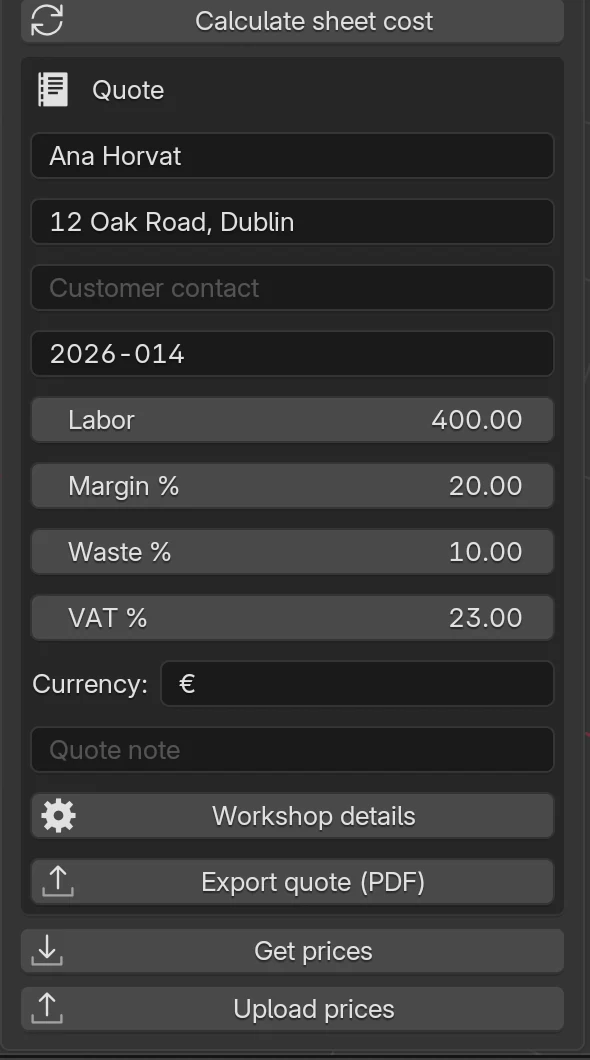
- Click the first field (the empty field shows Customer in grey), type the customer's name and press Enter.
- In the Customer address field, type the address and press Enter.
- Leave Quote number empty.
- Click Labor, type the labour amount, e.g.
400, and press Enter. - In Margin %, type the margin, e.g.
20.
| Field | What it does | Default | Values |
|---|---|---|---|
| Customer | The customer's name on the quote and in the calculation | empty | free text |
| Customer address | The line under the customer's name | empty | free text |
| Customer contact | The customer's phone or e-mail, under the address | empty | free text |
| Quote number | The number on the quote. EFS fills an empty field on the first export | empty | free text; EFS gives year-number, e.g. 2026-014 |
| Labor | The labour amount added to materials and hardware | 0 | 0 and up, in the quote currency |
| Margin % | Percentage on materials, edge tape, hardware and labour | 0 | 0 to 500 |
| Waste % | Addition to the area of boards priced per m² | 10 | 0 to 100 |
| VAT % | Tax on the net amount | 25 | 0 to 100 |
| Currency | The currency symbol after the amounts in the PDFs | € |
free text, e.g. EUR |
| Quote note | Text at the bottom of the quote and the calculation, above the payment terms | empty | free text, one line |
| Workshop details | Opens the add-on preferences with the workshop details | button | |
| Export quote (PDF) | Saves the customer quote and the internal calculation | button |
The text fields, except Currency, have no label beside them: the field name shows in grey inside the empty field. When you type text, the name disappears.
Tip
You can save Labor, Margin %, Waste %, VAT % and Currency in My settings. Every new project then starts from your values. See My settings.
Quote number
EFS assigns the number on the first export of the quote, if the Quote number field is empty:
- The number has the form
year-sequence number, with three digits:2026-001,2026-002… - The sequence number goes up with each new quote on that computer, across all projects. With a new year, counting starts again from
001. - The number is written into the Quote number field and stays with the project. The next export of the same project keeps the same number.
- If you enter your own number, EFS uses it and does not use up a sequence number.
Watch out
The number is in the project only once you save the project (Ctrl+S). If you close the project without saving, the number is used up and the next export gets a new one.
Watch out
A copy of a project (File → Save As...) carries the quote number too. When you make a new quote from an old project, clear Quote number before the export.
For advanced users
The counter is the file quote_numbers.json in the EFS user folder (see Where your data is), e.g. {"2026": 13}. If you already have quotes from another program this year, enter the last number in that file: with 13, the next quote gets 2026-014. Each computer has its own counter, so two computers can give the same number.
Labour, margin and waste
EFS calculates in this order:
- Materials: boards (by sheets, or per m² increased by Waste %).
- Edge tape: metres of edge tape times the price per metre. No waste is added to edge tape.
- Hardware and services: hardware, worktop, cut-outs, drilling, legs, machining.
- Subtotal = materials + edge tape + hardware and services.
- Labor is added to the subtotal.
- Margin = (subtotal + labour) × Margin %.
- Net = subtotal + labour + margin.
- VAT = net × VAT %.
- TOTAL = net + VAT.
Example from the video: subtotal 1,886.25 €, labour 400 €, margin 20% and VAT 23%.
| Row | Amount |
|---|---|
| Subtotal | 1,886.25 € |
| Labor | 400.00 € |
| Margin (20%) | 457.25 € |
| Net | 2,743.50 € |
| VAT (23%) | 631.00 € |
| TOTAL | 3,374.50 € |
Rules the program applies on its own:
- Labor is one amount for the whole project, not an hourly rate. Work out your hourly rate yourself and enter the amount.
- Waste % applies only to boards priced per m². When a decor is priced by whole sheets, the waste is already in the number of sheets and the field does not change the amount.
- The margin is applied to labour too.
VAT
The program does not care whether the workshop is registered for VAT. VAT % only adds tax to the net amount. The workshop itself knows whether it charges VAT and at what rate.
- Workshop registered for VAT: keep
25or enter your rate. - Workshop not registered for VAT: enter
0. The customer quote then has no VAT row, and Total and TOTAL are the same amount. The internal calculation still has a VAT (0%) row.
Tip
If in your case the quote must say why no VAT is charged, enter that sentence in Quote note or in Payment terms in the workshop details. Your accountant gives you the text; EFS only prints it.
Currency
Currency is only the symbol after the amounts, e.g. € or EUR. EFS does not convert prices: the amounts are in the currency the prices in the price list are in. The Cost estimate panel always shows €.
Export quote (PDF)
- In the Quote box, click Export quote (PDF).
-
A save window opens. EFS suggests the project folder and the name
<project name>_quote.pdf, e.g. Horvat kitchen_quote.pdf.
-
If needed, change the folder or the name.
- Click Export quote (PDF) in the bottom right corner.
What the program does on its own:
- If Quote number is empty, it assigns the next number and writes it into the field.
- It saves two files in the same folder:
- the customer quote under the name you confirmed, e.g. Horvat kitchen_quote.pdf;
- the internal calculation with
_calculationadded, e.g. Horvat kitchen_quote_calculation.pdf.
- At the top right it reports Quote exported — 3,374.50 € (the total with VAT).
- If a cabinet has an item without a price, it shows the warning 3 elements have items without a price; see the internal calculation instead. The quote is saved, and the project check is not reported.
- If every item has a price and the Project check finds errors (e.g. overlapping cabinets), it reports Exported, but the project check found 2 errors (Project check). The quote is saved anyway.
The Production package makes the same pair of PDFs if the quote is included in it. See The production package and the supplier order. The same project in two or three decors, with the price of each variant, is priced by the Decor comparison panel (see Comparing decors).
Note
A project that has not been saved has no folder, so EFS suggests only the file name. Save the project before the export so that the quote ends up next to it.
The customer quote
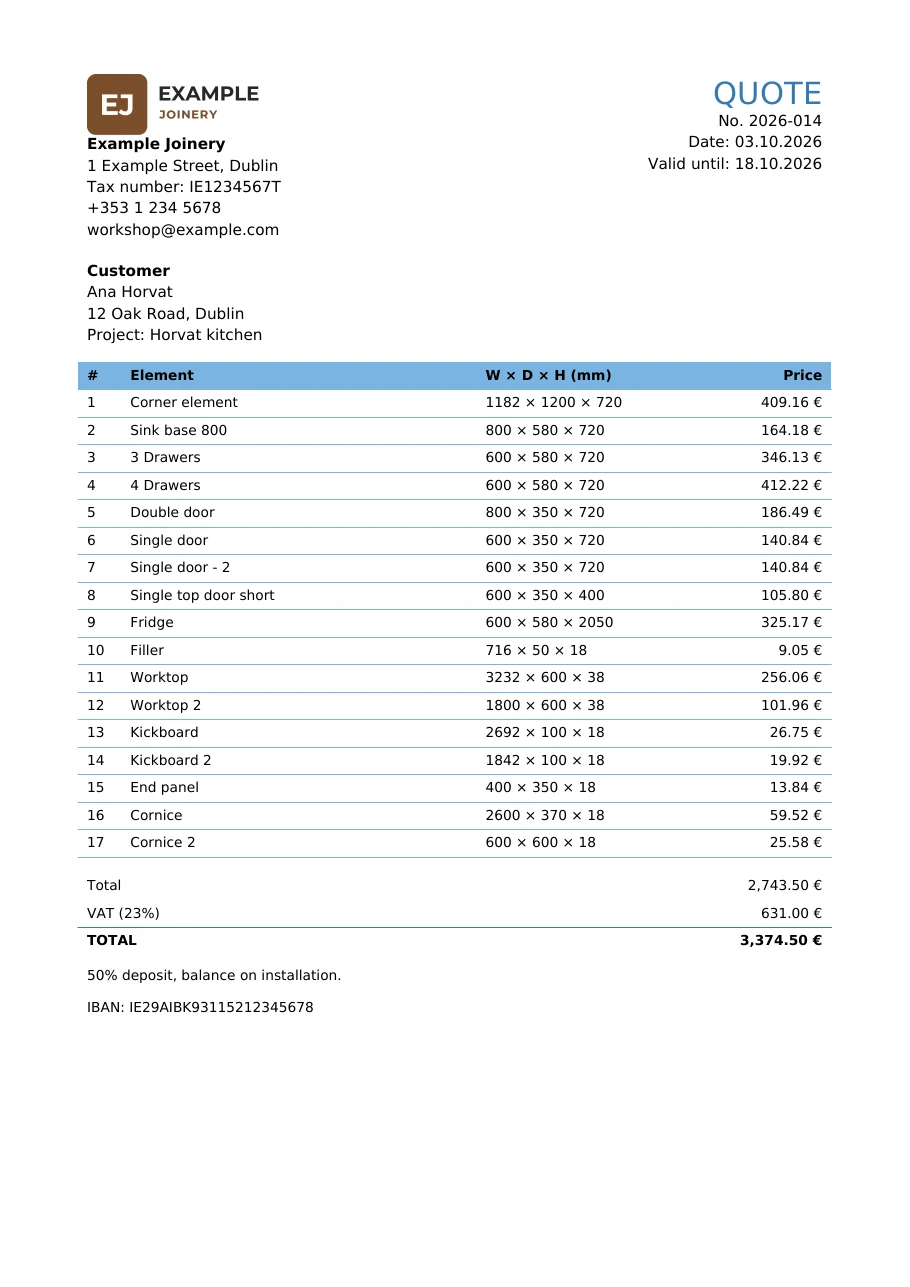
The customer quote is one A4 page (or more, if there are many cabinets):
- Top left: logo, workshop name, address, tax number, phone and e-mail.
- Top right: the title QUOTE, No., Date (the day of the export) and Valid until.
- Customer: name, address and contact, and below them Project: with the project name.
- Element table with the columns #, Element, W × D × H (mm) and Price.
- Total (net), VAT (23%) and TOTAL with VAT.
- Quote note, Payment terms and IBAN.
How the element table is built:
- Each cabinet is one row, with the name from the Name field (see Options of the Cabinet properties panel).
- A cabinet from a template with several carcasses is one row, e.g. a tall fridge unit with carcasses inside it. Cabinets you linked yourself stay separate rows.
- Each free board is its own row: the worktop, the Kickboard, a filler, an end panel, the cornice. LED strips are separate rows too, with the length in metres.
- W × D × H (mm) is the width, depth and height of the cabinet, measured along the cabinet's axes. For a free board the column has the length, width and thickness, e.g. 3232 × 600 × 38.
- Price is without VAT and already includes the margin. It includes the cabinet's boards and edge tape, its hardware and a share of the labour. The worktop carries the price per metre, its cut-outs, joint and connectors.
- Labour is split by the number of boards: a cabinet with 12 of the project's 120 boards gets 10% of the labour.
- When boards are priced by whole sheets, the sheet cost is split among the cabinets by the area of their parts.
- The prices of all rows add up to the Total.
Tip
The cabinet names go to the customer. Before the export, rename the ones the customer would not understand, e.g. Single door - 2 to Wall unit by the hood. Rename the kickboard and the other free boards in the EFS - Board tab, Name field.
The internal calculation
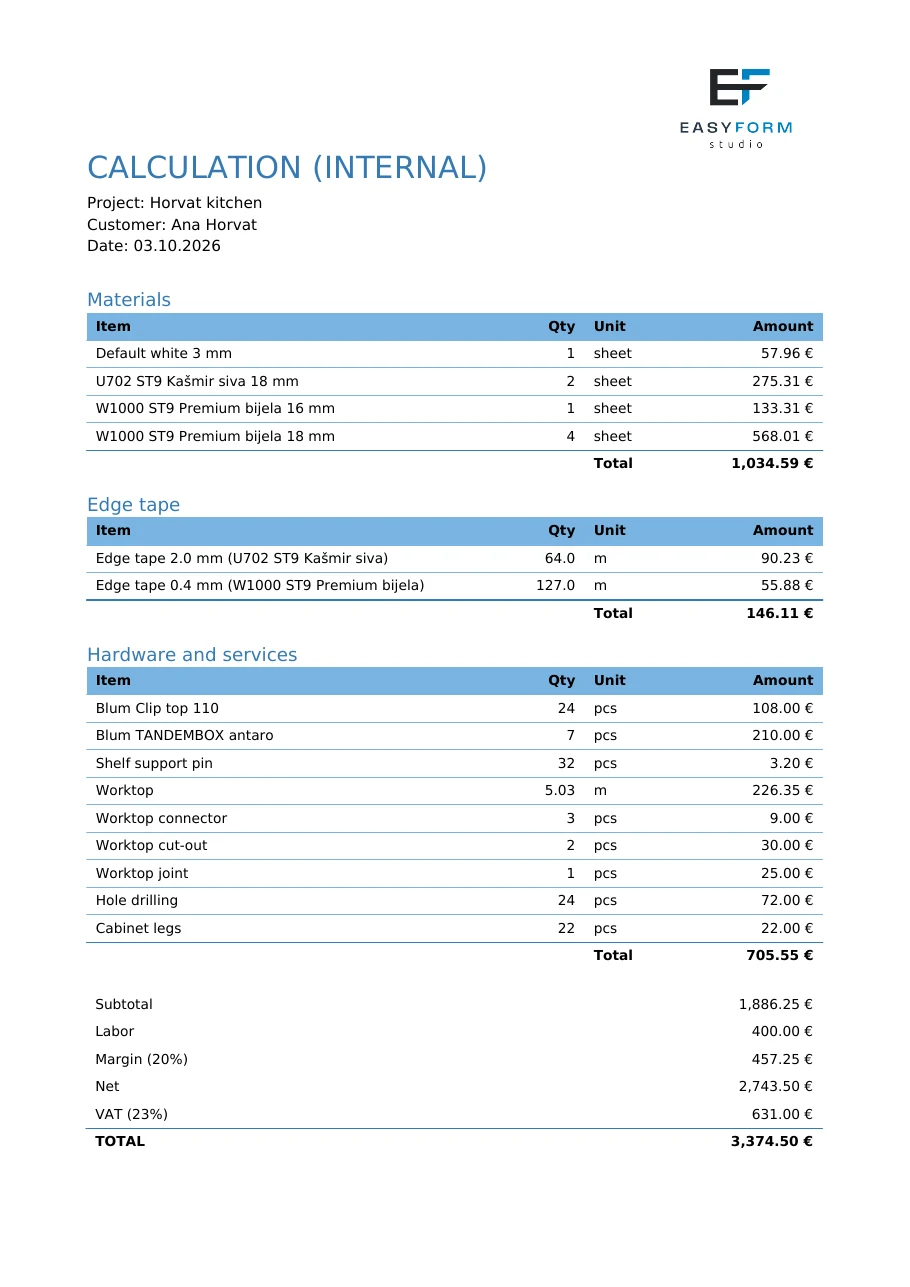
The internal calculation stays in the workshop. It carries the Easy Form Studio logo, not yours.
- CALCULATION (INTERNAL), Project, Customer and Date.
- Materials: each decor and thickness in its own row. When priced by sheets, the quantity is the number of sheets (2 sheet); when priced per m², it is the area with waste (m2).
- Edge tape: each decor and edge tape thickness, in metres, e.g. Edge tape 2.0 mm (U702 ST9 Kašmir siva). 43 mm edge tape has 43 mm at the end of the name.
- Hardware and services: catalogue hardware, worktop per metre, cut-outs, joints, hole drilling, legs, gola and CNC routing.
- Below each table, the Total of that table.
- Subtotal, Labor, Margin (…%), Net, VAT (…%) and TOTAL. The Labor and Margin rows are left out when they are 0.
- Notes at the bottom:
- n items have no price in the price list and are not included in the total. These items have
—in the Amount column. - n parts fit on no stock sheet; their material is priced per m2. (see Nesting and board prices).
- Quote note, if you entered one.
- n items have no price in the price list and are not included in the total. These items have
What the customer sees and what the workshop sees
| Information | Customer quote | Internal calculation |
|---|---|---|
| Workshop details and logo | Yes | No (EFS logo) |
| Customer | Name, address, contact | Name only |
| Number and validity | Yes | No |
| Price per cabinet, with sizes | Yes | No |
| Boards, edge tape and hardware with quantities and purchase prices | No | Yes |
| Labour and margin | No, already in the cabinet prices | Yes, separately |
| Net, VAT and total | Yes | Yes |
| Payment terms and IBAN | Yes | No |
| Items without a price | Not visible | Yes, with a note |
Watch out
Send the customer quote only after you have looked at the internal calculation. Only the calculation shows the items without a price and the parts that did not fit on the sheets.
Numbers, dates and the language of the quote
The PDFs follow the interface language (see Interface language):
| Croatian interface | English interface | |
|---|---|---|
| Amount | 3.374,50 € |
3,374.50 € |
| Quantity | 5,03, 64,0 |
5.03, 64.0 |
| Edge tape in the name | Rubna traka 2,0 mm |
Edge tape 2.0 mm |
| Titles | PONUDA, KALKULACIJA (INTERNO) | QUOTE, CALCULATION (INTERNAL) |
| Date | 01.10.2026 |
01.10.2026 |
The Cost estimate panel writes numbers the same way, in the interface language.
Tip
For a customer who does not read Croatian, switch the interface language to English (US) before the export. The quote gets English titles and the English number format. Cabinet names stay as you typed them.
Common problems and solutions
The quote is too low. An item has no price. Look for red dots in Cost estimate, and for rows with — in the internal calculation. Add the prices to the price list and export again.
The fronts are not on the quote. The fronts are hidden with Shift+F. Bring them back with the button in the header and export again.
There is no logo on the quote. The path in the Logo field does not lead to the file, or it starts with //. Enter the full path to a PNG or JPG file.
There are no workshop details on the quote. The fields in the Workshop (customer quote) box are empty. On a new computer they have to be entered again.
A new quote has an old number. The project is a copy of an old project. Clear Quote number and export again.
The quote number skipped a number. The quote was exported but the project was not saved, so the next export got a new number. A Production package with the quote included uses up a number too.
Waste % does not change the amount. The boards are priced by whole sheets, and then no waste is added. See Price per sheet or per m².
The board amount in the quote differs from Cost estimate. The panel prices boards per m² without waste. The quote adds Waste % or prices whole sheets from nesting.
The sheet price is not as in the supplier's catalogue. With nesting on, a decor without its own row in the Sheets sheet pays for a sheet as the price per m² times the sheet area. Enter a row for the decor with the sheet price (see Nesting and board prices).
The quote has no VAT row. VAT % is 0. If you are registered for VAT, enter the rate.
A cabinet is in two rows. The cabinet is made of carcasses you linked yourself, and they have different names. A carcass goes into the row of the main cabinet when it is directly linked to it and has the same name with a number in brackets, e.g. Fridge (2) next to Fridge.
The Export quote (PDF) button reports an error. The trial or the subscription has run out, so the export is blocked (see When the free trial or the subscription ends).
The quote is not in the project folder. The project had not been saved. Save it and export again.
The Cost estimate panel is not shown. A board is in Edit Mode. Press Tab to go back to Object Mode.
Shortcuts in this chapter
| Key | Action |
|---|---|
| Enter | Confirm the field you typed in |
| Shift+F | Hide or show the fronts. Hidden fronts do not go into the quote |
| Ctrl+S | Save the project, and the quote number with it |
| N | Show / hide the sidebar with the EFS tabs |
Next
The kitchen is done, from the room to the quote. The next part is Production and CNC.
Next chapter: Cutting list and cut size