The production package and the supplier order
With one click, the production package saves everything the workshop needs into one folder next to the project: the cutting list, drawings, CNC files, labels, assembly instructions, the supplier order and the quote, with a project check report. This chapter describes the package, the Export panel with its settings, all Project check messages, and the order for boards, edge tape and hardware.
Video: C07 The production package and the supplier order
The same workflow in a video of a minute and a half.

Show me in the program
The interactive tour Cutting list and production package (2 min) shows you in the program where to click and what to type, step by step. In the EFS tab, open the Interactive tours panel and click Start next to the tour. The AI assistant also offers it when you ask how to do this.
Before you start
- Save the project (Ctrl+S). The package folder sits next to the project file. For an unsaved project you choose the folder yourself.
- Bring hidden fronts back with the Show fronts button in the header. Fronts hidden with Shift+F do not go into any file of the package. See Fronts: F and Shift+F.
- If the QR codes on the labels and in the assembly instructions should open the web preview, publish the project before the package. See QR code on the label.
- For the quote, the price list needs the prices of your decors; for the number of sheets in the order, it needs the sheet sizes. See Nesting and board prices.
- Exports work during the trial or a subscription. Project check works without them too. See When the free trial or the subscription ends.
The workflow from the video
In the video, the whole package is exported from a finished kitchen, then the button for the order alone is shown.
- In the EFS tab, click the title of the Export panel.
- Click Production package (or press Ctrl+Shift+E with the pointer over the 3D view).
- In the Production package window, the Folder field already shows the folder next to the project, and all checkboxes are on. In the video, Open the folder is off.
- Click OK. EFS runs the project check, then exports everything that is ticked, one after another. The drawings render last, in the background.
- The top right shows Production package: 9 files in and the path to the folder.
- Open the folder. It holds the cutting list, drawings, labels, assembly instructions, the quote with the calculation, the check report, the DXF folder and the order folder. See The package folder.
- The order folder holds two CSV tables and the e-mail text for the supplier. See Supplier order.
- You can also export the order alone, without the package, with the Supplier order (CSV + e-mail) button in the Export panel.
The Export panel
The Export panel is in the EFS tab. It is folded; click its title to open it. The panel is hidden while you are in Edit Mode.
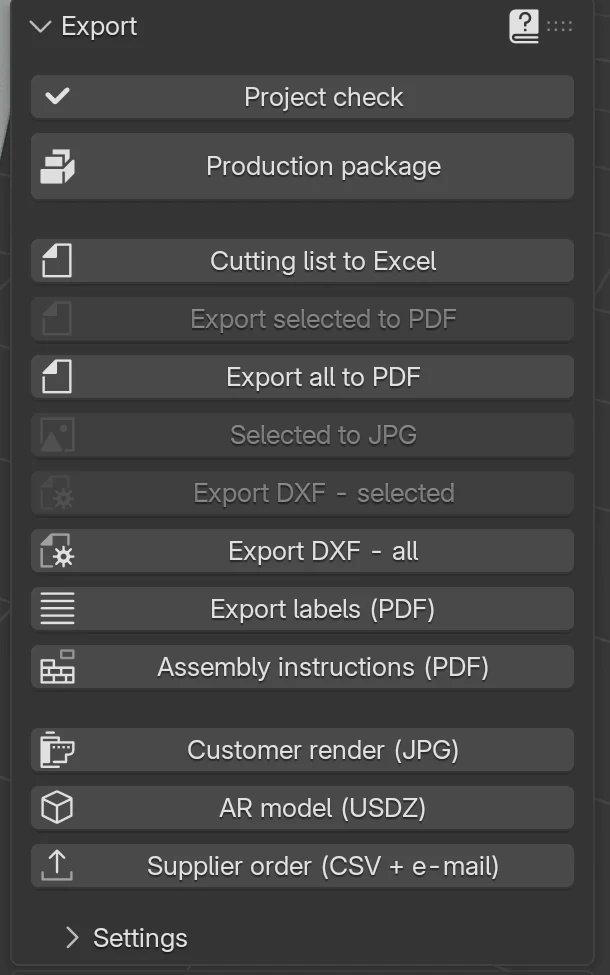
| Button | What it does | When it is greyed out | Details |
|---|---|---|---|
| Project check | Checks the project and shows a list of errors and warnings | never | Project check |
| Production package | All production exports into one folder | never | Production package |
| Cutting list to Excel | The cutting list <project>_cutting_list.xlsx |
never | Cutting list and cut size |
| Export selected to PDF | Drawings of the selected cabinets and boards; a board exports its whole cabinet | nothing is selected | Cutting list and cut size |
| Export all to PDF | Drawings of all cabinets and boards, <project>_drawings.pdf |
never | Cutting list and cut size |
| Selected to JPG | An image of one selected board | not exactly one board is selected | Cutting list and cut size |
| Export DXF - selected | DXF of the boards of the selected cabinets | nothing is selected | Drillings, DXF, MPR and CIX |
| Export DXF - all | DXF of all boards, one file per board | never | Drillings, DXF, MPR and CIX |
| Export labels (PDF) | Labels 70 × 37 mm on A4 sheets | never | Labels and assembly instructions |
| Assembly instructions (PDF) | A page per cabinet with an exploded view | never | Labels and assembly instructions |
| Customer render (JPG) | A photorealistic image of the project | never | One-click render |
| AR model (USDZ) | A model for viewing in the room on an iPhone | never | One-click render |
| Supplier order (CSV + e-mail) | Quantities of boards, edge tape and hardware, and the e-mail text | never | Supplier order |
When the trial or subscription ends, a red box at the top of the panel shows the status with the buttons Monthly and Yearly, and the exports report an error. See Install, licence and account.
Export settings
At the bottom of the Export panel is the folded Settings subpanel. The settings apply to the single exports and to the production package, and they are saved in the project.
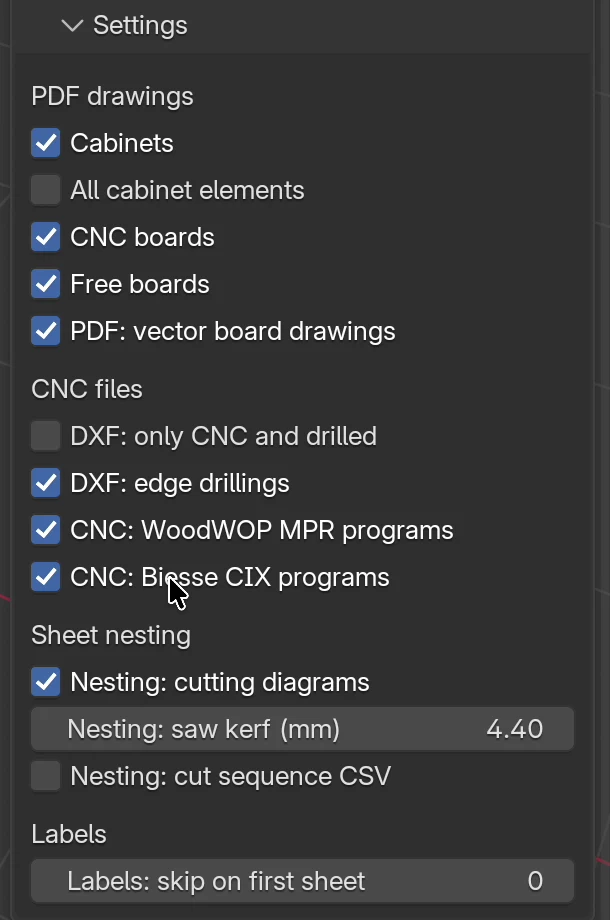
| Option | What it does | Default | Values |
|---|---|---|---|
| PDF drawings | |||
| Cabinets | The drawings contain a page with images and dimensions of each cabinet. | on | on, off |
| All cabinet elements | Does not change the drawings in this version. | off | on, off |
| CNC boards | Does not change the drawings in this version. | on | on, off |
| Free boards | Does not change the drawings in this version. | on | on, off |
| PDF: vector board drawings | Board pages are technical drawings (outline, drillings, dimensions) instead of rendered images. The export is faster, because only the cabinets are rendered. | on | on, off |
| CNC files | |||
| DXF: only CNC and drilled | Only boards with cut-outs or drillings get a DXF. Plain rectangles are cut from the cutting list. | off | on, off |
| DXF: edge drillings | Holes in the edge of a board go into the DXF. | on | on, off |
| CNC: WoodWOP MPR programs | Next to the DXF, an .mpr program for Homag machines (WoodWOP). Trial version: check it on the machine before production. |
off | on, off |
| CNC: Biesse CIX programs | Next to the DXF, a .cix program for Biesse machines. Trial version: check it on the machine before production. |
off | on, off |
| Sheet nesting | |||
| Nesting: cutting diagrams | The parts are laid out on the sheet sizes: cutting diagrams in the drawings, the Nesting sheet in the cutting list and the number of sheets in the order. | on | on, off |
| Nesting: saw kerf (mm) | Width of the saw cut between parts. | 4.4 mm | 0–20 mm |
| Nesting: cut sequence CSV | Next to the cutting list, a _cuts.csv file with all saw cuts in machining order. |
off | on, off |
| Labels | |||
| Labels: skip on first sheet | The number of labels already used on a started sheet. | 0 | 0–23 |
The details are in the chapters Cutting list and cut size, Drillings, DXF, MPR and CIX, Nesting and board prices and Labels and assembly instructions.
Note
All cabinet elements, CNC boards and Free boards do not affect the PDF in this version. The drawings always have a page for each board of a cabinet and for each free board.
The export settings, except Labels: skip on first sheet, are also saved in My settings, so a new project gets them by itself. See Working faster.
Production package
Running the package
- Save the project (Ctrl+S).
- EFS tab → Export panel → click Production package. Or press Ctrl+Shift+E while the mouse pointer is over the 3D view.
- In the window, check Folder and the checkboxes.
- Click OK.
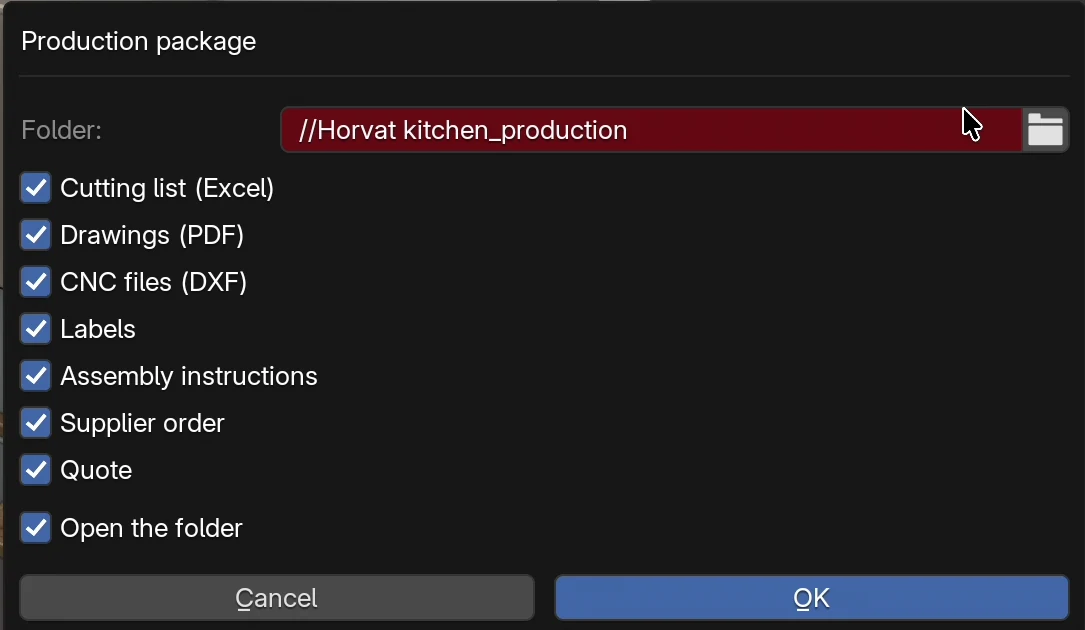
Window options
| Option | What it does | Default |
|---|---|---|
| Folder | The package folder. // at the start means the project folder. The folder icon on the right opens a browser to choose another folder. If the folder does not exist, EFS creates it. |
//<project>_production |
| Cutting list (Excel) | <project>_cutting_list.xlsx. With Nesting: cut sequence CSV, also <project>_cutting_list_cuts.csv. |
on |
| Drawings (PDF) | <project>_drawings.pdf. Rendered last, in the background. |
on |
| CNC files (DXF) | The DXF subfolder with a DXF file for each board and index.csv, and, depending on the settings, .mpr and .cix programs. |
on |
| Labels | <project>_labels.pdf. |
on |
| Assembly instructions | <project>_assembly.pdf. |
on |
| Supplier order | The order subfolder with two CSV files and the e-mail text. | on |
| Quote | <project>_quote.pdf for the customer and <project>_calculation.pdf for you. |
on |
| Open the folder | After the export, opens the folder in Finder or File Explorer. | on |
| Cancel | Closes the window without exporting. | |
| OK | Starts the export. |
<project> is the project name from the Web publish panel (field Name), and until there is one, the name of the project file. With the Croatian UI the names are Croatian: _proizvodnja, _krojna_lista.xlsx, _crtezi.pdf, _naljepnice.pdf, _montaza.pdf, _ponuda.pdf, _kalkulacija.pdf, _provjera.txt and the folder narudzba.
Rules:
- The Folder field is red when the path starts with
//. That is not an error: EFS counts the path from the project folder. - For an unsaved project the Folder field is empty. Click the folder icon and choose a folder, or close the window and save the project. If you click OK with an empty field, EFS reports Choose a folder, or save the project first.
- Project check has no checkbox: it always runs first.
- The window remembers the last folder and the checkboxes until you close the program.
Watch out
If you open another project in the same session of the program, the window still offers the previous project's folder, e.g. //Kuhinja Horvat_production. Before OK, check the Folder field and type the new project's name if needed.
What EFS does, in order
- Runs the Project check. If it finds errors or warnings, it writes them into
<project>_check.txt. The export continues even when there are errors. - The cutting list.
- The DXF files. Before that, it deletes the old
.dxf,.mpr,.cixandindex.csvfrom the DXF subfolder, so that a deleted cabinet does not leave its files behind. - The labels.
- The assembly instructions.
- The supplier order.
- The quote and calculation. If the quote has no number yet, it gets one now (year-number) and keeps it in the project.
- The drawings. They render last, in the background.
When it starts the drawings, EFS reports Production package: 9 files in and the path to the folder. The count includes the drawings that are still rendering, and the DXF and order folders count as one file each. If the check found errors, the message is a warning and ends with the project check found 2 errors.
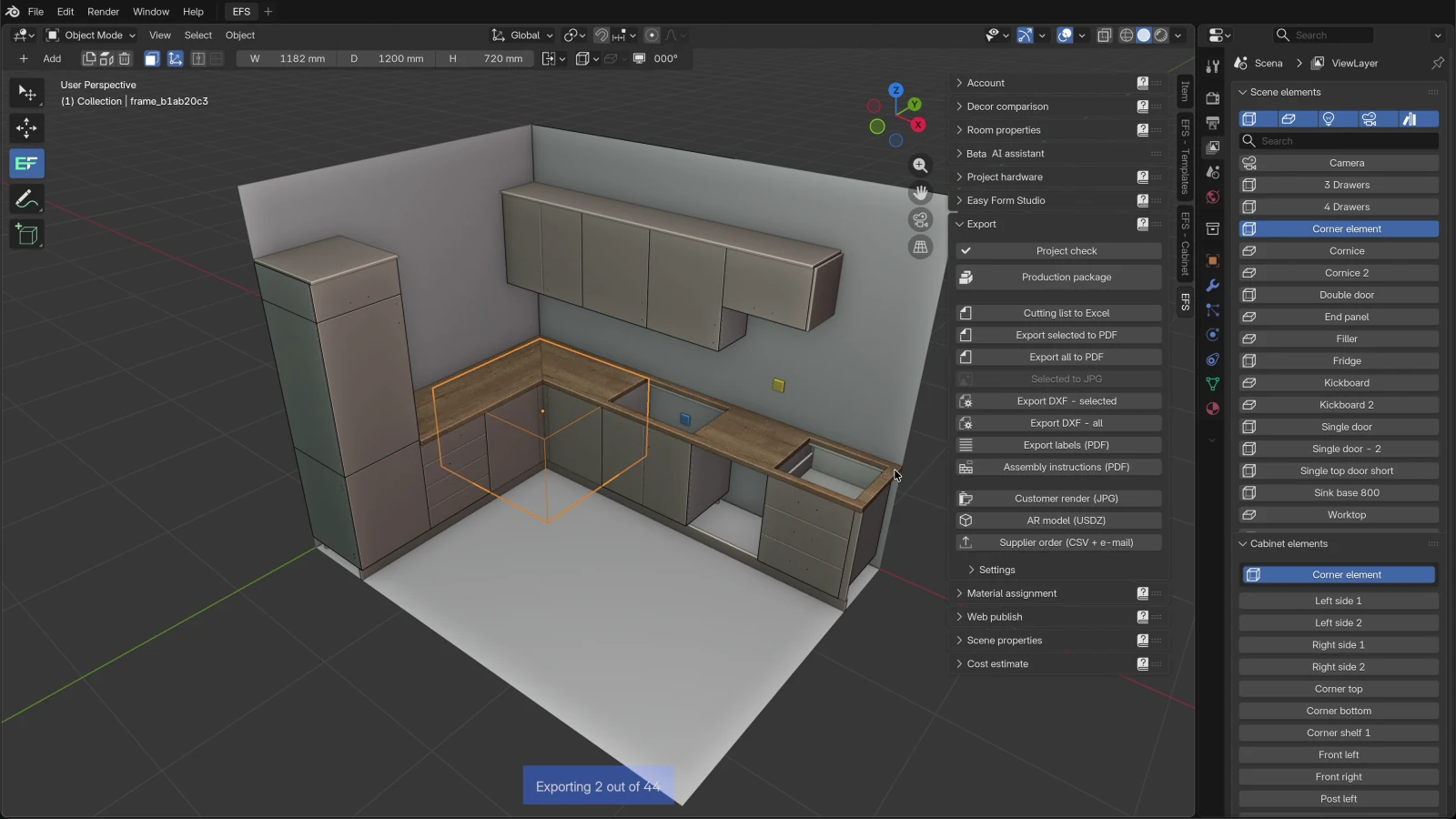
While the drawings render:
- The bottom of the 3D view shows Exporting 4 out of 44: which image is rendering now and how many there are. When it finishes, the top right shows Export completed.
- EFS selects the cabinets it renders, one after another. At the end it restores your selection.
- If the project has no camera called Camera, EFS adds one. It shows in the Scene elements list and stays in the project.
- You can look through the finished files in the folder.
Watch out
Esc while the drawings render stops the drawings: EFS reports Export cancelled and <project>_drawings.pdf is not created. The other files of the package are already done. Then export the drawings with the Export all to PDF button or run the package again.
Note
Customer render (JPG) renders from every camera in the project, including the camera Camera that the package added. If you don't need that image, delete the camera before the render. See One-click render.
Tip
Don't change the project until the drawings are done. The drawings are made from the current state, so a change would go into the drawings but not into the cutting list and labels that are already exported.
The package folder
The package from the video, for the project Kuhinja Horvat, with the English UI:
Kuhinja Horvat_production/
├── Kuhinja Horvat_assembly.pdf
├── Kuhinja Horvat_calculation.pdf
├── Kuhinja Horvat_check.txt
├── Kuhinja Horvat_cutting_list.xlsx
├── Kuhinja Horvat_drawings.pdf
├── Kuhinja Horvat_labels.pdf
├── Kuhinja Horvat_quote.pdf
├── DXF/
│   ├── index.csv
│   └── … one .dxf file per board (101 files in the video)
└── order/
    ├── order_boards_edge_tape.csv
    ├── order_email.txt
    └── order_hardware.csv
| File or folder | Checkbox | What it contains | Details |
|---|---|---|---|
_cutting_list.xlsx |
Cutting list (Excel) | All parts with cut size and finished size, decor, edge tape; sheets for hardware, the material specification and nesting | Cutting list and cut size |
_drawings.pdf |
Drawings (PDF) | Drawings of cabinets and boards with dimensions and drillings, the hardware list, cutting diagrams | Cutting list and cut size |
| DXF/ | CNC files (DXF) | A DXF per board (_B.dxf for drillings on the other side), index.csv, optionally .mpr and .cix |
Drillings, DXF, MPR and CIX |
_labels.pdf |
Labels | Labels with a QR code | Labels and assembly instructions |
_assembly.pdf |
Assembly instructions | A page per cabinet | Labels and assembly instructions |
| order/ | Supplier order | Boards, edge tape and hardware for the supplier | Supplier order |
_quote.pdf, _calculation.pdf |
Quote | The quote for the customer and the internal calculation | A quote for the customer |
_check.txt |
always | The project check findings; only when there are any | The check report |
The part numbers are the same in the cutting list, labels, assembly instructions and cutting diagrams, because everything is made from the same state of the project.
Exporting again to the same folder
- EFS overwrites files with the same name without asking.
- From the DXF subfolder it first deletes the old DXF, MPR and CIX files and
index.csv. - If the check finds nothing this time, it deletes the old
_check.txt. - Other files in the folder stay: your notes, but also files made under the project's old name. When you change the project name, empty the folder or export into a new one.
Project check
Project check looks for errors that you don't see in the 3D view but that cost money in the workshop: overlaps, doors that hit something, holes through a board, decors without a price, cabinets without drillings. The production package runs it by itself. You can also run it by hand, before any export.
Running the check
- EFS tab → Export panel → click Project check.
- If everything is fine, the top right shows No problems found.
- Otherwise a window opens with a list of findings. Each finding is one line.
- A finding that concerns one object has a button with an arrow next to it, Show in the scene. A click selects that object and zooms the view to it. The window stays open.
- Fix the findings and run the check again.
- OK closes the window, and the top right shows the number followed by problems found. Cancel only closes the window.
Rules:
- A triangle icon marks an error, and an i icon a warning.
- The window shows at most 40 findings. The rest is listed as ... +12. All findings are in the production package's
_check.txt. - Show in the scene selects the object and zooms the view to it. If the object was hidden, it shows it.
- The check looks at the current state of the project. It does not look at hidden fronts (Shift+F): bring them back before the check.
- The check changes nothing in the project.
Tip
Close the doors and drawers (O) before the check. EFS treats open doors as part of the cabinet, so the check can report an overlap with the neighbour although the cabinets don't touch.
Errors and warnings
| Kind | Icon | What it means |
|---|---|---|
| Error | triangle | A part would be made wrong: cabinets go into each other, or a hole breaks through a board. Fix it before the export. |
| Warning | i | Something is probably not right: doors hit something, a price is missing, a cabinet has no drillings. Check and decide. |
After some exports, EFS runs the check by itself and, if it finds errors, reports Exported, but the project check found 2 errors (Project check). Cutting list to Excel, Export DXF - all, Export labels (PDF), Export quote (PDF) and Supplier order (CSV + e-mail) do this. The file is saved; warnings are not reported here.
All check messages
The messages are listed in the order in which the check reports them. Instead of {…}, the message shows names and sizes from your project.
| Message | Kind | Show in the scene |
|---|---|---|
| '{a}' and '{b}' overlap ({mm} mm). | error | yes |
| Door '{part}' hits '{other}' when opened. | warning | yes |
| Door '{part}' ({cab}) has no hinges. | warning | yes |
| Dowel hole Ø{d} in '{part}' ({cab}) goes through the board. | error | yes |
| Hole Ø{d}×{depth} in '{part}' ({cab}) leaves only {mm} mm of material. | warning | yes |
| No price for {material} {mm} mm. | warning | no |
| Price list could not be read. | warning | no |
| {count} cabinets have doors without hinge drillings (Project hardware). | warning | no |
| {count} cabinets have drawers without slide drillings (Project hardware). | warning | no |
| {count} cabinets have no dowel joints (Project hardware). | warning | no |
| Shelf '{part}' ({cab}) does not rest on its pins: reduce its front or back recess. | warning | yes |
| Sliding doors of '{cab}' are for {old} mm, the cabinet is {new} mm: add them again. | warning | yes |
| Duplicate cabinet name: '{name}' ({count}x). | warning | no |
Overlapping cabinets
'{a}' and '{b}' overlap ({mm} mm). Example: 'Sink base 800' and 'Corner element' overlap (15 mm).
- Kind: error. Show in the scene selects cabinet
{a}. - What it means: two cabinets go into each other by more than 2 mm. EFS compares the boxes around all boards of each cabinet, fronts included. The number in brackets is the smallest move that separates them.
- When it is not reported: cabinets related in the Relations subpanel are not compared with each other, because a top box or an insert may stand in the cabinet.
- Solution: move one cabinet (1, 2, 3) or reduce its size. If the doors are open, close them (O) and run the check again.
Doors hit something when opened
Door '{part}' hits '{other}' when opened. Example: Door 'Front left' hits 'Fridge' when opened.
- Kind: warning. Show in the scene selects that door.
- What it means: EFS imagines the door opened to 90° and checks whether the space it takes goes into another cabinet by more than 3 mm. Doors and flaps are checked, drawers are not.
{other}is the name of the other cabinet. - Solution: change the opening side (Type: Left opening or Right opening), put a filler between the cabinet and its neighbour, or move the cabinet. Fillers are described in Kickboard, fillers, end panels and cornice.
This check does not look at the room's walls, windows and doors. Open a door next to a wall with O and look.
Doors without hinges
Door '{part}' ({cab}) has no hinges. Example: Door 'Front right' (Single door) has no hinges.
- Kind: warning. Show in the scene selects that door.
- What it means: the door has 0 hinges, so there are no drillings and no hinges in the hardware list. Doors are checked, flaps are not.
- Solution: click the cabinet, in the EFS - Cabinet tab open Hardware and joints and turn on Auto hinge count, or type a Hinges value greater than 0. See Hardware and joints.
Dowel hole goes through the board
Dowel hole Ø{d} in '{part}' ({cab}) goes through the board. Example: Dowel hole Ø8 in 'Left' (Single door) goes through the board.
- Kind: error. Show in the scene selects that board.
- What it means: a dowel hole in the face of the board is as deep as the board: less than 0.5 mm is left under it. Most often the board is thinner than the hole depth.
- Solution: in the Hardware and joints subpanel set Face hole depth to 0 (automatic: board thickness minus 6 mm, at most half the dowel) or reduce it. A shorter dowel (Dowel length) also helps. See Joints: dowels, confirmat, minifix.
Hole leaves too little material
Hole Ø{d}×{depth} in '{part}' ({cab}) leaves only {mm} mm of material. Example: Hole Ø8×13 in 'Left' (Single door) leaves only 3.0 mm of material.
- Kind: warning. Show in the scene selects that board.
- What it means: under a hole in the face of the board, less than 4 mm is left for a dowel hole, or less than 2.5 mm for other holes (hinge cup, shelf supports, slides). The diameter and depth of the hole are in the message, in mm.
- What is not checked: holes in the edge of a board and through-holes for handles.
- Solution: for dowels, reduce Face hole depth (or set it to 0). For a hinge cup in a thin front, choose a hinge with a shallower cup or a thicker front. See Project hardware.
No price
No price for {material} {mm} mm. Example: No price for U702 ST9 Kašmir siva 25 mm.
- Kind: warning. No button.
- What it means: the price list has no price for that decor in that thickness. Without it, the cost estimate, quote and calculation are too low. EFS looks for the decor in the price list by code and structure, e.g.
U702-ST9. - When it is not reported: for worktops, because they are priced per metre.
- Solution: enter the decor's price in the price list, in that thickness's column. See Enter the price in the price list and Nesting and board prices.
A board of 40 mm and thicker takes the price list's last column (38), so the message comes only when there is no price there either.
Price list could not be read
Price list could not be read.
- Kind: warning. No button.
- What it means: the price check failed because of an error. The rest of the check was done.
- Solution: check the price list as described in Nesting and board prices. If the message comes back, send the EFS log to support: Easy Form Studio panel → Open log. See Support.
When the price list is missing or damaged, you usually don't get this message, but No price for every decor.
Cabinets without drillings
Three messages with the same meaning:
- {count} cabinets have doors without hinge drillings (Project hardware).
- {count} cabinets have drawers without slide drillings (Project hardware).
- {count} cabinets have no dowel joints (Project hardware).
For all three:
- Kind: warning. No button, because the message concerns several cabinets.
- What it means: that many cabinets go into production without drillings:
- doors or flaps, and Hinge type is No drilling (count only);
- drawers, and Slide type is No drilling (count only);
- side panels, and Joints type is None. Confirmat and minifix also count as a joint, although the message mentions dowels.
- When it is not reported: corner cabinets are not counted here.
- Solution: in the Project hardware panel choose the hinge, slide and joint, then click Apply to all. For one cabinet, set the same in the Hardware and joints subpanel. See Project hardware.
If you drill these holes by hand, you can ignore the message.
Shelf does not rest on its pins
Shelf '{part}' ({cab}) does not rest on its pins: reduce its front or back recess. Example: Shelf 'Shelf horizontal' (Single door) does not rest on its pins: reduce its front or back recess.
- Kind: warning. Show in the scene selects that shelf.
- What it means: an adjustable shelf (System 32) is set back so far that the front or back support pin would not be at least 3 mm under it.
- Solution: in the Shelves subpanel reduce Front recess or Back recess. The message calls it the front or back recess. See Adjustable shelves, System 32.
Sliding doors for another width
Sliding doors of '{cab}' are for {old} mm, the cabinet is {new} mm: add them again. Example: Sliding doors of 'Wardrobe' are for 1800 mm, the cabinet is 2000 mm: add them again.
- Kind: warning. Show in the scene selects the cabinet.
- What it means: the cabinet changed its width after the sliding doors were added. The door leaves and the track are still for the old width.
- Solution: add the sliding doors again. See Sliding doors.
Duplicate cabinet name
Duplicate cabinet name: '{name}' ({count}x). Example: Duplicate cabinet name: 'Single door' (2x).
- Kind: warning. No button.
- What it means: several cabinets have the same name. In the cutting list, on the labels and in the assembly instructions you can't tell them apart.
- Solution: click the cabinet and type a different Name in Cabinet properties. See Cabinet properties.
Other messages
| Message | Where | What it means |
|---|---|---|
| No problems found. | top right | The check found nothing. |
| 3 problems found. | top right | You closed the check window with OK. |
| Exported, but the project check found 2 errors (Project check) | after an export | The file is saved, but the project has errors. Run Project check. |
| Production package: 9 files in … | after the package | The package is exported; the drawings are still rendering. |
| … — the project check found 2 errors | after the package | The package is exported, but the project has errors. See _check.txt. |
| Choose a folder, or save the project first | package | The Folder field is empty. |
| Project check: and a description of the error, (details in the EFS log, Easy Form Studio panel) | top right | The check could not run. Send the log to support. |
The check report
In the production package, the check writes its findings into <project>_check.txt, one finding per line. A line starts with ERROR (error) or WARNING (warning), followed by the same message as in the window:
ERROR: 'Sink base 800' and 'Corner element' overlap (15 mm).
WARNING: No price for U702 ST9 Kašmir siva 25 mm.
The file has all findings, even more than 40. When the check finds nothing, there is no file.
Supplier order
The order adds up the boards, edge tape and hardware of the whole project: tables for the supplier and an e-mail text. It is made in the production package (the order folder) or on its own.
An order without the package
- EFS tab → Export panel → click Supplier order (CSV + e-mail).
- In the file browser, go into the folder where you want to save the order.
- Click Supplier order (CSV + e-mail) at the bottom right.
EFS saves three files into that folder and reports Export completed (3). It overwrites files with the same name.
If a part does not fit on any sheet size, EFS reports 12 parts fit on no stock sheet: their material is ordered in m2 without a sheet count. The production package does not report this message.
Order files
| File | For whom | Contents |
|---|---|---|
order_boards_edge_tape.csv |
board supplier | Boards by decor and thickness, and below them edge tape by decor, width and thickness |
order_hardware.csv |
hardware supplier | All hardware with quantities |
order_email.txt |
you | The e-mail text with boards, edge tape and hardware |
With the Croatian UI the files are called narudzba_ploce_trake.csv, narudzba_okovi.csv and narudzba_email.txt, and the texts in them are Croatian.
Boards
| Column | What it contains |
|---|---|
| Material | The decor, e.g. U702 ST9 Kašmir siva |
| Thickness (mm) | Board thickness |
| m2 (with waste) | The sum of the finished sizes of all parts of that decor and thickness, increased by Waste % |
| Sheets | The number of sheets from nesting |
How EFS calculates:
- m2 is the sum of the part areas (length × width, finished size), times (1 + Waste % / 100). Waste % is in the EFS tab, Cost estimate panel, Quote subpanel. The default is 10 %.
- Sheets comes from nesting: how many sheets are needed to fit all parts of that decor and thickness. The sheet sizes are on the Sheets sheet of the price list. See Nesting and board prices.
- The number of sheets exists only when Nesting: cutting diagrams is on in the export Settings.
- Offcuts from stock that nesting uses are not counted as new sheets.
- If a part of that decor and thickness fits on no sheet size, the Sheets field stays empty, because the number would be too low. Order by m².
- Worktops are not among the boards. They are ordered as a piece, with the hardware.
- A thin back is a board too: in the example from the video, that is the row Default white, 3 mm.
Edge tape
| Column | What it contains |
|---|---|
| Edge tape | The edge tape decor, the same as the board decor |
| Width (mm) | 23 mm for boards thinner than 20 mm, 43 mm for boards of 20 mm and thicker |
| Tape (mm) | Edge tape thickness, e.g. 2.0 or 0.4 |
| Meters (+5%) | The length of all edges with that edge tape, increased by 5 % |
- The edge length is the finished size of the board edge.
- 16 mm and 18 mm boards of the same decor take the same 23 mm tape, so they are in the same row.
- The table has metres with one decimal, and the e-mail rounds them to the whole metre.
Hardware
| Column | What it contains |
|---|---|
| Item | Type of hardware, e.g. Hinge, Dowel, Drawer slide set, Worktop |
| Detail | Model or size, e.g. Blum Clip top 110, Ø8×30, H1180 ST37 Halifax hrast natur 38 mm, 3232 × 600 mm |
| Qty | Quantity for the whole project, in pieces |
The list has the same hardware as the Hardware sheet in the cutting list, added up for the whole project: hinges with screws, dowels, slides with screws, handles with screws, legs with screws, kickboard clips, shelf supports, flap mechanisms, hangers, LED strips, worktops with connectors and whatever else the project has. You choose the hardware in Project hardware.
E-mail text and sending
EFS does not send the e-mail itself. It makes a text that you copy into your e-mail program. The example from the video:
Subject: Order - Kuhinja Horvat

Hello,

please quote/deliver the following for project 'Kuhinja Horvat':

BOARDS:
  - Default white, 3 mm: 4.15 m2 (~1 × sheet)
  - U702 ST9 Kašmir siva, 18 mm: 7.83 m2 (~2 × sheet)
  - W1000 ST9 Premium bijela, 16 mm: 2.54 m2 (~1 × sheet)
  - W1000 ST9 Premium bijela, 18 mm: 19.92 m2 (~4 × sheet)

EDGE TAPE:
  - U702 ST9 Kašmir siva, 23 × 2.0 mm: 67 m
  - W1000 ST9 Premium bijela, 23 × 0.4 mm: 133 m

HARDWARE:
  - Cabinet leg (Rounded): 20 pcs
  - Chipboard screw (3.5×16): 143 pcs
  - Chipboard screw (4×16): 136 pcs
  - Dowel (Ø8×30): 76 pcs
  - Drawer slide set (Blum TANDEMBOX antaro D 550): 3 pcs
  - Drawer slide set (Blum TANDEMBOX antaro K 550): 4 pcs
  - Euro screw (6.3×13): 48 pcs
  - Handle (Bar 128): 19 pcs
  - Handle screw (M4×25): 38 pcs
  - Hinge (Blum Clip top 110): 24 pcs
  - Kickboard clip: 10 pcs
  - Shelf support pin (Ø5): 32 pcs
  - Worktop (H1180 ST37 Halifax hrast natur 38 mm, 1800 × 600 mm): 1 pcs
  - Worktop (H1180 ST37 Halifax hrast natur 38 mm, 3232 × 600 mm): 1 pcs
  - Worktop connector (150 mm): 3 pcs

Best regards
How to send it:
- Open
order_email.txtwith a double-click. - In your e-mail program, start a new e-mail to the supplier.
- From the first line, copy the text after Subject: into the subject field.
- Paste the rest of the text into the message. Add the delivery date and address, and your signature under Best regards.
- If you like, attach
order_boards_edge_tape.csvandorder_hardware.csv. - Send it.
Rules:
(~4 × sheet)is the number of sheets from nesting. Without nesting, that part is missing.- The project name in the e-mail is the name from the Web publish panel. A project without a name is written as Project.
- The text is in the UI language.
Tip
You often order boards and hardware from different suppliers. Send the same text twice and in each e-mail delete the section that supplier doesn't need.
CSV in Excel
The CSV files have columns separated by semicolons and UTF-8 encoding with a byte order mark. Excel opens them with a double-click, with the columns in place and the letters č, ć, đ, š, ž shown correctly. The m² quantities and the metres have a decimal comma.
order_boards_edge_tape.csv holds two tables one below the other: boards, an empty row, then edge tape.
Common problems and solutions
Choose a folder, or save the project first. The project is not saved, and the Folder field is empty. Save the project (Ctrl+S) and run the package again, or click the folder icon and choose a folder.
The Folder field is red. The path starts with //, which means the project folder. That is not an error; click OK.
The package is in the previous project's folder. The window remembers the last folder until you close the program. Before OK, check the Folder field.
There is no drawings file. Esc was pressed during rendering, or the drawings export reported Export failed. Export the drawings with the Export all to PDF button.
The package stops with the message Production package: No cabinets in the scene. The project has only free boards, so there are no assembly instructions. Turn off the Assembly instructions checkbox and run the package again. The files exported before that are already in the folder.
The folder has old files. The package overwrites only files with the same name. After changing the project name, empty the folder or export into a new one.
The package has no fronts. The fronts are hidden with Shift+F. Click Show fronts in the header and run the package again.
The order has no number of sheets. Nesting: cutting diagrams is off, or a part of that decor fits on no sheet size. Turn nesting on, or check the sheet sizes in the price list. See Nesting and board prices.
The worktop is not among the boards in the order. Worktops are in the HARDWARE section, as a piece with its size.
The check reports No price for a decor that has a price. The decor in the price list is not entered by code and structure (e.g. U702-ST9), or the price is not in that thickness's column. See Enter the price in the price list.
The check reports an overlap of cabinets that don't touch. The doors are open (O). Close them and run the check again.
There is no Show in the scene button next to a finding. The finding does not concern one object: prices, cabinets without drillings and duplicate names have no button.
The export reports a licence error. The trial or subscription has ended. See When the free trial or the subscription ends.
Shortcuts in this chapter
| Key | Action |
|---|---|
| Ctrl+Shift+E | Production package: opens the package window. The pointer must be over the 3D view |
| Esc | Stops rendering the drawings (package or Export all to PDF) |
| Ctrl+S | Saves the project. Without saving, the package has no default folder |
| Shift+F | Hide fronts. Hidden fronts don't go into the package or the check |
| O | Open / close doors and drawers. Close them before the check |
| 1 2 3 | Moves the cabinet along X, Y or Z, e.g. when it overlaps a neighbour |
All shortcuts are in the chapter Keyboard shortcuts.
Next
This completes the Production and CNC part. Next chapter: A wardrobe with compartments and a rail