Keyboard shortcuts
All EFS Web keys in one place. The same list opens in the program with Project → Keys. The chapter Working faster explains how to use the keys on several cabinets at once.
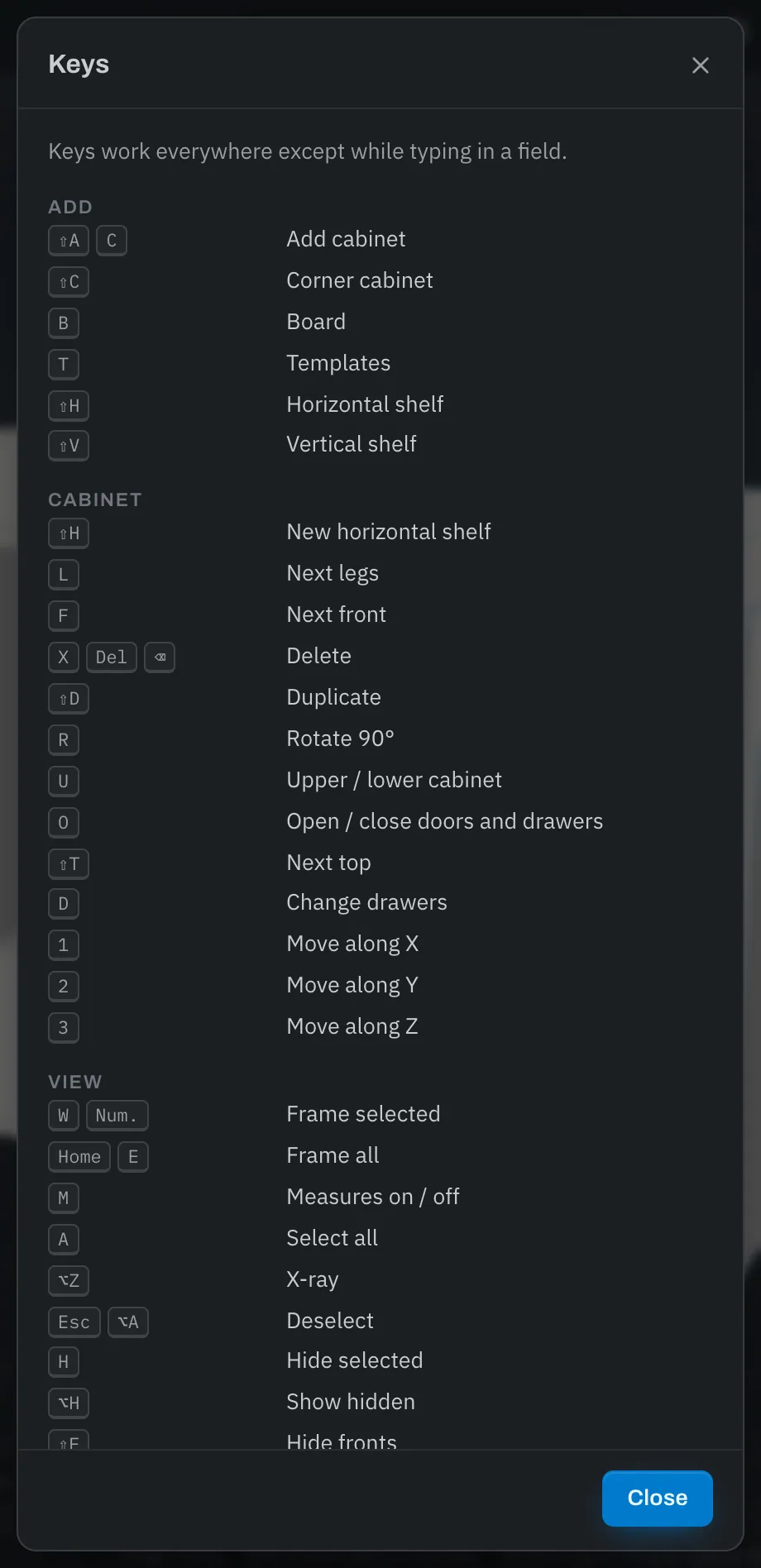
The keys work everywhere in the program except while you are typing in a field. While a window is open (settings, an export, a confirmation), the program's keys do not work, and Esc closes the window. A board of a cabinet counts as the whole cabinet: click any board and the key acts on the cabinet.
On a Mac, the shortcuts with Ctrl use the Cmd key: Ctrl+S (on a Mac Cmd+S). The Alt key is Option on a Mac. All other keys are the same on every computer.
The Several cabinets column says whether the key works on all selected cabinets. When it does, all selected cabinets get the next state of the active cabinet (the one you clicked last).
Adding and deleting
| Key | Action | Several cabinets | Note |
|---|---|---|---|
| C or Shift+A | Add cabinet: a cabinet 600 × 580 × 720 mm, or as set in your My settings | no | If a cabinet is selected, the new one goes next to it. The Add cabinet button in the top bar does the same |
| Shift+C | Corner cabinet | no | Does not use My settings |
| B | Board: a new free board | no | |
| Shift+H | Horizontal shelf | no | Goes into the active cabinet. A cabinet has at most 10 shelves and dividers together, a corner cabinet at most 3 shelves |
| Shift+V | Vertical shelf (divider) | no | Does not work on a corner cabinet |
| Shift+D | Duplicate | yes | A cabinet is copied with the cabinets related to it and the drawers inside them; a selected drawer front copies the cabinet with the drawers. One cabinet: the copy goes next to the original. With related or several cabinets: the copies go as a group next to the originals, with their relations to each other. A single free board is copied as a board |
| X, Del or Backspace | Delete | yes | Deletes the whole cabinet and the cabinets related to it. See the table below |
What X (and Del and Backspace) deletes depends on what is selected:
| Selected | What is deleted |
|---|---|
| A cabinet (first click) | The whole cabinet and the cabinets related to it, without asking |
| A board of a cabinet (second click) | The whole cabinet, but only after the question Delete the whole cabinet? |
| A shelf or divider | Only that shelf |
| A sliding door | The wardrobe's sliding doors; the wardrobe is left without a front |
| An LED strip | Only that strip |
Tip
Almost every delete can be undone with Ctrl+Z (on a Mac Cmd+Z).
Cabinet appearance
| Key | Action | Several cabinets | Note |
|---|---|---|---|
| F | Next front: None → Left opening → Right opening → Two doors, then the same cycle with Inset | yes | Does not work on a corner cabinet |
| Shift+F | Hide fronts / Show fronts | whole project | The Hide fronts button in the 3D view's toolbar does the same; it is blue while the fronts show. Hidden fronts are left out of exports |
| D | Change drawers: None → Outer drawers 1–5 → Inner drawers 1–5 → None | yes | Does not work on a corner cabinet. The drawers replace the fronts |
| L | Next legs: None → Adjustable legs → None | yes | Also works on a corner cabinet |
| Shift+T | Next top: None → Standard → Double cross boards → Front cross board → Back cross board | yes | Does not work on a corner cabinet |
| U | Upper / lower cabinet: lifts the cabinet to the wall unit height (default 1430 mm) or lowers it to the floor | yes | Also works on a corner cabinet. A cabinet that becomes a wall unit loses its legs |
| O | Open / close doors and drawers | yes | The selected cabinets and the cabinets related to them. With nothing selected: every cabinet in the project |
Position
| Key | Action | Several cabinets | Note |
|---|---|---|---|
| 1 2 3 | Move along X, Y or Z: move with the mouse or type a distance in mm | yes | Enter or a click confirms, Esc or a right-click cancels. Hold Shift to move without snapping |
| S, then X, Y or Z | Scale along X, Y or Z: the width, depth or height with the mouse or by typing a size in mm | yes | The side of the cabinet snaps to the edges of other cabinets, walls and the ceiling. Enter or a click confirms, Esc or a right-click cancels. Hold Shift to scale without snapping. See Scaling |
| R | Rotate 90°: 0° → 90° → 180° → 270° | yes | Several selected cabinets turn together, as a group |
While you move with 1, 2 and 3, the line above the 3D view shows the axis, the typed distance and the reminder Type a distance · Shift: no snapping · Enter or click: confirm · Esc: cancel. The distance also takes arithmetic, e.g. 600/2. Type the digits on the top row of the keyboard or on the number pad.
Selecting
| Key or mouse | Action |
|---|---|
| click a cabinet | Selects the cabinet |
| second click on the selected cabinet | Selects the board under the pointer |
| Shift + click | Adds a cabinet to the selection or takes it out. While a board is selected, it adds boards, also of other cabinets |
| Ctrl + click (on a Mac Cmd + click) | Adds a board to the selection or takes it out, even when the cabinet is not selected yet |
| Shift + drag on empty space | Selection box: the cabinets the box touches join the selection. With Ctrl (on a Mac Cmd) the box takes them out |
| A | Select all |
| Esc or Alt+A | Deselect. A click on empty space does the same |
| double-click a cabinet | Frame selected |
| H | Hide selected: hides the selected cabinets or the selected boards in the 3D view only. They stay in the cutting list, the quote and the drawings |
| Alt+H | Show hidden. The orange button with an eye and a number in the 3D view's toolbar does the same |
View and display
| Key | Action |
|---|---|
| M | Measures on / off on every cabinet. The selected cabinet always has its measures |
| W or Num . | Frame selected. With nothing selected it shows the whole project |
| E or Home | Frame all |
| Alt+Z | X-ray: see-through boards; the joints, holes and hardware show |
| N | Show or hide properties: the right-hand column with the tabs |
| Shift+N | Show or hide the list: the left-hand column with the Cabinets list |
| T | Templates: the drawer with the cabinet templates |
| ` | View menu. It is the key left of 1, below Esc |
| Num 1 / Ctrl+Num 1 | Front / Back view |
| Num 3 / Ctrl+Num 3 | Right / Left view |
| Num 7 / Ctrl+Num 7 | Top / Bottom view |
| Num 5 | Perspective / orthographic |
| Num 4 Num 6 Num 8 Num 2 | Orbit left, right, up and down, 15° at a time |
| Num 9 | Opposite view |
| Num 0 | Look through the camera; Num 0 again goes back to the view. Without cameras it looks through the automatic camera (see Render in the browser) |
| Ctrl+Alt+Num 0 (on a Mac Cmd+Option+Num 0) | Camera to view: the active camera takes the current view |
On a Mac, Cmd works as well as Ctrl with the number pad digits: Cmd+Num 1 is the same as Ctrl+Num 1.
A laptop without a number pad
The digits on the top row of the keyboard move a cabinet (1, 2, 3), so they do not change the view. Choose the views with the Perspective, Front and Top buttons in the 3D view's toolbar, and the others in the View menu (the button next to them, or the ` key).
Mouse and touch
| Mouse | Action |
|---|---|
| left button, drag on empty space | Orbit the view |
| Alt + left button, drag | Orbit the view, also when you start on a cabinet |
| right button, drag | Pan the view |
| Ctrl + drag on empty space (on a Mac Cmd) | Pan the view, handy on a touchpad |
| mouse wheel | Zoom in and out, towards the place under the pointer |
| middle button, drag | Zoom in and out |
| drag a cabinet | Move it over the floor. The cabinet snaps to its neighbours and the walls. Shift: no snapping. Ctrl (on a Mac Cmd): it turns to the wall it snaps to |
| right-click (on a Mac also Ctrl + click; on a phone hold a finger on the cabinet) | On a cabinet the cabinet menu: duplicating, opening, copying settings, template, Add to the cabinet, dismantling, deleting… On empty space the project menu: adding, the view of the whole scene, Project settings…, Project check |
The bar at the bottom of the screen is a reminder of the main mouse actions: drag: move, Shift+click: add or remove, Shift+drag on empty space: box select, empty space or Alt: orbit, right button: pan, right click: menu.
On a touch screen:
| Touch | Action |
|---|---|
| tap a cabinet | Selects the cabinet. A second tap selects a board |
| one finger on empty space | Orbit the view |
| two fingers | Pan and zoom (spread or pinch) |
| finger on a cabinet, drag | Move the cabinet over the floor |
| tap on empty space | Deselect |
| the Select more button | While it is on, each tap adds to the selection or takes out, as Shift + click |
Export
| Key | Action |
|---|---|
| Ctrl+Shift+E (on a Mac Cmd+Shift+E) | Production package: cutting list, drawings, DXF, labels, assembly, order and the check in one zip file (see The production package and the supplier order) |
Project and program
| Key | On a Mac | Action |
|---|---|---|
| Ctrl+Z | Cmd+Z | Undo the last action |
| Ctrl+Shift+Z or Ctrl+Y | Cmd+Shift+Z or Cmd+Y | Redo what you undid |
| Ctrl+S | Cmd+S | Save: to the cloud while you are signed in (see Signing in, licence and projects) |
| Ctrl+O | Cmd+O | Open…: your projects, the Cloud and This browser tabs |
| Ctrl+Shift+S | Cmd+Shift+S | Download project: the project as a .json file on your computer |
| Ctrl+K | Cmd+K | Command palette: find commands, cabinets by name, fields, settings, templates and tours. Also works while you type in a field |
| Ctrl+, | Cmd+, | Project settings. Also works while you type in a field |
| Esc | Esc | Close a window, menu or the palette, stop a move or a render, deselect |
Save as…, Duplicate project, New project and Keys have no shortcut: they are in the Project menu and in the command palette.
In fields and the palette
| Key | Action |
|---|---|
| Enter | In a number field: confirm what you typed. On a focused field: start typing |
| Esc | In a field: go back to the old value |
| Up / Right, Down / Left | On a focused number field: the value one step up or down. While you type, left and right change the value only while the whole number is selected |
| Shift / Ctrl + an arrow | A step ten times smaller / ten times bigger (Ctrl is Cmd on a Mac) |
| Down / Right, Up / Left | On a focused drop-down list: the next / previous item, without opening the list. The same on choice buttons (Z rotation) |
| Up / Down, Enter | In the command palette: choose a row and run it. Esc clears what you typed, a second Esc closes the palette |
> or # at the start |
In the command palette: commands only (>) or fields only (#) |
A number field takes arithmetic and units: 1200/2+18, 60cm.
The sketch editor
While the Draw a cabinet editor is open (Draw a cabinet), its own keys apply. Ctrl is Cmd on a Mac. While you type in a field, the keys go to the field: Esc puts the field's value back, and Ctrl+Enter still does Make cabinets. The program's own keys (C, Shift+A, T, the command palette Ctrl+K) do nothing while the editor is open.
| Key | Action |
|---|---|
| D | Pen: draw shelves and dividers |
| V | Pick: pick cells and boards, move boards |
| Del or Backspace | Deletes the picked board or takes the front off the picked cells |
| Ctrl+Z | Undo a step of the sketch |
| Ctrl+Shift+Z or Ctrl+Y | Redo a step of the sketch |
| Esc | Clears the pick. With nothing picked, closes the editor without keeping the sketch. In a field, puts its value back |
| Ctrl+Enter | Make cabinets (when editing a sketch, Apply) |
Board shape
While you edit a board's shape (Edit shape in the Cutter section, see Board shape):
| Key | Action |
|---|---|
| Enter or Esc | Done: finish editing the shape |
| Esc while you drag | Put a move of a handle back |
| Shift while you drag | 1 mm steps, no magnet |
| double-click on an edge | Split the edge |
| double-click on a split point | Remove the split |
| X, Del or Backspace | Remove the clicked opening; the cabinet is not deleted |
| Ctrl+Z | Undo the last move of a handle |
Customer screen
In the customer screen's window (Customer screen):
| Key | Action |
|---|---|
| F | Full screen: the customer screen's window over the whole screen and back |
| Esc | Leave full screen |
In EFS Web, O opens the doors and drawers on the customer screen too, exactly as in your 3D view.
On a phone
A phone has no keyboard, so every key has a button:
| Key | On a phone |
|---|---|
| C, Shift+C, B, Shift+H, Shift+V | The + button in the top bar and the ▾ next to it |
| Shift+D, X, W | The buttons in the selected cabinet's header: Frame selected, Duplicate, Delete. The More button opens the same menu as a right-click, as does a finger held on the cabinet |
| F, D, L, Shift+T | The choices in the Fronts, Drawers, Legs and Construction panels |
| U, R | Is upper and Z rotation in the Cabinet properties panel |
| 1 2 3 | The arrows on the selected cabinet, the X, Y and Z fields in the Location panel, or drag the cabinet with a finger |
| S | The dots on the sides of the selected cabinet, or the W, D and H fields in the Cabinet properties panel |
| M, O, Alt+Z, E, Shift+F | The buttons in the 3D view's toolbar |
| H, Alt+H | The button with a crossed-out eye while something is selected, the orange button with an eye while something is hidden |
| Shift + click | The Select more button in the 3D view's toolbar |
| views (Num 1, Num 7…) | The View menu in the 3D view's toolbar |
| Num 0, Ctrl+Alt+Num 0 | Look through the camera and Camera to view in the Cameras panel |
| Ctrl+Z, A, Ctrl+K, Ctrl+, | The … menu in the top bar: Undo, Redo, Select all, Command palette, Project settings |
| Ctrl+Shift+E | The … menu → Export → Production package |
| A | Select all in the … menu, or a long press on a cabinet → Select all |
| N, Shift+N | None: the properties are in the panel at the bottom of the screen, and the cabinet list is the Scene elements panel in the Project tab |
Desktop program keys that EFS Web does not have
EFS Web has no Blender, so it has none of Blender's keys: Tab (Edit Mode), F1 (the manual for a field), F2 (rename), F9 (adjust the last action), G (Blender's move) and Alt while changing a field. Instead:
- You rename a cabinet in the cabinet's header, and a camera in the Cameras panel.
- A field you change while several cabinets are selected changes all selected cabinets of the same kind. Above the panels it then says, for example, 5 selected and Changes go to all 5 of this kind.
- The sizes the desktop program sets with F9 (the filler width, the number of sliding doors) you type into the panel before or after you add the item.
- The book icon on a panel opens the manual page about that panel.
In EFS Web Shift+A adds a cabinet at once; it does not open an Add menu. That menu is the ▾ arrow next to the Add cabinet button.
More in Differences from the desktop program.