Customer screen
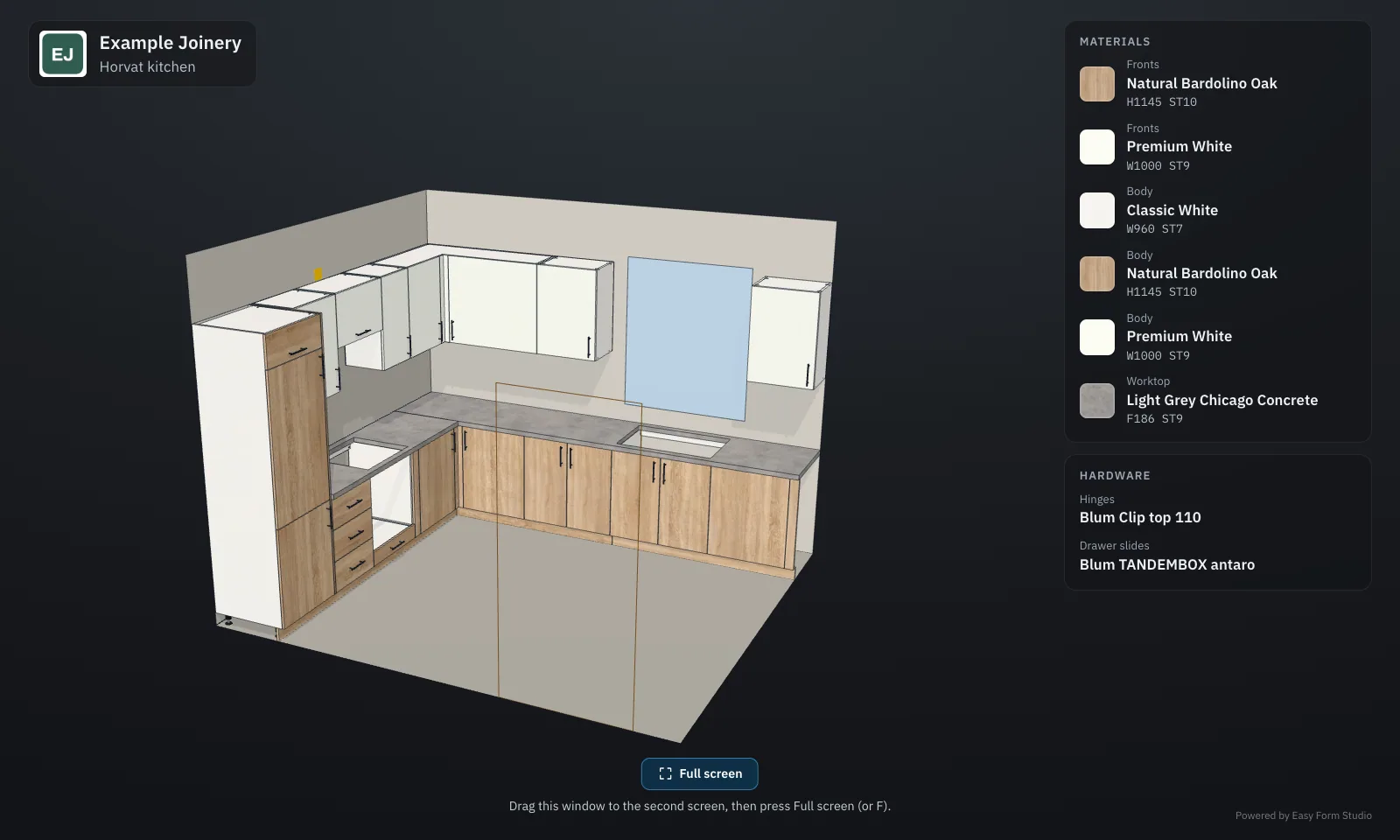
In the showroom you work in EFS Web on your own screen, and the customer follows the design on a second, big screen connected to the same computer. The customer screen is a separate EFS Web window that shows only the design: a big 3D view, the workshop's logo and name, the measures, the materials and the hardware. The customer never sees the menus, panels, prices or the cutting list. In this chapter you learn to open the customer screen, control it with the bar on your screen and use it while you draw a sketch.
The customer screen exists only in EFS Web (see Differences from the desktop program).
Before you start
- The second screen (a TV or a monitor) is connected to the computer you work on, with a cable (HDMI) or wirelessly (AirPlay), as an extended display, not a mirrored one. On a Mac you set this in System Settings › Displays, in Windows with Win+P and the option to extend the display.
- EFS Web is open in Chrome, Edge, Safari or Firefox on that computer. In Chrome and Edge the customer screen moves to the second screen by itself (see Open the customer screen).
- The workshop's logo and name are entered in Workshop details (Workshop details). The customer screen shows them in its top left corner.
- The project has a name, e.g. Horvat kitchen: the customer sees it under the workshop's name.
Open the customer screen
- Click the Customer screen button (a screen with waves in its corner) on the 3D view's toolbar, just left of the view angle 000°. The same button is in the header of the Draw a cabinet editor, and the command palette (Ctrl+K, on a Mac Cmd+K) has the command Customer screen….
- A new browser window opens with the design.
- Chrome and Edge ask the first time whether the site may place windows on your screens. Allow it: the window goes to the second screen and fills it. The browser asks only once.
- Safari and Firefox open the window next to EFS Web. Drag it to the second screen with the mouse.
- In the customer screen's window, click Full screen or press F. The window fills the whole screen, without the browser's frame.

While the customer screen is open, the button is blue and the customer screen bar is at the bottom of your screen. If the window stayed on your screen, another click on the button moves it to the second screen again (in Chrome and Edge). Holding the mouse over the button then shows Customer screen is open: move it to the other screen again.
Rules:
- While the window is not full screen, the bottom says Drag this window to the second screen, then press Full screen (or F). F or Esc take the window out of full screen.
- The mouse pointer on the customer screen hides when you leave the mouse still for two or three seconds.
- The customer (or you) can turn and zoom the design with the mouse on the customer screen. Nothing can be selected or changed there.
- The customer screen is in the interface language of your EFS Web.
- If the browser blocked the window, EFS Web says The browser blocked the customer screen window. Allow pop-ups for this site and try again. Allow pop-ups for app.easyformstudio.com and click the button again.
What the customer sees
| Part of the screen | What it shows |
|---|---|
| 3D view | The whole project, big. While you draw a sketch, only the piece you are drawing (see While you sketch). |
| Top left | The workshop's logo and name from Workshop details and the project name. |
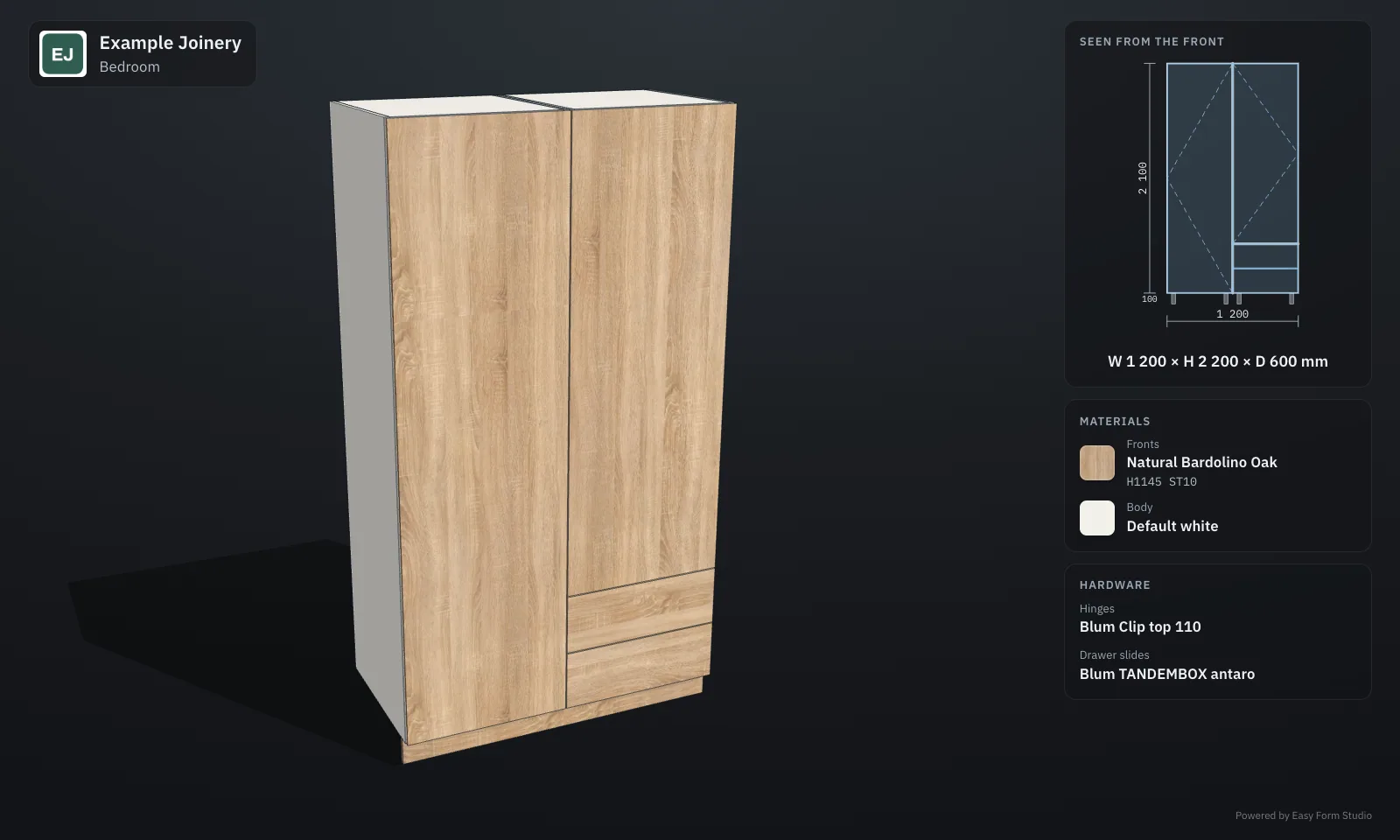
| Seen from the front | Only while you sketch: the piece from the front, with the overall width and height, the leg height and the size under it, e.g. W 1 200 × H 2 200 × D 600 mm. |
| Materials | The decors by what they are for: Fronts, Body, Worktop and Other boards (kickboard, end panels, fillers in a decor not named already). Each decor has its sample, name and code. |
| Hardware | The hardware really used: Hinges, Drawer slides and Lift systems, each name once, e.g. Blum Clip top 110. A cabinet without doors adds no hinge. |
| Bottom right | A small Powered by Easy Form Studio mark. |
The customer never sees EFS Web's menus, panels and windows, your pointer, prices, the cost estimate and the quote, the cutting list, CNC files and labels, the selection, the handles for changing sizes, measures, the floor grid, the dowels of X-ray or the red areas of a sketch.
The customer screen bar
While the customer screen is open, a bar at the bottom of the 3D view controls it. The bar is over the Draw a cabinet editor too.
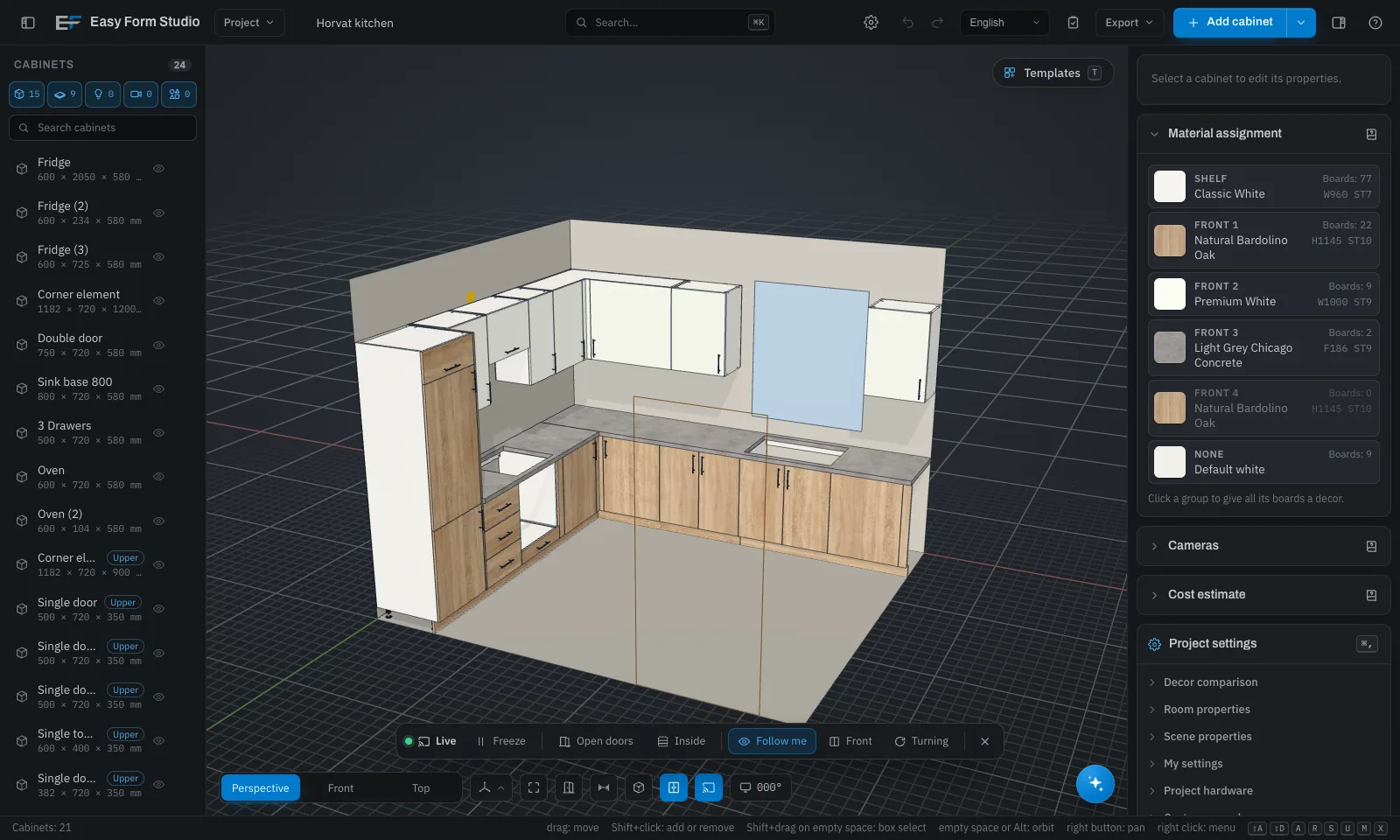
| Button | What it does |
|---|---|
| Live / Frozen | The customer screen's state. Live (a green dot): the customer sees each of your changes as you make it. Frozen: the customer screen keeps what it showed. |
| Freeze / Show | Freeze keeps the customer screen as it is while you try something. Your changes wait. Show sends the customer the design as it is now and goes back to Live. |
| Open doors | Opens and closes the doors and drawers. The customer sees the doors and drawers open exactly as in your 3D view: when O opens only the selected cabinets, only those are open on the customer screen too. The button on the bar does the same as the Open doors button on the 3D view's toolbar. |
| Inside | The fronts on the customer screen turn see-through, so the shelves, rails and drawers behind them show, without dowels and holes. Your own 3D view does not change. |
| Follow me | The customer sees the design from where you look at it: the customer screen follows the camera of your 3D view. The default. |
| Front | The customer sees the design straight from the front, whatever your view is. |
| Turning | The design turns slowly on the customer screen. |
| × | Close the customer screen: closes the customer screen's window, and the bar goes. |
Tip
Before you try something you do not want the customer to see (another layout, deleting cabinets), click Freeze. When it is done, click Show, or take it back with Ctrl+Z and then click Show.
When you close the customer screen's window another way (e.g. with the browser's keys), the bar goes too. If you reload EFS Web while the customer screen is open, the screen connects again by itself.
While you sketch
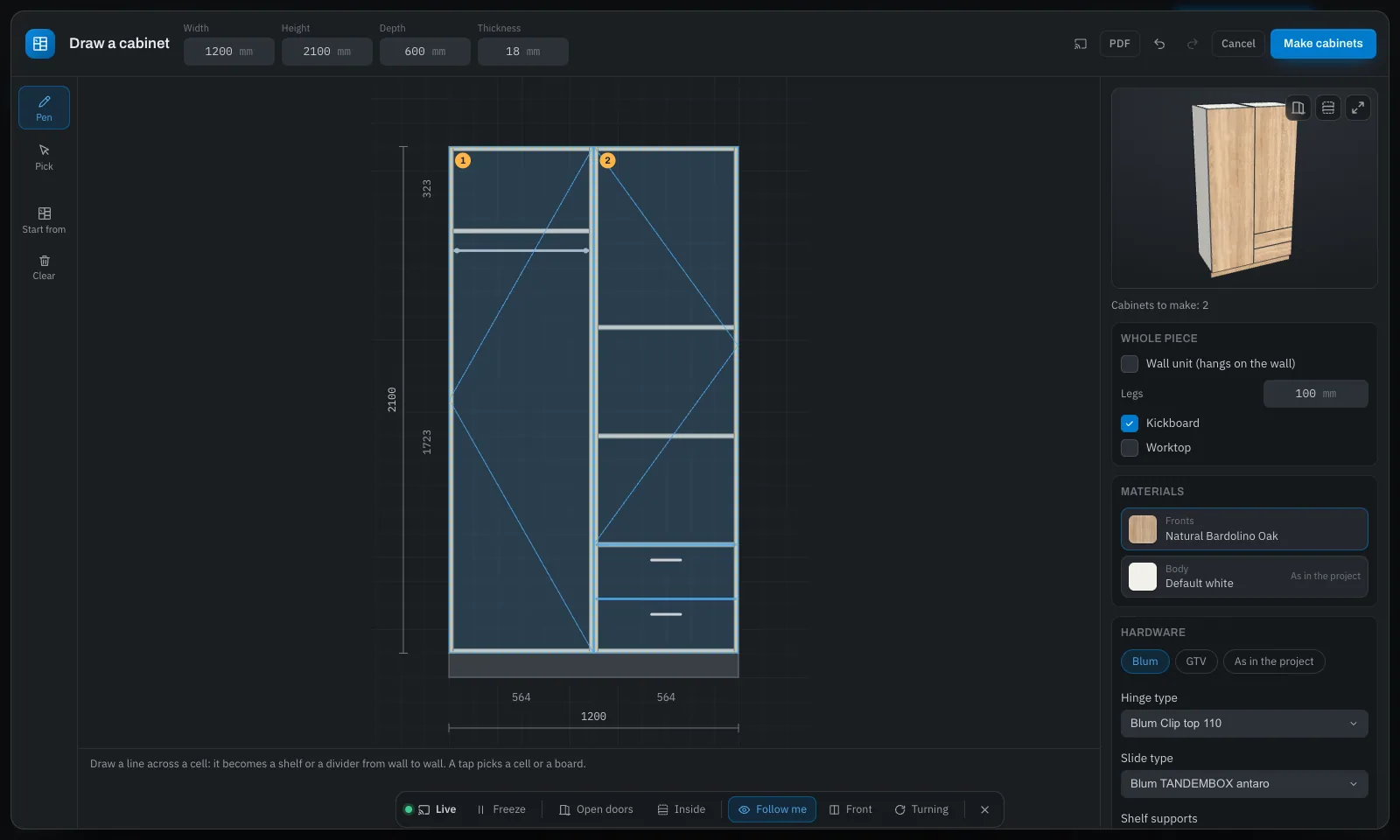
The customer screen works in the Draw a cabinet editor too (Draw a cabinet). The button is in the editor's header, left of PDF, and the bar is at the bottom of the drawing.
While the editor is open:
- The customer screen shows only the piece you are drawing, on its own, with its front view and measures, its materials and hardware. The decors and hardware you choose in the Materials and Hardware sections show at once (Materials, Hardware).
- Follow me follows the camera of the editor's 3D view, not of the 3D view behind the editor.
- Open doors and Inside on the bar are the doors and see-through fronts of the editor's 3D view: the same buttons are in the view itself (The 3D view).
- While the sketch has a red area, the customer still sees the last piece that could be made.
- When you close the editor (Make cabinets or Cancel), the customer screen shows the whole project again, with the new cabinets.
Privacy and limits
- Nothing goes to a server. The customer screen shows only what your browser sends it on the same computer. It saves nothing and needs no sign-in.
- Same computer, same browser. The customer screen must be opened from EFS Web in the same browser. A TV with its own browser or another computer cannot open it.
- The customer portal has no customer screen (Customer portal).
- The customer screen needs WebGL like the 3D view. When it is turned off in the browser, the window says so.
Common mistakes and fixes
Clicking the button opens nothing. The browser blocked the pop-up. Allow pop-ups for app.easyformstudio.com and click the button again.
The window opens on my screen, not on the second one. The second screen is mirrored or not connected, or the browser has no permission to place windows (Chrome and Edge: the site settings, Window management). In Safari and Firefox you always drag the window over yourself.
The customer sees the same as I do, with the menus. The second screen mirrors your screen. Set it up as an extended display.
The customer screen does not follow my changes. The bar says Frozen. Click Show.
The customer screen says “Waiting for EFS Web…”. The window has not got the design: the EFS Web tab it was opened from is no longer open. Close the customer screen's window and open it again with the button in EFS Web. When you only reload EFS Web, the screen connects by itself within a few seconds.
The customer screen says “The customer screen was closed in EFS Web.” You closed it with × on the bar. Open it again.
The mouse pointer is in the way of the picture. Leave the mouse still on the customer screen: the pointer hides by itself in a few seconds.
Keys in this chapter
| Key | Where | Action |
|---|---|---|
| F | the customer screen's window | Full screen and back |
| Esc | the customer screen's window | Leave full screen |
| O | EFS Web | Open or close the doors and drawers of the selected cabinets, on the customer screen too |
All keys in one place are in Keyboard shortcuts.
Next
This is the last chapter of the For the customer part. You can also send the customer the project to the phone, with a link and a QR code (Web preview and QR), or give them the portal where they design themselves (Customer portal).