Signing in, licence and projects
In this chapter you sign in to EFS Web with the e-mail address of your licence and get to know the account menu and the Account panel, where you follow and change your subscription. Then you save projects to the cloud, open them on another device, make copies and learn what is kept with your account.
Video: A01 Signing in, licence and projects
The same workflow in a short silent video with English subtitles.

Before you start
- An Easy Form Studio licence: a subscription, the free trial of the monthly or yearly subscription or a lifetime licence (see Purchase).
- The licence's e-mail address and access to that inbox: the sign-in code is sent there.
- A browser on a computer, tablet or phone: a recent Chrome, Edge, Firefox or Safari.
- Internet: to open EFS Web, sign in and save to the cloud.
What EFS Web is
EFS Web is Easy Form Studio in the browser, at app.easyformstudio.com. There is nothing to install and no key to enter: open the address, sign in with a code from your e-mail and start designing.
- It comes with every licence, at no extra charge. During the free trial of the monthly or yearly subscription only EFS Web works (see Free trial).
- Signing in to EFS Web does not use up one of the two computers your key may run on.
- It works only while the licence is active (see When the free trial or the subscription ends).
- Projects are saved to the cloud, on our server, and open on every device you sign in on.
- Most features of the desktop program work in EFS Web too. What differs is listed in the chapter Differences from the desktop program.
EFS Web does not open projects of the desktop program (.blend files). You move a single cabinet with a file: export it to JSON in the desktop program and import it in EFS Web with Project → Import cabinet.
Purchase
| Plan | Price | Note |
|---|---|---|
| Monthly subscription | 19 EUR a month, renews automatically | can start with a 14-day free trial in which only EFS Web works; cancel any time; EFS Web works until the end of the paid month |
| Yearly subscription | 149 EUR a year, renews automatically | can start with a 14-day free trial in which only EFS Web works; cancel any time; EFS Web works until the end of the paid year |
| Lifetime licence | 499 EUR one-off | does not expire |
Every plan includes EFS Web and the desktop program (the app and the Blender add-on). The details are on the Buy page.
- Open easyformstudio.com and click Buy. On the EFS Web sign-in page, Try 14 days free opens the order too (see No active licence).
- Choose a plan and click the button below it.
- On the Order page, enter the address the licence will be under in the E-mail address field. The licence key and the confirmation of the contract go to it, and you sign in to EFS Web with it.
- For the monthly or yearly subscription, under How would you like to start?, choose 14 days free, EFS Web only (the default; 0 EUR today, see Free trial) or Desktop now (19 EUR today for the monthly, 149 EUR for the yearly; the desktop program works at once too).
- Choose whether you are buying as a private person or as a company and enter the details asked for. As a private person, tick the box for immediate delivery of the licence; with 14 days free, EFS Web only there is no such box. Above the button the page says that by ordering you accept the Terms and Conditions and confirm that you have read the Privacy Policy. Click Order with obligation to pay. The button says what is charged and when, e.g. Order with obligation to pay – 14 days free, then 19 EUR per month.
- On Stripe's payment page, enter your card, then confirm. The e-mail address is already filled in, the same as on the order, and cannot be changed. Payment is by card only. You enter the card for the free trial too; charging starts only when the trial ends.
- On the page after payment, click Open EFS Web. EFS Web opens and signs you in at once (see Signing in from the page after purchase).
- The Welcome to Easy Form Studio message arrives by e-mail with how to get into EFS Web, the key for the desktop program and the download links. Keep it.
If a licence is already under the address you entered, the order does not go on to payment and no new free trial starts. The page says Check your e-mail: the next step of the order has been sent to that address. One of two messages arrives:
- Renew your Easy Form Studio licence, when the licence has ended: links to renew it through your account (see When the free trial or the subscription ends);
- Your Easy Form Studio licence is already active, when the licence is active: there is nothing to buy again. If the account can still be upgraded, e.g. to the lifetime licence, the message also has a link for that.
The links in these messages are valid for 30 minutes.
Watch out: the e-mail address on the order
The licence is under the address you enter on the Order page, and that is the only address you can sign in to EFS Web with. Check it before you click Order with obligation to pay: Stripe's page takes that address and it cannot be changed there. If you made a mistake, go back from Stripe's page to the order and correct the address.
Before you buy, you can also get to know Easy Form Studio in the Cabinetmaking Academy, a free course with video lessons. The academy also gives you a free academy key, no card needed, for the exercises in the desktop program, without production exports.
Free trial
A new monthly or yearly subscription can start with a 14-day free trial. The lifetime licence is charged at once.
- During the free trial EFS Web works as with a paid licence. The desktop program (the app and the Blender add-on) unlocks with the first payment.
- You enter your card when you order. Nothing is charged until the free trial ends.
- Three days before the end, the e-mail Easy Form Studio – your trial ends on with the date arrives.
- When the free trial ends, 19 EUR for the monthly or 149 EUR for the yearly subscription is charged to the card and the desktop program unlocks. The e-mail Easy Form Studio – the desktop app is unlocked arrives with the key and the steps to get started. The subscription then renews every month or every year.
- You need the desktop program right away: in the Account panel, click Unlock the desktop now (19 EUR today), with the yearly subscription Unlock the desktop now (149 EUR today) (see Unlock the desktop now). The free trial then ends, and the plan's price is charged at once.
- You do not want to go on: cancel the subscription before the free trial ends (see Cancelling and resuming). Nothing is charged.
- Only a new subscription gets the free trial, once per person and e-mail address. Buying again (from the desktop program, in EFS Web, on the website or with a link from an e-mail) has no free trial and is charged at once.
After an order with a free trial
The page after an order with a free trial starts with EFS Web:
| Part of the page | What it says or does |
|---|---|
| EFS Web is ready: 14 days free | Until when the free trial runs and when the plan's price (19 EUR or 149 EUR) is charged to the card. |
| Open EFS Web | Opens EFS Web and signs you in at once, without a code (see Signing in from the page after purchase). |
| How to start | Three steps: signing in with the address from the order, a kitchen template or an empty project, this manual. |
| The desktop app and the Blender add-on | From when the desktop program works, the Unlock the desktop now button (the plan's price is charged today), the API key with the Copy key button and the download links. |
| Cancelling | Account → Cancel subscription. If you cancel before the free trial ends, you pay nothing. |
With a paid order the page shows the key and the downloads first, and below them, under Or in the browser, the Open EFS Web button.
The e-mail Welcome to Easy Form Studio – 14 days of EFS Web free and your order confirmation has the same order, and below it your order, the Terms, the right of withdrawal and complaints.
Withdrawal
What you buy is the licence for the Easy Form Studio program: the key and the downloadable program. EFS Web, the AI assistant and web publishing are additional services that come with the licence at no extra charge. During the free trial you get only EFS Web, and the desktop program with the first payment.
As a private person:
- monthly or yearly subscription with a free trial: within the first 14 days, while the desktop program is still locked, you can withdraw from the contract without giving a reason and at no cost. When the free trial turns into a paid subscription, no new period starts;
- Desktop now, Unlock the desktop now and the lifetime licence: the program is delivered at once, so you tick a box to request immediate delivery and acknowledge that you thereby lose the right of withdrawal. We repeat this in the confirmation e-mail. After delivery we refund money only in the two cases under Refund for a defect in the program.
Withdrawing during the free trial:
- On the Withdrawal page on the website, start the withdrawal function (the link is also in the order confirmation e-mail).
- Enter your name and the e-mail address you ordered with.
- Choose I withdraw from the subscription in its EFS Web trial, within the statutory 14 days (no reason given). No description is needed.
- Click Confirm withdrawal. The licence ends at once, nothing is charged, and a confirmation arrives by e-mail.
If you simply do not want to go on, cancelling the subscription is enough (see Cancelling and resuming): nothing is charged then either, and EFS Web works until the free trial ends.
Companies and sole traders do not have this statutory right. Withdrawal is not the same as cancellation: a cancelled subscription works until the end of the paid period and does not refund money. The instructions and the form are on the Withdrawal page on the website, which the Withdrawal link in the Account panel also leads to.
Refund for a defect in the program
We refund money only in the two cases of section 16 of the Terms and Conditions, and then the full amount paid for the purchase. This applies to the subscription and the lifetime licence, for private persons and companies alike:
- the program lacks a feature that easyformstudio.com describes, you reported it, and within 15 working days of your report we did not clearly explain where the feature is and how to use it;
- you reported a bug that seriously impairs the program, and we did not fix it within 15 working days of your report.
The report must reach info@easyformstudio.com by e-mail within 14 days of the purchase. Describe what you did, what happened and which version of the program you use. With the refund, the licence ends. What counts as a serious bug and the other conditions are in the Terms and Conditions.
Signing in
There is no password. Every time you sign in, a new 6-digit code arrives by e-mail.
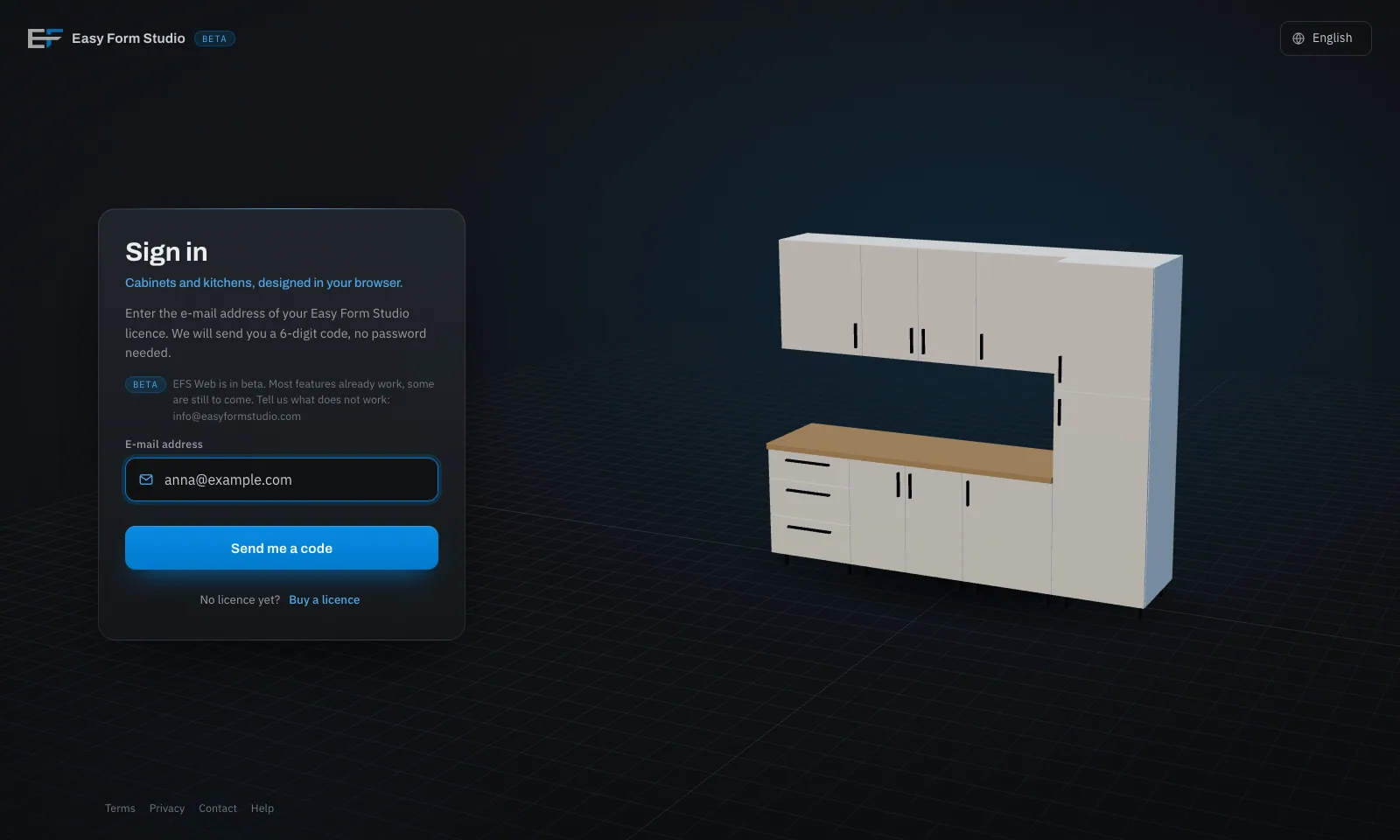
- Open app.easyformstudio.com. The Sign in page opens.
- In the E-mail address field, enter the address of your licence.
-
Click Send me a code.
-
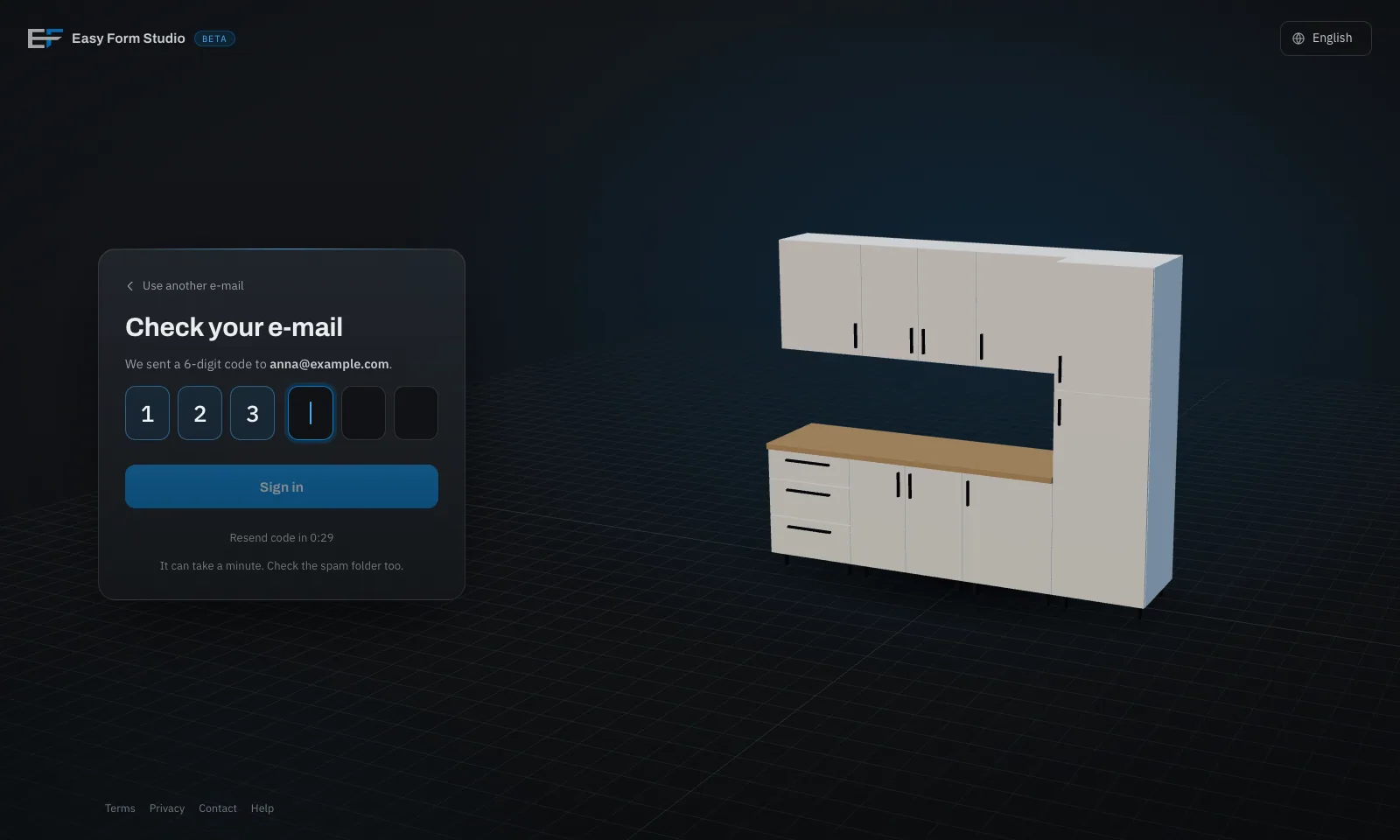
The page moves on to Check your e-mail. Open the e-mail with the code (look in your spam folder too).
-
Type or paste the code into the six boxes. When you type the sixth digit, the code is sent by itself; you can also click Sign in.
-
The greeting Welcome, with your name appears, then EFS Web opens.
You can also paste the code with a space or a hyphen in the middle (123 456, 123-456): EFS Web takes only the digits. The code e-mail comes in the language chosen on the sign-in page.
The rest of the sign-in page:
| Part of the page | What it does |
|---|---|
| Use another e-mail | Goes back to entering the address, e.g. when you typed the wrong one. |
| Resend code | Sends a new code to the same address. For the first 30 seconds it reads Resend code in and the time left instead. |
| Try 14 days free (next to No licence yet?) | Opens the order of the monthly subscription with the free trial in a new tab. The address you typed is already filled in on the order. |
| See all plans | Opens the Buy page on the website. |
| language (the globe at the top right) | The language of the sign-in page, of the code e-mail and of EFS Web after you sign in. |
| Terms, Privacy, Contact | Open the legal pages and the contact page on easyformstudio.com. |
| Help | Opens an e-mail to info@easyformstudio.com. |
Sign-in rules
| Rule | Value |
|---|---|
| A code is valid | 10 minutes, once only |
| Wrong attempts | 5 per code. When 2 or fewer are left, the line under the boxes also reads Tries left: and the number. After the fifth wrong code the button reads Send a new code. |
| A new code | Resend code after 30 seconds |
| Codes for the same address | at most 3 in 15 minutes and 10 a day, otherwise Too many attempts. Try again in and the time |
| A sign-in lasts | 30 days from signing in, in that browser |
You sign in separately on every device and in every browser. The account menu shows Signed in until and the date the sign-in ends.
When the 30 days run out while EFS Web is open, the sign-in page appears over the project with the message Your session has ended. Sign in again, your work stays open. Sign in with a new code: the open project stays, and the saves that were waiting go up to the server.
Signing in from the page after purchase
The Open EFS Web button on the page after purchase signs you in without a code, if all three hold:
- you open it in the browser you placed the order in;
- no more than 30 minutes have passed since the payment;
- you have not used the button yet: it signs you in only once.
Then EFS Web opens at once, and the sign-in lasts 30 days, as after a code. Otherwise the Sign in page opens with the message This sign-in link has already been used or has expired. Sign in with the code we e-mail you. Enter the address from the order and sign in with a code (see Signing in). If you are already signed in in that browser, EFS Web opens without a code too.
No active licence
A code goes only to an address with an active licence or free trial. For an address that has no licence, the page moves on to No active licence: it says that the address has no active subscription or lifetime licence and that EFS Web comes with every licence: the monthly or yearly subscription or the lifetime licence. For an address whose licence has ended, Your licence has ended opens instead (see When the free trial or the subscription ends).
- Check the address. Click Use another e-mail and enter the licence's address.
- You have no licence and want to try first: click Try 14 days free. Below the button it reads Card required. For 14 days EFS Web works, the desktop app from the first payment. The Order page of the monthly subscription opens in a new tab, with 14 days free, EFS Web only selected and your address in E-mail address. Carry on as in Purchase from step 4.
- You want the desktop program at once too: click Monthly (19 EUR/month) or Yearly (149 EUR/year) (the order with Desktop now selected) or Lifetime (499 EUR).
- You want to compare the plans first: click See all plans. The Buy page on the website opens.
- You have just bought one: activation can take a minute (Just bought it? Activation can take a minute.). Click Try again.
On a phone
Signing in is the same. The code field opens the number keyboard. Copy the code from your e-mail app and paste it into the boxes.
The account menu
The button with your initials at the top right of the top bar opens the account menu. When there is no connection to the server or the licence needs attention, the button carries a dot.
- Click the button with your initials.
- The menu opens with your name, e-mail and licence status.
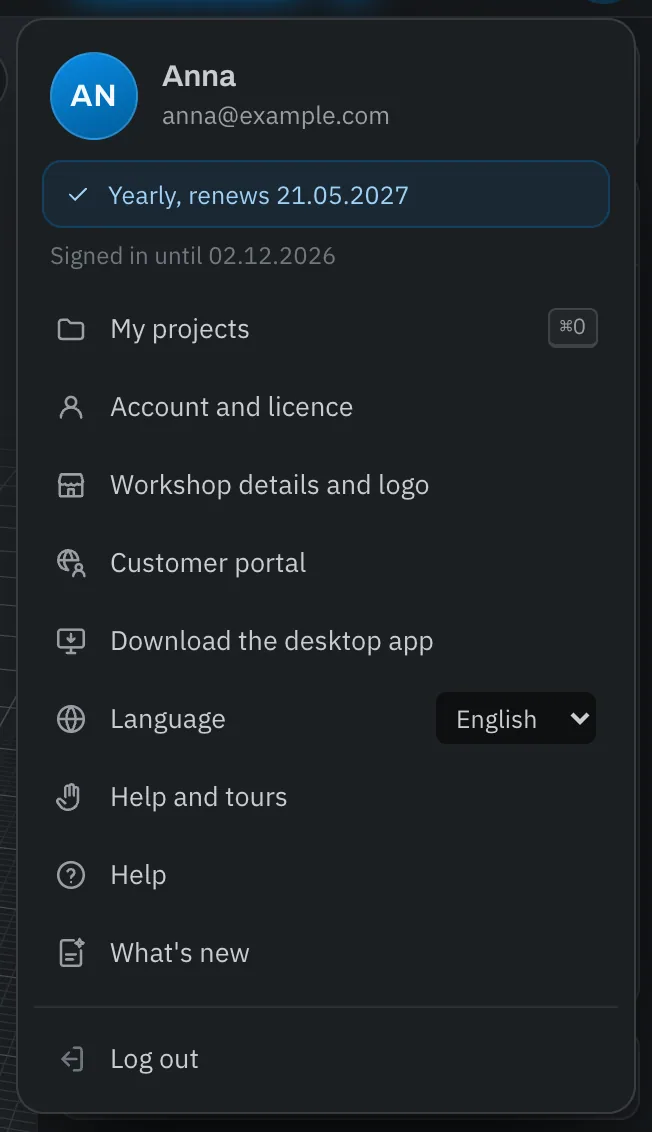
| Part of the menu | What it shows or does |
|---|---|
| name and e-mail | The account you are signed in with. You enter the name in the Account panel (see First and last name); until then the part of the e-mail before @ shows. |
| licence status | Tick: everything is in order. Warning sign: something needs attention. The text is the same as in the Account panel (see Statuses). |
| No connection to the server: the licence as last checked. | Shown when the server cannot be reached. |
| Signed in until and the date | When the sign-in in this browser ends. |
| My projects | Opens your projects (see My projects). |
| Account and licence | Opens a window with the Account panel (see The Account panel). |
| Workshop details and logo | Opens the Workshop details window with the name, address, logo and the other details for the quote, the same as for the quote (see Workshop details). |
| Customer portal | Opens the settings of the portal where your customers design and send you designs (see Customer portal). |
| Download the desktop app | Downloads the program's installer for this computer: EasyFormStudio-2026.dmg on a Mac, EasyFormStudio-2026-setup.exe on Windows. On a phone, tablet or Linux it says the app runs on macOS and Windows. During the free trial it also says from when the app works. |
| Language | The interface language (see Interface language). |
| Help and tours | Opens a window with the Manual, What's new, EFS Assistant and Send feedback buttons and the list of interactive tours. |
| Help | Opens this manual. |
| What's new | Opens the What's new page on the website: what changed in EFS Web and in the desktop program. |
| Log out | Logs you out of this browser (see Logging out). |
Close the menu with Esc or by clicking anywhere outside it.
Logging out
- In the account menu, click Log out. The same button is at the bottom of the Account panel.
- If the open project has changes that are not in the cloud, the Log out? window opens. Choose:
- Save and log out: the project goes to the cloud, then you are logged out;
- Log out without saving: the changes are lost;
- Cancel: you stay signed in.
- The page reloads and shows Sign in.
After logging out, the browser forgets the open project, the sign-in, the conversation with the assistant and its copies of your cloud projects. Your cloud projects stay on the server. Saves still waiting to upload stay in the browser and go up the next time you sign in with the same address.
Tip
On someone else's or a shared computer, always log out when you are done.
If someone else signs in on the same browser (e.g. after your sign-in has ended), your unsaved project waits for your next sign-in and they start with an empty project. Your settings never go to their account.
Other browsers where you are signed in are logged out from the Account panel (see Signed-in devices).
The Account panel
In the Account panel you see the licence status and manage your subscription: you change the plan and the card, open invoices and cancel. The panel is the same as in the desktop program.
There are three ways to open it:
- account menu → Account and licence (the Account and licence window opens);
- Project settings (the gear in the top bar or Ctrl+,, on a Mac Cmd+,) → the Sharing and help section → Account;
- the Project tab on the right → the Project settings box → the Account row.
When the panel opens, it loads the account details from the server by itself. Until they arrive, it reads Press refresh to load account details.
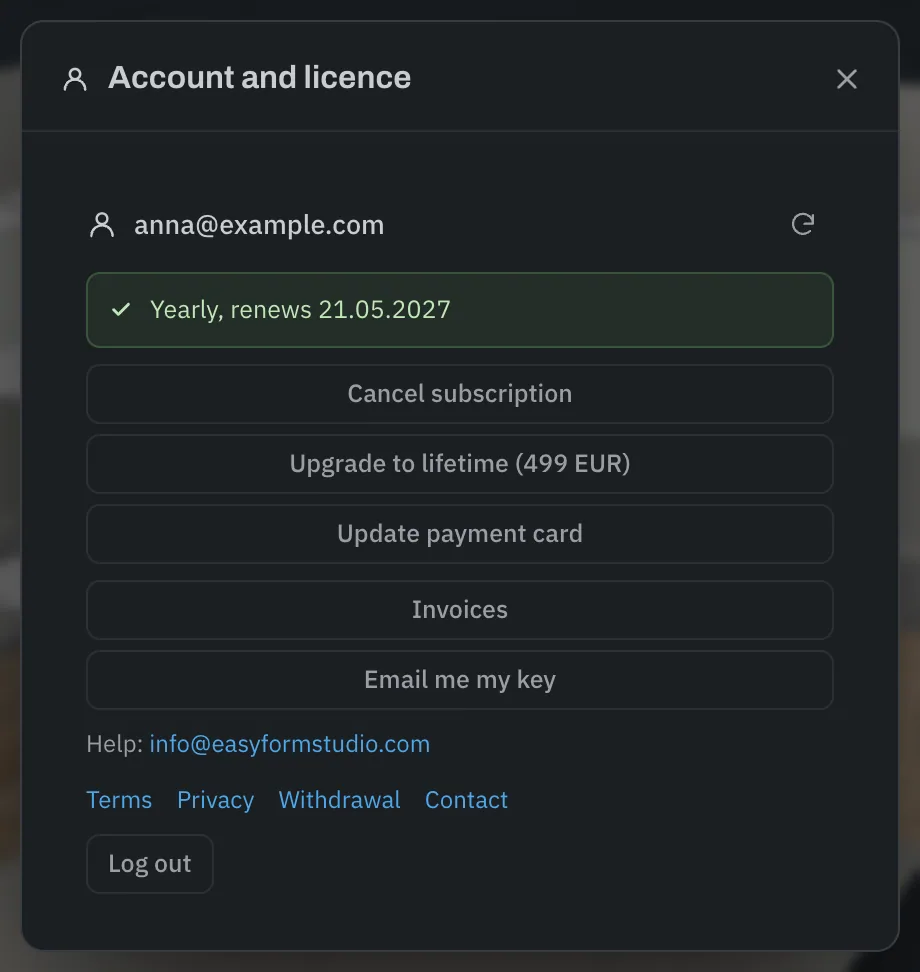
| Part of the panel | What it shows or does |
|---|---|
| The account's address. Sign-in codes, confirmations and invoices go to it. | |
| the button with the arrows (Refresh account) | Reloads the status from the server at once. Reports Account details refreshed. or Could not reach the server. |
| First name, Last name, Save | The account holder's name (see First and last name). |
| the status row | Tick: everything is in order. Exclamation mark: something needs attention. |
| the free trial banner | Only during the free trial: until when it runs and from when the desktop program works, with the Unlock the desktop now (19 EUR today) button, with the yearly subscription Unlock the desktop now (149 EUR today). |
| buttons below the status | Depend on the status (table below). |
| Invoices | Opens the latest invoice in a new browser tab. When there are no invoices: No invoices yet. |
| Email me my key | Sends the key to the account's e-mail. You need the key for the desktop program; EFS Web does not ask for it. |
| Signed-in devices | The browsers where EFS Web is signed in with your account (see Signed-in devices). |
| Help: info@easyformstudio.com | The support address. |
| Terms, Privacy, Withdrawal, Contact | Open the Terms and Conditions, the Privacy Policy, the withdrawal instructions and the contact page on the website. |
| Log out | Logs you out of this browser (see Logging out). |
Dates are written as 15.11.2026. The buttons for changing the plan and for buying also show the price.
Statuses
| Status | What the panel says | Buttons |
|---|---|---|
| Free trial | EFS Web trial until and the date; below it the banner Trial until … : EFS Web works. The desktop app from … , or now. with the Unlock the desktop now (19 EUR today) button, with the yearly Unlock the desktop now (149 EUR today) | Cancel subscription, with the monthly Switch to yearly (149 EUR today), Upgrade to lifetime (…), Update payment card |
| Last days of the free trial | Trial ends in … days, the banner stays | the same as in the free trial |
| Free trial cancelled | Subscription ends on and the date; in the banner The subscription is cancelled: nothing is charged and the desktop app stays locked. | Resume subscription instead of Cancel subscription |
| First payment after the free trial failed | Payment failed. Exports until and the date; in the banner The first payment has not gone through yet. EFS Web works; the desktop app opens as soon as the payment goes through. | Pay / update card, Cancel subscription, Upgrade to lifetime (…) |
| Free trial started earlier, with the desktop program | Trial until and the date | Cancel subscription, Switch to yearly (…) or Switch to monthly (…), Upgrade to lifetime (…), Update payment card |
| Active subscription | Monthly, renews and the date or Yearly, renews and the date | the same as in a free trial started earlier |
| Plan change booked | Changes to yearly on (or Changes to monthly on) and the date | Cancel the plan change instead of the Switch to … button |
| Cancelled subscription | Subscription ends on and the date | Resume subscription instead of Cancel subscription |
| Payment failed | Payment failed. Exports until and the date | Pay / update card at the top, the others as for an active subscription, without Update payment card |
| Free trial ended | Trial ended on and the date | Choose a plan to continue exporting: Monthly (…), Yearly (…), Lifetime (…) |
| Subscription ended | Subscription ended on and the date | the same as when the free trial has ended |
| Lifetime licence | Lifetime licence | Email me my key, Invoices (only if there are any) |
| Sign-in ended | Sign-in ended | sign in again |
| Status not checked yet | Licence not checked yet | connect to the internet and click the button with the arrows |
Of the Switch to yearly and Switch to monthly buttons you see only the one that leads to the other plan. During the free trial of the monthly subscription Switch to yearly (149 EUR today) takes their place, and it charges at once.
In EFS Web you see the Trial ended on and Subscription ended on statuses only briefly or without a connection to the server: as soon as the server reports that the licence has ended, EFS Web locks (see When the free trial or the subscription ends).
Buttons
| Button | What it does | Where it takes you |
|---|---|---|
| Cancel subscription | Asks for confirmation, then cancels the subscription at the end of the paid period or the free trial. Everything works until then. | stays in EFS Web, the confirmation arrives by e-mail |
| Resume subscription | Undoes the booked cancellation. The subscription keeps renewing. | stays in EFS Web |
| Unlock the desktop now (19 EUR today), Unlock the desktop now (149 EUR today) | Only during the free trial, with your plan's price. The free trial ends, the plan's price is charged at once and the desktop program unlocks (see Unlock the desktop now). | a new browser tab |
| Switch to yearly (149 EUR today) | Only during the free trial of the monthly subscription. The same with the yearly subscription: 149 EUR is charged at once. | a new browser tab |
| Switch to yearly (…), Switch to monthly (…) | Opens the Change plan window. | stays in EFS Web |
| Cancel the plan change | Leaves the plan as it was. Reports The plan change was cancelled. | stays in EFS Web |
| Upgrade to lifetime (…) | Opens the payment for the lifetime licence. | a new browser tab, Stripe |
| Update payment card | Opens a secure page for entering a new card. | a new browser tab, Stripe |
| Pay / update card | The same, when payment has failed. The new card pays the open invoice. | a new browser tab, Stripe |
| Monthly (…), Yearly (…), Lifetime (…) | A new purchase after expiry, without a new free trial. | a new browser tab, Stripe |
| Invoices | Opens the latest invoice. | a new browser tab |
| Email me my key | Sends the key to the account's e-mail. Reports Key sent to your e-mail. |
When a button opens a new tab, EFS Web reports Opening secure checkout in your browser. or Opening card update page in your browser. You enter card details only on Stripe's page, never in EFS Web.
Tip
After every change on Stripe's page (payment, new card, lifetime licence), go back to EFS Web and click the button with the arrows in the Account panel. The status refreshes at once.
First and last name
At the top of the Account panel, under the e-mail, are the fields First name and Last name.
- Type the name. The Save button becomes available as soon as you change something.
- Click Save or press Enter. EFS Web reports Name saved.
The new name shows in the account menu at once, and its initials on the button at the top right. The first and the last name can have at most 150 characters each. You see and change the same name in the desktop program (the Account panel).
Signed-in devices
Under Signed-in devices are all the browsers where EFS Web is signed in with your account. This one is first, marked This browser. Each shows the browser and system, e.g. Chrome · macOS, and when it was last used, e.g. Active 3 hours ago. Hold the mouse over a row to see the sign-in date and the IP address.
- Log out next to a browser logs out only that one.
- Log out all other devices (when there is more than one) asks Log out all other devices?. Click Log out. This browser stays signed in.
A browser that was logged out shows the Sign in page at its next step and asks for a new code by e-mail.
Tip
You signed in on someone else's computer and did not log out: log it out here. In the desktop program, Log out all EFS Web browsers (the Account panel) does the same, for all browsers at once.
Changing the plan
- Click Switch to yearly (…) or Switch to monthly (…).
- The Change plan window opens. It says:
- the new plan with its price;
- Takes effect on and the date, when the paid period ends (in the free trial: the end of the trial);
- that nothing is charged until then, with no proration and no credit;
- that the plan renews automatically until you cancel it;
- that you can undo the change until that date.
- Read the window. Click Order with obligation to pay. With this you accept the Terms, which are linked at the bottom of the window.
- EFS Web reports Plan change booked. The confirmation is on its way by e-mail. The panel shows Changes to yearly on (or Changes to monthly on) and the date.
Until that date you can undo the change with the Cancel the plan change button. If EFS Web reports Confirm the plan change in your browser., a confirmation page has opened: confirm the change there.
During the free trial the plan does not change at the end of the period: with the monthly subscription Switch to yearly (149 EUR today) charges at once (see Unlock the desktop now).
Unlock the desktop now
During the free trial only EFS Web works, and the desktop program waits for the first payment. To unlock it at once:
- In the Account panel, in the free trial banner, click Unlock the desktop now (19 EUR today), with the yearly subscription Unlock the desktop now (149 EUR today).
- The page Unlock the desktop now: monthly subscription (with the yearly, Unlock the desktop now: yearly subscription) opens in a new tab. It says that the free trial ends now and that 19 EUR, or 149 EUR, is charged today to the card you entered.
- As a private person, tick the box for immediate delivery (see Withdrawal).
- Click Order with obligation to pay – 19 EUR per month, charged today (with the yearly, Order with obligation to pay – 149 EUR per year, charged today). The card is charged at once, without Stripe's page.
- The page says The desktop app is unlocked and shows the key and the downloads. A message with the key and the steps arrives by e-mail.
- Download the program, install it and enter the key, as the e-mail says. If the key is already entered in the program, the program unlocks by itself within half an hour at the latest, or at once with the button with the arrows in its Account panel.
The subscription then renews from that day, every month or every year. EFS Web works as before. During the free trial of the monthly subscription, Switch to yearly (149 EUR today) does the same with the yearly subscription: the page Unlock the desktop now: yearly subscription charges 149 EUR at once. The same Unlock the desktop now button is also on the page after the order, in the welcome e-mail and in the desktop program (the Account panel).
If the card does not go through, the page says The payment did not go through: and the reason, and nothing changes. Click Update payment card and try again.
Upgrading to the lifetime licence
- Click Upgrade to lifetime (…).
- The Order page opens in a new tab. As a private person, tick the box for immediate delivery, then click Order with obligation to pay. By ordering you accept the Terms.
- Pay by card on Stripe's page.
- Go back to EFS Web and click the button with the arrows in the Account panel. The status reads Lifetime licence.
The key and the sign-in stay the same. The subscription stops by itself at the end of the paid period and is no longer charged. There is no refund for the rest of the paid period. During the free trial the subscription ends without any charge.
Cancelling and resuming
- Click Cancel subscription.
- The Cancel subscription window opens. During the free trial it says Cancel during the free trial: nothing is charged, and EFS Web works until and the date. Confirm with the Cancel subscription button.
- EFS Web reports Subscription cancelled. Access continues until the end of the period. The status reads Subscription ends on and the date.
- A cancellation confirmation arrives by e-mail.
Until that date everything works as before. If you change your mind, click Resume subscription before that date. EFS Web reports Subscription resumed.
If you cancel during the free trial, nothing is charged: EFS Web works until the free trial ends, and the desktop program stays locked.
You can also cancel in the desktop program (the Account panel) or by e-mail at info@easyformstudio.com.
When the free trial or the subscription ends
EFS Web works only while the licence is active. When the free trial or the subscription ends, EFS Web locks the next time it talks to the server (when it opens, when you save, or when it syncs the settings, which happens every few minutes):
- the Your licence has ended page appears over EFS Web, saying that the licence of your address is no longer active;
- until you renew the licence, you cannot open or change projects in EFS Web;
- projects saved to the cloud are kept and open again as soon as you renew the licence. If you need them and are not renewing, write to info@easyformstudio.com: support sends them to you as project files;
- projects you have published on the web stay on the web, and the customer can still open them with the link and the QR code. The workshop link works until you revoke it: you revoke the last opened project's link on the Your licence has ended page itself (see Workshop QR).
You renew through your own account: you keep the same licence key and your projects, and the renewal starts at once, without a new free trial.
When you are still signed in in that browser (EFS Web locked while you were working, or you open it again):
- On the Your licence has ended page, under Renew the licence, click a plan: Monthly (…), Yearly (…) or Lifetime (…). Below the buttons it reads For this account: the same licence key. The order opens in a new tab.
- The Order page for your account opens in a new tab. You do not enter an address: the order already belongs to your account. As a private person, tick the box for immediate delivery of the licence, click Order with obligation to pay and pay on Stripe's page.
- Go back to EFS Web and click Try again. When the licence is active, EFS Web opens.
If the browser does not open the new tab, the link Open the order page appears below the buttons: click it.
When you are not signed in in that browser (another browser or device, or 30 days have passed since you signed in):
- On the Sign in page, enter the licence's address and click Send me a code.
- No code arrives. The page moves on to Your licence has ended and says We sent a link to renew to … The link opens the order for your account and is valid for 30 minutes.
- In the Renew your Easy Form Studio licence e-mail, click the link of the plan you want. The Order page for your account opens: carry on as in step 2 above.
- Go back to EFS Web and click Try again. When the licence is active, a sign-in code is sent to the address.
You ask for a new link with Send the link again, 30 seconds after the last one.
Next to Try again it reads Renewed it already? It can take a minute. If EFS Web does not open at once, wait a little and click Try again again. Until the payment has come through, EFS Web says The licence is not active yet. If you have just paid, try again in a minute.
You can also renew in the desktop program (the Account panel) or from the Buy page on the website: on the Order page you enter the licence's address, and instead of a payment an e-mail with the same renewal links arrives.
When payment fails
If the card does not go through, the subscription does not stop at once:
- the status in the Account panel reads Payment failed. Exports until and the date (the end of the paid period plus 7 days);
- until that date EFS Web works as before;
- an e-mail arrives with a payment link;
- Stripe itself tries to charge the card for a few more days.
Click Pay / update card and enter a card that works. If you do not pay by that date, the licence ends and EFS Web locks.
Saving projects
While you are signed in, Save stores the open project in the cloud, on our server, together with a thumbnail from the 3D view. The first save creates the project in the cloud, and every later save updates it. A copy also stays in the browser.
While you work, EFS Web keeps the open project in the browser after every change by itself: reloading the page or closing the tab does not delete it. It is in the cloud, and on your other devices, only once you save it.
- In the project name field, to the right of the Project menu, type the name, e.g. "Horvat kitchen". While the field is empty, it shows Untitled project.
- Press Ctrl+S (on a Mac Cmd+S). Project → Save and a click on the save status to the right of the name do the same.
- The status shows Saving…, then Saved and the time.
The save status
| Status | Meaning |
|---|---|
| Saved and the time | The project in the cloud is the same as the open one. The time is today's (14:05) or comes with a date. |
| Saving… | Saving in progress. |
| Unsaved changes | The changes since the last save are not in the cloud. A click saves. |
| Not saved yet | The project has never been saved to the cloud. A click saves. |
| Offline: kept in this browser | No connection. The save waits in the browser and uploads by itself when the connection is back (see Working without a connection). |
| Not saved: and the reason | The save failed (see Common problems). A click tries again. |
An empty new project has no status.
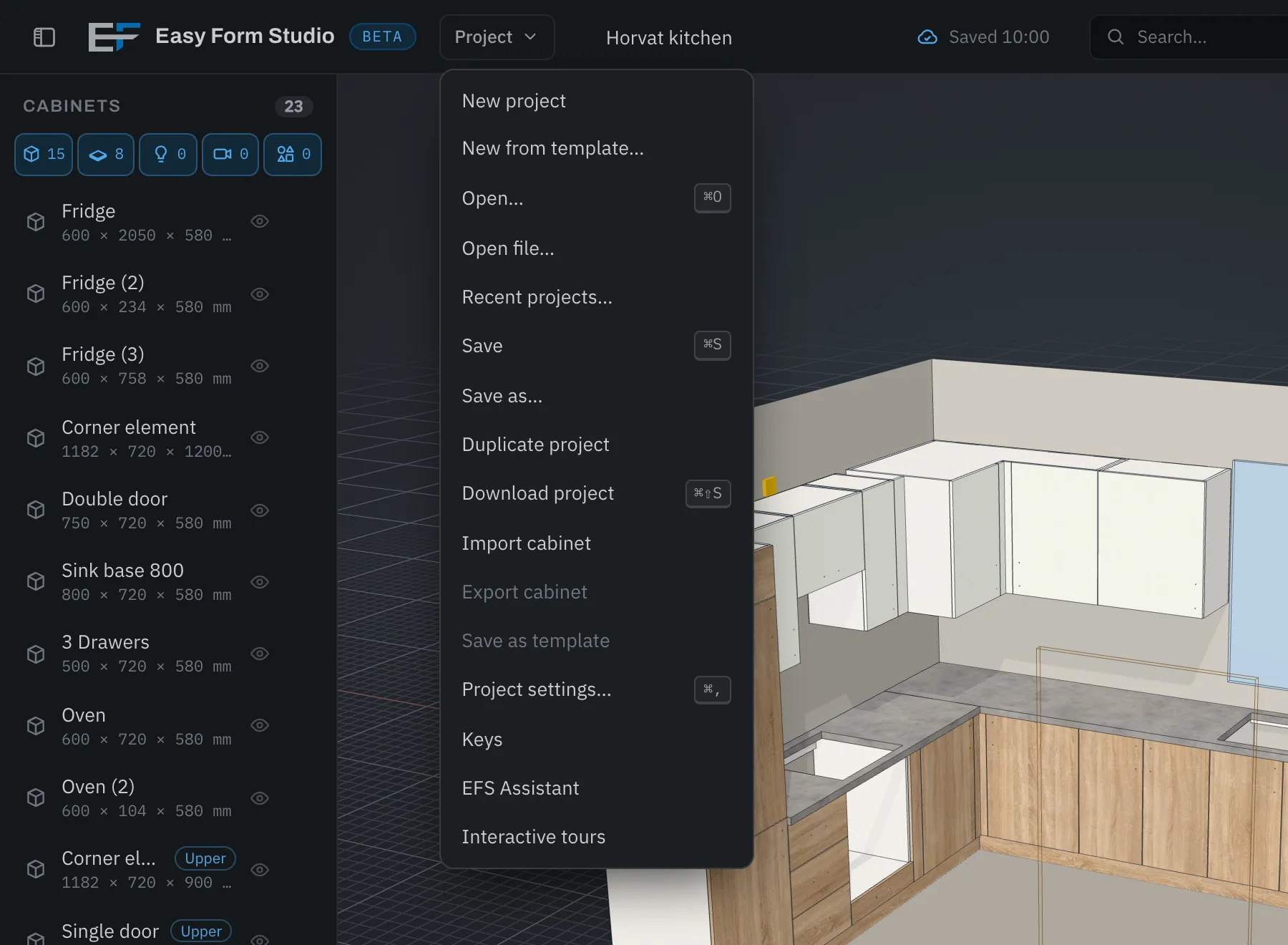
The Project menu
| Command | What it does |
|---|---|
| New project | Opens the Project templates: ready-made kitchens, wardrobes and rooms, or Empty project. |
| New from template… | The same, straight into the project templates. |
| Open… (Ctrl+O) | Opens your projects (see My projects). |
| Open file… | Opens a project file from the computer (see Downloading and opening a file). |
| Recent projects… | Only when you are not signed in: the projects saved in this browser. Signed in, there is only Open…. |
| Save (Ctrl+S) | Saves to the cloud. |
| Save as… | Carries on with a copy under a new name (see Save as and Duplicate). |
| Duplicate project | Saves a copy; the open project stays open. |
| Download project (Ctrl+Shift+S) | Saves the project as a file on the computer. |
The other commands in the menu (Import cabinet, Export cabinet, Save as template, Project settings…, Keys, EFS Assistant, Interactive tours, Customer designs, Send to the customer…) are described in other chapters.
When you open another project and the open one has unsaved changes, EFS Web asks Save changes?. Choose Save, Don't save or Cancel.
On a phone
The save status shows only the cloud icon. After saving, the message Saved to the cloud appears briefly. The Project menu stays in the top bar.
My projects
The Projects window shows your projects as cards with a thumbnail, name, date and size, and the cloud projects also with a status, the last quote and a link to the web view. Your account keeps the list, so it also holds the projects from the desktop program. You open it:
- in the account menu: My projects;
- in the Project menu: Open…;
-
with Ctrl+O (on a Mac Cmd+O).
-
Open the Projects window.
- If needed, type part of the name into Search projects.
- Click the project's thumbnail. The project opens and the window closes.
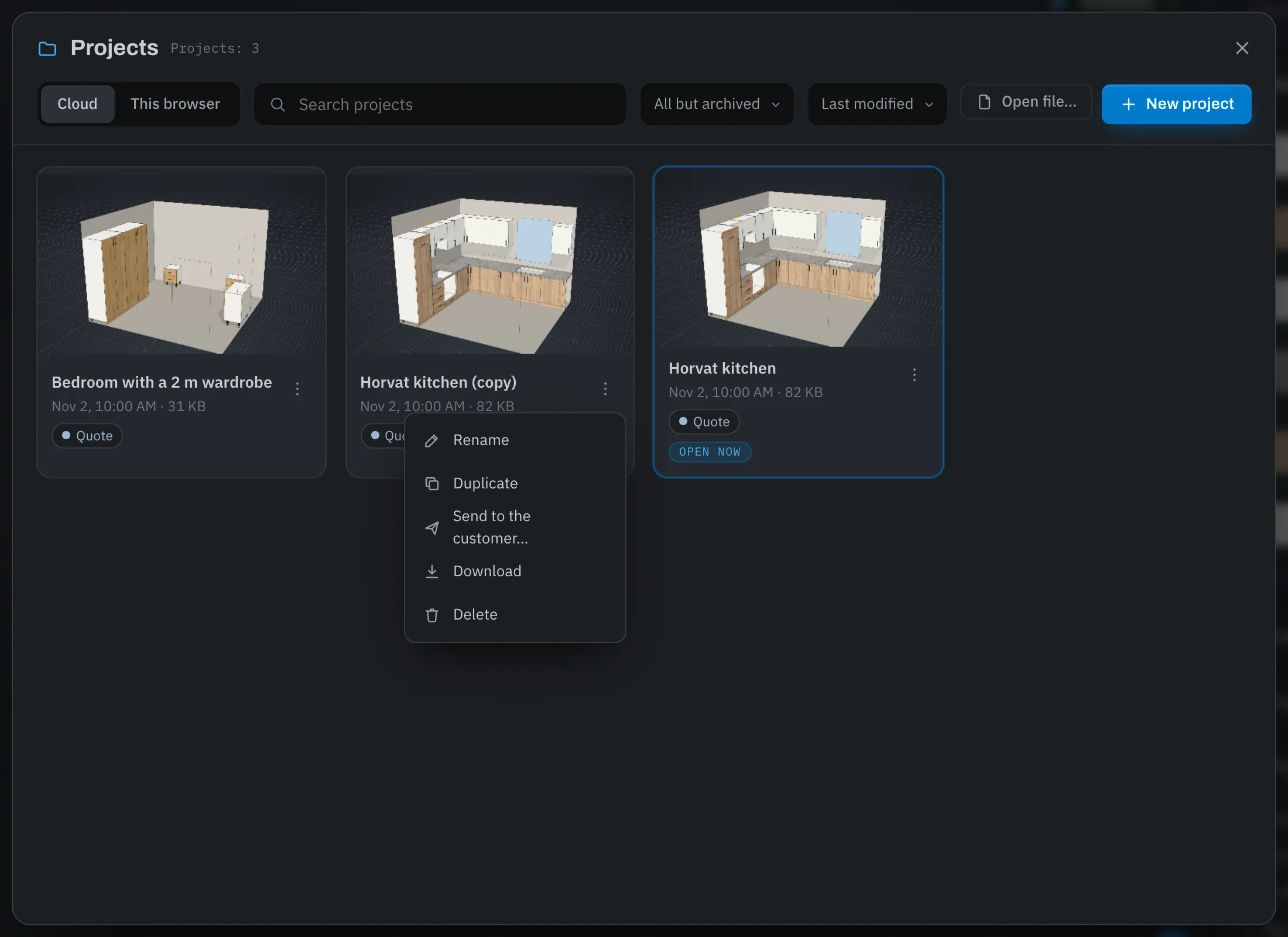
| Part of the window | What it does |
|---|---|
| Cloud | Your projects on the server, the same on every device. |
| This browser | Projects saved only in this browser (before signing in, or while offline). Open one and save it to put it in the cloud. |
| Search projects | Shows only the projects whose name or quote number contains the text you type, e.g. Horvat or 017/2. |
| Which projects the list shows | The drop-down next to the search (Cloud only): All but archived (the default), All projects or one status. |
| sort order | Last modified (default), Name A–Z or Largest first. |
| Open file… | Opens a project file from the computer. |
| New project | Opens the project templates. |
| Open now | Marks the project that is open now. |
| Waiting to upload | A save or a status change is in this browser and has not reached the server yet. |
| Desktop | A project from the desktop program. See Projects from the desktop program. |
| Status (button on the card) | Quote, Accepted, In production, Assembled or Archived. A click opens the list of statuses. See Status, quote and web view. |
| Quote number and amount | The project's last exported quote, e.g. 2026-017/2 · 2,888.24 €. |
| Globe | Opens the project's web view (see Web preview and QR). Only for published projects. |
| ⋮ on a card | Rename, Duplicate, Download, Delete (for a project from the desktop program Remove from the list). |
The commands in the ⋮ menu:
| Command | What it does |
|---|---|
| Rename | The name becomes a field. Type the new name and press Enter (or click outside the field). Esc cancels. The open project takes the new name in the top bar too. Cloud projects only. |
| Duplicate | Saves a copy "Name (copy)" to the cloud, without the web link. It takes the newest version the browser knows, including one still waiting to upload. Cloud projects only. |
| Download | Saves the project as an .efs.json file on the computer. |
| Delete | Asks Delete “…”?, then deletes the project from the cloud for good. On the This browser tab it deletes only the copy in the browser. A project waiting to upload does not have this command. |
Without a connection to the server, the window shows the copies kept in this browser, with the message No connection: these are the copies kept in this browser. and a Try again button. When you open such a copy, EFS Web reports Opened from the copy in this browser (no connection).
Close the window with Esc or the × button.
On a phone
The Projects window fills the screen. Open the ⋮ menu with a tap, and the search is on a row of its own.
Status, quote and web view
Every cloud project has a status: how far the job has got.
- On the project's card, click the status button, e.g. Quote.
- Choose the new status: Quote, Accepted, In production, Assembled or Archived.
| Status | When you set it |
|---|---|
| Quote | A new project, the customer has not decided yet. The default |
| Accepted | The customer has accepted the quote |
| In production | The boards are being cut and drilled |
| Assembled | The furniture is installed |
| Archived | A finished or turned-down job. The default filter All but archived does not show it |
Rules:
- The status is kept with the account: it is the same in EFS Web on every device and in the desktop program's project panel.
- If someone has meanwhile changed the status of the same project on another device, their status stays, and EFS Web reports e.g. "Horvat kitchen" was set to "In production" on another device.
- Without a connection the change waits: the card is marked Waiting to upload, and the change goes up when the connection is back.
- Next to the status the card shows the number and amount of the last exported quote (see Revisions) and, when the project is published, the globe for the web view.
- A project goes on the list when you save it. Projects saved before this version get their row when you open the list.
Projects from the desktop program
The projects you save in the desktop program (the Blender add-on or the EasyFormStudio app, signed in with the same licence) show on the Cloud tab with a Desktop badge. The card has the name, the status, the last quote and the web link.
- The
.blendfile stays on the computer: EFS Web does not open such a project. A click on the card does nothing, and the pointer says Saved in the desktop app on a computer: it opens there. - You can change the status here too, and the desktop program sees it.
- Remove from the list in the ⋮ menu takes the project off the list in both programs. The file on the computer stays as it is.
- The desktop program opens an EFS Web project in the browser, at the address
app.easyformstudio.com/?project=….
Customers stay in this browser
The customer's details (name, address, contact from the Quote box) never go to the server. When you save a project to the cloud, EFS Web leaves them out and remembers them with the project in this browser.
- In the same browser the project opens with the customer.
- On another device or in another browser the project opens without the customer. The Quote box then says Customer details stay on the device where they were entered: pick a customer or type them in.
- Every customer of a saved project or an exported quote goes into this browser's customer list, separately for each account. The Pick a customer button in the Quote box offers them in a new project. See Pick a customer.
- The server keeps the project name, the quote's items and amounts, the decors and the web link. So the project name need not carry the customer's name.
Watch out
When you clear the site data for app.easyformstudio.com in your browser's settings, the customers remembered in that browser are gone too. The cloud projects stay, without the customers.
Changed on another device
You can have the same project open on two devices or in two browser tabs. If it has been saved somewhere else in the meantime, EFS Web does not overwrite it without asking. The Changed on another device window opens when:
- you save (Ctrl+S, a click on the save status, Save in the Save changes? window, Save and log out);
- you click Publish in the Web publish panel;
- a save made without a connection uploads.
The window says when the project was saved on the other device and that your changes here are not saved yet.
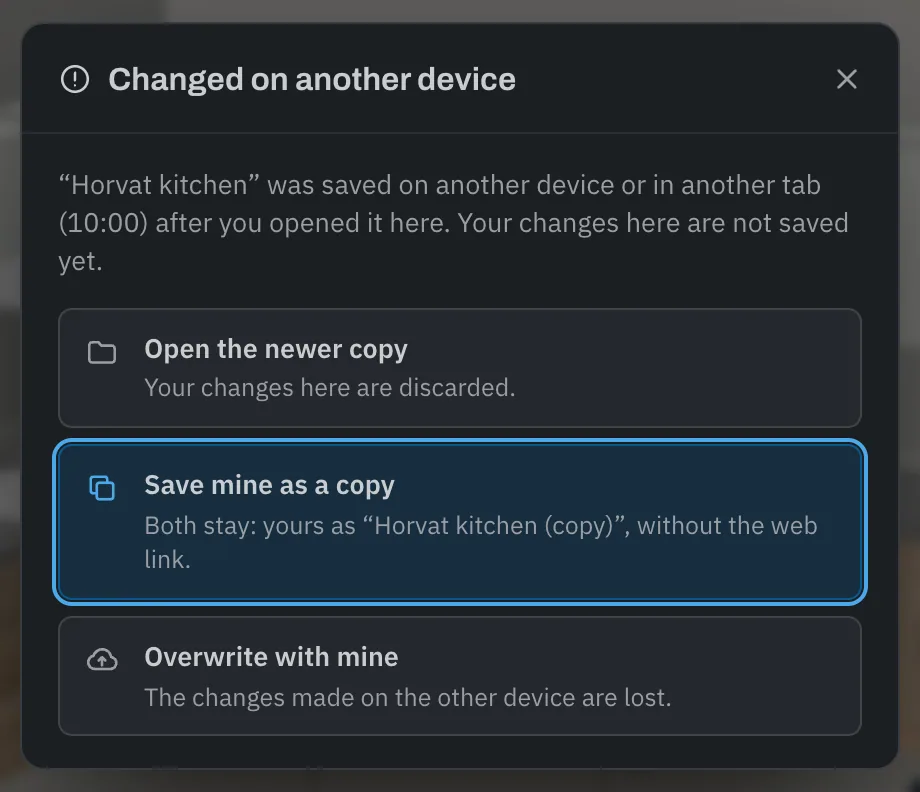
| Choice | What happens |
|---|---|
| Open the newer copy | The project opens as it was saved on the other device. Your changes here are discarded. |
| Save mine as a copy (highlighted) | Both stay: the other one as it is, and yours as a new project "Name (copy)", without the web link. You carry on working on the copy. |
| Overwrite with mine | Your project replaces the one in the cloud. The changes made on the other device are lost. |
If you close the window with × or Esc, nothing is saved. The save status shows Not saved: changed on another device, and the next save asks again.
Watch out
Overwrite with mine deletes the other device's changes for good. When you are not sure, choose Save mine as a copy and compare the two projects.
If you saved some other project without a connection, not the open one, and it has meanwhile changed on another device, EFS Web does not ask: it saves your changes as "Name (copy)" and says so in a message.
On a phone
The choices are large full-width cards.
Save as and Duplicate
Save as… carries on with a copy, while the original stays as it was last saved:
- Choose Project → Save as….
- The Save as… window opens. The Name of the new project field reads "Name (copy)". Type the new name.
- Click Save or press Enter. Esc or Cancel closes the window.
- EFS Web reports Saved as “…”. The new project is open.
Duplicate project saves a copy while you stay in the original:
- Choose Project → Duplicate project.
- The copy "Name (copy)" is saved to the cloud. EFS Web reports Copy saved: “…”.
You copy a project that is not open in the Projects window: ⋮ on its card → Duplicate. Without a connection, the copy waits in the browser and uploads by itself when the connection is back.
The web link and copies
One web link belongs to one project. So:
- every copy (Save as…, Duplicate project, Duplicate, Save mine as a copy) starts without the web link. Publish gives it its own, and the original keeps its link;
- a downloaded file keeps the link, so that the project can be restored from it with the link;
- when you open a file whose link belongs to one of your cloud projects, it opens as a copy without the link. EFS Web reports This file is a copy of a project in your cloud, which keeps its web link. Publish makes a new link for this one.;
- when you restore the file of a project you have since deleted from the cloud, the link stays, so printed QR codes keep working.
More about publishing in the chapter Web preview and QR.
Downloading and opening a file
You can also save a project as a file on the computer, e.g. as a backup or to send it to support.
- Choose Project → Download project or press Ctrl+Shift+S (on a Mac Cmd+Shift+S).
- The browser downloads the file
Name.efs.jsonto your downloads folder.
You download a cloud project that is not open in the Projects window: ⋮ on its card → Download.
To open a file:
- Choose Project → Open file… (or Open file… in the Projects window). You can also drag the file into the EFS Web window.
- Choose the
.efs.jsonfile. - If the open project has unsaved changes, answer Save changes?.
- The project opens as a new project. Save it (Ctrl+S) to put it in the cloud.
A cabinet file (.json from the desktop program or from Project → Export cabinet) does not open a new project: the cabinet is imported into the open project. For a file that is not an Easy Form Studio file, EFS Web reports Not an Easy Form Studio file.
Settings kept with your account
Your workshop settings are kept with your account and are the same on every device you sign in on:
- the Price list with board offcuts (see Nesting and board prices);
- the settings and codes of the cutting list for other software (see Cutting list for other software);
- the workshop details and logo (see A quote for the customer);
- the boxes ticked in the Production package window;
- your own hardware catalogs (see Project hardware);
- My settings (see Working faster);
- your own decor library (see Decors, edge tape and materials);
- My templates with their thumbnails (see Templates and My templates);
- quote numbers: while you are signed in, the account counts them, so two devices never give out the same number (Next quote number, see A quote for the customer).
In the Price list box (Project settings → Cost estimate), in the My settings panel and under My templates in the Templates drawer it reads Kept with your account: the same on every device you sign in on. While changes made without a connection are waiting, it reads Kept with your account. Changes made without a connection go up when it is back.
How the settings are synced:
- they are sent after a change and fetched when you sign in, when the connection comes back, when you return to the EFS Web tab and every 5 minutes;
- when only one side has changed, that version goes to the other;
- when both have changed, EFS Web merges them part by part; what it cannot merge, it asks about in the Your settings differ window. Nothing is dropped without asking;
- a template deleted on one device is deleted on the others too;
- while you are not signed in, nothing goes to the server.
One item may be at most 5 MB, and all of the account's settings together 100 MB. What does not fit stays only in this browser, and EFS Web says so in a message.
Your settings differ
The window opens when the same item has changed differently in this browser and on the account, e.g. the price list on two computers without a connection. The list in the window names the items: Price list, Offcuts, Workshop details, Cutting list for other software, My settings or Own decor library. Everything else has already been merged from both versions.
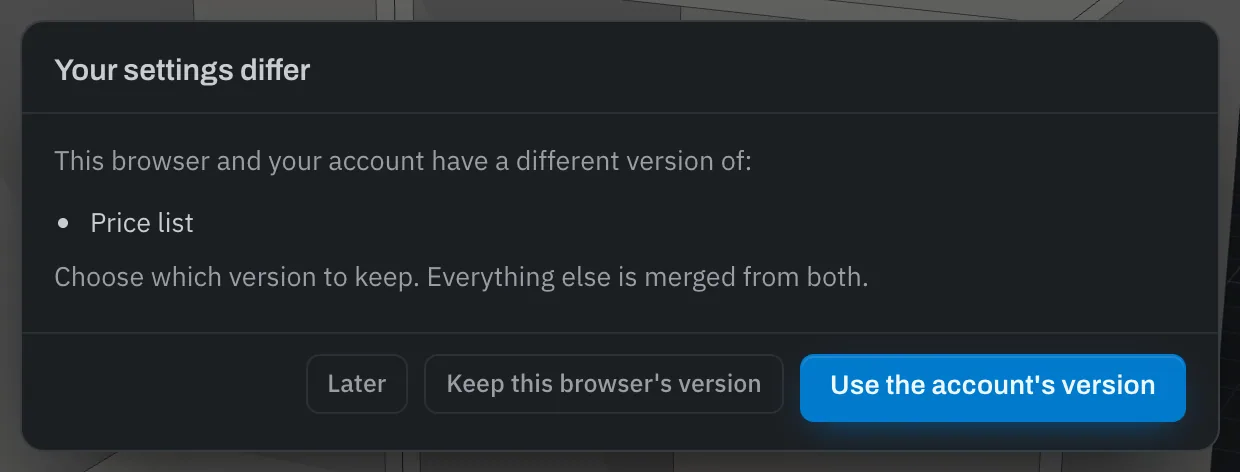
| Button | What it does |
|---|---|
| Use the account's version (highlighted) | The account's version applies to the items listed. |
| Keep this browser's version | This browser's version applies to the items listed and is sent to the account. |
| Later | The window closes. The question comes back when you open EFS Web again. |
On a phone
The buttons are stacked, full width.
Where your data is
| What | Where |
|---|---|
| Cloud projects (the Cloud tab) | on our server, with your account, until you delete them |
| Settings kept with your account (see Settings kept with your account) | on the server with the account, plus a copy in the browser |
| The project list with the statuses and the last quotes, and the projects from the desktop program | on the server with the account (without customer details) |
| The open project, the projects on the This browser tab, saves waiting to upload | only in this browser |
| Customer details (name, address, contact) and the customer list | only in this browser, never on the server |
| The language, the open panels, the progress of the interactive tours | only in this browser |
One cloud project may be at most 20 MB, and an account may hold at most 500 projects and 2 GB in total.
Watch out: clearing the browser's data
If you clear the site data (cookies and site data) for app.easyformstudio.com in your browser's settings, the projects on the This browser tab and the saves still waiting to upload are lost. Cloud projects and the settings kept with your account stay. Before clearing, open those projects and save them to the cloud.
Tip: a new computer
On a new computer or tablet, just sign in. Your cloud projects and the settings kept with your account are there at once; there is nothing to copy.
Working without a connection
EFS Web needs the internet to open and to sign in. If the connection drops while you work, you carry on with the open project:
- the account menu reports No connection to the server: the licence as last checked., and the button with your initials carries a dot;
- Save reports No connection. The project is kept in this browser and uploads when the connection is back. The save status reads Offline: kept in this browser;
- the waiting saves upload by themselves: as soon as the browser reports that the connection is back, in repeated attempts, and at the next sign-in. EFS Web then reports Uploaded the saves made offline: and the number;
- the projects saved only in this browser (the This browser tab) go to the cloud when you sign in. EFS Web reports Uploaded the projects saved only in this browser: and the number. The copy in the browser is removed only once the server has it;
- in the Projects window such projects are marked Waiting to upload;
- Publish, the EFS Assistant and syncing the settings with the account wait for the connection.
If a project you saved without a connection has meanwhile been saved on another device, the Changed on another device window opens when it uploads.
Updates
EFS Web is not installed, so there is nothing to update. When you reload the page or next open app.easyformstudio.com, you are working in the newest version. Your projects and settings stay as they are.
Feedback
If something does not work or you miss something:
- Click ? at the top right (or Help and tours in the account menu).
- Click Send feedback.
- A new e-mail to info@easyformstudio.com opens, with the subject "EFS Web" and the browser details already filled in. Write what you were doing, what you expected and what happened.
More in the chapter Support.
Interface language
The first time, EFS Web opens in the browser's language if it speaks it: Croatian, English, German, Polish, Italian, French, Czech or Spanish. A browser set to Serbian or Bosnian opens it in Croatian, and a browser in any other language in English.
You change the language like this:
- on a computer: the language drop-down in the top bar;
- on a phone: account menu → Language, or the … menu → Language;
- before signing in: the globe at the top right of the sign-in page.
The choices are English, Hrvatski, Deutsch, Polski, Italiano, Français, Čeština, Español, Română, Português, Srpski, Magyar, Slovenčina and Slovenščina. The names in the interface change at once. The exports (PDF, Excel), the manual you open from EFS Web, the Buy page and the legal pages follow the same language, and the EFS Assistant answers in the language of the question.
The language is remembered in the browser, not with the account: you choose it on each device.
Common problems and solutions
The code does not arrive. Wait a minute and look in your spam folder. Check that this is the address the licence is in the name of. After 30 seconds, click Resend code. If the licence of that address has ended, no code is sent: the page moves on to Your licence has ended, and a renewal link goes to the address instead.
No active licence. That address has no active free trial, subscription or lifetime licence. Check the address (Use another e-mail). If you have just bought one, wait a minute and click Try again.
This sign-in link has already been used or has expired. Sign in with the code we e-mail you. The Open EFS Web button on the page after purchase signs you in only once, within 30 minutes of the payment and in the browser you ordered in. Sign in with a code (see Signing in from the page after purchase).
That code is not right. Check the e-mail and try again. Enter the code from the newest e-mail. Older codes stop working when you ask for a new one.
This code has expired. Request a new one. A code is valid for 10 minutes. Click Send a new code.
Too many wrong codes. Request a new code. A wrong code was entered five times. Click Send a new code.
Too many attempts. Try again in … Too many codes were requested for that address. Wait for the time the message gives.
Enter a valid e-mail address. The address is missing the @ or the part after the dot.
Cannot reach the server. Check your internet connection and try again. There is no connection to the server. Check the connection. On a company network, check that the firewall does not block app.easyformstudio.com.
Something went wrong on our side (…). Try again in a moment. The problem is on the server. Try again in a few minutes. If it keeps happening, write to support and give the number from the message.
Your session has ended. Sign in again, your work stays open. 30 days have passed since you signed in. Sign in with a new code.
Your licence has ended. See When the free trial or the subscription ends.
Check your e-mail on the Order page, without a payment. A licence is already under that address, so no new purchase starts. The next step comes by e-mail: renewal links, or word that the licence is already active (see Purchase).
Not saved: the project is too large. The project is over 20 MB. Download it as a file and contact support.
Not saved: your cloud storage is full or Not saved: too many projects, delete some old ones. Delete old projects in the Projects window (download them first if you need them) and save again.
Not saved: the licence does not allow it. The server does not accept the save for this licence. Open the Account panel and click the button with the arrows.
Not saved: sign in again. The sign-in has ended. Sign in, then save again.
Not saved: server error (…). Try again in a few minutes. Until then the project is in the browser.
Not saved: changed on another device. You closed the Changed on another device window without choosing. Save again and choose.
This project no longer exists. The project has been deleted, e.g. on another device. Close the Projects window and open it again.
The project on the other device is not the newest. On the first device the project has not been saved (status Unsaved changes) or is still waiting to upload (Waiting to upload). Save it there while it has a connection.
I cannot see a project on the Cloud tab. It may have been saved before you signed in: look on the This browser tab, open it and save it. Also check that you are signed in with the same address.
Not an Easy Form Studio file. The file is neither an EFS Web project nor a cabinet from the desktop program. EFS Web does not open desktop projects (.blend).
I have paid, but the status in the Account panel has not changed. Click the button with the arrows in the Account panel.
Shortcuts in this chapter
| Key | Action |
|---|---|
| Ctrl+S (on a Mac Cmd+S) | Save to the cloud |
| Ctrl+O (on a Mac Cmd+O) | Open the Projects window |
| Ctrl+Shift+S (on a Mac Cmd+Shift+S) | Download the project as a file |
| Ctrl+, (on a Mac Cmd+,) | Open Project settings (the Account panel is there too) |
| Enter | Confirm in the Save as… window and when renaming a project |
| Esc | Close the account menu, the Projects window or a dialog |
Next
Next chapter: The interface and your first cabinet