A quote for the customer
In this chapter you turn a finished project into a quote. EFS Web works out the price of every cabinet from the price list and makes two PDFs with one click: the customer quote with your workshop details, and an internal calculation with the materials, edge tape, hardware, workshop operations, labour and margin. You enter the workshop details once, and the customer details in each project. Every export keeps a revision of the quote, so a repeated quote says what has changed.
Video: B08 A quote for the customer
The same workflow in a short silent video with English subtitles.

Before you start
- The kitchen project is finished: cabinets, worktop, kickboard, fillers, cornice and project hardware. The quote prices what is in the project at the moment of export.
- The boards have their decors and edge tape (see Decors, edge tape and materials). The price is looked up by decor and thickness.
- The fronts are visible. Fronts hidden with Shift+F do not go into the quote: their boards and edge tape are missing. Before the export, bring them back with the fronts button in the 3D view toolbar.
- The project has a name: the name field in the top bar, or Name in the Web publish section. That name goes on the quote (Project:) and into the PDF file name.
- The price list has your prices. Without your own price list EFS uses the price list it comes with. See Price list.
Workflow in short
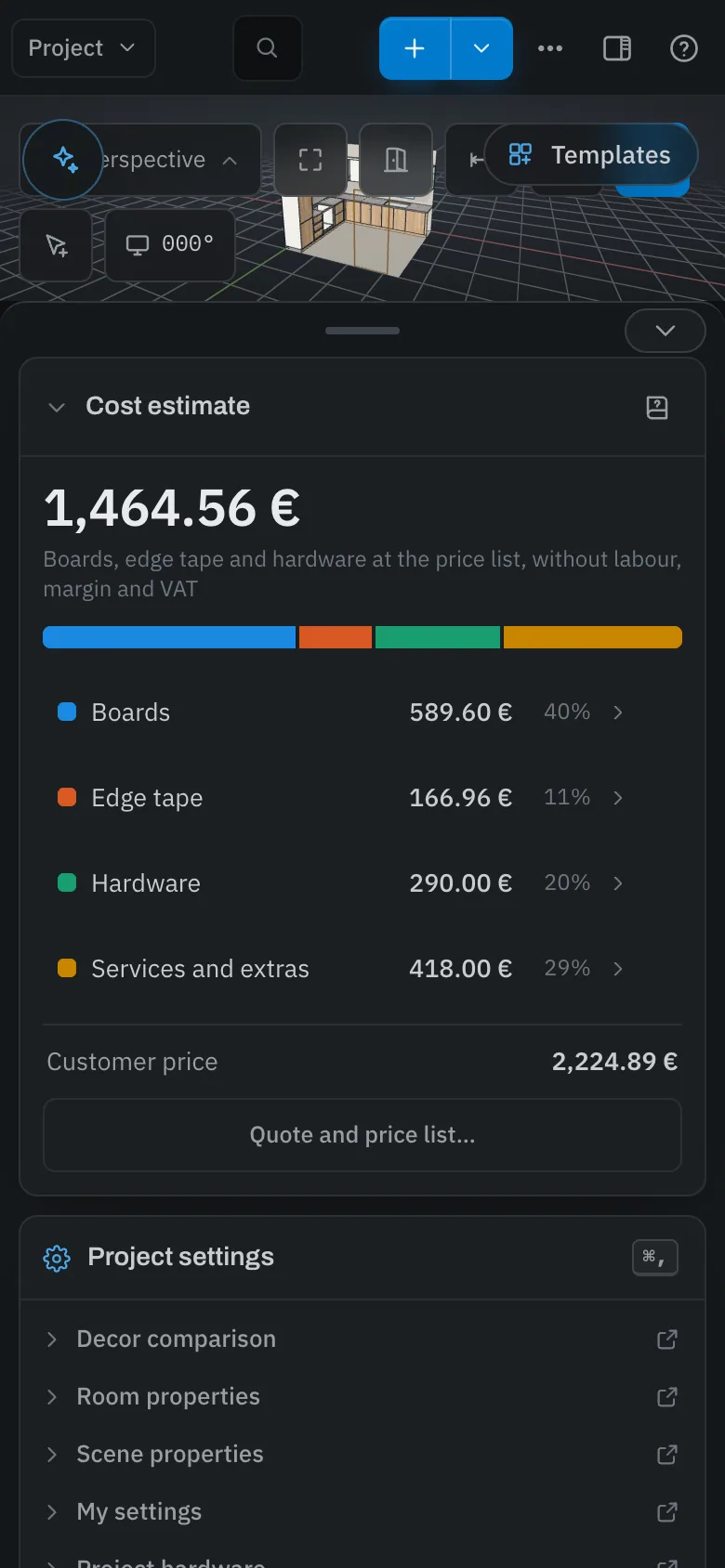
- In the right sidebar, open the Project tab. The Cost estimate panel shows the project's cost and the Customer price.
- Click Quote and price list…. The Project settings window opens at the Cost estimate section (the same: the gear in the top bar or Ctrl+,, on a Mac Cmd+,, then Cost estimate under Quote and production).
- Once, enter your workshop details: at the top right click Workshop details, fill in the window and click OK.
- On the left, check that no cost row has a red exclamation mark.
- On the right, in the Customer box, enter the customer and the address. Leave Quote number empty.
- In the Pricing box, enter Labor and Margin %, and if you like Discount % and Transport. Leave Waste % and VAT % or change them.
- Click Export quote (PDF). The browser downloads a zip with two PDFs.
- Look through both PDFs: the customer quote and the internal calculation.
Each step is described below.
Workshop details
The name, address, tax number, IBAN, contact, logo and payment terms apply to all projects. You enter them once, and EFS puts them on every quote.
- Open Project settings at the Cost estimate section.
- In the right-hand column, next to the Quote heading, click Workshop details. A window of the same name opens.
- Enter the details.
- For the logo, click Choose… and pick a PNG or JPG image. A small copy of the logo appears next to the button; Remove takes it away.
- Click OK. Cancel or Esc closes the window without changes.
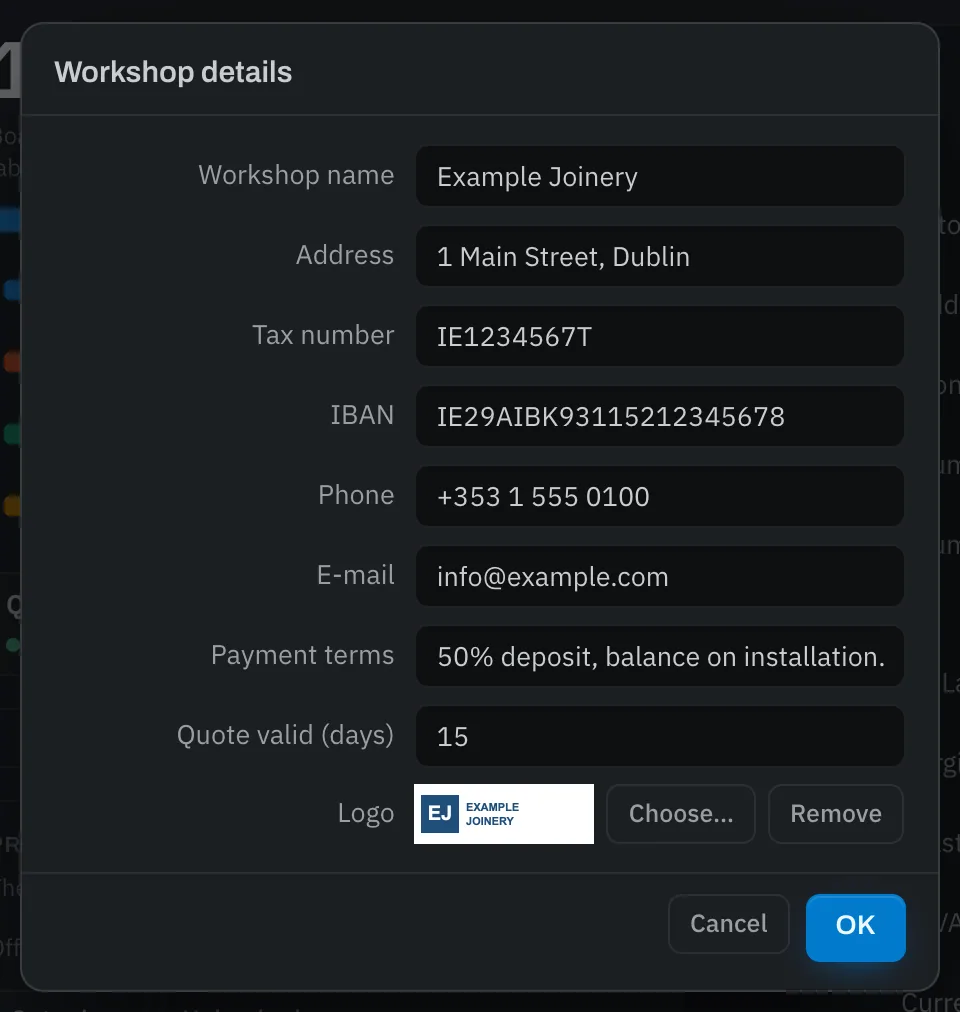
| Field | What it does | Default | Values |
|---|---|---|---|
| Workshop name | In bold under the logo, top left on the quote | empty | free text |
| Address | The line under the name | empty | free text |
| Tax number | A line labelled Tax number: | empty | free text |
| IBAN | At the bottom of the quote, under the payment terms, labelled IBAN: | empty | free text |
| Phone | The line under the tax number | empty | free text |
| The line under the phone | empty | free text | |
| Payment terms | Text at the bottom of every quote | empty | free text |
| Quote valid (days) | The Valid until date on the quote: the export date plus this many days | 15 | 1 to 365 |
| Logo | The image above the workshop name, 42 mm wide, with the same aspect ratio | empty | a PNG or JPG image |
Rules the program applies on its own:
- An empty field is not printed. The quote has no empty lines and no labels without a value.
- A logo the PDF cannot read is left off the quote, with no warning.
- The workshop details are not part of the project. They are kept in the browser and with your account, so they are the same on every device you sign in on.
Tip
One sentence is enough for the payment terms, e.g. 50% deposit, balance on installation. Enter a note for a single customer in the project, in the Quote note field (see The Quote box).
Cost estimate
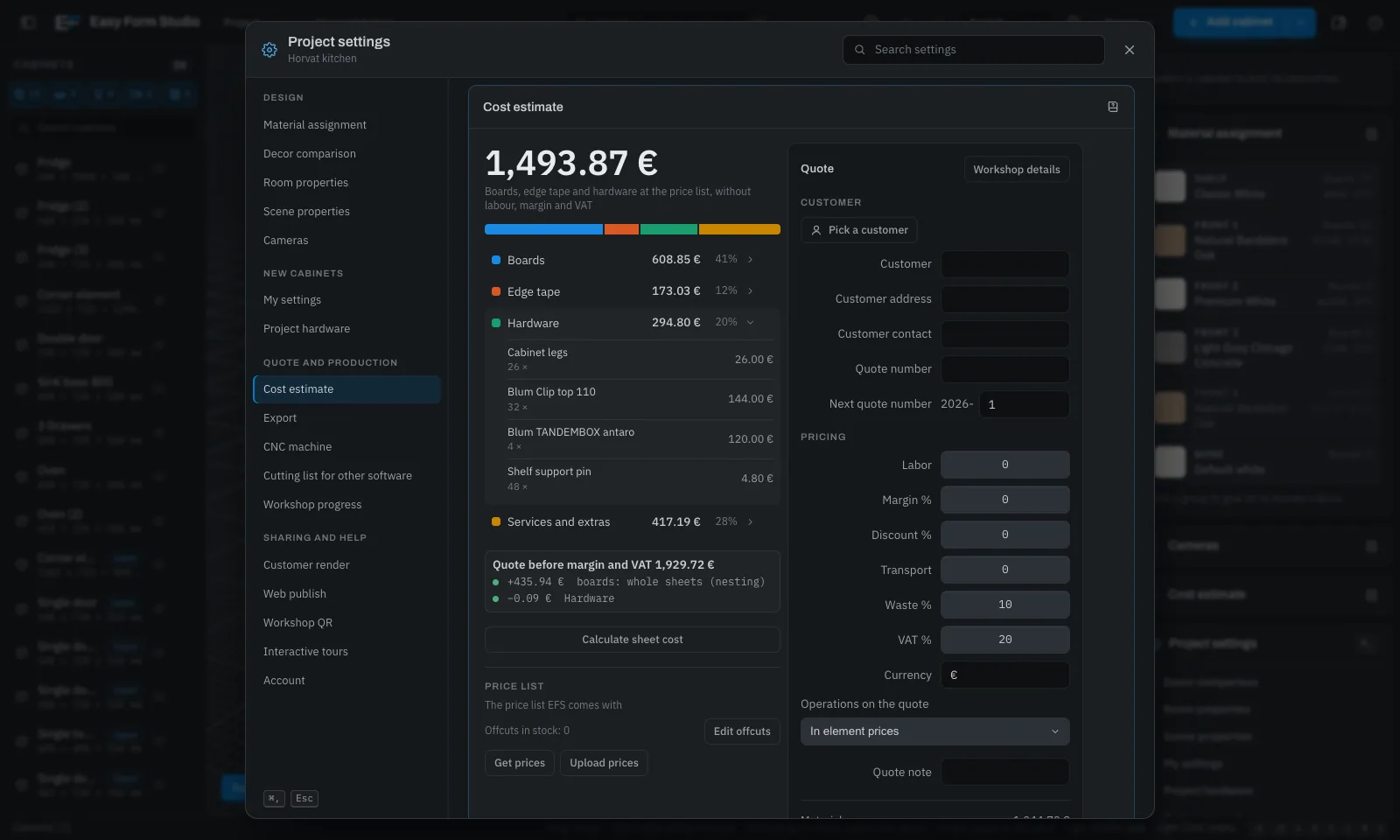
The Cost estimate shows what the project uses and what that costs by the price list: boards, edge tape, hardware, services and workshop operations. You see it in two places:
| Place | What it shows |
|---|---|
| The right sidebar, Project tab | The total cost, the bar with the shares, the four cost rows, the Customer price and the Quote and price list… button. |
| Project settings → Cost estimate | The same on the left, plus the box with the difference to the quote, Calculate sheet cost and the Price list. On the right, the Quote box. |
The estimate is worked out again with every change in the project or the price list.
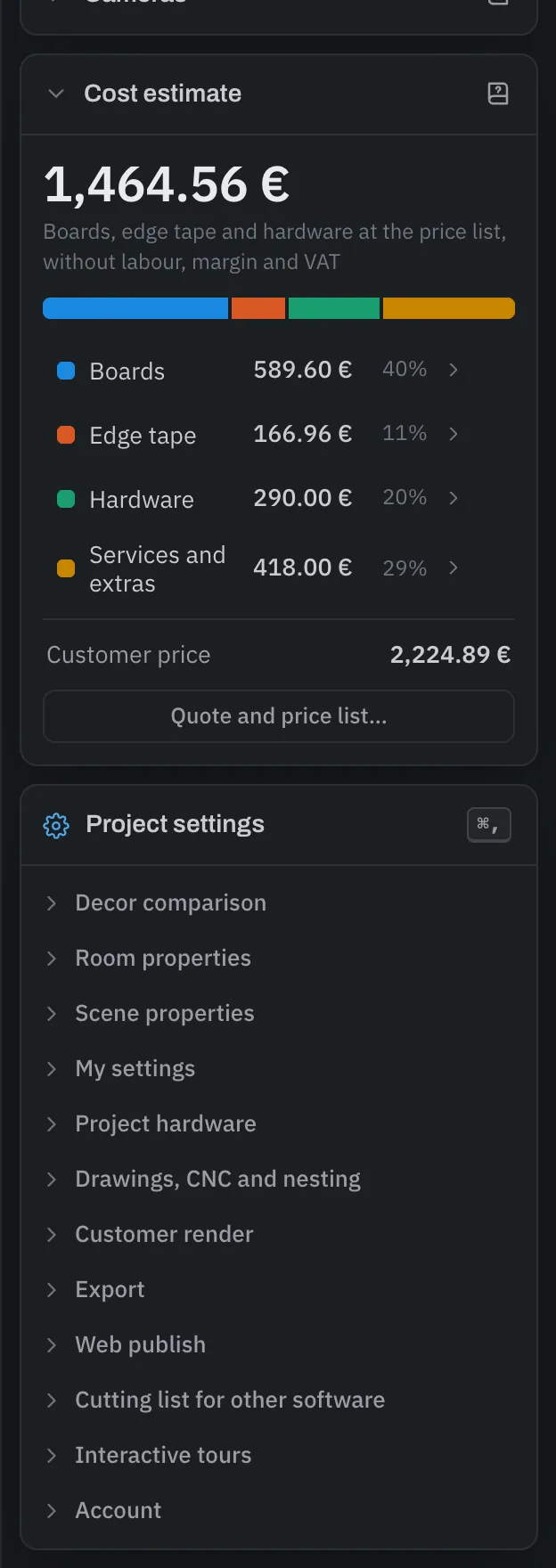
The parts of the estimate:
- The big amount at the top is the total cost. Below it: Boards, edge tape and hardware at the price list, without labour, margin and VAT.
- The coloured bar splits the amount into groups. Hovering over a part of the bar shows the group's name, amount and share.
- The rows Boards, Edge tape, Hardware and Services and extras show the amount and the share in per cent. The operations you priced in the price list are items of the Services and extras row (see Operations). A click on a row opens its items, another click closes them. A row without items shows — and does not open.
- A red exclamation mark next to a row means some items of that group have no price. Hovering over it says how many (N without a price).
- Below the rows, when some items have no price, it says Items without a price in the price list: N. They are not in the total.
Boards and edge tape
In the Boards row every decor and board thickness has its own item, e.g. U702 ST9 Cashmere Grey, 18 mm · 7.12 m², 169.10 €. In the Edge tape row every decor and edge tape thickness, e.g. U702 ST9 Cashmere Grey, 2 mm · 64.00 m, 90.24 €.
How it is calculated:
| Item | Quantity | Price from the price list |
|---|---|---|
| Board | The sum of the finished sizes (length × width) of all boards of that decor and thickness, in m². No waste | The price per m² from the Boards sheet, in the column for the board thickness |
| Edge tape | The sum of the lengths of all edges with edge tape of that thickness, in metres. An edge counts with the full board length | The price per metre from the Boards sheet: 23 mm edge tape for boards thinner than 20 mm (0.4 mm tape: 22 mm), 43 mm edge tape for boards 20 mm and thicker |
The decor is looked up in the price list by code and structure (e.g. U702-ST9). The column layout and the thickness rules are described in Nesting and board prices.
What does not go into boards and edge tape:
- the worktop: it is priced per running metre, in the Services and extras row;
- hidden cabinet boards, among them fronts hidden with Shift+F;
- dowels and drilling.
Hardware and services
| Item | Row | What it counts | Row in the price list (Other sheet) |
|---|---|---|---|
| the name of the catalogue hardware, e.g. Blum Clip top 110, 24 × | Hardware | Hinges, slides, shelf support pins, confirmats and minifixes, flap lifts, hangers and hanging rails, push latches, clothes rails, sliding doors | the hardware code, e.g. HINGE_BLUM_CLIPTOP, SLIDE_BLUM_TANDEMBOX, SHELF_PIN_5 |
| LED strip, x m | Hardware | The length of all LED strips | LED_M |
| Alu glass door 596 × 716 | Hardware | Doors with Front style Aluminium and glass, one row per size, priced per m² | ALU_GLASS_M2 |
| Glass 4 mm 452 × 612 | Hardware | The glass of Frame with glass doors, one row per size, priced per m² | GLASS_M2 |
| Aluminium profile, x m | Hardware | The length of the aluminium profiles instead of the front cross board (see Aluminium profile instead of the front cross board), priced per metre | ALU_PROFILE_M |
| Hinges | Hardware | The hinges of cabinets whose Hinge type is No drilling (count only) | Hinge |
| Drawers | Hardware | The drawers of cabinets whose slide is No drilling (count only) | Drawer |
| Cabinet legs | Hardware | The legs as they stand in the model: 4 per cabinet, 6 for a corner cabinet, 7 with a cut-out | Cabinet leg |
| Gola profiles, x m | Hardware | The cabinet width times the number of gola profiles | Gola profile |
| Hole drilling | Services and extras | One drilling per hinge, whatever the hinge type. When the price list has a price for HOLE_HINGE_CUP, this row goes away and Drilling: hinge cups counts the cups |
Hole drilling |
| Gola cuts | Services and extras | Two cuts per gola profile | Gola cut |
| CNC routing, x m | Services and extras | The length of the groove or rebate for the back: the height of the side panels and the width of the top and bottom boards that have a groove or rebate | CNC routing |
| Worktop, x m | Services and extras | The length of all worktops | WORKTOP_M |
| Worktop cut-out, Worktop joint, Worktop connector | Services and extras | Cut-outs for the sink and the hob, corner joints and connectors | WORKTOP_CUTOUT, WORKTOP_JOINT, WORKTOP_CONNECTOR |
Items appear only when the project has that hardware. You choose the project hardware in the chapter Project hardware.
Operations
The price list (Other sheet) has rows for the workshop's operations: cutting per board and per metre, doubling per m², edge banding per metre for each tape thickness, drilling per hole (hinge cups, dowels, System 32, handles, other holes), CNC per part and assembly per cabinet. Enter your prices. A row at 0 charges nothing, so the price list EFS comes with (all rows at 0) gives the same quote as before.
| Code in the price list | Item in the estimate and the calculation | What is counted | Unit |
|---|---|---|---|
CUT_PIECE |
Cutting (per board) | Every board the saw cuts; a doubled board counts two | pcs |
CUT_M |
Cutting (per metre) | The perimeter of each board at its cut size | m |
DOUBLING_M2 |
Doubling (gluing) | The area of the doubled boards | m² |
EDGE_04_M, EDGE_08_M, EDGE_10_M, EDGE_20_M |
Edge banding 0.4 mm … Edge banding 2.0 mm | The metres of edge tape of that thickness, as in the cutting list | m |
HOLE_HINGE_CUP |
Drilling: hinge cups | One cup per hinge (with the cup screws) | pcs |
HOLE_DOWEL |
Drilling: dowels | Dowel holes | pcs |
HOLE_SYSTEM32 |
Drilling: System 32 | Holes for shelf pins, mounting plates and slides | pcs |
HOLE_HANDLE |
Drilling: handles | Handle holes | pcs |
HOLE_OTHER |
Drilling: other holes | All other holes (confirmat, minifix…) | pcs |
CNC_PART |
CNC machining (per part) | Boards with a CNC mark from the cutting list, and milled fronts | pcs |
MILLING_M |
Front milling (per metre) | The metres of milled fronts' grooves, on the groove's middle line, for each groove | m |
ASSEMBLY_CABINET |
Assembly (per cabinet) | Every cabinet | pcs |
Rules:
- An item appears in the Services and extras row only when the price list has a price above 0 and the project has that operation.
- Metres and m² are rounded to two decimals before they are multiplied by the price.
- The worktop and bought fronts (Aluminium and glass) count no operations.
- A price for
HOLE_HINGE_CUPreplaces the Hole drilling row (the same holes are not charged twice). - Grooves and rebates still go by the
CNC routingrow (CNC routing). - Get prices in the Price list box adds the operation rows your price list lacks, at 0. Enter the prices and send the file back with Upload prices (see Price list).
Tip
If you charge by operations, set Labor to 0 or to the amount the operations do not cover (e.g. delivery and installation on site). Otherwise the same work is charged twice.
Items without a price
| What you see | What it means |
|---|---|
| An item with an amount | The price list has a price and it is in the total. |
| An item with a red no price | The price list has no price for that decor and thickness, edge tape or hardware code. The item is not in the total. The group's row has a red exclamation mark. Hardware without a price shows under its name the code to add to the price list, e.g. 4 × (HINGE_BLUM_CLIPTOP). |
| Hinges, Drawers, Cabinet legs, Hole drilling, gola and CNC with an amount of 0.00 € | The price list has no price for that row in the Other sheet. These items have no mark. |
You add a missing price in the price list: the decor, the price for that board or edge tape thickness, or the hardware code (see Price list and Enter the price in the price list). The codes of the built-in hardware are in the first column of the Other sheet of the downloaded price list. For your own catalogue hardware, the code is the one in the Price code field (see New hinge, slide or basket).
Watch out
An item without a price does not go into the quote. The customer quote is then too low, and nothing on it shows that. Before the export, check that no row in Cost estimate has a red exclamation mark.
The total cost
The big amount at the top is the sum of all items with a price: boards per m² without waste, edge tape, hardware and services. It has no labour, margin or VAT. It is the purchase cost, not the price for the customer.
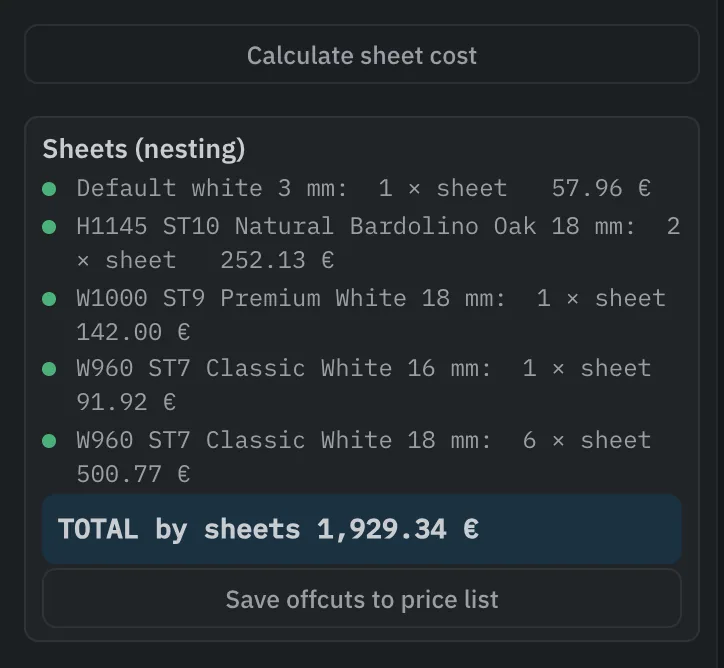
In Project settings, below the difference box, is the Calculate sheet cost button. It lays the parts out on the stock sheets and the offcuts in stock, and shows the price of whole sheets instead of square metres:
- Click Calculate sheet cost. The bottom of the screen says Sheet cost updated.
- The Sheets (nesting) box appears below: for every decor and thickness the number of sheets and their price, e.g. Default white 18 mm: 1 × sheet 99.75 €. A row without a price is red. Not placed: N counts the parts that fit on no sheet.
- At the bottom of the box is TOTAL by sheets: the total cost with the boards priced by whole sheets.
- Save offcuts to price list saves this project's usable offcuts to your price list (see Offcuts in stock).
The button shows only while Nesting: cutting diagrams is on (the Settings box in the Export section, on by default). The box is saved with the project and shows the result of the last click. After changes to the project, click the button again. The details are in the chapter Nesting and board prices.
Cost estimate and quote
The quote prices the same items as the cost estimate, with some differences. The Quote before margin and VAT box right below the rows shows the quote amount before margin and VAT and what makes the difference, each difference of 5 cents or more on a line of its own:
| Line in the box | What it means |
|---|---|
| boards: whole sheets (nesting) | The quote prices the boards by whole sheets from the nesting. |
| boards: N % waste | The quote prices the boards per m² with Waste %. |
| boards: whole sheets and waste | Some decors go by sheets and some per m² with waste. |
| Edge tape, Hardware | A rounding difference, usually a few cents. |
| Labor | The amount in the Labor field. |
| Cost estimate | Quote | |
|---|---|---|
| Boards | Per m², without waste | By sheets if nesting has sheet prices, otherwise per m² with Waste % added |
| Labour, margin, VAT | No | Yes |
| Worktop | Amount from the exact length | Amount from the length rounded to two decimals, so it can differ by a few cents |
When boards in the quote are priced by sheets and when per m² is described in Price per sheet or per m².
On a phone
The Project tab is at the bottom of the screen, in the panel you drag up. The Quote and price list… button opens Project settings over the whole screen. On a narrow screen the Quote box is below the estimate, not to the right of it.
The Quote box
The Quote box is the right-hand column of the Cost estimate section in Project settings. The fields apply to the open project and are saved with it.
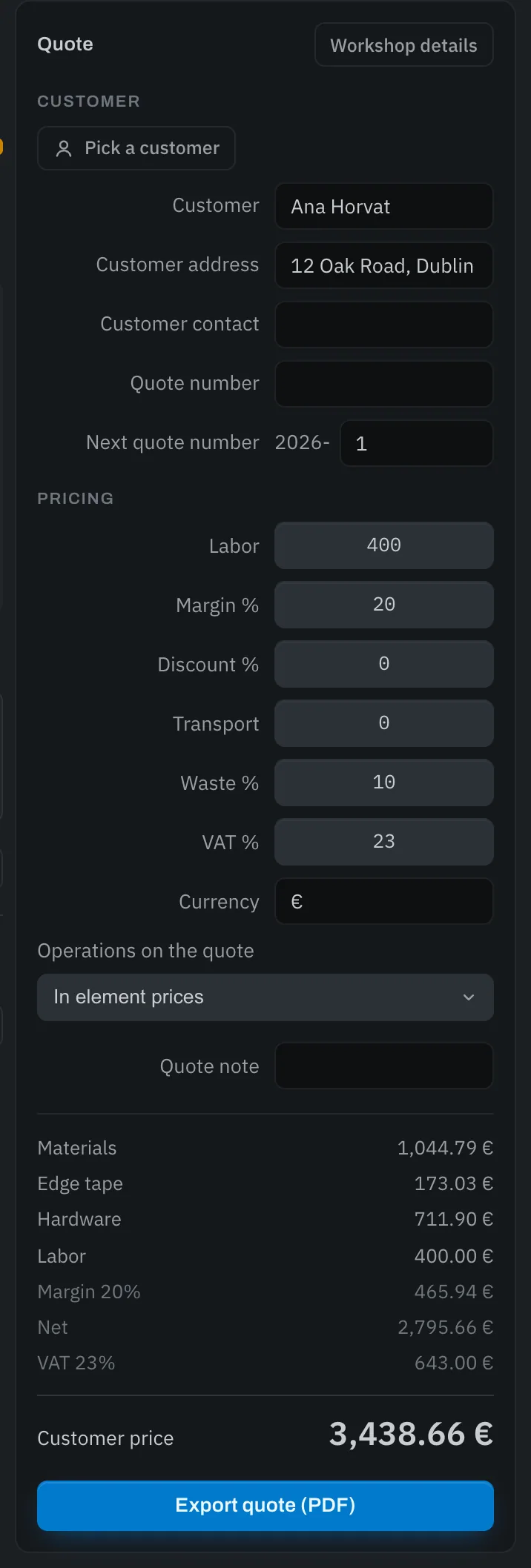
- In the Customer box, click the Customer field and type the customer's name. For an earlier customer, click Pick a customer (see Pick a customer).
- In the Customer address field type the address, and in Customer contact a phone number or e-mail.
- Leave Quote number empty.
- In the Pricing box, click Labor and type the labour amount, e.g.
400. - In Margin %, type the margin, e.g.
20. - If you like, enter Discount % and Transport (see Discount and transport).
- Below the box, look at the summary: Materials, Edge tape, Hardware, Labor, Margin, Net, VAT and Customer price. The quote will show the same amounts.
| Field | What it does | Default | Values |
|---|---|---|---|
| Pick a customer | The list of customers remembered in this browser. A click on a customer fills in Customer, Customer address and Customer contact | button | |
| Customer | The customer's name on the quote and in the calculation | empty | free text |
| Customer address | The line under the customer's name | empty | free text |
| Customer contact | The customer's phone or e-mail, under the address | empty | free text |
| Quote number | The number on the quote. EFS fills an empty field on the first export | empty | free text; EFS gives year-number, e.g. 2026-014 |
| Last exported | The quote revision the customer got last, e.g. Last exported: 2026-017/2. Text only, under the number. See Revisions | ||
| Next quote number | The number the next exported quote gets. See Quote number | the counter's next number | 1 to 999999 |
| Labor | The labour amount added to materials and hardware | 0 | 0 and up, in the quote currency |
| Margin % | Percentage on materials, edge tape, hardware, operations and labour | 0 | 0 to 500 |
| Discount % | Discount on the quote after the margin, before transport and VAT | 0 | 0 to 100 |
| Transport | Fixed transport amount, without margin or discount | 0 | 0 and up, in the quote currency |
| Waste % | Addition to the area of boards priced per m² | 10 | 0 to 100 |
| VAT % | Tax on the net amount. Until the project sets one, the rate of the interface language applies, and the field shows it. A VAT you type in is kept with the project in every language | by language: Croatian 25, German 19, Italian 22, French 20, Spanish 21, Polish 23, Czech 21, English 20 | 0 to 100 |
| Currency | The currency symbol after the amounts in the cost estimate and in the PDFs | € |
free text, e.g. EUR |
| Operations on the quote | How the customer quote shows the operations. See Operations on the quote | In element prices | In element prices, Grouped as services |
| Quote note | Text at the bottom of the quote and the calculation, above the payment terms | empty | free text |
| Export quote (PDF) | Downloads the customer quote and the internal calculation | button |
In the summary below the box, the Hardware line covers hardware and services, like the Hardware and services table in the calculation. Customer price is the total with VAT.
Tip
You can save Labor, Margin %, Discount %, Transport, Waste %, VAT %, Currency and Operations on the quote in My settings. Every new project then starts from your values. See My settings.
Pick a customer
The customer's details stay in the browser: they never go to the server (see Customers stay in this browser). Every customer of a saved project or an exported quote goes into this browser's customer list.
- In the Quote box, above the Customer field, click Pick a customer.
- If needed, type part of the name in Search customers.
- Click the customer. EFS fills in the name, address and contact.
Rules:
- The list is in this browser, separately for each account. On another device it is different.
- The customers you used last come first.
- The cross next to a customer (Forget the customer) takes them off the list. The projects that have them stay as they are.
- A project opened on another device has no customer. The box then says Customer details stay on the device where they were entered: pick a customer or type them in.
Quote number
EFS assigns the number on the first export of the quote, if the Quote number field is empty:
- The number has the form
year-sequence number, with three digits:2026-001,2026-002… - The sequence number goes up with each new quote, across all projects. With a new year, counting starts again from
001. - The number is written into the Quote number field and stays with the project. The next export of the same project keeps the same number.
- If you enter your own number, EFS uses it and does not use up a sequence number.
- Exporting again after changes gives a revision of the same number, e.g.
2026-017/2, without a new sequence number. See Revisions. - A Production package with the quote included also gives an empty field a number.
While you are signed in, your account counts the numbers. Two devices therefore never give out the same number. The first time you sign in on a browser, the account takes over the numbers that browser has already given out, so none is repeated.
Next quote number is below the Quote number field: the year is shown in front of the field, e.g. 2026-, and the field holds the number of the next quote.
- Type a number, e.g.
100, to start this year from2026-100. - Press Enter or click outside the field. The number is saved with your account.
- Esc puts back the number as it was.
The change needs a connection to the server. Without one, the bottom of the screen says No connection: the next quote number was not changed.
If there is no connection at the moment of export, the quote gets the next number from this device, and the bottom of the screen says No connection: the quote got the number … from this device. Your account learns it when the connection is back. The account never gives out that number again.
Watch out
The number is in the project only once you save the project (Ctrl+S, on a Mac Cmd+S). If you close the project without saving, the number is used up and the next export gets a new one. Ctrl+Z after the export does not clear the number: the number handed out is not part of the undo history.
Watch out
A copy of a project (Save as…, Duplicate project) carries the quote number too. When you make a new quote from an old project, clear Quote number before the export.
Labour, margin and waste
EFS calculates in this order:
- Materials: boards (by sheets, or per m² increased by Waste %).
- Edge tape: metres of edge tape times the price per metre. No waste is added to edge tape.
- Hardware and services: hardware, worktop, cut-outs, drilling, legs, machining.
- Operations: the operations the price list prices (see Operations).
- Subtotal = materials + edge tape + hardware and services + operations.
- Labor is added to the subtotal.
- Margin = (subtotal + labour) × Margin %.
- Discount = (subtotal + labour + margin) × Discount %.
- Transport is added to the amount after the discount.
- Net = subtotal + labour + margin − discount + transport.
- VAT = net × VAT %.
- TOTAL = net + VAT.
Example: subtotal 1,556.66 €, labour 400 €, margin 20% and VAT 25%.
| Row | Amount |
|---|---|
| Subtotal | 1,556.66 € |
| Labor | 400.00 € |
| Margin (20%) | 391.33 € |
| Net | 2,347.99 € |
| VAT (25%) | 587.00 € |
| TOTAL | 2,934.99 € |
Rules the program applies on its own:
- Labor is one amount for the whole project, not an hourly rate. Work out your hourly rate yourself and enter the amount.
- Waste % applies only to boards priced per m². When a decor is priced by whole sheets, the waste is already in the number of sheets and the field does not change the amount.
- The margin is applied to labour too.
Discount and transport
Discount % is worked out after the margin: it lowers the price of the goods and the work. Transport is added after the discount, without margin or discount. VAT is worked out on the amount with transport.
An example with the same project, with a 5% discount and 80 € transport:
| Row | Amount |
|---|---|
| Subtotal + labour + margin | 2,347.99 € |
| Discount (5%) | −117.40 € |
| Transport | 80.00 € |
| Net | 2,310.59 € |
| VAT (25%) | 577.65 € |
| TOTAL | 2,888.24 € |
On the customer quote the cabinet prices stay without the discount. Below the table come Subtotal, Discount (5%) and Transport, then Total. Without a discount and transport these rows are not there.
Operations on the quote
Operations on the quote decides how the customer sees the workshop's operations:
| Value | What the customer sees |
|---|---|
| In element prices (default) | Each cabinet carries its operations in its own price. The operations are not shown separately. |
| Grouped as services | The cabinets without operations, and below them one unnumbered row for each kind: Cutting, Edge banding, Drilling, CNC machining, Assembly. |
The amount for the customer is the same either way. The internal calculation always has the Operations table with the quantities.
VAT
The program does not care whether the workshop is registered for VAT. VAT % only adds tax to the net amount. The workshop itself knows whether it charges VAT and at what rate.
- Workshop registered for VAT: keep the rate the field shows or enter your own. A new project starts from the standard rate of the interface language's country (25 % in Croatian, 19 % in German…). Once you type in a VAT, the project keeps it also when you change the language. A project saved before this version keeps its 25 %.
- Workshop not registered for VAT: enter
0. The customer quote then has no VAT row, and Total and TOTAL are the same amount. The internal calculation still has a VAT (0%) row.
Tip
If in your case the quote must say why no VAT is charged, enter that sentence in Quote note or in Payment terms in the workshop details. Your accountant gives you the text; EFS only prints it.
Currency
Currency is only the symbol after the amounts, e.g. € or EUR. EFS does not convert prices: the amounts are in the currency the prices in the price list are in. The Cost estimate shows the same symbol.
Export quote (PDF)
- In the Quote box, click Export quote (PDF). It is also in the Export menu in the top bar.
- The browser downloads one zip,
<project name>_quote.zip, e.g. Horvat kitchen_quote.zip. In it are:- the customer quote,
<project name>_quote.pdf, e.g. Horvat kitchen_quote.pdf; - the internal calculation,
<project name>_calculation.pdf, e.g. Horvat kitchen_calculation.pdf.
- the customer quote,
What the program does on its own:
- If Quote number is empty, it assigns the next number and writes it into the field.
- It saves a revision of the quote in the project. If nothing has changed since the last export, the revision stays the same (see Revisions).
- At the bottom of the screen it reports Quote exported — 2,934.99 € (the total with VAT).
- If a cabinet has an item without a price, it reports a warning instead: Elements with items without a price: 3; see the internal calculation. The quote is downloaded. In the internal calculation, hardware without a price has its price-list code in brackets, e.g. Shelf support pin (PIN).
- After the export EFS always runs the Project check, also when an item has no price. If it finds errors (e.g. overlapping cabinets), it reports Exported, but the project check found errors: 2 (Project check). The Project check button in the message opens the findings. The quote is downloaded all the same.
The Production package makes the same pair of PDFs if Quote is ticked in it. See The production package and the supplier order. The same project in two or three decors, with a price for each variant, is what Decor comparison works out (see Comparing decors).
On a phone
Tap … (More) in the top bar and under Export tap Export quote (PDF). Depending on the browser, the PDFs open or are saved to your downloads.
The customer quote
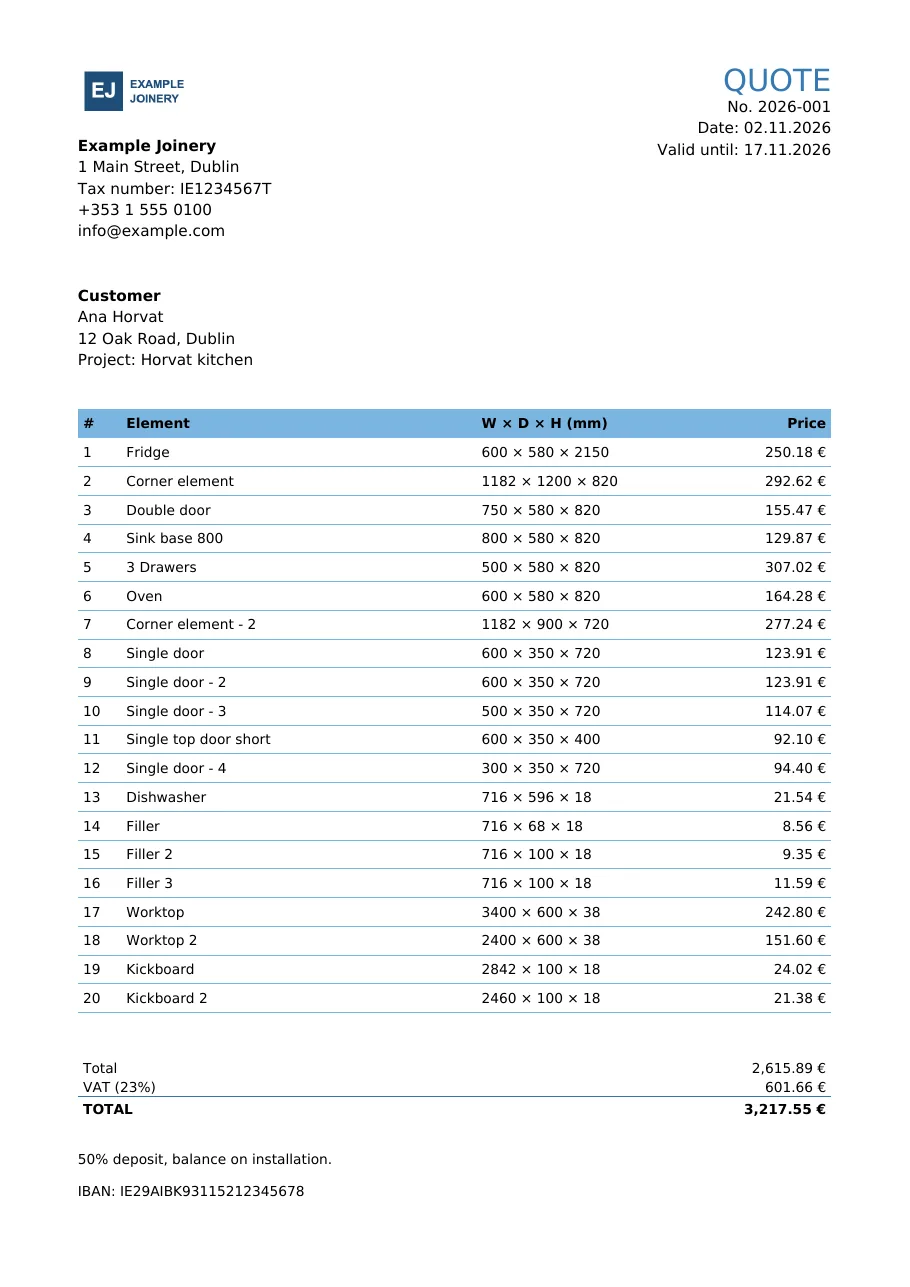
The customer quote is one A4 page (or more, if there are many cabinets):
- Top left: logo, workshop name, address, tax number, phone and e-mail.
- Top right: the title QUOTE, No., Date (the day of the export) and Valid until. From the second revision, Revision 2, replaces 2026-017 is under the number.
- Customer: name, address and contact, and below them Project: with the project name.
- Element table with the columns #, Element, W × D × H (mm) and Price. With Grouped as services the operation rows follow the cabinets, without a number.
- Subtotal, Discount (…%) and Transport when there are any, then Total (net), VAT (25%) and TOTAL with VAT.
- From the second revision, Changes from 2026-017: what was added, what was removed, which cabinet's price changed, and the total before and now.
- Quote note, Payment terms and IBAN.
How the element table is built:
- Each cabinet is one row, with the name from the cabinet's Name field.
- A cabinet from a template with several carcasses is one row, e.g. a tall fridge unit with carcasses inside it. Cabinets you linked yourself stay separate rows.
- Each free board is its own row: the worktop, the kickboard, a filler, an end panel, the cornice. LED strips are separate rows too, e.g. LED strip with the length in metres.
- W × D × H (mm) is the width, depth and height of the cabinet, measured along the cabinet's axes. For a free board the column has the length, width and thickness, e.g. 3232 × 600 × 38.
- Price is without VAT and already includes the margin, but not the discount. It includes the cabinet's boards and edge tape, its hardware, its operations (with In element prices) and a share of the labour. The worktop carries the price per metre, its cut-outs, joint and connectors.
- Labour is split by the number of boards: a cabinet with 12 of the project's 120 boards gets 10% of the labour.
- When boards are priced by whole sheets, the sheet cost is split among the cabinets by the area of their parts.
- The prices of all rows add up to the Total, or to the Subtotal when the quote has a discount or transport.
Tip
The cabinet names go to the customer. Before the export, rename the ones the customer would not understand, e.g. Single door - 2 to Wall unit by the hood. Rename the kickboard and the other free boards in the Board tab, Name field.
The internal calculation
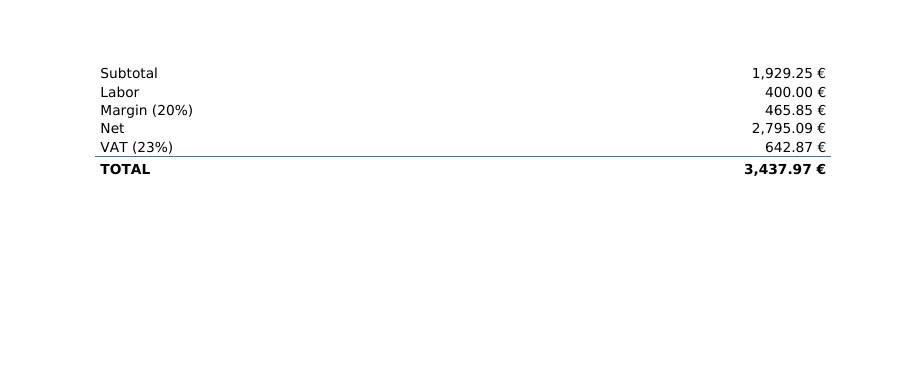
The internal calculation stays in the workshop. It has no logo and no workshop details.
- CALCULATION (INTERNAL), Project, Customer and Date.
- Materials: each decor and thickness in its own row. When priced by sheets, the quantity is the number of sheets (unit sheet); when priced per m², it is the area with waste (m2).
- Edge tape: each decor and edge tape thickness, in metres, e.g. Edge tape 2.0 mm (U702 ST9 Cashmere Grey). 43 mm edge tape has 43 mm at the end of the name.
- Hardware and services: catalogue hardware, LED strips, the worktop per metre, cut-outs, joints, hole drilling, legs, gola and CNC routing.
- Operations: every operation with a price in the price list, with its quantity and unit (pcs, m, m2). The table is left out when no operation has a price.
- Every table has the columns Item, Qty, Unit and Amount, and below it the Total row of that table.
- Subtotal, Labor, Margin (…%), Discount (…%), Transport, Net, VAT (…%) and TOTAL. The Labor, Margin, Discount and Transport rows are left out when they are 0.
- Notes at the bottom:
- Items without a price in the price list, not included in the total: n. These items have
—in the Amount column. - Parts that fit on no stock sheet: n; their material is priced per m2. (see Nesting and board prices).
- Quote note, if you entered one.
- Items without a price in the price list, not included in the total: n. These items have
What the customer sees and what the workshop sees
| Information | Customer quote | Internal calculation |
|---|---|---|
| Workshop details and logo | Yes | No |
| Customer | Name, address, contact | Name only |
| Number and validity | Yes | No |
| Price per cabinet, with sizes | Yes | No |
| Boards, edge tape and hardware with quantities and purchase prices | No | Yes |
| Labour and margin | No, already in the cabinet prices | Yes, separately |
| Operations | In the cabinet prices or grouped as services | Yes, the Operations table with quantities |
| Discount and transport | Yes, below the table | Yes |
| Revision and changes | Yes, from the second revision | No |
| Net, VAT and total | Yes | Yes |
| Payment terms and IBAN | Yes | No |
| Items without a price | Not visible | Yes, with a note |
Watch out
Send the customer quote only after you have looked at the internal calculation. Only the calculation shows the items without a price and the parts that did not fit on the sheets.
Revisions
Every quote export (and a Production package with the quote) keeps a revision of the quote in the project: the items, amounts, decors and operations as the customer got them.
| Export | Number on the quote | What else it says |
|---|---|---|
| First | 2026-017 |
|
| Again, nothing has changed | the same as the last one | The revision stays the same |
| Again, after a change | 2026-017/2, then /3… |
Revision 2, replaces 2026-017 and Changes from 2026-017 |
Changes from … lists:
- Added: cabinets and items that were not there before;
- Removed: cabinets and items that are gone;
- Price changed: a cabinet with its old and new price, e.g. Sink base 800 (412.00 € → 448.50 €);
- Total: the total before and now.
If only the customer details changed, it says No changes to the items or prices.
Rules:
- In the Quote box, under Quote number, it says Last exported: 2026-017/2.
- A revision keeps the base number and does not use up a new sequence number.
- Revisions stay in the project and are not part of the undo history: Ctrl+Z (on a Mac Cmd+Z) does not remove an exported revision.
- For a completely new quote (a new number, revision 1) clear Quote number before the export.
Tip
When the customer asks for a change, change the project and export the quote again. On the quote the customer sees straight away what is different and what it costs.
Price list
The Price list box is at the bottom of the left-hand column of the Cost estimate section in Project settings. The price list applies to all projects.
| Part of the box | What it does |
|---|---|
| Your own price list / The price list EFS comes with | Which price list EFS is using now. |
| Offcuts in stock: N and Edit offcuts | The number of free offcuts in the price list and the window to edit them (see Nesting and board prices). |
| Get prices | Downloads the price list as an Excel file: user_prices.xlsx (your price list) or prices.xlsx (the price list EFS comes with). |
| Upload prices | Reads the Excel file you choose and makes it your price list. |
| Shipped price list | Shown only with your own price list. After you confirm, EFS forgets your price list and uses the one it comes with again. |
While you are signed in, it says below: Kept with your account: the same on every device you sign in on. The price list and the offcuts are then the same on every device.
How you change prices:
- Click Get prices. The browser downloads the file.
- Open it in Excel or another spreadsheet program and enter your prices.
- Save the file as
.xlsx. - Click Upload prices and choose the saved file. The bottom of the screen says Price list uploaded successfully. The cost estimate uses the new prices at once.
| Sheet | What it holds |
|---|---|
| Boards | Per decor, the board price per m² for each thickness and the edge tape price per metre for 23 and 43 mm edge tape |
| Other | Hinges, drawers, drilling, legs, machining, workshop operations and the codes of catalogue hardware: code, unit, price |
| Sheets | Sheet sizes and prices for nesting |
| Offcuts | The offcuts in stock |
Rules:
- Upload prices replaces your whole price list, the offcuts in stock included, with the contents of the file.
- Get prices adds to the downloaded file the operation rows your price list lacks, at 0.
- A file without the Boards, Other or Sheets sheet is accepted, with the warning The file has no … sheet: those prices are missing. The items from that sheet then have no price.
- The column layout and the thickness rules are described in Nesting and board prices.
Numbers, dates and the language of the quote
The PDFs follow the interface language (the language menu in the top bar, on a phone in the … menu):
| Croatian interface | English interface | |
|---|---|---|
| Amount | 2.934,99 € |
2,934.99 € |
| Quantity | 5,03, 64,0 |
5.03, 64.0 |
| Edge tape in the name | Rubna traka 2,0 mm |
Edge tape 2.0 mm |
| Titles | PONUDA, KALKULACIJA (INTERNO) | QUOTE, CALCULATION (INTERNAL) |
| Date | 01.10.2026 |
01.10.2026 |
| Files | …_ponuda.zip with …_ponuda.pdf and …_kalkulacija.pdf |
…_quote.zip with …_quote.pdf and …_calculation.pdf |
The Cost estimate writes numbers the same way, in the interface language.
Tip
For a customer who reads another language, switch the interface language before the export, e.g. to Deutsch. The quote gets the titles and number format of that language. Cabinet names stay as you typed them.
Common problems and solutions
The quote is too low. An item has no price. Look for a red exclamation mark and no price items in Cost estimate, and for rows with — in the internal calculation. Add the prices to the price list and export again.
The fronts are not on the quote. The fronts are hidden with Shift+F. Bring them back with the fronts button in the 3D view toolbar and export again.
There is no logo on the quote. No logo is chosen, or the image is not a PNG or JPG the PDF can read. Choose another image in Workshop details.
There are no workshop details on the quote. The fields in the Workshop details window are empty. On another device, sign in with the same account so the details come across.
A new quote has an old number. The project is a copy of an old project. Clear Quote number and export again.
The quote number skipped a number. The quote was exported and the project was not saved, so the next export got a new number. A Production package with the quote included uses up a number too.
Next quote number does not change. There is no connection to the server. Check your internet connection and type the number again.
Waste % does not change the amount. The boards are priced by whole sheets, and then no waste is added. See Price per sheet or per m².
The board amount in the quote differs from Cost estimate. The estimate prices boards per m² without waste. The quote adds Waste % or prices whole sheets from nesting. The Quote before margin and VAT box shows the difference.
The Sheets (nesting) box shows old numbers. The box shows the result of the last click. Click Calculate sheet cost again.
I can't see the Calculate sheet cost button. Nesting: cutting diagrams is off. Switch it on in the Settings box of the Export section.
The sheet price is not as in the supplier's catalogue. With nesting on, a decor without its own row in the Sheets sheet pays for a sheet as the price per m² times the sheet area. Enter a row for the decor with the sheet price (see Nesting and board prices).
After Upload prices no item has a price. The file has no Boards or Other sheet, or the columns have moved. Click Get prices, enter the prices in the downloaded file and upload that one.
The quote has no VAT row. VAT % is 0. If you are registered for VAT, enter the rate.
The operations do not show in the cost estimate. The operation rows in the price list are 0 or missing. Click Get prices, enter prices in the operation rows and upload the file. See Operations.
Hole drilling has gone from the estimate. The price list has a price for HOLE_HINGE_CUP. The cups are then counted by Drilling: hinge cups, and Hole drilling is not charged twice.
The quote number has /2. The quote was exported again after a change, so this is the second revision of the same number. For a new number, clear Quote number and export again. See Revisions.
Exporting again gave no new revision. No item, price or customer detail has changed since the last export. The quote keeps the last revision.
A cabinet is in two rows. The cabinet is made of carcasses you linked yourself, and they have different names. A carcass goes into the row of the main cabinet when it is directly linked to it and has the same name with a number in brackets, e.g. Fridge (2) next to Fridge.
Shortcuts in this chapter
| Key | Action |
|---|---|
| Ctrl+, (Mac Cmd+,) | Open Project settings, e.g. Cost estimate |
| Enter | Save Next quote number |
| Esc | Cancel typing in Next quote number, or close a window |
| Shift+F | Hide or show the fronts. Hidden fronts do not go into the quote |
| Ctrl+S (Mac Cmd+S) | Save the project, and the quote number with it |
| N | Show or hide the right sidebar |
Next
The kitchen is done, from the room to the quote. The next part is Production and CNC.
Next chapter: Cutting list and cut size