Customer portal
The customer portal is your own address where your customers design their furniture themselves and send you the design. Unlike the web preview, where the customer only looks at a project, in the portal they change it: they place cabinets, change sizes and decors and send you versions. You refine the design in EFS Web and send them your version, and both sides see the whole series of versions. In this chapter you will learn how to switch the portal on, work with customer designs and release a design to production.
The portal exists only in EFS Web. The desktop program does not have it (see Differences from the desktop program).
Before you start
- You are signed in to EFS Web and the licence is active. The portal comes with every licence, at no extra cost (Signing in, licence and projects).
- Your workshop's name and logo are filled in under Workshop details and logo (account menu). The portal takes them from there the first time; after that you change them in the portal's settings (Workshop details).
- Your customer needs no program and no password, only a browser, an internet connection and an e-mail address: with the first send they confirm the address with a code from a message. What the customer sees is described in the chapter Planner for a workshop's customers, which the ? button in the portal opens.
How the portal works
- You switch the portal on and get an address, e.g.
easyformstudio.com/s/stolarija-demo. You send the address to your customers or put it on your website. - The customer opens the address, sees your logo and name and designs: they start from a ready project, fit it to their room or begin with an empty room.
- The customer clicks Send to the workshop, writes a message if they like, types their e-mail address (and, if they like, their name) and confirms it with the 6-digit code from an e-mail. The design arrives in Customer designs as version 1, with the customer's e-mail, name and message, and you get an e-mail. The customer gets the design's code and a private link as a spare, and signs in with the same address on any device.
- You look at the design, open it as your own project, refine it and click Send to the customer, with a message if you like. The customer sees your version only when you send it, and then gets an e-mail.
- The customer confirms a version or sends a new one. When everything is agreed, you click Release to production and the design is locked.
The quote, prices, margin and production data never go to the customer, whoever sends a version: EFS Web leaves them out of every version, and the server leaves them out once more.
Switch the portal on
- Click your initials on the right of the top bar (the account menu) and choose Customer portal. The command palette (Ctrl+K, on a Mac Cmd+K) opens the same window when you type
portal. - The window is filled in: Name your customers see and Logo from Workshop details and logo, the Address made from the name (without Ltd, GmbH and similar company forms) and The portal’s language as the interface language.
- Check the address. While you type, the field says Checking the address…, then The address is free. or why it is not (see Address rules).
- On the right, under What your customer sees, check how the portal will look: the logo and name in the top bar, the home screen's title and the browser tab's title "{name} · Planner".
- Click Switch the portal on. The program says Your customer portal is on: and the address.
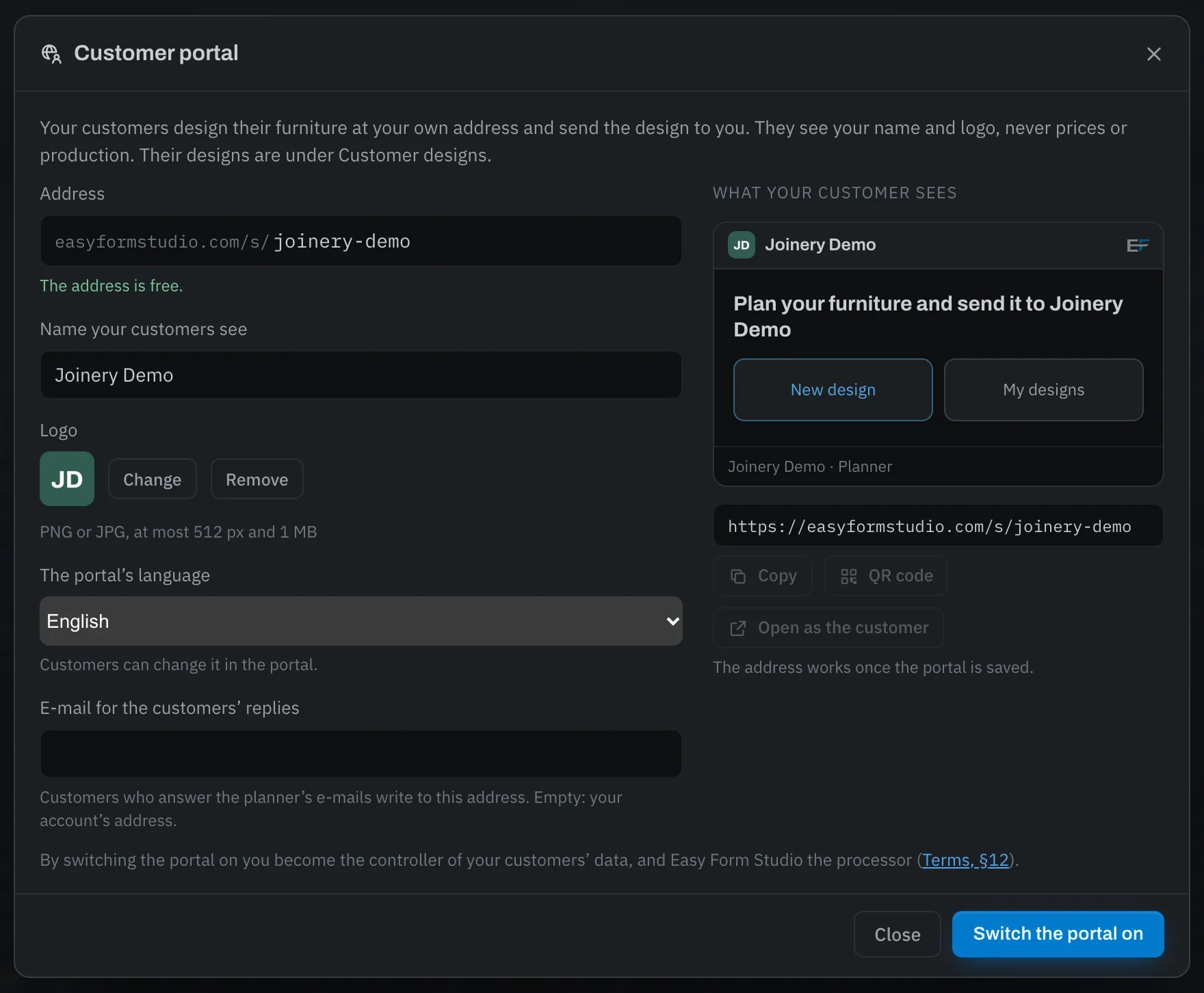
Options
| Field or button | What it does | Default |
|---|---|---|
| The portal is on / The portal is off | The tick switches the portal on and off (see Switch the portal off or delete it). Shown once the portal exists | On |
| Customer designs | Opens the list of designs (see Customer designs) | Shown while the portal is on |
| Address | The part of the address after easyformstudio.com/s/ |
From the workshop's name |
| Name your customers see | The name in the portal's top bar, on the home screen, in the browser tab's title and in messages to the customer ("Please contact the workshop …"). At most 120 characters | From Workshop details and logo |
| Logo | Upload or Change picks a picture, Remove takes it away. PNG or JPG, at most 1 MB; the program shrinks it to at most 512 px. Without a logo the portal shows the name's initials | From Workshop details and logo |
| The portal’s language | The language the portal opens in. Customers can change it in the portal | The interface language |
| E-mail for the customers’ replies | Customers who answer the planner's e-mails (the sign-in code, a new version) write to this address. The e-mails about a customer's sends come to it too (see E-mail when a customer sends) | Empty: your account's address, shown under the field |
| What your customer sees | A preview of the top bar, the home screen and the tab's title, in the portal's language | |
| Copy | Copies the portal's address | Greyed out until the portal is saved |
| QR code | Shows a QR code of the address and Download QR code (PNG), e.g. for a leaflet or the showroom window | Greyed out until the portal is saved |
| Open as the customer | Opens the portal in a new tab, exactly as the customer sees it | Greyed out until the portal is saved and on |
| Delete the portal | Deletes the portal and every design (see Switch the portal off or delete it) | Shown once the portal exists |
| Save | Saves changes of the address, name, logo and language | Greyed out while nothing has changed |
Tip
Put the portal's address on your website as a link, e.g. "Plan your kitchen", and the QR code on a leaflet, a business card or in your showroom. The customer installs nothing.
Address rules
- From 3 to 40 characters: lower-case letters a–z, digits and hyphens, with a letter or digit at the start and at the end, and no two hyphens in a row.
- While you type, the field converts the characters itself: capitals to lower case, a space to a hyphen, letters with accents to the plain letter (é to e, ß to ss). Other characters are left out.
- Some addresses are reserved (e.g.
demo,test,admin,portal,planner,shopand addresses starting withdemo-,efs-ortest-). Then the field says This address is reserved. Choose another one. - When another workshop has the address, it says Another workshop has this address. Choose another one.
- Without a connection to the server it says The address could not be checked now.
Changing the address, name and logo
Once the portal is on, the Customer portal window has the tick The portal is on, the Customer designs button, and under the address Your portal’s address. Change a field and click Save. The program says Customer portal saved.
In E-mail for the customers’ replies, type the address where you want your customers' replies, e.g. the workshop's shared address. The customers' e-mails come from your portal's name, and when a customer replies, the reply goes to this address. An empty field means your account's address.
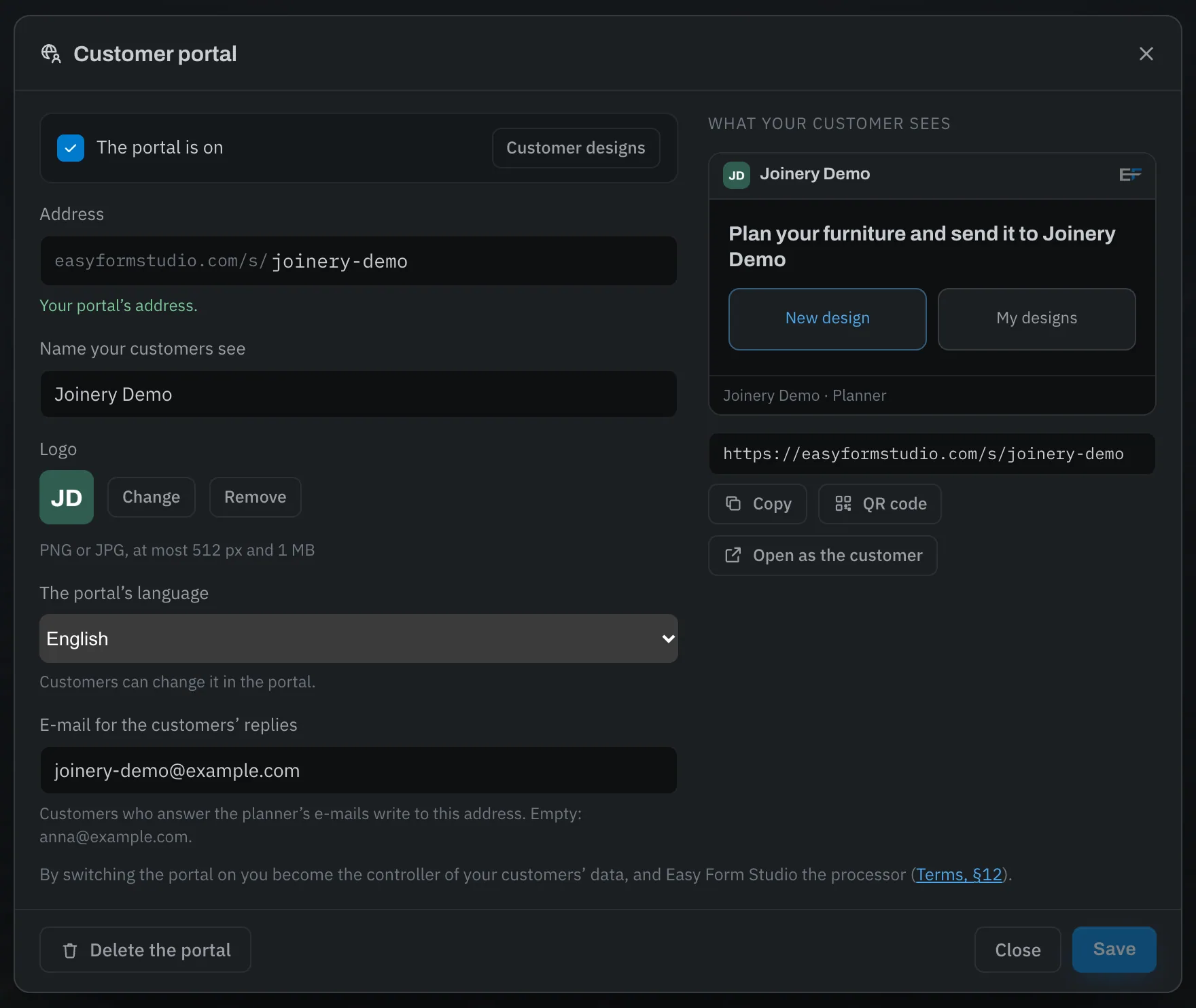
When you change the address, the field says The old address leads to the new one for a year, and nobody else can take it. Links on your website and your customers' private links keep working. You cannot change the address often: after a few changes the program says The address was changed too often. Try again tomorrow.
The customer sees a new name and logo the next time they open the portal.
Switch the portal off or delete it
Switch the portal off while you do not take designs for a time:
- In the Customer portal window, untick The portal is on.
- The program asks Switch the portal off?: "Customers can no longer open the portal or their designs until you switch it on again. Nothing is deleted."
- Click Switch off. Customers then see the card The planner is not available right now with the message "Please contact the workshop …" and your workshop's name.
You switch the portal on again with the tick. The address, designs and links stay the same.
Delete the portal when you no longer want it:
- Click Delete the portal at the bottom left.
- The program asks Delete the customer portal?: "The portal, every customer design and all their versions are deleted from the server for good, and the customers’ links stop working. Your own projects stay."
- Click Delete the portal.
Warning
Deleting the portal cannot be undone. Your projects made with Open and refine stay, but the designs, versions and customers' links are gone. If you only stop taking designs for a while, switch the portal off.
What the customer sees and does
The customer works in the same EFS Web, with your logo and name in place of the Easy Form Studio mark and a small Powered by Easy Form Studio mark. They design without signing in; with the first send they confirm their e-mail address with a code, and that sign-in lasts 90 days. They can delete their data themselves (see Privacy and limits).
| The customer can use | The customer does not have |
|---|---|
| Ready projects, Fit to my room and an empty room | Prices, the quote, the Cost estimate and the price list |
| Cabinets, sizes, construction, fronts, drawers, shelves, LED strips, corner cabinets and Draw a cabinet… (Draw a cabinet) | Cutting lists, CNC files, labels, assembly instructions and the production package |
| Decors in Material assignment and decors of single boards | Own decors, Decor comparison, Project hardware, My settings and My templates |
| The room with openings and installations | Room documentation |
| Views, Customer render (JPG), Image of the view (JPG) and AR model (USDZ) | Web publish, Workshop QR, and opening or downloading project files |
| Send to the workshop, Versions and I confirm this version | The EFS Assistant and the interactive tours |
Help (the ? button) opens the chapter Planner for a workshop's customers for the customer, in the language they chose in the portal. The customer asks you about price, delivery and making: the portal's cards and messages refer them to your workshop by name.
The customer's work is kept in their browser. Nothing goes to the server until they click Send to the workshop.
Customer designs
You open the customer designs in four places:
- the Customer designs icon in the top bar, left of your initials, with the number of new designs (shown once you have a portal);
- Project → Customer designs;
- the command palette (Ctrl+K);
- the Customer designs button in the Customer portal window.
The list is on the left, the selected design on the right. Each card has a picture of the newest version, the name, the customer's e-mail, the code, the status and a line "v3 · Customer · date", and under it the start of the message with the newest version, if it has one. The Search by e-mail, name or code field above the list searches the designs while you type; the × in the field clears it. The new mark stays until you open the customer's newest version. The number on the icon and New: n above the list count the designs whose newest version is the customer's and that you have not opened yet. EFS Web refreshes it every few minutes and when you come back to the tab; the arrow button next to the filter refreshes the list at once.
The filter above the list picks which designs you see:
| Filter | Designs |
|---|---|
| Being worked on (default) | Sent by the customer, Opened, Sent to the customer and Confirmed by the customer |
| Sent by the customer | The customer sent a version that you have not opened yet |
| Opened | You opened the customer's version |
| Sent to the customer | The newest version is yours |
| Confirmed by the customer | The customer confirmed a version |
| In production | The design is locked for production |
| Archived | The design is closed |
| All designs | All of them |
The list shows 50 designs, the most recently changed first; Show more shows the rest.
Your name for the design
A design is called by the name the customer typed when signing in, e.g. Ana Horvat. Without a name it is the part of the e-mail before the @, and a design without a customer e-mail (sent from your project) is called "Design" and its code, e.g. Design 7KQ2-M4. You give it a name of your own like this:
- Click the design's name on the right (there is a pencil next to it).
- Type the customer's name or a note, e.g.
Horvat, kitchen, and press Enter. Esc cancels.
The name is kept only in this browser, with your account, and is never sent to the server. In another browser or on another device the design shows the customer's name or its code again. When you clear the name, the customer's name or the code comes back. The customer does not see your name.
Tip
When a customer calls, ask for the design's code or their e-mail and type it into Search by e-mail, name or code.
Preview and versions
A click on a card opens the design:
- at the top the name, code and status, below them the line Customer: with the customer's name and e-mail (a click on the e-mail starts a new message in your e-mail program), then "Started by the customer · date" or "Sent from your project · date" and, once the customer has confirmed a version, "The customer confirmed v3 · date";
- on the left a 3D preview of the selected version, labelled "Version 3: for looking only". You rotate and zoom it with the mouse; nothing changes;
- on the right the series of versions, the newest first;
- at the bottom the design's buttons.
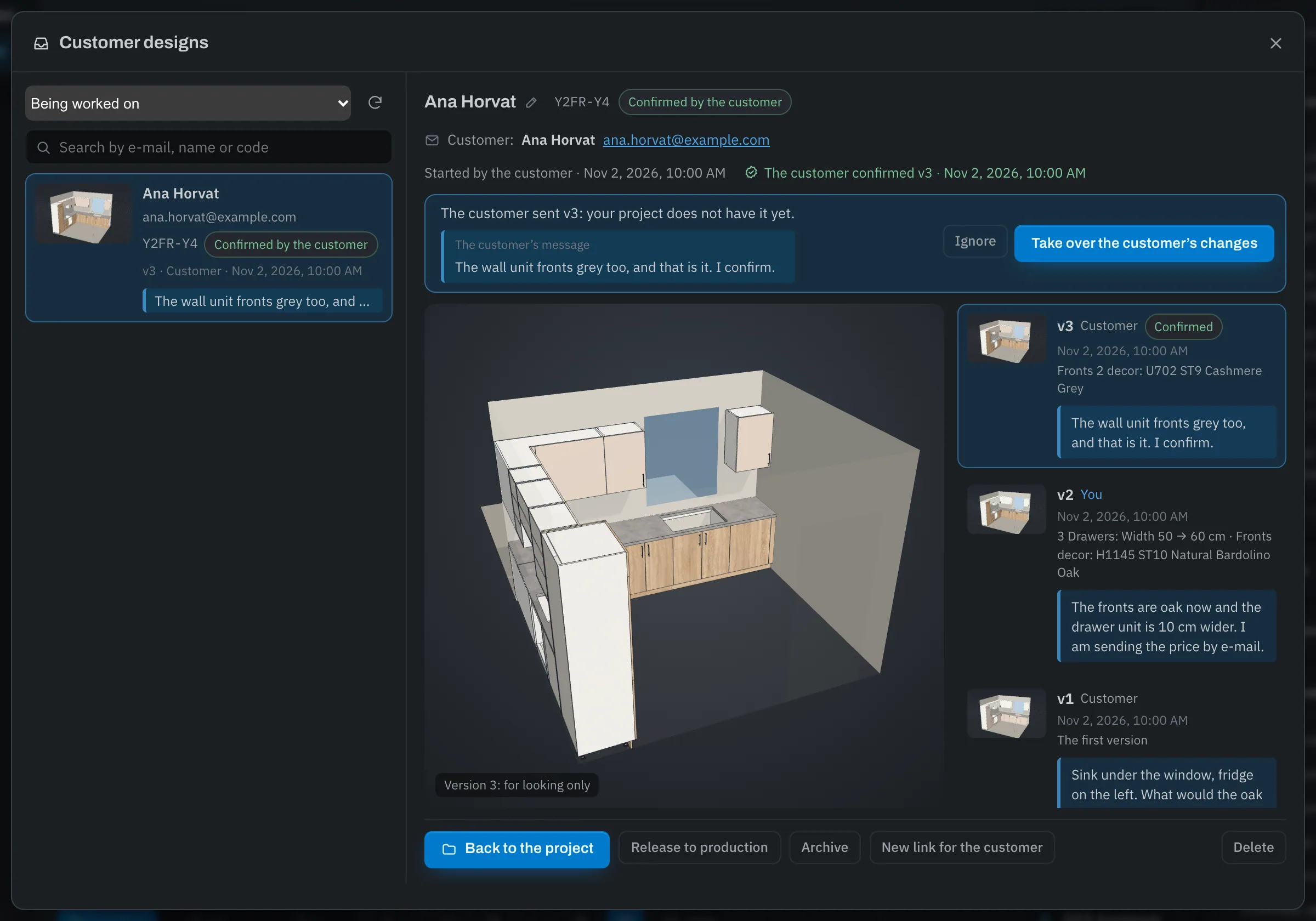
Each version has a picture, its number, its author (Customer or You), the date and a summary of what changed from the version it was made from, e.g. "3 Drawers: Width 50 → 60 cm · Fronts decor: H1145 ST10 Natural Bardolino Oak". The summary counts added, removed and changed cabinets and names changes of sizes, of the fronts, body and worktop decors and of the room. The first version says "The first version", and a version without changes "No change in the design". Next to the versions are the marks new (a customer version you have not opened yet), Confirmed and In production. When the author wrote a message with a version, it is under the summary, in a box.
The summary loads by itself for the five newest versions. Older ones have a Show changes button: a click loads that version and the one it was made from and shows the summary. When a version was not made from the one before (the customer went on with an older version of theirs), it says "Made from version 2".
A click on a version shows it in the 3D preview. As soon as you open the customer's newest version (the preview or Open and refine), the new mark goes, the status becomes Opened, and the customer sees The workshop is looking at it in the portal.
| Button | What it does | When it is shown |
|---|---|---|
| Open and refine | Opens the design as your project (see Open and refine) | The design has no project of yours yet |
| Open the project / Back to the project | Opens your project of this design | The design has your project; Back to the project when that project is open already |
| Release to production | Locks the design (see Confirmation and production) | The design is not in production or archived |
| Unlock | Takes the design back into work | The design is in production or archived |
| Archive | Closes the design (see Archive, delete, new link) | The design is not archived |
| New link for the customer | A new private link; the old one stops working | Always |
| Delete | Deletes the design with all its versions | Always |
On a phone the design fills the whole window, and the arrow left of the name goes back to the list. Esc or × closes the window.
E-mail when a customer sends
When a customer sends a new design or a new version, you get the e-mail "New design 7KQ2-M4 from Ana Horvat" or "Version 3 of design 7KQ2-M4 from Ana Horvat":
- it comes to E-mail for the customers’ replies, or, when that is empty, to your account's address, in the portal's language;
- it has the customer's message, if they wrote one, and the button The design in EFS Web, which opens EFS Web with that design in Customer designs (when you are not signed in, you sign in first);
- a reply to that e-mail goes to the customer, to their address.
When the customer sends again before you open that version, the version is replaced without a new e-mail.
Open and refine
Open and refine makes your project from the customer's newest version:
- In Customer designs, pick the design and click Open and refine.
- EFS Web opens a new project with your name for the design (or the name of the customer's project), saves it to the cloud and links it to the design. The program says Opened as your project "…". Send it to the customer when it is ready.
- Work as in any project: check the sizes, add hardware, make the quote, the cutting list and the CNC files. Save with Ctrl+S (on a Mac Cmd+S).
The design and the project live apart. The project is an ordinary project in My projects, with everything a workshop has. Its card has the mark Portal and the design's code; a click on it opens the design.
Saving the project sends the customer nothing. The customer sees your work only when you click Send to the customer, so they never look at a half-finished job.
Note
When the save fails (e.g. no connection), the program says The project is not saved yet: save it, then open the design again to link them. Save the project and click Open and refine again.
Send to the customer
When your work is done, send it to the customer as a new version of the design:
- In the design's project, choose Project → Send to the customer…. EFS Web saves an unsaved project first.
- The Send to the customer window opens with the design's code: "The customer gets this project as a new version of design … (after v2) in your portal. Their link stays the same." and "The quote, the prices and the customer’s details never go with it."
- If you like, write what the customer should know in Message to the customer (optional), e.g. "The drawers are 60 cm now and the sink is under the window." The message goes with the version, up to 1000 characters; the customer sees it in the planner and in the e-mail.
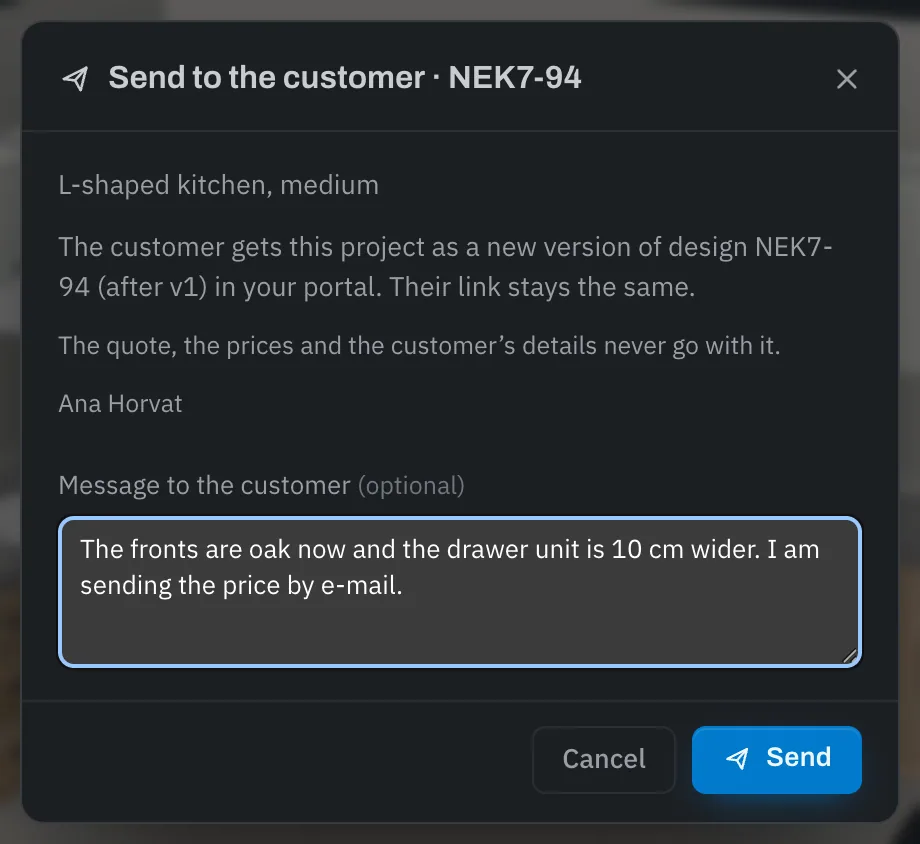
- Click Send (or Ctrl+Enter in the message field, on a Mac Cmd+Enter). The program says Sent to the customer as v3.
- Click Done.
The customer gets the e-mail "{workshop name} sent you a new version of design …" with a link to the design and your message. The sender is your portal's name, and a reply to the message goes to E-mail for the customers’ replies. In the planner they see the new version the next time they open it, or within a few minutes when it is open already: over the 3D view they get the banner "{workshop name} sent version 3.", with your message under it and the buttons What changed, Continue mine and Open v3.
The same version, not a new one. While the customer has not opened your newest version, a new send replaces it instead of adding one. The program then says "The customer had not opened v3 yet: it was replaced, not added." So ten sends in a row make neither ten versions nor ten e-mails. The replaced version keeps its message unless you write a new one; the window then shows it already, so you can edit it.
The customer has sent a version of their own in the meantime. When the customer sends a version your project does not have, Send does not send at once but says "The customer sent v4, which this project does not have yet." and offers:
| Button | What it does |
|---|---|
| Review | Opens the design in Customer designs at the customer's version |
| Send anyway | Sends your project as a new version; the customer's version stays among the versions |
| Take over the customer’s changes | Brings the customer's changes into your project (see The customer changed it again) |
| Cancel | Closes the window |
The design is in production or archived. The window says "The design is in production (v3)." or "The design is archived." The Unlock and send button unlocks the design and sends the version; the customer can then change it again.
The customer changed it again
When the customer sends a new version of a design whose project you have, EFS Web shows it in three places:
- next to the save status in the top bar, while the project is open, the mark Customer sent v3;
- the same mark on the project's card in My projects;
- in Customer designs, above the 3D preview, the banner "The customer sent v3: your project does not have it yet.", with the customer's message if they wrote one.
You also get an e-mail (see E-mail when a customer sends).

A click on the mark opens the design at the customer's version. Look at the summary and the 3D preview, then choose:
Take over the customer’s changes brings the customer's version into your project:
| From the customer | From you (stays as it is in the project) |
|---|---|
| The cabinets (with all their sizes, fronts, drawers and shelves) | The quote, the customer, the margin and the quote revisions |
| The room with openings and installations | Project hardware |
| The decors of the material groups and of single boards | The export, cutting list and CNC settings |
| The layout (the wall units' height, positioning, kickboard) | Web publish and its links |
- In the banner or in the Send to the customer window, click Take over the customer’s changes.
- EFS Web first saves the project as it was as a new project in the cloud, named "{name} (before taking over)". This copy is linked neither to the design nor to the web publish.
- Then it brings the customer's changes into the project, saves it and says: The customer’s changes of v3 are in the project. The project as it was is saved as "… (before taking over)", and Undo brings it back.
If you change your mind, Ctrl+Z (on a Mac Cmd+Z) brings the project back, and the "(before taking over)" copy waits in My projects.
Warning
Taking over replaces the project's cabinets with the customer's. Whatever you changed on the cabinets after your last send, and the customer does not have, is not in the project taken over. It is kept in the "(before taking over)" copy.
Ignore leaves your project as it is. The customer's version stays among the versions, the Customer sent v3 mark goes, and your next send becomes a new version after the customer's.
Confirmation and production
The customer confirms a version with I confirm this version in their Versions. You then see the status Confirmed by the customer, the mark Confirmed next to that version and "The customer confirmed v3 · date" under the design's name. The same sentence is in the Send to the customer window. The confirmation helps when it is unclear later what was agreed.
Release to production locks the design:
- In Customer designs, pick the design and click Release to production.
- The program asks Release to production?: "The design is locked on v3: the customer sees "In production" and can no longer send changes. You can unlock it later."
- When the customer has not confirmed the newest version, a warning says "The customer has not confirmed any version." or "The customer confirmed v2, not the newest v3." The confirmation is not required; the warning only reminds you.
- Click Release to production. The program says In production: the customer sees version 3 and can no longer send changes.
The design is locked on its newest version. The customer sees the banner "In production · v3: the workshop is making it." and can still look at every version, but can neither send nor confirm.
Unlock takes the design back into work. The program says Unlocked: the customer can change and send the design again. When you send to the customer while the design is in production, the Send to the customer window offers Unlock and send.
Archive, delete, new link
Archive closes a design when the job is done or the customer gives up. The program asks Archive the design?: "The customer can still look at it and its versions, but not change it. You can unlock it later." An archived design leaves the Being worked on list; you find it under Archived and All designs. Unlock takes it back into work.
Delete deletes the design from the server. The program asks Delete design …?: "The design and all its versions are deleted from the server for good; the customer’s link says the design no longer exists. Your project stays." The customer then sees This design no longer exists at the link.
New link for the customer is for when the private link went to the wrong person, or the customer has lost the link of a design you sent from your project (a customer with an e-mail address can simply sign in):
- Click New link for the customer.
- The program warns: "The customer’s link stops working at once. …". Click Make a new link.
- The window shows the code, the new link, Copy link, QR code and Open as the customer with the message "The customer’s old link no longer works. Send them this one."
- Send the customer the new link in a message or an e-mail.
The design's code stays the same. A customer who opens the old link sees This design no longer exists and is told to contact the workshop.
Warning
Deleting a design cannot be undone. If a design is just no longer current, archive it.
Send to the customer… from any project
You can send a project you made yourself to a customer in the portal; they then change it and send you versions. Version 1 is then yours.
- Open the project and choose Project → Send to the customer… (or, in My projects, the card's … menu → Send to the customer…). EFS Web saves an unsaved project first.
- The window says: "A new design is made in your portal with this project as version 1. You get a private link and a code to pass on to the customer."
- Click Send.
- The window shows "Design … is in your portal. Pass this link and code on to the customer.", the Code of the design, the link and the buttons Copy link, QR code (with Download QR code) and Open as the customer.
- Send the customer the link in a message or an e-mail, or show them the QR code. Click Done.
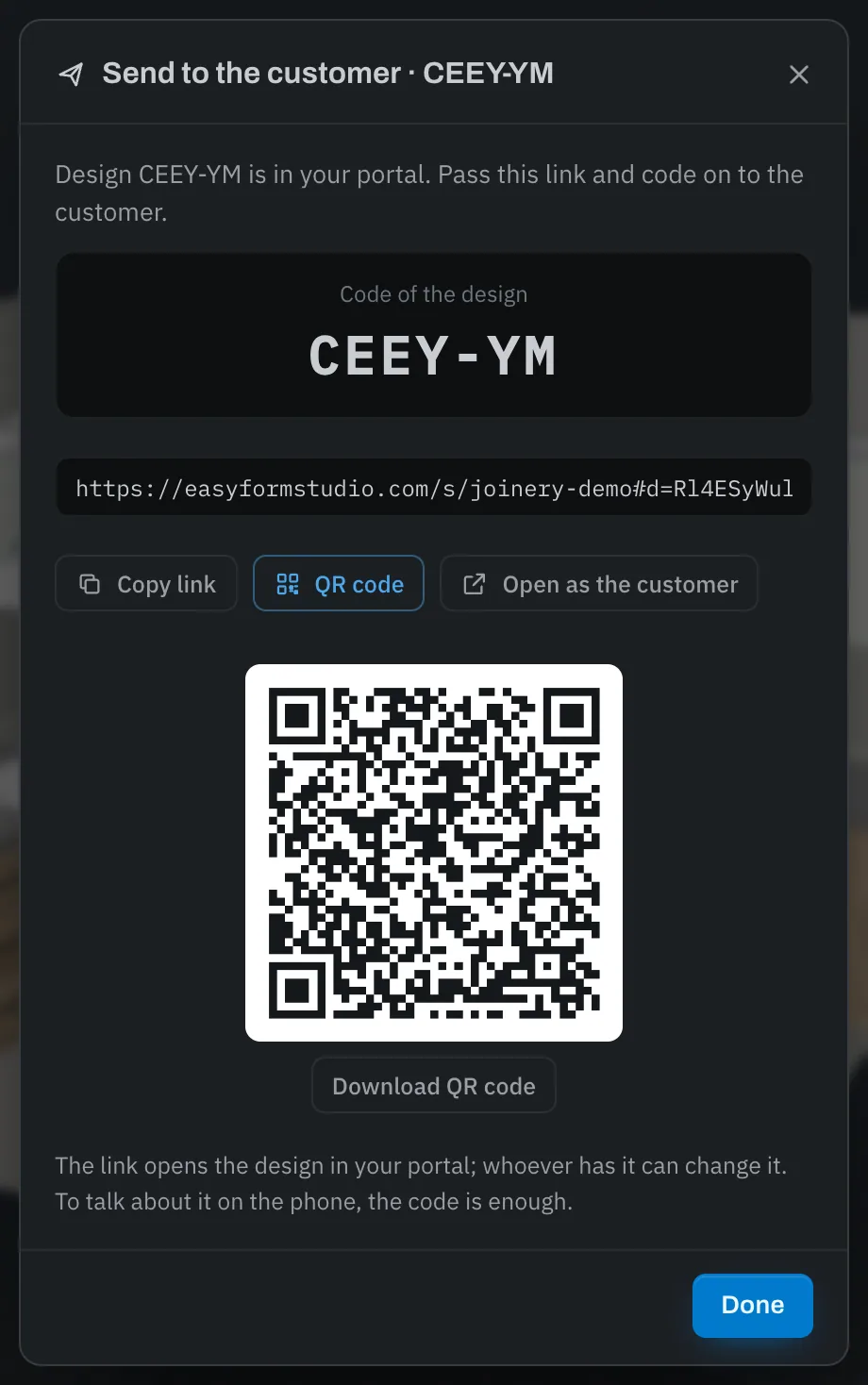
From then on the project is linked to the design: the next Send to the customer… sends a new version of the same design. In Customer designs the design shows "Sent from your project · date".
Such a design has no customer account: the customer opens it with the private link and gets no e-mails about new versions. You do not see their e-mail, so tell them about a new version yourself.
When the portal is not on, Send to the customer… says "To send a project to a customer, switch the customer portal on first." and the Customer portal button opens the portal's settings.
Tip
The link opens the design and lets whoever has it change it, so send it only to the customer. On the phone, the code is enough.
When the licence ends
The portal works while your licence is active. When the licence ends:
- the portal and every private link show customers The planner is not available right now and "Please contact the workshop …" with your workshop's name;
- the customer's work stays in their browser, and the designs and versions stay on the server.
When you renew the licence, the portal works again at the same address, and the customers' links open their designs again. See When the free trial or the subscription ends.
Privacy and limits
- With the first send the customer signs in with their e-mail address and a code; the name is optional. You see the e-mail and the name with their designs. The planner does not ask for a phone number or an address.
- The customer gets two e-mails: the sign-in code and a message when you send a new version. The messages carry your portal's name, and replies go to E-mail for the customers’ replies.
- A customer account belongs to your portal only; the same e-mail in another workshop's portal is another account, and you see only your own customers.
- The customer can delete their data themselves (Delete my data in the planner): their e-mail, name and every design they sent you are deleted for good and disappear from Customer designs. Your projects made with Open and refine stay.
- The server keeps only a digest (hash) of the private link, not the link itself. So nobody can send a lost link again; you make a new one.
- Your name for a design (the customer's name) stays only in your browser.
- Cabinet names and notes are typed by the customer. The customer's chapter of the manual tells them not to type personal data there.
- Designs and versions count towards your cloud storage, as projects do.
Advanced
The portal's limits (they can change without a new version of the program): at most 300 designs that are not archived, 50 new customer designs a day per portal, 5 new designs a day from the same IP address and 60 versions per design. When the portal is full, the customer sees "The workshop’s planner cannot take new designs right now. Please contact the workshop.", and you get "Your portal has as many open designs as it can have. Archive or delete some first." when you send. When a design has 60 versions, save the project with Save as… and send the copy: it becomes a new design.
Common mistakes and solutions
There is no Customer designs icon in the top bar. The portal is not switched on yet. Switch it on in the account menu → Customer portal. Project → Customer designs works without a portal too and offers the Customer portal button.
Switch the portal on says the address is reserved or taken. Choose another address, e.g. add your town: stolarija-demo-zagreb.
Open as the customer is greyed out. The portal is not saved or is switched off. Click Switch the portal on or tick The portal is on.
The customer says they do not see your work. Saving the project sends the customer nothing. Choose Project → Send to the customer…. When the customer had the portal open, they should wait a few minutes or reload the page.
Send to the customer says the customer sent a version the project does not have. The customer changed the design while you worked. Look at their version (Review), take it over or send yours anyway (see Send to the customer).
The customer has lost the link. They should sign in to the planner with their e-mail address (Sign in on the home screen): their designs are under My designs on any device. For a design you sent them from your project, click New link for the customer in Customer designs and send them the new one.
The customer says they got no e-mail about the new version. They should look in the spam folder. While they have not opened your version, a new send replaces it without a new message. A design sent from your project has no customer e-mail, so there is no message.
Customers' replies go to the wrong address. Type the address you want in E-mail for the customers’ replies in the Customer portal window and click Save.
A customer design has disappeared from Customer designs. The customer deleted their data, or the design was deleted. Your project made with Open and refine stays in My projects.
The customer sees This design no longer exists. The design was deleted or a new link was made. Send them the new link, or send them the project with Send to the customer….
The customer sees The planner is not available right now. The portal is switched off or the licence is not active. Switch the portal on or renew the licence.
The name I typed is missing in Customer designs. The name is kept only in the browser you typed it in. In another browser the design shows the customer's name or its code.
The design is not in the list. The filter is Being worked on, and the design is in production or archived. Choose All designs.
My changes are missing after taking over. Taking over uses the customer's cabinets. Your state is in the "(before taking over)" project in My projects, and Ctrl+Z brings it back.
Send to the customer says the design has as many versions as it can have. The design has 60 versions. Save the project with Save as… and send the copy as a new design.
Shortcuts in this chapter
| Key | Action |
|---|---|
| Ctrl+K (Mac Cmd+K) | Command palette: Customer portal, Customer designs, Send to the customer… |
| Ctrl+S (Mac Cmd+S) | Save the project; nothing is sent to the customer |
| Ctrl+Z (Mac Cmd+Z) | Undo taking over the customer's changes |
| Enter / Esc | Keep / cancel the name of a design |
| Esc | Close the top window |
Next
Next chapter: Planner for a workshop's customers (what your customer sees and does; you can send it to customers together with the portal's address)