The production package and the supplier order
With one click the production package downloads one zip file with everything the workshop needs: the cutting list, drawings, CNC files, labels, assembly instructions, the supplier order and the quote, with a project check report. This chapter describes the package, the Export menu and section with their settings, all Project check messages and the order of boards, edge tape and hardware.
Video: C07 The production package and the supplier order
The same workflow in a short silent video with English subtitles.
Before you start
- The project should have a name, in the top bar or in the Web publish panel. The zip and all files in it are named after it.
- Bring back hidden fronts with the button with the door icon in the 3D view's toolbar or with Shift+F. Hidden fronts go into none of the package's files. See Fronts: F and Shift+F.
- If the QR codes on the labels and in the assembly instructions should open the web preview, publish the project before the package. See QR code on the label.
- For the quote, the price list needs prices for your decors, and for the number of sheets in the order, sheet sizes. See Nesting and board prices.
- Exports work while the trial or subscription is active, and so do Get prices and Save offcuts to price list. Project check works without it too. See When the free trial or the subscription ends.
The workflow
The whole package is exported from a finished kitchen, and then the order on its own.
- In the top bar click Export → Production package (or press Ctrl+Shift+E, on a Mac Cmd+Shift+E).
- In the Production package window check the checkboxes. The first time they are all on, and Room documentation (PDF) only when the project shows a room.
- Click Export. EFS runs the project check, then puts everything ticked into one zip.
- The bottom shows Production package: … files in Horvat kitchen_production.zip, and the browser downloads the zip.
- Unzip it. Inside is a folder with the cutting list, drawings, labels, assembly instructions, the quote with the calculation, the check report, a DXF folder and an order folder. See The package folder.
- The order folder holds two CSV tables and the e-mail text for the supplier. See Supplier order.
- You can also export the order alone, without the package: Export → Supplier order (CSV + e-mail).
The Export menu and section
All exports are in three places:
- The Export menu in the top bar: a list of all exports. A command that cannot work right now is greyed out.
- The Export section in Project settings (the gear or Ctrl+,, on a Mac Cmd+,; Quote and production group): the Project check button, the big Production package button, buttons for all other exports and the folded Settings box at the bottom.
- The command palette (Ctrl+K, on a Mac Cmd+K): type part of the export's name.
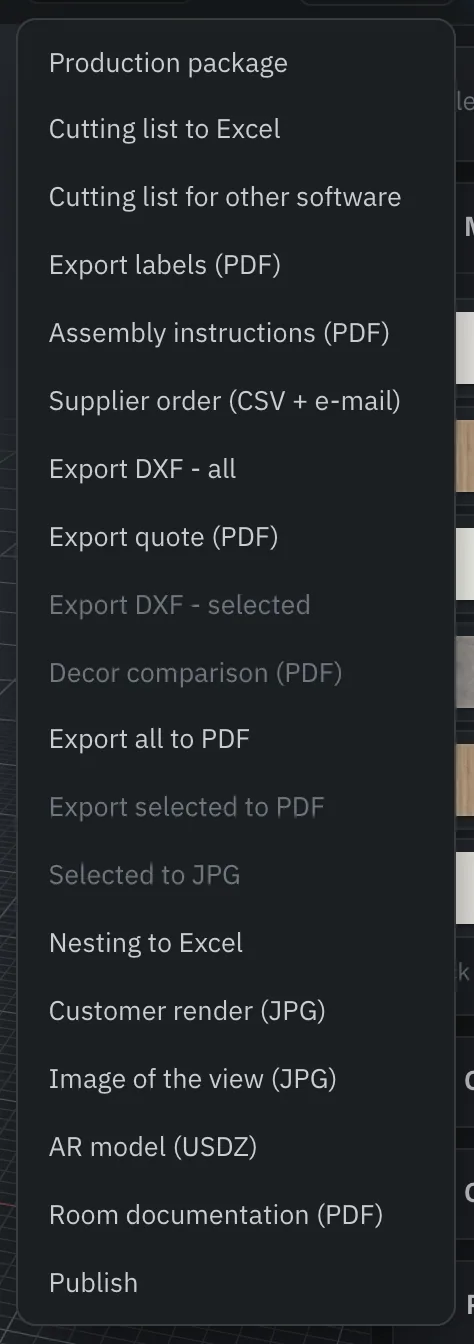
| Command | What it does | When it is greyed out | Details |
|---|---|---|---|
| Production package | All production exports in one zip | never | Production package |
| Cutting list to Excel | The cutting list <project>_cutting_list.xlsx |
never | Cutting list and cut size |
| Cutting list for other software (in the section: Cutting list: and the preset's name) | The cutting list as CSV or Excel for other software (e.g. Mareta WinTable), in the layout of the chosen preset | never | Cutting list for other software |
| Export labels (PDF) | Labels 70 × 37 mm on A4 sheets | never | Labels and assembly instructions |
| Assembly instructions (PDF) | A page per cabinet with an exploded view | never | Labels and assembly instructions |
| Supplier order (CSV + e-mail) | Quantities of boards, edge tape and hardware and the e-mail text, in a zip | never | Supplier order |
| Export DXF - all | DXF of all boards, one file per board, in a zip | never | Drillings, DXF, MPR and CIX |
| Export quote (PDF) | The customer quote and the internal calculation | never | Quote for the customer |
| Export DXF - selected | DXF of the boards of the selected cabinets | nothing is selected | Drillings, DXF, MPR and CIX |
| Decor comparison (PDF) | The project in up to three decor variants | no variant has a decor | Decor comparison |
| Export all to PDF | Drawings of all cabinets and boards, <project>_drawings.pdf |
never | PDF drawings |
| Export selected to PDF | Drawings of the selected cabinets and boards; a board exports its whole cabinet | nothing is selected | PDF drawings |
| Selected to JPG | An image of one selected board | not exactly one board is selected | Cutting list and cut size |
| Nesting to Excel | The sheet layout (Nesting sheet) in Excel | never | Nesting and board prices |
| Customer render (JPG) | A photorealistic image, made in the browser | never | Customer render |
| Image of the view (JPG) | The 3D view as a 1920 × 1080 image, without measures and selection | never | Customer render |
| AR model (USDZ) | A model for viewing in the room on an iPhone | never | Customer render |
| Room documentation (PDF) | Floor plan, wall elevations and installation plan for fitters | never | Room documentation |
| Publish | Web publishing of the project | never | Web preview and QR |
In the Export section, Production package is the big button at the top, and the other exports are below it, in the same order. A command's description appears when you hover the mouse over its button.
On a phone
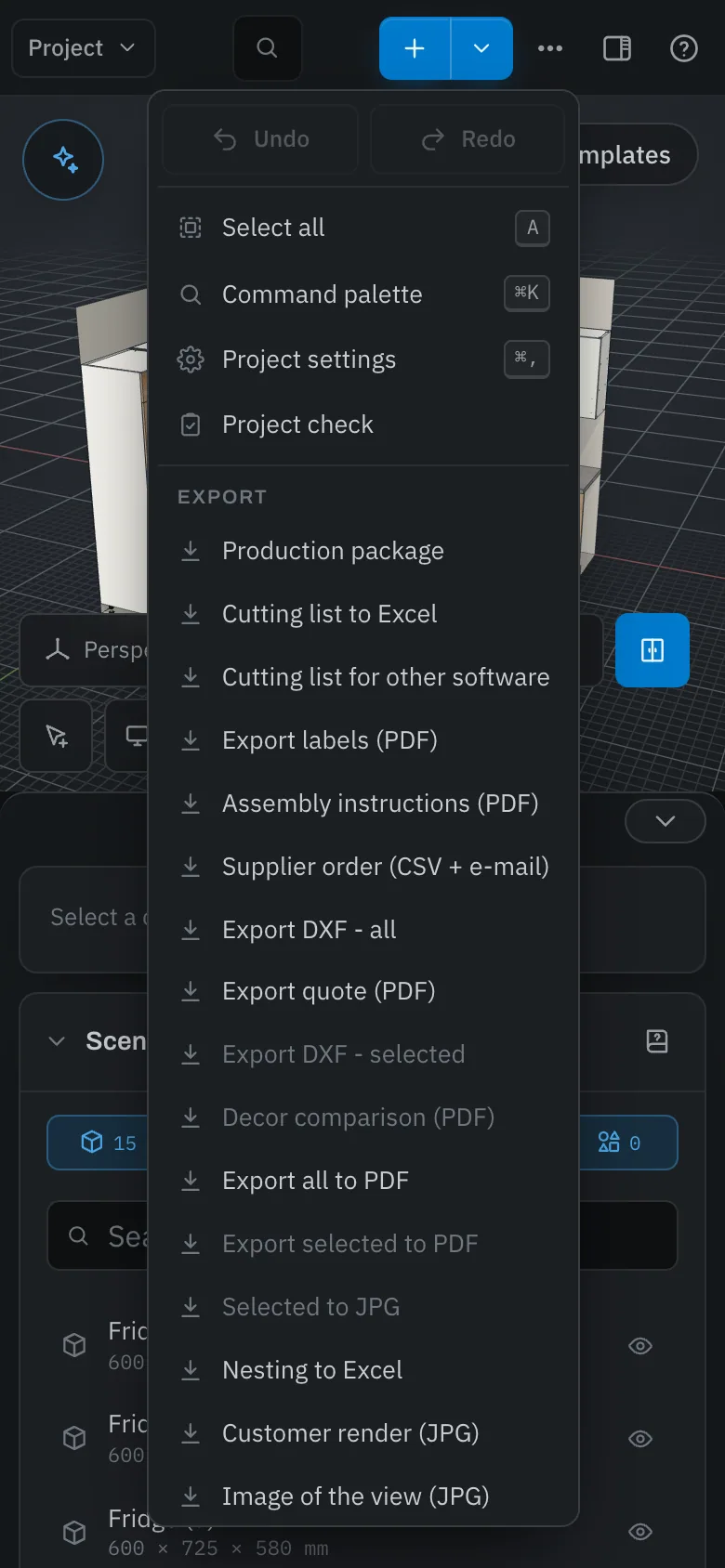
The exports are in the … (More) menu in the top bar, under the heading Export, with Project check above them. The commands are greyed out as in the Export menu on a computer (the When it is greyed out column of the table) and follow the selection while the menu is open. Project settings is in the same menu.
When the trial or subscription ends
- A bar sits above the 3D view, e.g. Your free trial has ended. Exports and new cabinets are disabled. Subscribe in the Account panel.
- Every export reports an error, e.g. Trial has ended. Exports are disabled. Subscribe in the Account panel., and downloads nothing. Get prices and Save offcuts to price list do the same. The Production package window does not open.
- Project check keeps working.
- When the licence ends, EFS Web locks, and you renew on the Your licence has ended page (Renew the licence). See When the free trial or the subscription ends.
Export settings
At the bottom of the Export section is the folded Settings box. The settings apply to the single exports and to the production package, and they are saved in the project. They are only here: Project settings has no separate section for the drawings, CNC and nesting.
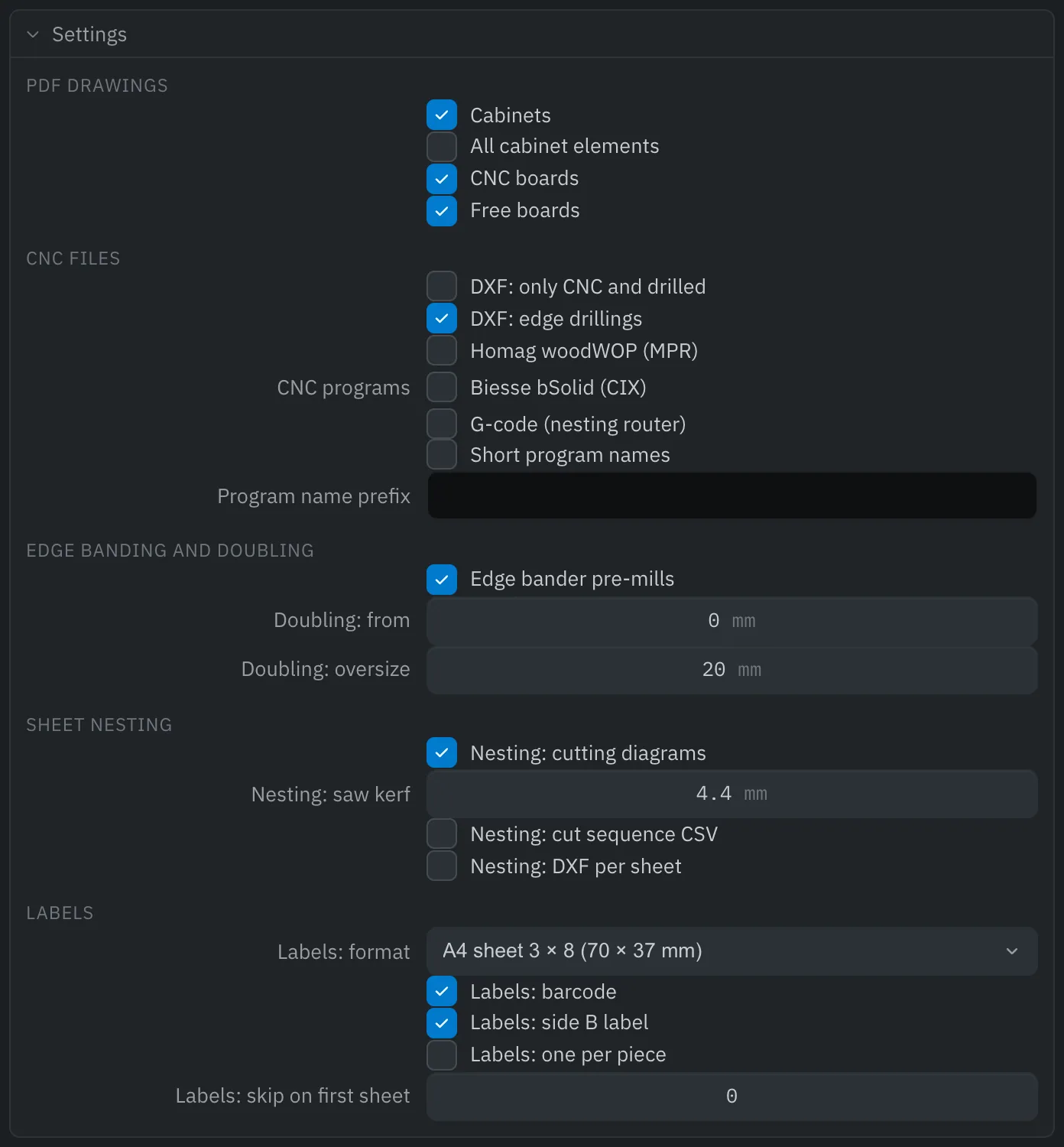
| Option | What it does | Default | Values |
|---|---|---|---|
| PDF drawings | |||
| Cabinets | The drawings contain a page with images and dimensions of each cabinet. | on | on, off |
| All cabinet elements | Does not change the drawings in this version. | off | on, off |
| CNC boards | Does not change the drawings in this version. | on | on, off |
| Free boards | Does not change the drawings in this version. | on | on, off |
| CNC files | |||
| DXF: only CNC and drilled | Only boards with cut-outs or drillings get a DXF. Plain rectangles are cut from the cutting list. | off | on, off |
| DXF: edge drillings | Holes in the edge of a board go into the DXF. | on | on, off |
| CNC programs | Next to the DXF, programs for the machine: Homag woodWOP (MPR), Biesse bSolid (CIX), G-code (nesting router), each with a Machine (…) row for the machine profile. Preview: dry run the first boards. | none | a tick box for each |
| Short program names | The programs and their files are named by the prefix and the cutting list row (HORV_017), so the barcode fits on a small label. |
off | on, off |
| Program name prefix | The start of the short names. Empty: the first four letters of the project name. | empty | up to 8 letters, digits, - and _ |
| Edge banding and doubling | |||
| Edge bander pre-mills | The saw cuts the finished size: before banding, the edge bander mills the edge off by the tape thickness. Off: the cut size is the finished size less the edge tape. Applies to the cutting list, nesting, labels and CNC files. | on | on, off |
| Doubling: from | Boards of this thickness and thicker are glued from two boards of half the thickness. Never worktops. | 0 (no rule) | 0–100 mm |
| Doubling: oversize | The oversize of both boards of a doubled part, in length and width. | 20 mm | 0–100 mm |
| Sheet nesting | |||
| Nesting: cutting diagrams | The parts are laid out on the sheet sizes: cutting diagrams in the drawings, the Nesting sheet in the cutting list and the number of sheets in the order. | on | on, off |
| Nesting: saw kerf | Width of the saw cut between parts. | 4.4 mm | 0–20 mm |
| Nesting: cut sequence CSV | Next to the cutting list, a _cuts.csv file with all saw cuts in machining order. |
off | on, off |
| Nesting: DXF per sheet | Next to the DXF, one DXF per nested sheet, in the nesting/ folder. |
off | on, off |
| Labels | |||
| Labels: format | The sheet or printer the labels PDF is laid out for. | A4 sheet 3 × 8 (70 × 37 mm) | A4 sheet 3 × 8 (70 × 37 mm), A4 sheet 2 × 7 (105 × 42 mm), Brother QL, 62 mm roll, Label printer 100 × 50 mm |
| Labels: barcode | A barcode with the board's CNC program name on the label. | on | on, off |
| Labels: side B label | A second label for a board machined from both faces. | on | on, off |
| Labels: one per piece | A doubled board gets a label for each of its two boards. | off | on, off |
| Labels: skip on first sheet | The number of labels already used on a started sheet. | 0 | 0–23 |
The details are in the chapters Cutting list and cut size (and Doubled boards), Drillings, DXF, MPR and CIX, Nesting and board prices and Labels and assembly instructions.
Note
EFS Web always draws the board pages of the PDF as vector technical drawings, so there is no PDF: vector board drawings checkbox. All cabinet elements, CNC boards and Free boards do not affect the PDF: the drawings always have a page for each board of a cabinet and for each free board.
The export settings, except Labels: skip on first sheet, are also saved in My settings, so a new project gets them by itself. See Working faster.
Production package
Running the package
- In the top bar click Export → Production package. The Production package button in the Export section and the keys Ctrl+Shift+E (on a Mac Cmd+Shift+E), when you are not typing in a field, do the same.
- In the Production package window check the checkboxes.
- Click Export.
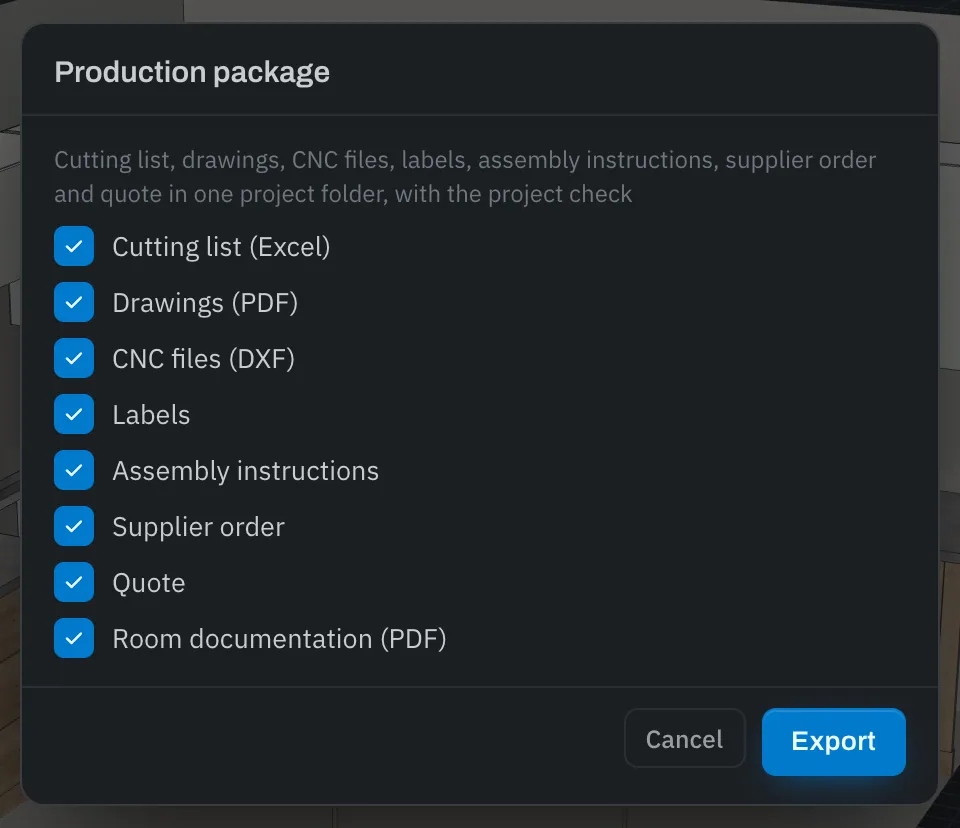
Window options
| Option | What it does | Default |
|---|---|---|
| Cutting list (Excel) | <project>_cutting_list.xlsx. With Nesting: cut sequence CSV also <project>_cutting_list_cuts.csv. |
on |
| Drawings (PDF) | <project>_drawings.pdf. |
on |
| CNC files (DXF) | A DXF subfolder with a DXF file for each board and index.csv, and depending on the settings also .mpr and .cix programs. |
on |
| Labels | <project>_labels.pdf. |
on |
| Assembly instructions | <project>_assembly.pdf. A project without cabinets has no assembly instructions, and the rest of the package is exported. |
on |
| Supplier order | An order subfolder with two CSV files and the e-mail text. | on |
| Quote | <project>_quote.pdf for the customer and <project>_calculation.pdf for you. |
on |
| Room documentation (PDF) | <project>_room_documentation.pdf: floor plan, wall elevations and installation plan. The desktop program does not have it in the package. |
on only when the room is shown |
| Cancel | Closes the window without exporting. | |
| Export | Starts the export. |
<project> is the Name from the Web publish panel, and until there is one, the project name from the top bar. A project without any name gives Project_production.zip. The names are in the UI language; with the Croatian UI, for example: _proizvodnja, _krojna_lista.xlsx, _crtezi.pdf, _naljepnice.pdf, _montaza.pdf, _ponuda.pdf, _kalkulacija.pdf, _provjera.txt, _dokumentacija_prostora.pdf and the folder narudzba.
Rules:
- Project check has no checkbox: it always runs first.
- There is no folder: the browser downloads one zip,
<project>_production.zip, usually into your downloads folder. The desktop program's Folder field and Open folder checkbox are not here (see Differences from the desktop program). - The window remembers the checkboxes of the last export. While you are signed in, they are kept with your account, so they are the same on every device.
- Room documentation (PDF) is off in a project without a shown room. Its remembered checkbox applies only to projects with a room.
- Cancel, Esc or a click outside the window closes it without exporting.
What EFS does, in order
- It runs the Project check. If it finds errors or warnings, it writes them to
<project>_check.txt. The export goes on even with errors. - Cutting list.
- DXF files, into the DXF subfolder.
- Labels.
- Assembly instructions.
- Supplier order, into the order subfolder.
- Quote and calculation. If the quote has no number yet, it gets one now (year-number) and keeps it in the project. While you are signed in, your account gives the number.
- Drawings (PDF).
- Room documentation.
At the end the browser downloads the zip, and the bottom shows Production package: … files in Horvat kitchen_production.zip. The count is every file in the zip, also those in the DXF and order folders. If the check found errors, the message is a warning and ends with the project check found errors: 2.

Note
The package renders nothing, so you do not wait image by image: the drawings are vector drawings made in the browser, and all files arrive together, in one zip.
The package folder
The package of the Horvat kitchen project with the English UI, unzipped:
Horvat kitchen_production/
├── Horvat kitchen_check.txt
├── Horvat kitchen_cutting_list.xlsx
├── Horvat kitchen_labels.pdf
├── Horvat kitchen_assembly.pdf
├── Horvat kitchen_quote.pdf
├── Horvat kitchen_calculation.pdf
├── Horvat kitchen_drawings.pdf
├── Horvat kitchen_room_documentation.pdf
├── DXF/
│   ├── index.csv
│   └── … one .dxf file per board
└── order/
    ├── order_email.txt
    ├── order_hardware.csv
    └── order_boards_edge_tape.csv
| File or folder | Checkbox | What it holds | Details |
|---|---|---|---|
_cutting_list.xlsx |
Cutting list (Excel) | All parts with cut size and finished size, decor, edge tape; the hardware, bill of materials and nesting sheets | Cutting list and cut size |
_drawings.pdf |
Drawings (PDF) | Drawings of cabinets and boards with dimensions and drillings, hardware list, cutting diagrams | PDF drawings |
| DXF/ | CNC files (DXF) | A DXF per board (_B.dxf for drillings on the other side), index.csv, optionally .mpr and .cix |
Drillings, DXF, MPR and CIX |
_labels.pdf |
Labels | Labels with QR codes | Labels and assembly instructions |
_assembly.pdf |
Assembly instructions | A page per cabinet | Labels and assembly instructions |
| order/ | Supplier order | Boards, edge tape and hardware for the supplier | Supplier order |
_quote.pdf, _calculation.pdf |
Quote | The customer quote and the internal calculation | Quote for the customer |
_room_documentation.pdf |
Room documentation (PDF) | Floor plan, wall elevations, installation plan | Room documentation |
_check.txt |
always | The project check findings; only when there are any | The check report |
The part numbers are the same in the cutting list, labels, assembly instructions and cutting diagrams, because everything comes from the same state of the project.
Exporting again
Every package is a new zip, with only the files of the project as it is now. Old files do not get in the way as long as you unzip every zip into an empty folder. If you unzip it over an old package, files with the same name are replaced and the others stay: e.g. the DXF of a board you have deleted in the meantime, or files under the project's old name.
Project check
Project check looks for errors that do not show in the 3D view but cost money in the workshop: overlaps, doors that hit something, holes through a board, decors without a price, cabinets without drillings. The production package runs it on its own. You can also run it by hand, before every export.
Running the check
- In the top bar click the Project check button (a clipboard with a tick, left of Export).
- If everything is fine, the bottom shows No problems found.
- Otherwise the Project check window opens. At the top it says, e.g., Problems found: 2., and below it each finding is on its own row.
- Next to a finding about one object there is Show in the scene. A click closes the window, selects that cabinet or board and zooms the view to it.
- Fix the findings and run the check again.
- Close or Esc closes the window.
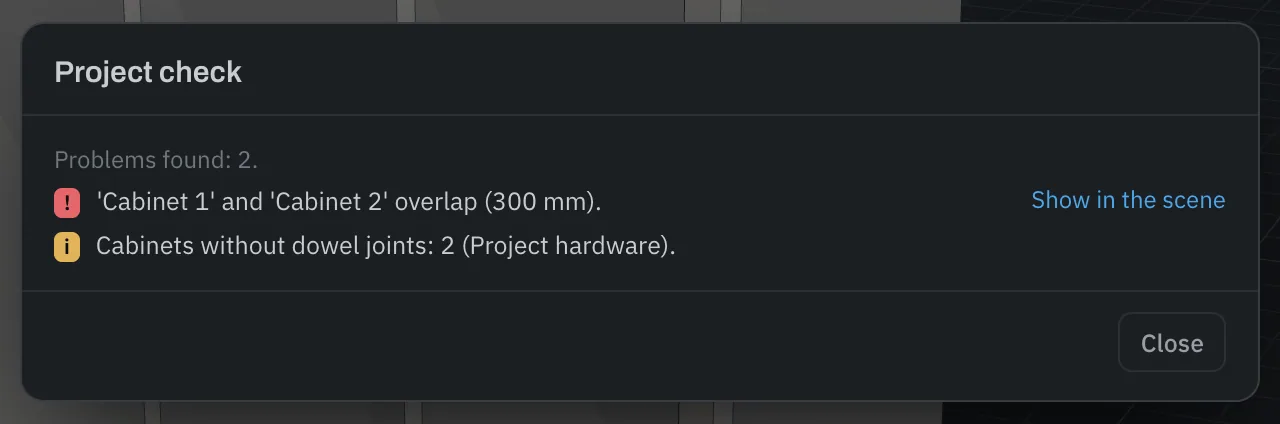
You can also run the check like this:
| Where | What happens |
|---|---|
| The … (More) menu on a phone → Project check | The same as the top bar button |
Command palette (Ctrl+K): type check |
The same as the top bar button |
| Right-click a cabinet → Project check | The same as the top bar button |
| The Project check button in a message after an export | Opens the window with the findings |
| The Project check button in the Export section | The findings show below the button, in the section itself |
Rules:
- A red ! mark means an error, and an i mark a warning.
- The list shows at most 40 findings. The rest is given as ... +12. All findings are in the production package's
_check.txt. - In the Export section, Show in the scene closes Project settings, selects the object and brings it into view.
- The check looks at the project as it is now. It does not look at hidden fronts (Shift+F): bring them back before the check. It does look at cabinets hidden with H.
- Open doors (O) are open in the view only. The check always counts with closed doors.
- The check changes nothing in the project.
Errors and warnings
| Type | Mark | What it means |
|---|---|---|
| Error | red ! | A part would be made wrong: cabinets run into each other or a hole goes through a board. Fix it before exporting. |
| Warning | i | Something is probably not as it should be: a door hits something, a price is missing, a cabinet has no drillings. Check and decide. |
After some exports EFS runs the check on its own and, if it finds errors, reports under the export's message Exported, but the project check found errors: 2 (Project check), with a Project check button that opens the window with the findings. Cutting list to Excel, Cutting list for other software, Export DXF - all, Export labels (PDF), Assembly instructions (PDF), Export quote (PDF) and Supplier order (CSV + e-mail) do this. The quote and the order run the check also when an item has no price or some parts fit on no sheet: after their own message they report the check's errors too. The file is downloaded; warnings are not reported here.
All check messages
The messages are listed in the order the check reports them. In place of {…} the message has names and sizes from your project.
Overlapping cabinets
'{a}' and '{b}' overlap ({mm} mm). Example: 'Sink base 800' and 'Corner cabinet' overlap (15 mm).
- Type: error. Show in the scene selects cabinet
{a}. - What it means: two cabinets run into each other by more than 2 mm. EFS compares the boards' real outlines (in plan and by height), fronts included, so a cabinet next to an angled end or a diagonal corner cabinet reports no overlap when the boards don't touch it. The number in brackets is the smallest move that separates the cabinets' boxes.
- When it is not reported: cabinets linked in the Relations panel are not compared with each other, because an add-on unit or an insert may stand inside a cabinet.
- Solution: move one cabinet (1, 2, 3) or reduce its size.
Doors hit something when opened
Door '{part}' hits '{other}' when opened. Example: Door 'Front left' hits 'Fridge' when opened.
When opened, door '{part}' hits: {others}. A door that hits several things gives one message with a list, e.g. When opened, door 'Front left' hits: Fridge, Wall B.
- Type: warning. Show in the scene selects that door.
- What it means: EFS imagines the door opening to 90° and compares it with the other cabinet's boards. The door of a diagonal corner cabinet and doors on an angled face open about their own edge. A side-hinged door is checked along the whole quarter circle it sweeps, so a cabinet standing in its way is found too, not only the one the opened door ends up in. For a flap it looks at the space the opened flap takes. A hit counts when the overlap is more than 3 mm. Doors and flaps are checked, not drawers.
- What it can hit: another cabinet, and when the room is shown, also a wall (Wall A to Wall D), a corner or a pillar of the room (Left corner, Right corner, Left pillar, Center pillar, Right pillar).
{other}is the name of that cabinet or part of the room,{others}a list of names, each once: the cabinets first, then the parts of the room. - Solution: change the opening side (Fronts panel: Left opening or Right opening), put a filler between the cabinet and its neighbour, or move the cabinet. Fillers are described in Kickboard, fillers, end panels and cornice.
This check does not look at the room's windows and doors. Open a door next to a window with O and look.
Doors without hinges
Door '{part}' ({cab}) has no hinges. Example: Door 'Front right' (One door) has no hinges.
- Type: warning. Show in the scene selects that door.
- What it means: the door has 0 hinges, so there are neither drillings nor hinges in the hardware list. Doors are checked, not flaps.
- Solution: click the cabinet, in the Cabinet tab open the Hardware panel and turn on Auto hinge count or enter Hinges greater than 0. See Hardware and joints.
Dowel hole goes through the board
Dowel hole Ø{d} in '{part}' ({cab}) goes through the board. Example: Dowel hole Ø8 in 'Left' (One door) goes through the board.
- Type: error. Show in the scene selects that board.
- What it means: the dowel hole in the face of the board is as deep as the board: less than 0.5 mm is left under it. Most often the board is thinner than the hole depth.
- Solution: in the Joints panel set Face hole depth to 0 (automatic) or reduce it. A shorter dowel (Dowel length) also helps. See Joints: dowels, confirmat, minifix.
Hole leaves too little material
Hole Ø{d}×{depth} in '{part}' ({cab}) leaves only {mm} mm of material. Example: Hole Ø8×13 in 'Left' (One door) leaves only 3.0 mm of material.
- Type: warning. Show in the scene selects that board.
- What it means: less than 4 mm is left under a hole in the face of the board for a dowel hole, or less than 2.5 mm for other holes (hinge cup, shelf pins, slides). The hole's diameter and depth are in the message, in mm.
- What is not checked: holes in the edge of the board, through holes and handle holes.
- Solution: for dowels reduce Face hole depth (or set it to 0). For a hinge cup in a thin front choose a hinge with a shallower cup or a thicker front. See Project hardware.
No price
No price for {material} {mm} mm. Example: No price for U702 ST9 Cashmere Grey 25 mm.
- Type: warning. No button.
- What it means: the price list has no price for that decor in that thickness. The cost estimate, quote and calculation are too low without it. EFS looks up the decor in the price list by code and texture, e.g.
U702-ST9. - When it is not reported: for worktops, because they are priced per metre.
- Solution: enter the decor's price in the price list, in the column for that thickness. See Enter the price in the price list and Nesting and board prices.
A board of 40 mm and thicker takes the last column of the price list (38), so the message comes only when there is no price there either.
Cabinets without drillings
Three messages with the same meaning:
- Cabinets with doors without hinge drillings: {count} (Project hardware).
- Cabinets with drawers without slide drillings: {count} (Project hardware).
- Cabinets without dowel joints: {count} (Project hardware).
For all three:
- Type: warning. No button, because the message is about several cabinets.
- What it means: that many cabinets go into production without drillings:
- doors or flaps, and Hinge type is No drilling (count only);
- drawers, and Slide type is No drilling (count only);
- side panels, and Joints type is None. Confirmat and minifix also count as a joint, although the message mentions dowels.
- When it is not reported: corner cabinets are not counted here.
- Solution: in Project hardware choose the hinge, slide and joint, then click Apply to all. For one cabinet set the same in its Hardware, Drawers and Joints panels. See Project hardware.
If you drill these holes by hand, you can ignore the message.
Shelf does not rest on its pins
Shelf '{part}' ({cab}) does not rest on its pins: reduce its front or back recess. Example: Shelf 'Shelf horizontal' (One door) does not rest on its pins: reduce its front or back recess.
- Type: warning. Show in the scene selects that shelf.
- What it means: an adjustable shelf (System 32) is set back so far that the front or back pin would not be at least 3 mm under it.
- Solution: in the Shelves panel reduce Front recess or Back recess. See Adjustable shelves, System 32.
Sliding doors for another width
Sliding doors of '{cab}' are for {old} mm, the cabinet is {new} mm: add them again. Example: Sliding doors of 'Wardrobe' are for 1800 mm, the cabinet is 2000 mm: add them again.
- Type: warning. Show in the scene selects the cabinet.
- What it means: the panels and the track are for a different width than the cabinet. In EFS Web the panels follow the cabinet's width on their own, so the message comes for a project opened from the desktop program, where the panels are separate boards.
- Solution: delete the old panels and add the sliding doors again in the Fronts panel (Sliding doors). See Sliding doors.
Sliding doors in front of outer drawers
Sliding doors of '{element}' are in front of outer drawers: the drawers cannot open. Example: Sliding doors of 'Wardrobe' are in front of outer drawers: the drawers cannot open.
- Type: warning. Show in the scene selects the cabinet.
- What it means: the cabinet has Outer drawers, and the sliding door panels stand in front of their fronts. The fronts of outer drawers lie on the carcass edges, right behind the panels, so the drawers cannot come out. Inner drawers behind the panels are fine.
- Solution: in the Drawers panel choose Inner drawers, or remove the sliding doors. See Sliding doors.
Sharp inner corners
'{board}' of '{element}': inner corners without rounding: {count}; a Ø12 cutter leaves R6 there. Example: 'Left' of 'One door': inner corners without rounding: 1; a Ø12 cutter leaves R6 there.
- Type: warning. Show in the scene selects that board.
- What it means: the board has a shape of its own with an inner corner, in a notch or an opening, that is not rounded or is rounded less than R6. A 12 mm cutter leaves a 6 mm radius in such a corner, so the board would not be as drawn. A chamfered inner corner is not counted.
- Solution: pick the board, click Edit shape in the Cutter section and click R 6 or more in the Inner corners row. See Rounded and chamfered corners.
If you finish the corner by hand in the workshop, or R6 in the corner does not bother you, you can ignore the message.
Duplicate cabinet name
Duplicate cabinet name: '{name}' ({count}x). Example: Duplicate cabinet name: 'One door' (2x).
- Type: warning. No button.
- What it means: several cabinets have the same name. In the cutting list, on the labels and in the assembly instructions they cannot be told apart.
- Solution: click the cabinet, then in the header of the Cabinet tab click the name and type a different one. See Cabinet properties.
Hinge or flap under a slope
The top hinge of door '{part}' ({cab}) is not under the slope: fewer hinges or a smaller angle and The flap of '{cab}' does not follow the slope: give it doors
- Type: warning. Show in the scene selects the door or the cabinet.
- What it means: on a cabinet under a slope (see Slope) the top hinge of a trapezoid door has landed above the sloped edge, or the cabinet has a flap, which does not follow the slope.
- Solution: reduce the number of hinges or the angle, and put doors instead of the flap.
Angle hinges at an angled end
Door '{part}' ({cab}) on the angled face needs {angle}° angle hinges, which are not modelled and Door '{part}' ({cab}) hangs on the angled side: it needs an angle hinge plate, which is not modelled
- Type: warning. Show in the scene selects the door.
- What it means: the doors of an angled end cabinet (see Angled end cabinet) need a hinge for the angle: with Angled face Door, angle hinges (+ when hung on the angled end's side, − on the deep side); with Side panel, an angle hinge plate when hung on the angled side. EFS drills an ordinary hinge.
- Solution: order angle hinges or plates and check the drilling against the maker's catalogue, or hang the door on the square side.
Front milling
Front '{part}' ({cab}) is too small for the milling: it stays flat., The milling of '{part}' ({cab}) meets a hinge cup. and The milling of '{part}' ({cab}) meets a handle hole.
- Type: warning. Show in the scene selects the front.
- What it means: a front with Front style Milled MDF (see Milled MDF) is too small for the groove, or the groove runs over a hinge cup or a handle hole (on either face).
- Solution: move the handle (From opening edge, From top/bottom edge) or change the groove in the front styles catalogue.
Other messages
| Message | Where | What it means |
|---|---|---|
| No problems found. | at the bottom, or in the Export section | The check found nothing. |
| Problems found: 3. | at the top of the findings list | The number of findings. |
| Exported, but the project check found errors: 2 (Project check) | at the bottom, after an export | The file is downloaded, and the project has errors. Click Project check in the message. |
| Production package: … files in Horvat kitchen_production.zip | at the bottom, after the package | The package is downloaded. |
| … — the project check found errors: 2 | at the bottom, after the package | The package is downloaded, and the project has errors. See _check.txt. |
The check report
In the production package the check writes its findings to <project>_check.txt, one finding per line. A line starts with Error: or Warning:, followed by the same message as in the window:
Error: 'Sink base 800' and 'Corner cabinet' overlap (15 mm).
Warning: No price for U702 ST9 Cashmere Grey 25 mm.
The file has all findings, also beyond 40. When the check finds nothing, there is no file.
Supplier order
The order adds up the boards, edge tape and hardware of the whole project: tables for the supplier and the e-mail text. It is made in the production package (the order folder) or on its own.
An order without the package
- In the top bar click Export → Supplier order (CSV + e-mail).
The browser downloads <project>_order.zip, with a folder of three files in it. The bottom shows Export completed (3).
If a part fits on no sheet size, EFS reports instead Parts that fit on no stock sheet: 12; their material is ordered in m2 without a sheet count. After that it still runs the project check and reports its errors. The production package does not report this message.
Order files
| File | For whom | Content |
|---|---|---|
order_boards_edge_tape.csv |
board supplier | Boards by decor and thickness, and below them edge tape by decor, width and thickness |
order_hardware.csv |
hardware supplier | All hardware with quantities |
order_email.txt |
you | The e-mail text with boards, edge tape and hardware |
With the Croatian UI the files are called narudzba_ploce_trake.csv, narudzba_okovi.csv and narudzba_email.txt. In all other UI languages the files have the English names, and the texts in them are in the UI language.
Boards
| Column | What it holds |
|---|---|
| Material | Decor, e.g. U702 ST9 Cashmere Grey |
| Thickness (mm) | Board thickness |
| m2 (with waste) | The sum of the finished sizes of all parts of that decor and thickness, increased by Waste % |
| Sheets | The number of stock sheets from nesting |
How EFS calculates:
- m2 is the sum of the part areas (length × width, finished size, with the board's oversize), times (1 + Waste % / 100). Waste % is in Cost estimate, in the Quote form, Pricing group. The default is 10 %.
- A doubled part is ordered as two boards of half the thickness, with the oversize.
- Sheets comes from nesting: how many stock sheets it takes to fit all parts of that decor and thickness. The sheet sizes are on the Sheets worksheet of the price list. See Nesting and board prices.
- The number of sheets is there only when Nesting: cutting diagrams is on in the export settings.
- Offcuts from stock that nesting uses are not counted as new sheets.
- If a part of that decor and thickness fits on no sheet size, the Sheets field stays empty, because the number would be too low. Order by m².
- Worktops are not among the boards. They are ordered as a piece, with the hardware.
- Thin backs are boards too, e.g. the row Default white, 3 mm.
Edge tape
| Column | What it holds |
|---|---|
| Edge tape | Decor of the edge tape: the board's decor, or the board's own edge tape decor if it has one |
| Width (mm) | 23 mm for boards thinner than 20 mm (0.4 mm tape: 22 mm), 43 mm for boards of 20 mm and thicker |
| Tape (mm) | Edge tape thickness, e.g. 2.0 or 0.4 |
| Meters (+5%) | The length of all edges with that tape, increased by 5 % |
- The edge length is the finished size of the board's edge.
- 16 mm and 18 mm boards of the same decor take the same 23 mm tape, so they are in the same row.
- The table has metres with one decimal, and the e-mail rounds them to whole metres.
Hardware
| Column | What it holds |
|---|---|
| Item | Kind of hardware, e.g. Hinge, Dowel, Cabinet leg |
| Detail | Model or size, e.g. Blum Clip top 110, Ø8×30 |
| Qty | Quantity for the whole project, in pieces |
The list has the same hardware as the Hardware sheet of the cutting list, added up for the whole project: hinges with screws, dowels, slides with screws, handles with screws, legs, kickboard clips, shelf pins, flap mechanisms, hangers, LED strips, worktops with connectors and whatever else the project has. You choose the hardware in Project hardware.
E-mail text and sending
EFS does not send the e-mail itself. It makes a text that you copy into your mail program. Example (shortened):
Subject: Order - Horvat kitchen

Hello,

please quote/deliver the following for project 'Horvat kitchen':

BOARDS:
  - Default white, 3 mm: 4.15 m2 (~1 × sheet)
  - U702 ST9 Cashmere Grey, 18 mm: 7.83 m2 (~2 × sheet)
  - W1000 ST9 Premium White, 18 mm: 19.92 m2 (~4 × sheet)

EDGE TAPE:
  - U702 ST9 Cashmere Grey, 23 × 2.0 mm: 67 m
  - W1000 ST9 Premium White, 23 × 0.4 mm: 133 m

HARDWARE:
  - Dowel (Ø8×30): 76 pcs
  - Hinge (Blum Clip top 110): 24 pcs
  - …

Best regards
How to send it:
- Unzip the zip and open
order_email.txt. - In your mail program open a new e-mail to the supplier.
- From the first line copy the text after Subject: into the subject field.
- Paste the rest of the text into the message. Add the delivery date and address, and your signature under Best regards.
- If you like, attach
order_boards_edge_tape.csvandorder_hardware.csv. - Send.
Rules:
(~4 × sheet)is the number of stock sheets from nesting. Without nesting this part is missing.- The project name in the e-mail is the Name from the Web publish panel, and without one the name from the top bar. A project without a name is written as Project.
- The text is in the UI language.
Tip
You often order boards and hardware from different suppliers. Send the same text twice and in each e-mail delete the section that supplier does not need.
CSV in Excel
The CSV files have columns separated by semicolons and UTF-8 encoding with a byte order mark. Excel opens them with a double-click, with the columns in place and accented letters intact. Every number in both tables has the decimal mark of the interface language: a point in English (e.g. 24.40 m², tape 0.4, 121.3 m), a comma in the other languages (24,40, 0,4, 121,3).
order_boards_edge_tape.csv holds two tables one below the other: boards, an empty row, then edge tape.
Common problems and solutions
The browser did not download the zip. The browser blocked the download. Allow downloads for app.easyformstudio.com and run the package again.
The Production package window does not open, and the bottom says exports are disabled. The trial or subscription has ended. See When the trial or subscription ends.
There are no assembly instructions in the package. The project has no cabinet, only free boards. The rest of the package has been exported.
There is no room documentation in the package. The room is not shown, so the checkbox was off. Show the room (Project settings → Room properties) and run the package again. See Room documentation.
There are old files in the folder. The zip was unzipped over an old package. Unzip every package into an empty folder.
There are no fronts in the package. The fronts are hidden with Shift+F. Bring them back with the fronts button in the 3D view's toolbar and run the package again.
The order has no number of sheets. Nesting: cutting diagrams is off, or a part of that decor fits on no sheet size. Turn nesting on, or check the sheet sizes in the price list. See Nesting and board prices.
The worktop is not among the boards in the order. Worktops are in the HARDWARE section, as a piece with its size.
The check reports No price for a decor that has a price. The decor in the price list is not entered by code and texture (e.g. U702-ST9), or the price is not in the column for that thickness. See Enter the price in the price list.
There is no Show in the scene next to a finding. The finding is not about one object: prices, cabinets without drillings and duplicate names have no link.
The package checkboxes are not as last time. The window remembers the last export's checkboxes with your account. On another account or without signing in, only this browser remembers them. Room documentation (PDF) is always off without a room.
A click on an export says the trial or subscription has ended. See When the trial or subscription ends.
Shortcuts in this chapter
| Key | Action |
|---|---|
| Ctrl+Shift+E (on a Mac Cmd+Shift+E) | Production package: open the package window |
| Ctrl+, (on a Mac Cmd+,) | Project settings, with the Export section |
| Ctrl+K (on a Mac Cmd+K) | Command palette: all exports and Project check |
| Esc | Close the Production package, Project check or Project settings window |
| Shift+F | Hide or show the fronts. Hidden fronts do not go into the package or the check |
| O | Open / close doors and drawers in the view. The check always counts with closed doors |
| 1 2 3 | Move a cabinet along X, Y or Z, e.g. when it overlaps a neighbour |
All shortcuts are in the chapter Shortcuts.
Next
This completes the Production and CNC part. Next chapter: Wardrobe with compartments and a rail