Support
If you get stuck, contact us at info@easyformstudio.com.
To help us help you faster, write in the email:
- What you were doing when the problem appeared, step by step.
- What you expected and what happened.
- Browser and device, e.g. Chrome on Windows or Safari on an iPad. When you write through Send feedback, this is filled in for you, together with the EFS Web version (e.g.
EFS Web 2026-11-02 · 1a2b3c4, as it says at the bottom of the Help and tours window). - The e-mail address of your licence, if you are writing from another address.
- If you can, attach a screenshot and the project: Project → Download project saves it as an
.efs.jsonfile (see Downloading and opening a file).
Before you write
Look at the FAQ and the chapter on the topic that is giving you trouble. The search box at the top right searches the whole manual.
Send feedback
If something does not work or you miss something, tell us straight from EFS Web:
- Click ? at the top right. The Help and tours window opens.
- Click Send feedback.
- A new e-mail to info@easyformstudio.com opens, with the subject "EFS Web" and the EFS Web version and the browser details already filled in. Write your message and send it.
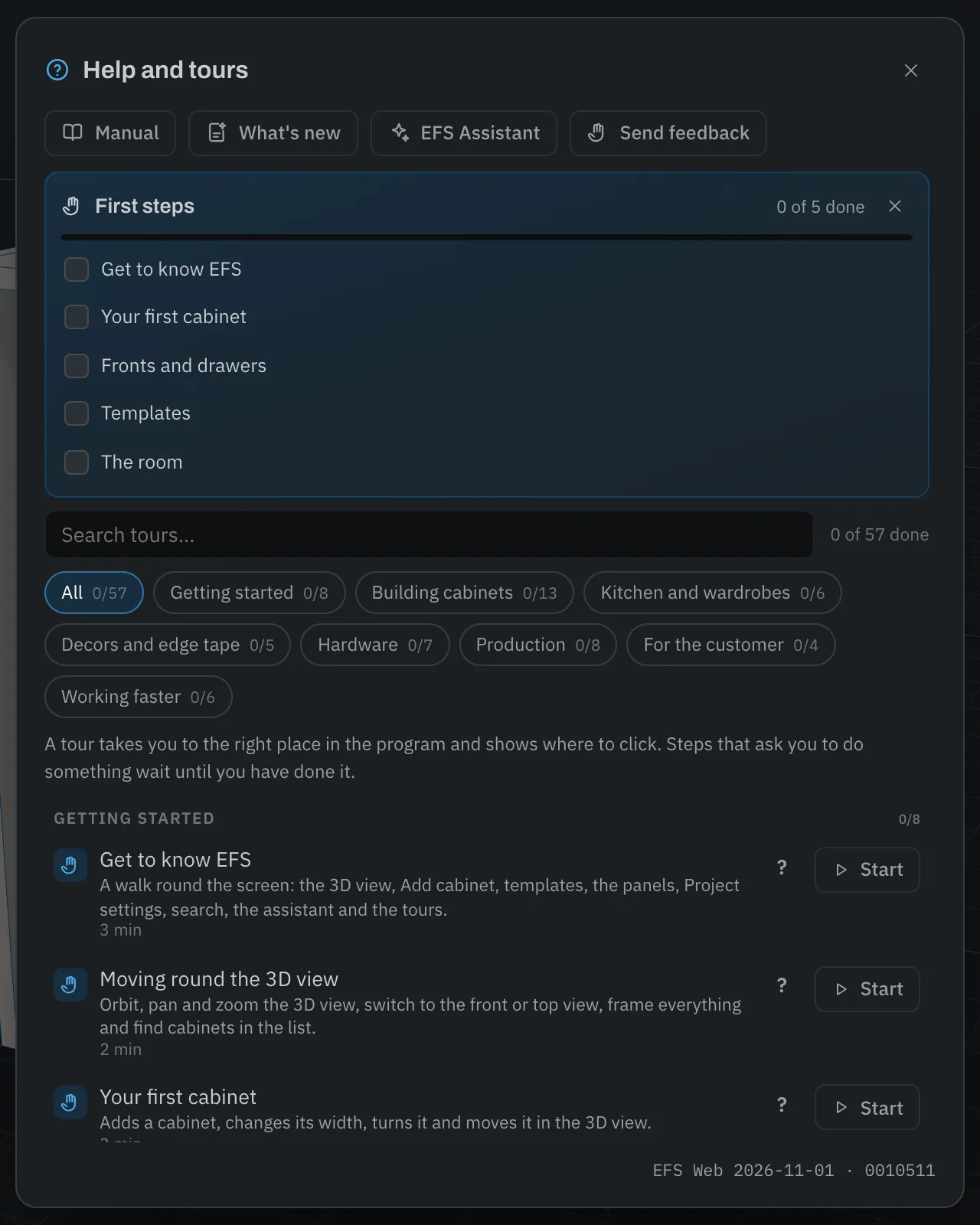
You can also open the same window from the account menu (the button with your initials at the top right): Help and tours.
If you cannot sign in, the Help link at the bottom of the sign-in page opens an e-mail to the same address.
Note
Send feedback opens the e-mail program set as the default on your computer or phone. If you do not have one (e.g. you read your mail only in the browser), write to info@easyformstudio.com from your own mailbox.
The EFS Assistant
The EFS Assistant answers questions about the program, in the language of the question: where something is and how it is done. You open it:
- with the EFS Assistant button at the bottom right of the 3D view;
- in the Help and tours window: EFS Assistant;
- in the Project menu: EFS Assistant.
The assistant needs you to be signed in and connected to the server. It is in beta: check what it builds, changes or tells you before production. More in the chapter The interface and your first cabinet.
Manual and tours
- Manual in the Help and tours window opens this manual in the interface language. The book icon in a panel's header opens the chapter about that panel.
- The interactive tours in the same window take you to the right place in the program and show you where to click. The Show me in EFS Web links in the manual open the tour for that topic. More in the chapter The interface and your first cabinet.
Videos
Every chapter of the manual has its own short silent video with English subtitles. The videos show the main workflow in a minute or two, and the manual gives all the details. You find all EFS Web video guides on the website's Video guides page (EFS Web tab) and in the YouTube playlist.
Academy
The Cabinetmaking Academy is a free course on panel furniture: materials, hardware, measuring, design, cutting, edge banding, drilling, CNC, installation and business. The lessons are videos with quizzes, in English and Croatian.
Web
- easyformstudio.com: the program, prices and purchase
- app.easyformstudio.com: EFS Web
- projects.easyformstudio.com: 3D previews of projects for customers, see Web preview and QR
- easyformstudio.com/akademija/en/: the Cabinetmaking Academy