Comparing decors
A customer is often torn between two or three decors. The Decor comparison panel prices the same project in up to three decor variants and shows the total price of each straight away. You see a variant in 3D with one click, and the PDF puts the comparison together line by line, with the full calculation of each variant. The project keeps its own decors meanwhile, until you apply a variant yourself.
Video: E03 Comparing decors
The same workflow in a short silent video with English subtitles.

Before you start
- A project with cabinets and decors (Decors, edge tape and materials). In the example it is the kitchen Horvat kitchen from the L-shaped kitchen, medium template: the carcass in W960 ST7 Classic White, the base fronts in H1145 ST10 Natural Bardolino Oak, the wall fronts in W1000 ST9 Premium White, the worktop in F186 ST9 Light Grey Chicago Concrete.
- The prices of the decors you compare are in the price list. Without a price, a decor doesn't go into the amount (see A quote for the customer).
- The quote settings in the Cost estimate panel (the Project settings window, Quote and production group): Labor, Margin %, Waste %, VAT % and Currency. See A quote for the customer.
- The fronts are visible. Hidden fronts (Shift+F) are not in the comparison (see How the comparison works).
- For the PDF: an active licence. When the trial or the subscription ends, exports don't work, and neither does this one (Signing in, licence and projects).
The decors you compare don't have to be in the project. You choose them from the whole catalogue, and your own decors too.
How the comparison works
A variant has two decors: the fronts decor and the body decor. EFS doesn't give them to the boards one by one, but by material groups (see Material groups):
| Group | What it gets in the variant | Which boards are in it |
|---|---|---|
| Front 1, Front 2, Front 4 | the decor from the Fronts field | doors, flaps and drawer fronts of base, wall and tall units; boards you moved to F 4 yourself |
| Shelf | the decor from the Body field | side panels, top and bottom, rails, shelves and dividers; drawer sides and bottoms |
| Front 3 | nothing, it stays as it is | the worktop and free boards |
| None | nothing, it stays as it is | backs |
For each variant, EFS makes a copy of the project with that variant's decors and prices it like a quote. The project itself doesn't change.
Rules the program applies itself:
- A field with — unchanged means that those boards keep their decor in the variant, even when they have different decors.
- A variant with both fields at — unchanged is skipped. If variants 1 and 3 are filled in, the PDF has two columns.
- A board with its own decor (Own decor of this board) in the Front 1, Front 2, Front 4 or Shelf group gets the variant's decor in the variant.
- Fronts hidden with Shift+F are skipped: they don't go into the price.
- The room, Gola profiles, LED strips and legs never change.
- Front 1, Front 2 and Front 4 get the same decor. A variant with one decor for the base fronts and another for the wall fronts doesn't exist.
- A variant remembers the decor itself. When you add or delete decors in the project, the variant fields stay the same.
Watch out
Fronts hidden with Shift+F are not in the comparison, so the amounts are too low. Before the comparison, show the fronts with the fronts button on the 3D view's toolbar.
Watch out
Boards you moved to the F 4 group or gave their own decor so that they keep a special decor (e.g. oak doors) get the fronts decor in the comparison. If you want to keep them, move them to the F 3 group before the comparison (Board tab, Material group).
The workflow
In the example only the fronts change: cashmere grey, oak and white. The carcass stays white.
- Open Project settings (the gear in the top bar or Ctrl+,, on a Mac Cmd+,). The Decor comparison panel is in the Design group, below the Material assignment panel. You can also open the same panel in the sidebar: Project tab, under Project settings, the Decor comparison row.
- In the Variant 1 box, click the Fronts field. It says — unchanged.
-
The decor picker Variant 1: Fronts opens. In the Search by code or name field, type
U702and click Cashmere Grey. The picker closes, and the field shows the decor.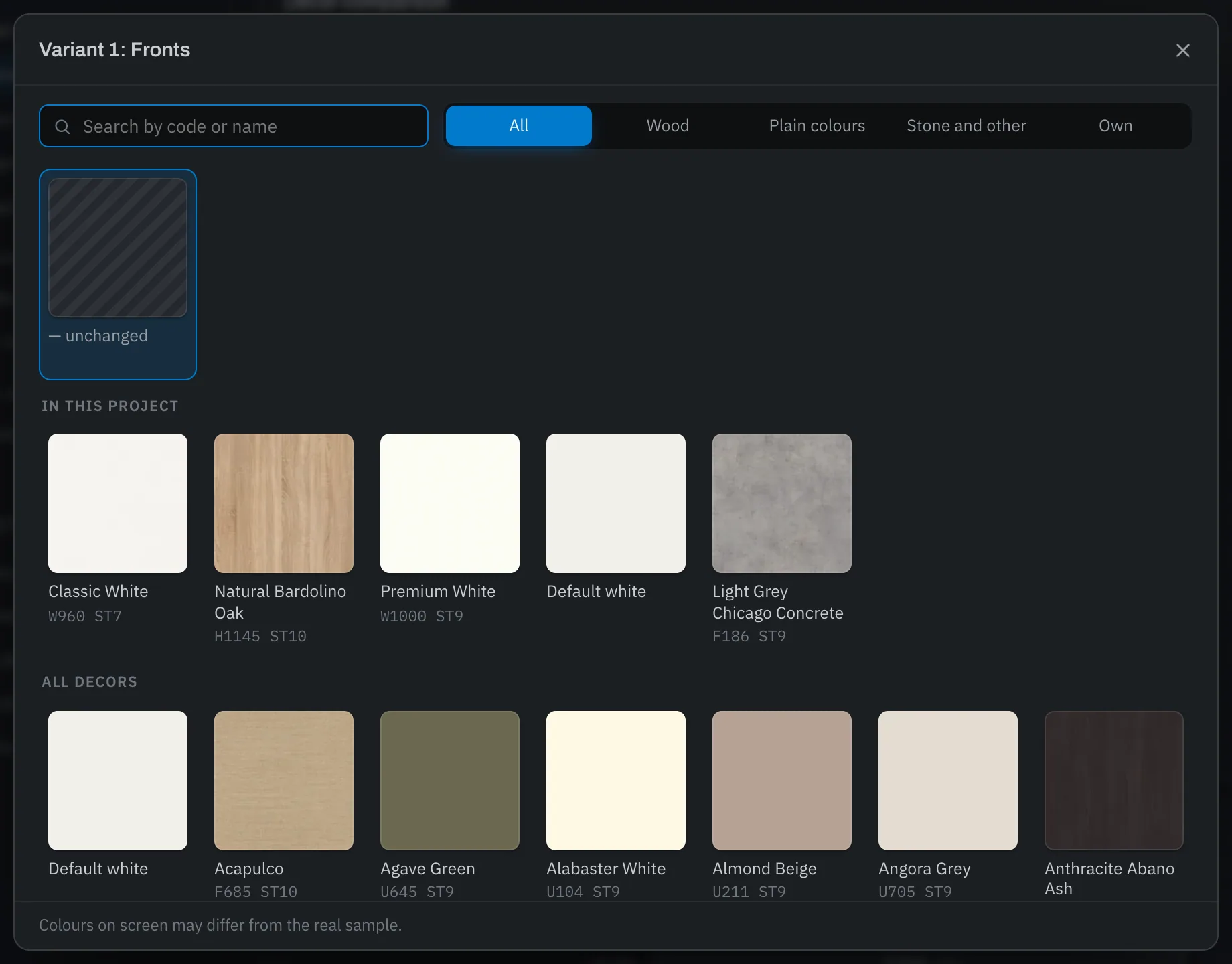
-
In the Variant 2 box, in the Fronts field, choose H1180 ST37 Natural Halifax Oak.
- In the Variant 3 box, in the Fronts field, choose W1000 ST9 Premium White.
- Leave the Body fields at — unchanged.
-
Below each variant it now says TOTAL with the project's price in that variant.
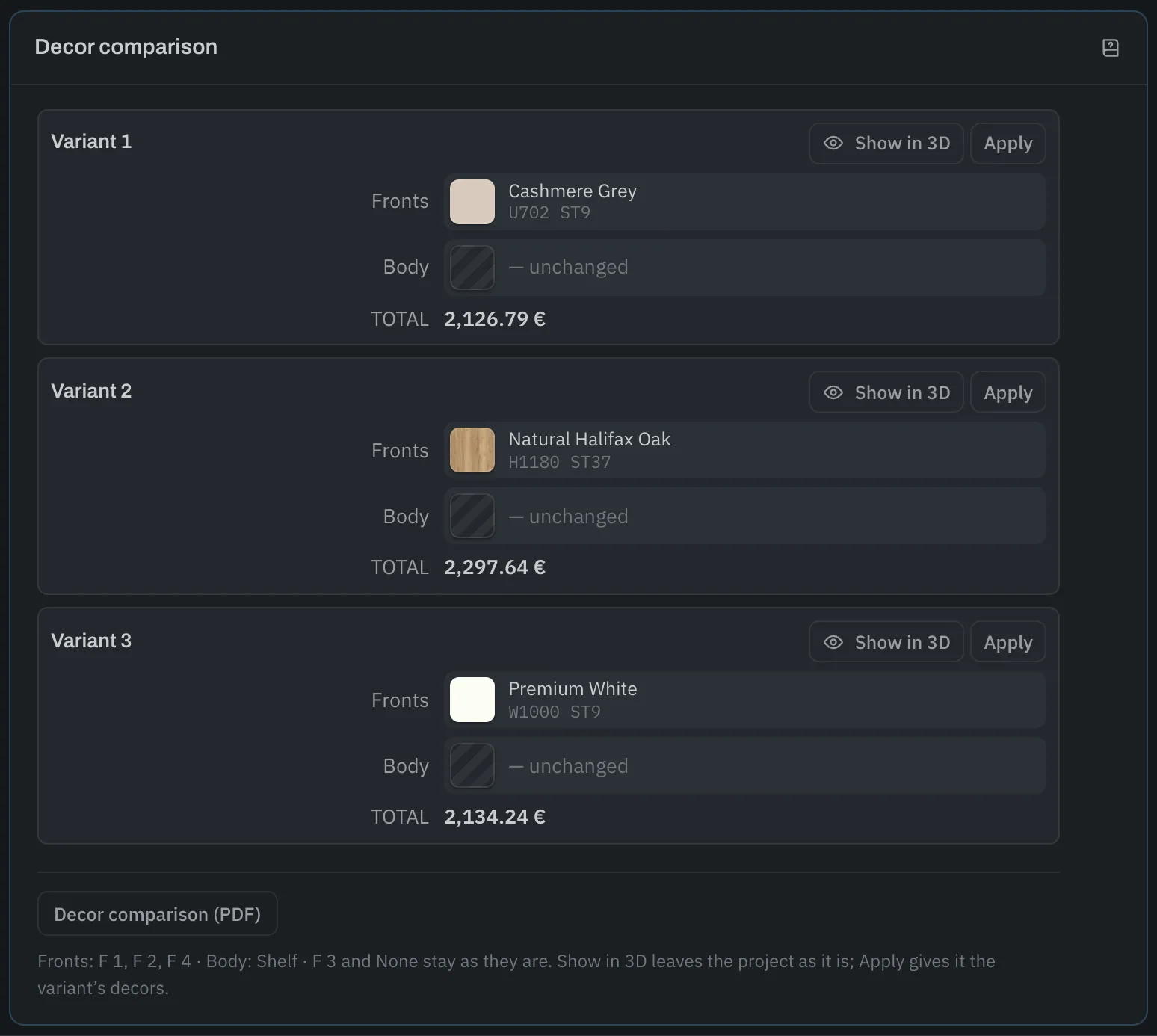
-
Click Show in 3D next to Variant 2 and show the customer the oak fronts (see Show in 3D and Apply).
- Click Decor comparison (PDF). The browser downloads
Horvat kitchen_decor_comparison.pdf, and the program reports Export completed.
Decor comparison (PDF) is also in the top bar, in the Export menu.
Panel options
| Option | What it does | Default | Values |
|---|---|---|---|
| Variant 1, Variant 2, Variant 3 | Box with the decors of one variant | – | up to three variants |
| Fronts | The decor the boards of the Front 1, Front 2 and Front 4 groups get in the variant | — unchanged | — unchanged, all the decors in the catalogue and your own decors |
| Body | The decor the boards of the Shelf group get in the variant | — unchanged | as Fronts |
| TOTAL | The project's total price in that variant, with labour, margin and VAT | – | visible when the variant changes at least one group |
| Show in 3D | Shows the variant in the 3D view without changing the project | off | greyed out while both fields are — unchanged |
| Apply | Gives the project the variant's decors | – | greyed out while both fields are — unchanged |
| Decor comparison (PDF) | Prices the variants and downloads a PDF with the comparison and the calculation of each variant | – | greyed out while no variant has a decor |
The decor picker in the Fronts and Body fields:
- The first card is — unchanged. It is visible while the All filter is chosen and nothing is typed in the search.
- Below it is the In this project section with the decors the project already uses, then All decors.
- The All, Wood, Plain colours, Stone and other and Own filters narrow the list. Default white, a white board without a texture, is also on the list.
- The field shows the decor's thumbnail, name and code.
The chosen decors are saved with the project. When you open the project again, the variants are filled in as before, and the amounts are priced again with the current price list.
Below the variants the panel reminds you of the rules: Fronts: F 1, F 2, F 4 · Body: Shelf · F 3 and None stay as they are. Show in 3D leaves the project as it is; Apply gives it the variant’s decors.
On a phone
You open Project settings in the … menu in the top bar. The decor picker fills the screen. The PDF downloads as on a computer.
Show in 3D and Apply
Show in 3D
- Click Show in 3D next to a variant. The button stays pressed.
- The boards in the 3D view get that variant's decors. At the top of the Decor comparison panel and the Material assignment panel it says Showing variant 2.
- For another variant, click its Show in 3D.
- To go back, click Back to the project's decors or the pressed Show in 3D again.
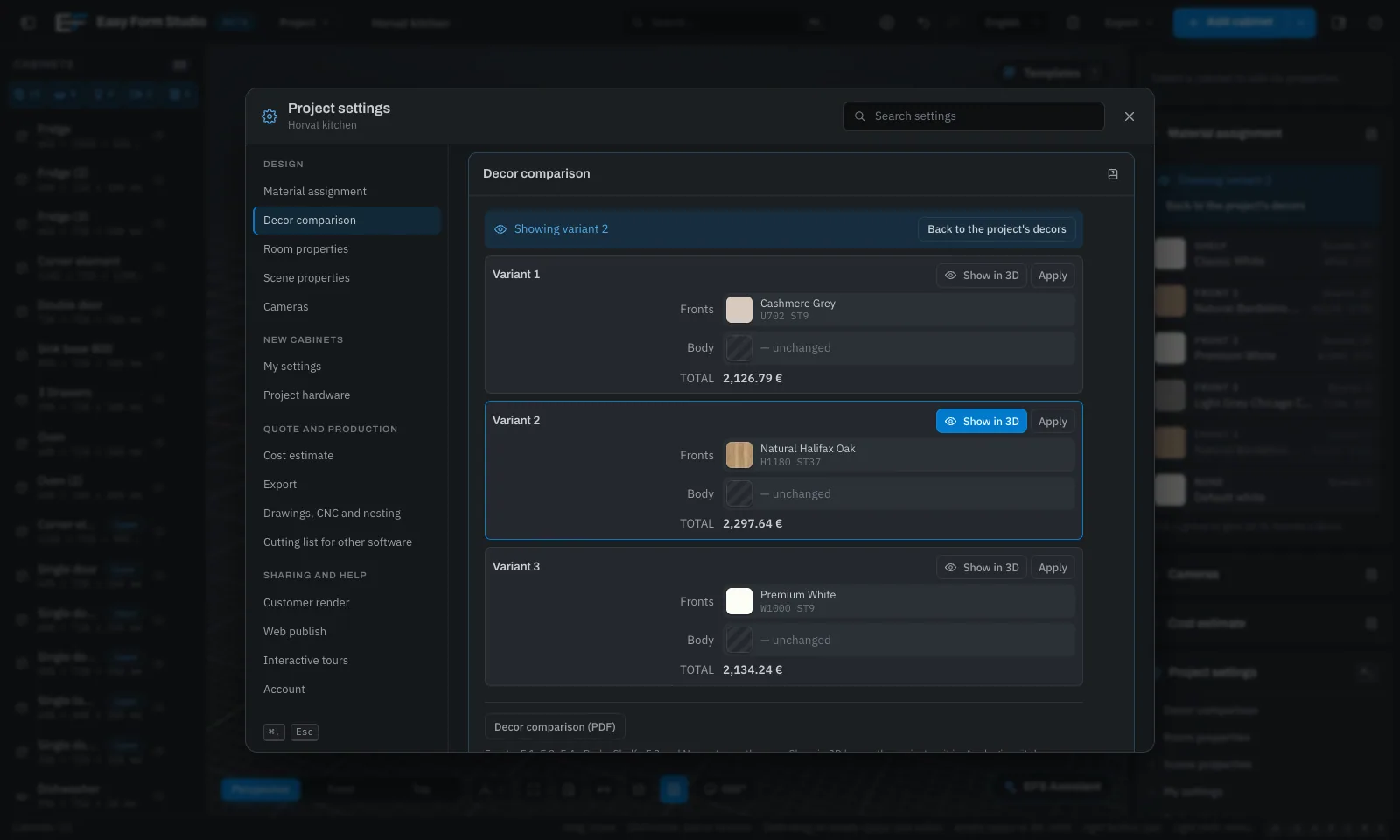
Showing a variant doesn't change the project: it isn't saved and it isn't in the undo history (Ctrl+Z). It also stays when you turn X-ray on or off. When you clear both decors of the variant, the view goes back to the project's decors by itself.
What takes the shown variant, and what the project's decors:
- Image of the view (JPG) and Customer render (JPG) capture what the 3D view shows, so the shown variant.
- The web publish, the AR model (USDZ), Selected to JPG and every production export (cutting list, quote, PDFs, labels, DXF) always have the project's decors.
Tip
For a picture of each variant, turn on its Show in 3D and export Customer render (JPG) or Image of the view (JPG). Apply the variant the customer chooses with Apply: only then is it in the publish, the AR model and production.
Apply
Apply gives the project the variant's decors: the Front 1, Front 2 and Front 4 groups get the decor from Fronts, and the Shelf group the decor from Body. Boards with their own decor in those groups lose their own decor and get the group's.
It is an ordinary change to the project: it shows in Material assignment, goes into the cutting list, the quote and the web preview, and is undone with Ctrl+Z (on a Mac Cmd+Z).
What is in the PDF
The decor comparison is one PDF: the comparison is on the first page, and the calculation of each variant follows it.
Comparison
At the top are the title Decor comparison, a Project: line with the project's name and a Date: line. The project's name is the Name from the Web publish panel if you typed one, otherwise the project's name from the top bar. The same name is the start of the PDF's file name.
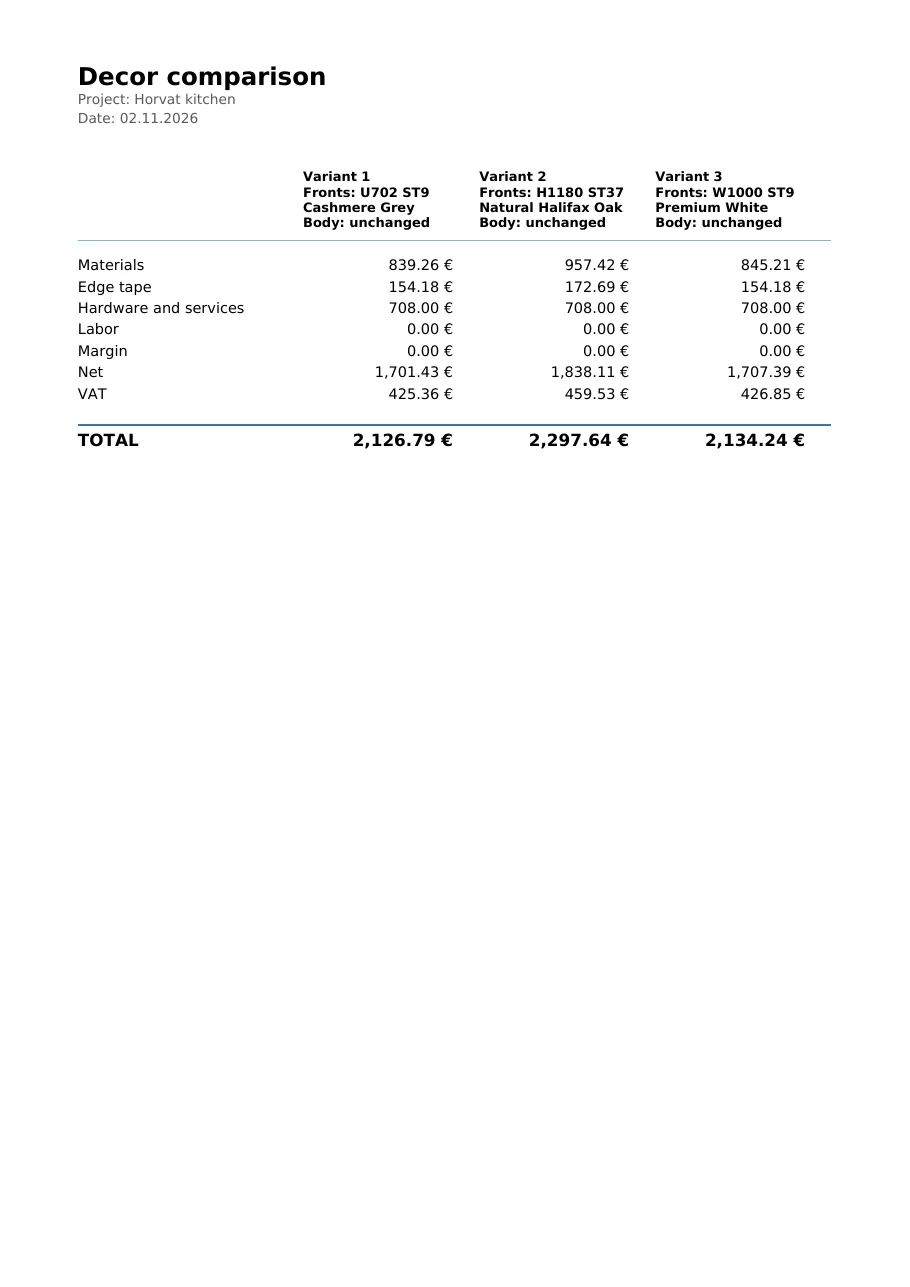
Each variant is one column. The column heading has Variant 1, Fronts: and Body: with the decor's full name, or unchanged. A name that doesn't fit the column's width wraps to the next line, so nothing is shortened.
| Row | What it is |
|---|---|
| Materials | The boards of all decors and thicknesses, without the worktop |
| Edge tape | The edge tape of all boards |
| Hardware and services | Hinges, slides, flap mechanisms, legs, joints, shelf supports, drilling, Gola, LED strips and the worktop by the metre |
| Labor | The Labor amount from the Cost estimate panel |
| Margin | Margin % of the sum of materials, edge tape, hardware and labour |
| Net | The sum of materials, edge tape, hardware, labour and margin |
| VAT | VAT % of the net |
| TOTAL | Net and VAT together |
The amounts are in the currency from the Currency field. If an item has no price in the price list, the bottom of the page says e.g. Items without a price in the price list, not included in the total: 3. The number is the sum over all variants: an item without a price in three variants counts three times.
The PDF has no images of the project. For an image of a variant, click Apply, make a render (see Render in the browser), then bring back the project's decors with Ctrl+Z.
Calculation of each variant
After the comparison, in the same PDF, each variant gets its calculation. It is the same internal calculation that Export quote (PDF) gives: the title CALCULATION (INTERNAL), below it a line with the variant and its decors (e.g. Variant 2 — Fronts: H1180 ST37 Natural Halifax Oak · Body: unchanged), the project, the customer (if entered) and the date, then the Materials, Edge tape and Hardware and services tables with the Item, Qty, Unit and Amount columns, and at the end Subtotal, Labor, Margin, Net, VAT and TOTAL. See A quote for the customer.
There is one file: Horvat kitchen_decor_comparison.pdf. If such a file is already in the downloads folder, most browsers add a number to the new one.
Note
The comparison is for you: it shows the margin and the labour. Show the customer the decors in 3D, in a render or in the web preview, and when they choose, send them the quote in that decor (see From comparison to quote).
How the price of a variant is calculated
Each variant is priced like a quote, with that variant's decors:
- Materials. EFS adds up the area of all boards by decor and thickness, without the worktop. It increases the area by Waste % (10 % by default) and multiplies it by the price per m² from the price list.
- Nesting. When Nesting: cutting diagrams is on and all the sheet sizes of a decor have a price, that decor is priced by the number and price of the sheets, without waste. See Nesting and board prices.
- Edge tape. Metres of edge tape by tape thickness, at the price from the price list. That is why oak fronts also change the price of the edge tape.
- Hardware and services. They are the same in all variants: the decor doesn't change the number of hinges, slides or drillings. The worktop is priced by the metre, so it is the same too.
- Labor. The same amount in all variants.
- Margin is Margin % of the sum of points 1 to 5, Net is the sum with the margin, and VAT is VAT % of the net.
The difference in boards and edge tape between two variants grows by the margin and VAT in the end. With a 20 % margin and 25 % VAT, a difference of 100 EUR in boards and edge tape becomes 150 EUR in TOTAL.
The TOTAL amount in the panel is priced with the price list EFS Web currently uses (your own or the shipped one). When you change prices in the price list, the amounts in the panel change at once.
Tip
When all the project's fronts have the same decor, put it in one variant. Its TOTAL equals the quote's total, so you see at once how much more or less every other variant costs.
The project after the comparison
The comparison doesn't change the project:
- Every board has the same decor as before. The amounts in the panel and the PDF are priced on a copy of the project.
- The material groups, grain, edge tape, dimensions and the quote stay as they were.
- The chosen decors stay in the Fronts and Body fields, for the next comparison.
The project changes only when you click Apply.
From comparison to quote
When the customer chooses a variant, give the project its decors and send the quote. An example for oak fronts:
- In the Decor comparison panel, click Apply next to Variant 2.
- In the Material assignment panel, check: Front 1, Front 2 and Front 4 are now H1180 ST37 Natural Halifax Oak.
- Export the quote with Export → Export quote (PDF) (see A quote for the customer).
You can also assign the decors by hand, group by group, in the Material assignment panel (Decors, edge tape and materials). Before the customer decides, you can show them the decors in a render (Render in the browser) or in the web preview, where they choose the decor of each group themselves (Web preview and QR).
Common problems and solutions
Decor comparison (PDF), Show in 3D and Apply are greyed out. In the variant (or in all variants) both fields are — unchanged. Choose at least one decor.
There is no Decor comparison panel. The project has no cabinet. Add a cabinet.
There is no TOTAL row. The variant doesn't change any group: both fields are — unchanged.
All the variants have the same Materials amount. Nesting is on, and the price list has one sheet price for all decors. Enter a sheet price for each decor or turn nesting off (see above). Also check whether the fronts are hidden with Shift+F.
The variants differ less than you expect. Some fronts are in the F 3 group or are hidden, so they don't get the variant's decor. Click a front and look at Material group in the Board tab.
The worktop and the backs have the same decor in all variants. That is intentional: the worktop is in the F 3 group, and the backs in the None group.
Special doors got the fronts decor. The doors are in the F 4 group or have their own decor in a fronts group. Before the comparison, move them to F 3.
After Apply, special boards lost their decor. Apply gives the decor to the whole group, also to boards with their own decor. Undo with Ctrl+Z and move those boards to F 3 before you apply the variant.
The kitchen in 3D is not in the project's decors. Show in 3D is on. Click Back to the project's decors.
The render or the image of the view has the variant's decors, and the web preview the project's. The render and Image of the view (JPG) capture the 3D view with the shown variant, while a publish always has the project's decors. To publish the variant, apply it with Apply.
The bottom of the PDF says that items have no price. The price list has no price for some decor, thickness, edge tape or hardware. Add the price to the price list (A quote for the customer).
The PDF has no Project line. The project has no name. Type it in the top bar or in the Web publish panel, Name field.
Decor comparison (PDF) reports that export is disabled. The trial or the subscription has ended. See Signing in, licence and projects.
Shortcuts in this chapter
| Key | Action |
|---|---|
| Ctrl+, (Mac Cmd+,) | The Project settings window with the Decor comparison panel |
| Shift+F | Hide or show the fronts: hidden fronts are not in the comparison, show them before the export |
| Ctrl+Z (Mac Cmd+Z) | Undo Apply |
| Esc | Close the decor picker |
Next
Next chapter: Customer portal. All the keys in one place are on the Shortcuts page, and the terms in the Glossary. What EFS Web does differently from the desktop program is on the Differences from the desktop program page.