Planner for a workshop's customers
This page is for you if a joinery workshop has given you the address of its planner. In the planner, in your browser, you put together a kitchen, a wardrobe or other furniture to the sizes of your room yourself and send the design to the workshop. The workshop refines it and sends you its version, until you agree. You agree the price, delivery and making with the workshop; the planner shows no prices.
Before you start
- You need a browser (on a computer, tablet or phone) and an internet connection. You install nothing and need no password.
- You get the planner's address from the workshop, e.g.
easyformstudio.com/s/stolarija-demo. At the top of the planner you see the workshop's logo and name. - You start designing at once, without signing in. Your work is kept in this browser, and the workshop sees it only when you send it.
- To send, you need an e-mail address: with the first send the planner e-mails a 6-digit code to it (see Send to the workshop).
- In a private browser window the planner warns at the bottom: "This browser does not keep data (a private window): send your design before you close it."
Start a design
The home screen has two tabs: New design and My designs.
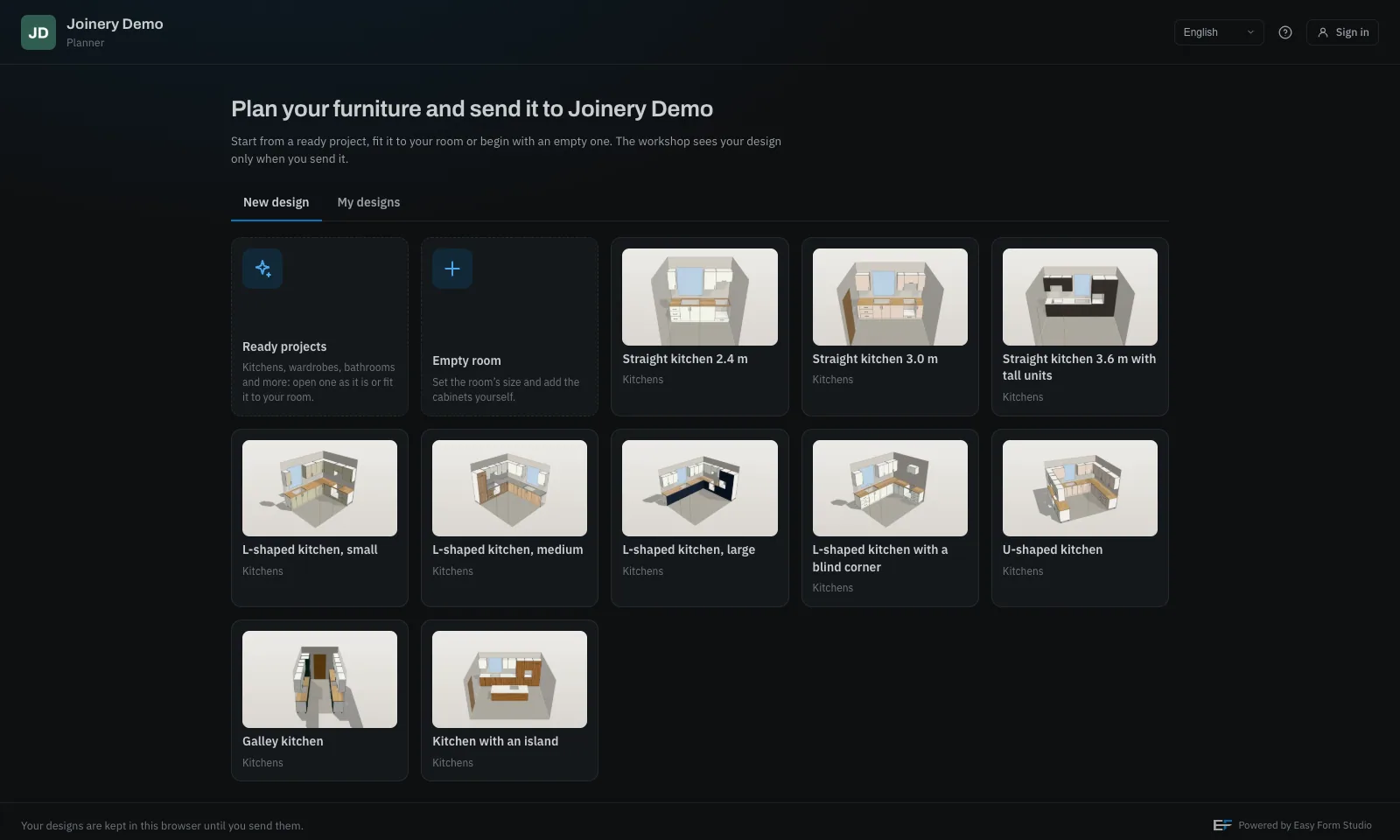
On the New design tab you choose how to start:
- Ready projects opens a gallery of kitchens, wardrobes, bathrooms and other rooms. Pick a project and click Open as it is or Fit to my room: you type the sizes of your room, and the planner arranges the chosen project to them.
- Empty room: you set the room's size and add the cabinets yourself.
- A ready project's card (a straight kitchen, an L-shaped kitchen…) opens that project in the gallery at once.
At the top right are Sign in (for designs you have sent already, see My designs), the planner's language and ?, which opens this page.
Designing
The first time, the planner shows Four tips to start. Click Got it; you open the tips again in the Project menu. The basics of designing:
- Look around. Drag with the mouse on an empty spot to turn the view, with the right button to move it, and use the wheel to zoom. On a phone: one finger turns, two fingers move and zoom.
- Change a cabinet. Click a cabinet: its sizes, fronts, drawers and shelves are in the panel on the right, on a phone in the panel at the bottom of the screen.
- Add a cabinet. New cabinet in the top bar adds a cabinet, and Templates (key T) offer ready-made cabinets, e.g. a sink unit or an oven unit.
- Draw. The arrow next to New cabinet → Draw a cabinet… opens an editor where you draw a wardrobe or a bookcase from the front: lines become shelves and dividers, you give the cells doors or drawers, and Make cabinets builds the cabinets from the sketch (Draw a cabinet).
- Decors. On the Project tab, in the Material assignment panel, click a group (e.g. the fronts) and choose a decor. Every board of that group gets it.
- The room. You change the room's size, windows and doors in the Project settings (the gear in the top bar).
- Undo. Ctrl+Z (on a Mac Cmd+Z) or the arrow in the top bar takes back the last change.
- A picture. The Export menu has Customer render (JPG), Image of the view (JPG) and AR model (USDZ) for iPhone and iPad.
The planner saves every change in this browser by itself. If you close the tab, the design waits for you under My designs.
Send to the workshop
When the design is ready, click Send to the workshop at the top right. The Send to the workshop window opens:
- If you like, write what the workshop should know in Message to the workshop (optional), e.g. "Sink under the window, fridge on the left. What would the oak decor cost?" The message goes with this version of the design, up to 1000 characters.
- Click Send (or Ctrl+Enter in the message field, on a Mac Cmd+Enter).
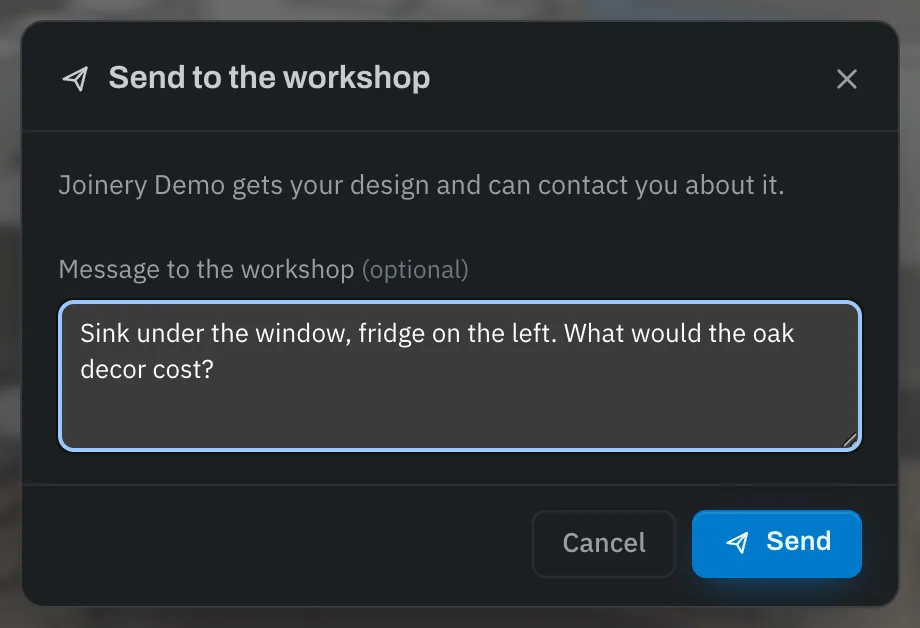
Cancel closes the window without sending; the message you wrote stays in this browser until the next send.
The first send: e-mail and code
With the first send the planner then asks for your e-mail address. It e-mails a 6-digit code to it, and the design goes to the workshop only when you confirm the code.
- Type your E-mail address and, if you like, Your name (optional). Below, a note says that the workshop gets your e-mail address and name so that it can contact you, with the Privacy link.
- Click Send me a code.
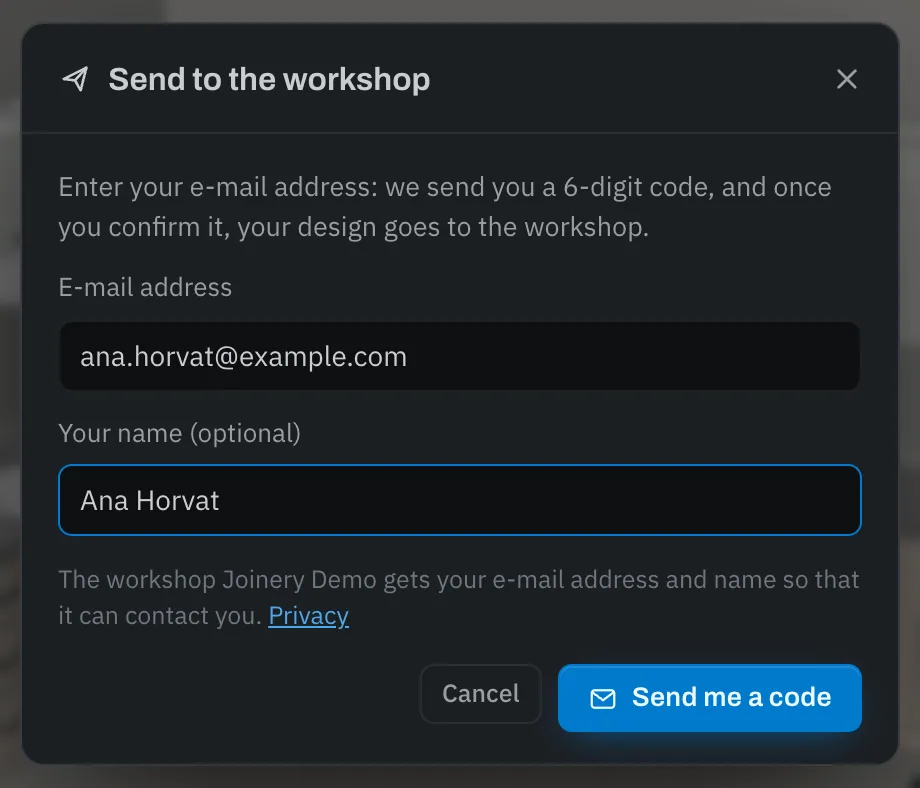
- Open your e-mail. The message "Your code for the … planner" arrives within a minute; if it does not, look in the spam folder too.
- Type the code into the six boxes. When you type the last digit, the planner checks it by itself; you can also click Confirm and send.
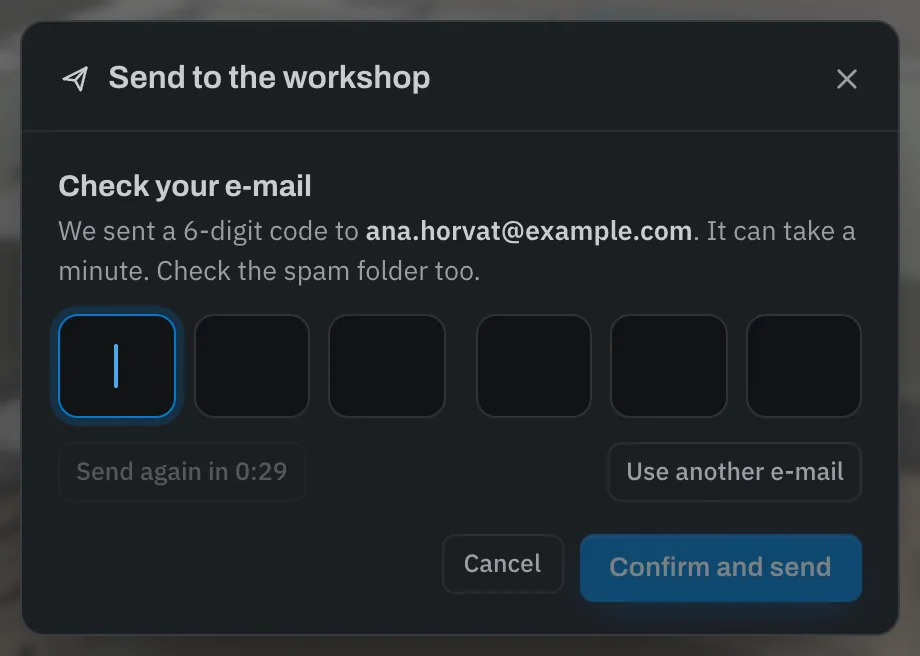
- Send again sends a new code. The button works half a minute after the previous code; until then it shows how long to wait.
- Use another e-mail goes back to the first step.
- A code is valid for 10 minutes and works only once.
When the code is accepted, the design goes to the workshop and the Sent to the workshop window opens:
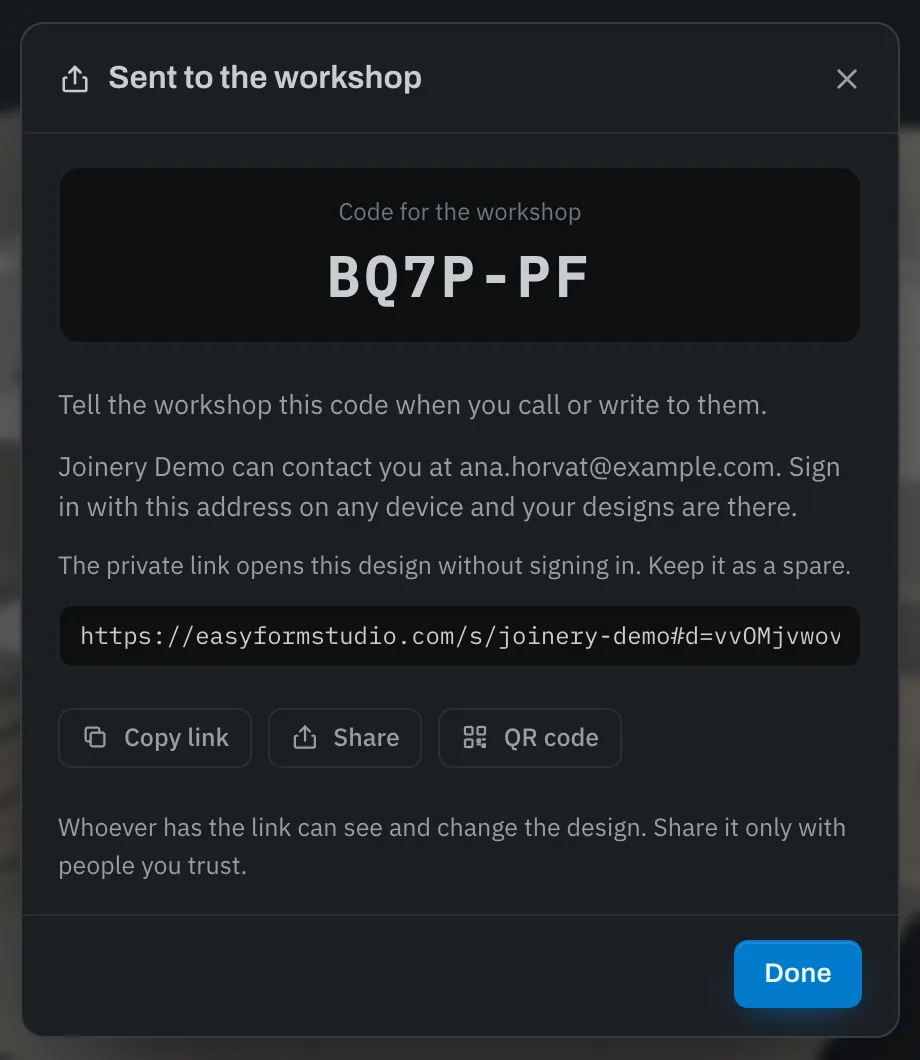
- Code for the workshop (e.g.
7KQ2-M4): tell the workshop this code when you call or write to them, so they know which design is yours. - The workshop can contact you at your e-mail address. You sign in with the same address on any device, and your designs are there.
- The Private link opens the design without signing in too. Keep it as a spare: Copy link, Share (on a phone) or QR code with Download QR code.
- Click Done.
The sign-in lasts 90 days in this browser. While you are signed in, the planner does not ask for a code again.
Warning
Whoever has the private link can see and change your design. Share it only with people you trust.
Later sends
Every later send makes a new version of the design, and the planner says Sent to the workshop. When you send again before the workshop opens your newest version, the new send replaces it; the window then shows that version's message already, so you can edit it. The code and the link stay the same; you open them again with Project → Link and code or with a click on the code in the top bar.
Next to the code in the top bar is the design's status:
| Status | What it means |
|---|---|
| Not sent yet | The design is only in this browser |
| Sent to the workshop | The workshop has your newest version |
| Changes not sent | You changed the design after sending it; send it again |
| The workshop is looking at it | The workshop has opened your design |
| The workshop sent a version | A version from the workshop is waiting for you (see The workshop sent a new version) |
| Confirmed · v3 | You confirmed version 3 |
| In production · v3 | The workshop is making version 3 |
| Archived | The design is closed |
| Waiting for the connection | No internet; the design goes to the workshop when the connection is back |
My designs
My designs on the home screen (or a click on the workshop's logo in the top bar) shows your designs, with their picture, code, date and status. A click on a design opens it.
- While you are signed in, it has every design you have sent to that workshop, from other devices too.
- On another device, click Sign in at the top right of the home screen (or under the list) and type the same e-mail address and the code from the message.
- Designs you have not sent yet exist only in the browser you made them in.
- The bin on the card (Remove from this browser) asks once more, and Remove confirms. The workshop keeps a design you have sent, and signing in brings it back; a design you never sent is deleted.
- You start a new design with Project → New design… or on the New design tab.
Your account
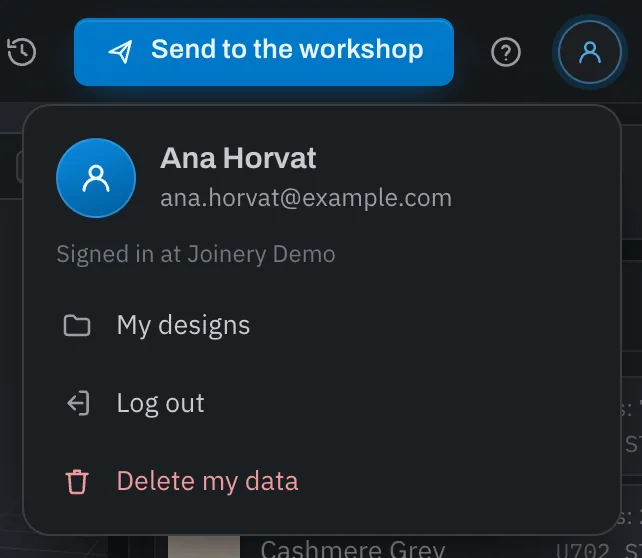
While you are signed in, there is a person icon at the right of the top bar. A click opens a menu with your name and e-mail address and the line "Signed in at …":
| Item | What it does |
|---|---|
| My designs | Goes back to the list of your designs |
| Log out | Asks Log out?. The designs you sent leave this browser (the workshop keeps them, and signing in brings them back); designs not sent stay. When a sent design has changes not sent yet, the planner warns that those changes are lost: send them before you log out |
| Delete my data | Asks Delete your data?. Your e-mail address, your name and every design sent to that workshop are deleted from the server for good, and the workshop no longer sees them. Designs that were not sent stay in this browser |
The account belongs to that workshop only: with the same e-mail address in another workshop's planner you have a separate account.
E-mail from the workshop
When the workshop sends a new version of your design, you get the e-mail "… sent you a new version of design …" with the link Open the design. When the workshop sends a correction before you open that version, the correction replaces it without a new message.
- When the workshop wrote a message with the version, the message is in the e-mail, under the link.
- The link in the e-mail opens that design in the planner. When you are not signed in, the planner asks you to sign in with the address the message came to.
- You can reply to the message: your reply goes to the workshop.
Versions
Versions (the clock icon in the top bar, or Project → Versions) shows every version you and the workshop have sent, the newest first. A dot on the icon means a new version is waiting for you.
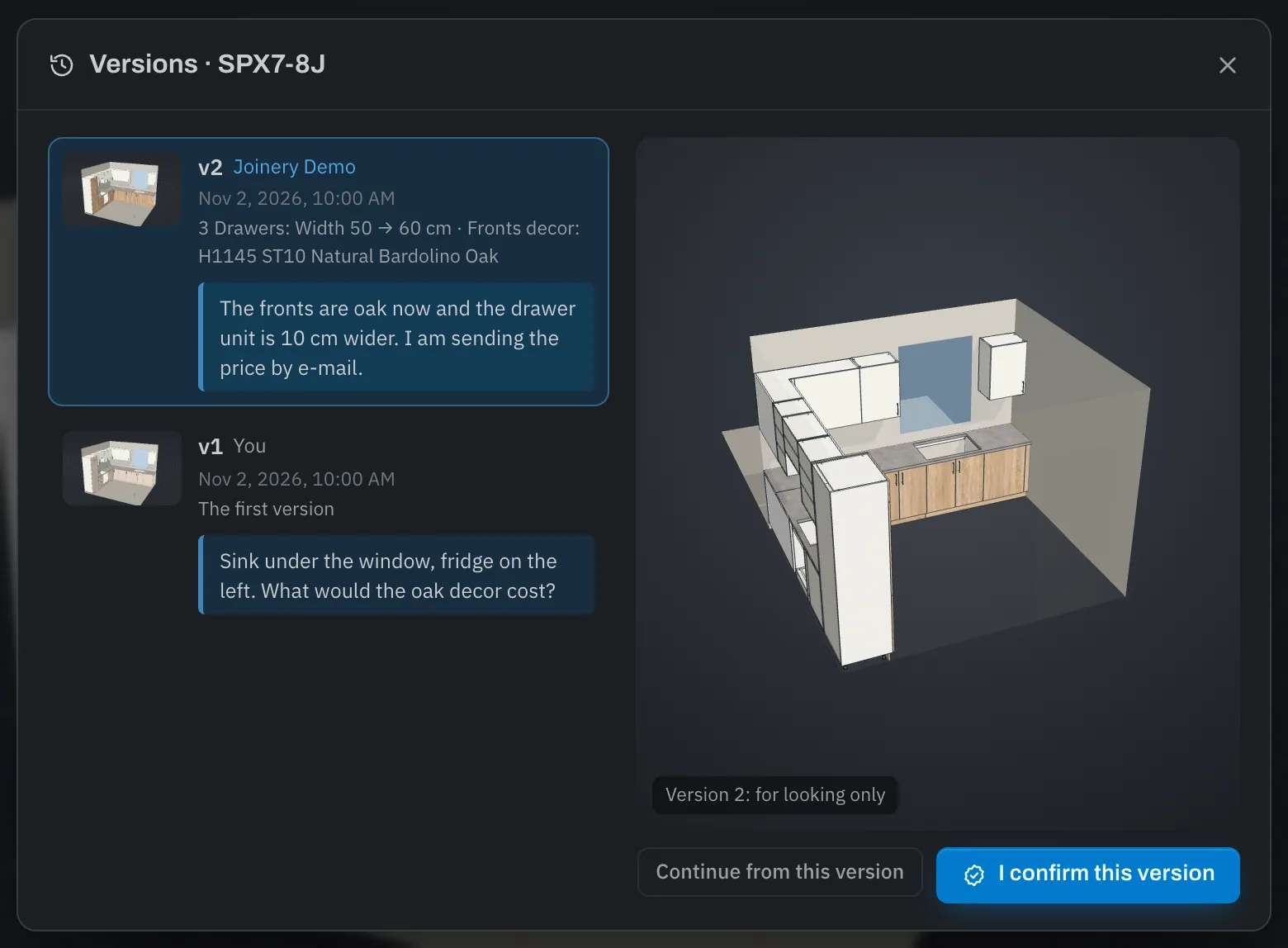
- Each version has its number, its author (You or the workshop's name), the date and what changed, e.g. "3 Drawers: Width 50 → 60 cm · Fronts decor: …". For older versions click Show changes.
- The message with a version, yours or the workshop's, is under the summary, in a box.
- A click on a version shows it in 3D, for looking only.
- Continue from this version: your design becomes that version. Undo brings back what you had.
- I confirm this version: you tell the workshop that you agree with that version. The planner says "You confirmed version 3. The workshop sees it." You usually confirm the newest version.
The workshop sent a new version
When the workshop sends its version, you get an e-mail (see E-mail from the workshop), and a banner appears over the 3D view, e.g. "Stolarija Demo sent version 2.", with the workshop's message under it (Message from the workshop) when it wrote one:
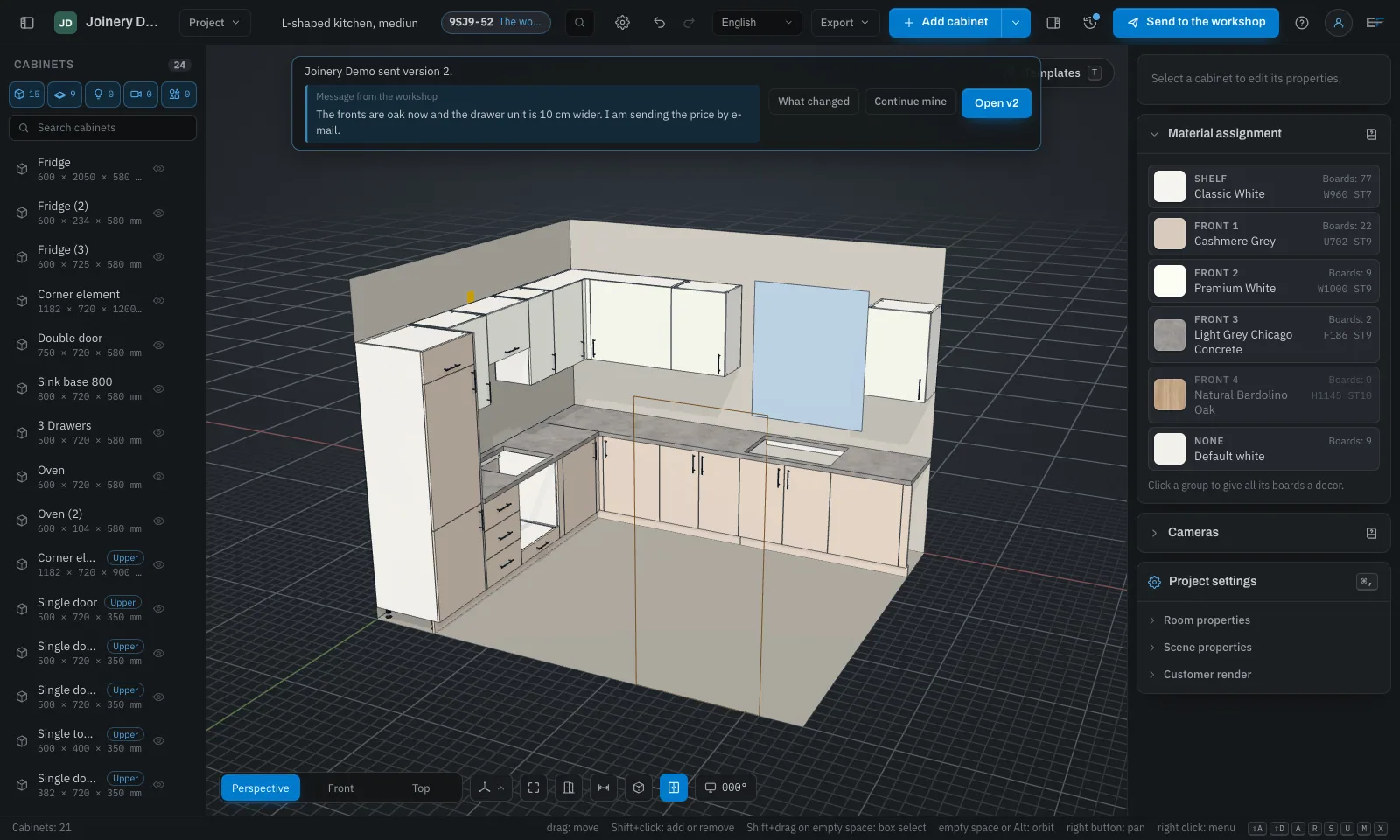
- Open v2: the workshop's version becomes your design. Undo brings back yours.
- What changed: opens Versions, with the summary and the 3D preview.
- Continue mine: you keep your design. When you send it, the workshop sees that it was made from your older version.
The planner looks for new versions every few minutes and when you come back to the tab.
In production
When the workshop releases the design to production, the banner over the 3D view says "In production · v3: the workshop is making it.", and Send to the workshop becomes In production. You can still look at the design and every version, but you can neither send changes nor confirm. If a change is needed after all, contact the workshop: it can unlock the design.
An archived design is closed in the same way: "Archived: the design is closed. You can look at it and its versions."
When the planner does not work
| Message | What to do |
|---|---|
| The planner is not available right now | The workshop has switched the planner off or it is not working for a time. Contact the workshop. Your designs stay in this browser and open again when the planner is back |
| This design no longer exists | The workshop has deleted the design or given you a new link. Contact the workshop |
| This planner does not exist | The address is wrong. Check it with the workshop |
| No connection | The planner needs the internet to start. Check the connection and click Try again |
Privacy
- Until you click Send to the workshop, the design is only in this browser.
- With the first send the workshop gets your e-mail address and, if you typed it, your name, so that it can contact you. The planner does not ask for a phone number or an address.
- The workshop sees the design (furniture, sizes, decors, room), its picture and the messages you write with versions; it also gets your message by e-mail.
- The sign-in uses one cookie (
efs_guest) only so that the planner knows you; it lasts 90 days or until you log out. - You delete your data yourself: Delete my data in the account menu (see Your account).
- Do not type personal data (address, phone) into cabinet names, notes or the design's name. The code and your e-mail address are enough for the workshop to know it is you.
- More in the privacy policy (the Privacy link in the sign-in window).
Common mistakes and solutions
Send to the workshop is greyed out. The design has not been sent and is empty: add at least one cabinet. If the button says In production, the workshop is making the design.
The planner says there is no connection. The design is kept in this browser and goes to the workshop when the connection is back.
The code did not arrive. Wait a minute and look in the spam folder. Check that the address is typed correctly; if it is not, click Use another e-mail. Ask for a new code with Send again when the countdown ends.
The code is not right. The planner says "That code is not right. Check the e-mail and try again." Type the code from the newest message; older codes no longer work.
The code has expired. A code is valid for 10 minutes. Click Send again and type the new one.
Too many attempts. After several wrong codes or requests the planner says how long to wait. Wait and try again.
I do not see my design on another device. Sign in on that device with the same e-mail address (Sign in on the home screen). Designs you have not sent stay only in the browser you made them in.
Over the design it says "Sign in to send changes…". You logged out or the sign-in has expired. Click Sign in and confirm your e-mail address with a code; your work stays in the browser.
I have lost the link. You do not need it: sign in with your e-mail address. The link is also under Project → Link and code on the device you sent the design from.
The workshop says it did not get the design. Check the status next to the code in the top bar. If it says Not sent yet or Changes not sent, click Send to the workshop.
Too many sends from here. Wait as long as the message says and send again.
Next
Ask the workshop that gave you the planner about price, delivery and making. Workshops read about the portal in the chapter Customer portal.