EFS Web · User manual
EFS Web is Easy Form Studio in the browser, at app.easyformstudio.com. You build a cabinet in 3D, and the program turns it into a cutting list, drawings, CNC files, part labels, assembly instructions and a customer quote. There is nothing to install: you sign in with the e-mail address of your licence, and your projects are saved to the cloud and open on any computer, tablet or phone.
Video: Quick walkthrough: from the room to CNC files
The whole EFS Web workflow in a short silent video with English subtitles. You find all EFS Web video guides on the website's Video guides page (EFS Web tab) and in the YouTube playlist.

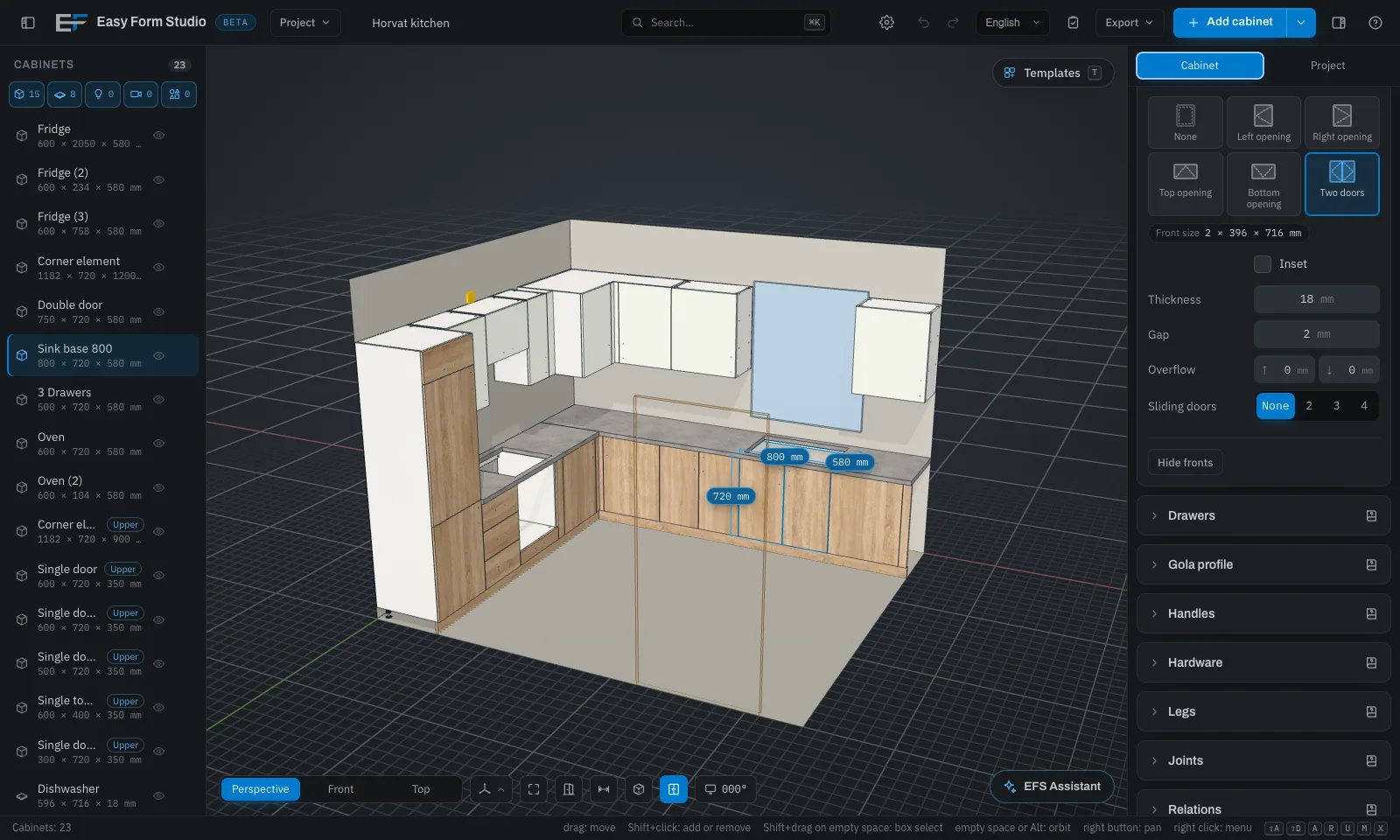
The manual follows the same order as the EFS Web video guides, and each chapter comes with its video. The chapter goes into more detail than the video: it takes you through one part of the work step by step and describes every option, the default values and the rules EFS Web applies by itself. The desktop program (the EasyFormStudio app and the Blender add-on) has its own manual.
-
Start here
Signing in and projects in the cloud, the interface, how a cabinet is built, decors, templates, working faster and drawing a sketch.
-
Kitchen from A to Z
One project from the room's measurements to the quote: cabinets, worktop, kickboard, hardware and documents for the fitters.
-
Production and CNC
Cutting list, joints, drillings, DXF, MPR and CIX, nesting, labels and the board order.
-
Wardrobes, bathroom, hallway
Compartments and rails, sliding doors, the vanity unit, hallway and living room.
-
For the customer
Render in the browser, a 3D preview on the phone through a QR code, decor comparison and the customer screen in the showroom.
-
Help
All shortcuts in one place, the glossary, FAQ, support and the differences from the desktop program.
How to use the manual
- New to EFS Web? Work through the chapters of Start here in order. The first one is Signing in, licence and projects: signing in with a code from your e-mail and saving projects to the cloud.
- Looking for something specific? Type a term into the search at the top right, for example rebate, kickboard or minifix.
- Don't know what something is called? Look it up in the Glossary. It gives the English and the Croatian names.
- Do you also work in the desktop program? What EFS Web does not have yet, and what only it has, is in the chapter Differences from the desktop program.
Button and field names are written in bold, exactly as the English interface of EFS Web shows them. Keys look like this: Ctrl+S. On a Mac you press Cmd instead of Ctrl.
Help right inside EFS Web
- ? at the top right opens Help and tours: Manual, What's new, EFS Assistant, Send feedback and the interactive tours by topic.
- The book icon (Manual) in a panel's header opens the chapter about that panel.
- The EFS Assistant at the bottom right of the 3D view answers questions about the program.
The manual opens in the language of the EFS Web interface.